NAS Explained: Network Attached Storage for Home Users
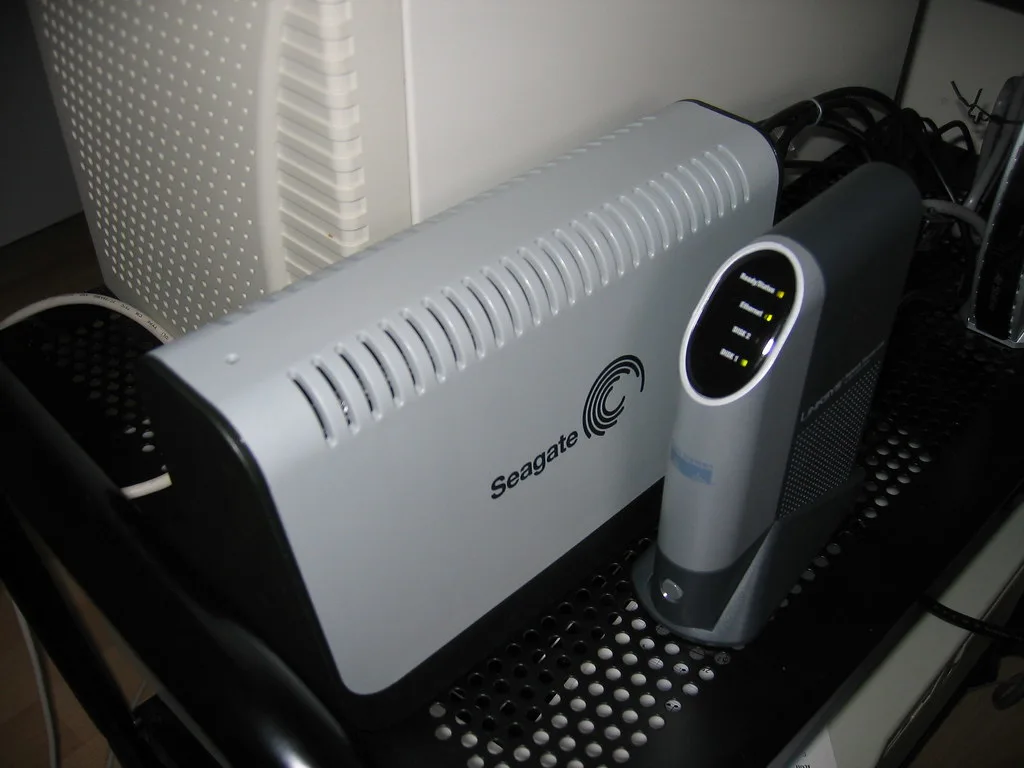
A NAS, or network attached storage, is a small always-on box of hard drives that plugs into your router and gives every device in the house a shared pool of storage over the network. Think of it as your own private cloud: instead of files living on one laptop or scattered across USB sticks, they sit in one place that your phone, TV, games console and every computer can reach. For home users it usually earns its keep as a backup target, a photo library and a media server for streaming your own films. This guide explains what a NAS actually does, the one myth that catches people out, and how to choose one without a nasty surprise.
What a home NAS is actually for
Most people buy a NAS for one of a handful of jobs, and it happily does all of them at once:
- Automatic backups. Every computer and phone in the house can back up to it, so a lost or broken device is an inconvenience rather than a disaster. Apple’s Time Machine can use a NAS as its destination.
- A private photo library. Point your phone’s camera roll at it and you get an offline, private alternative to a paid cloud photo subscription.
- A media server. With software like Plex or Jellyfin, a NAS streams your own film and music collection to any screen in the house, and often outside it too.
- Shared files. One folder that the whole household or a small office can read and write, rather than emailing documents around.
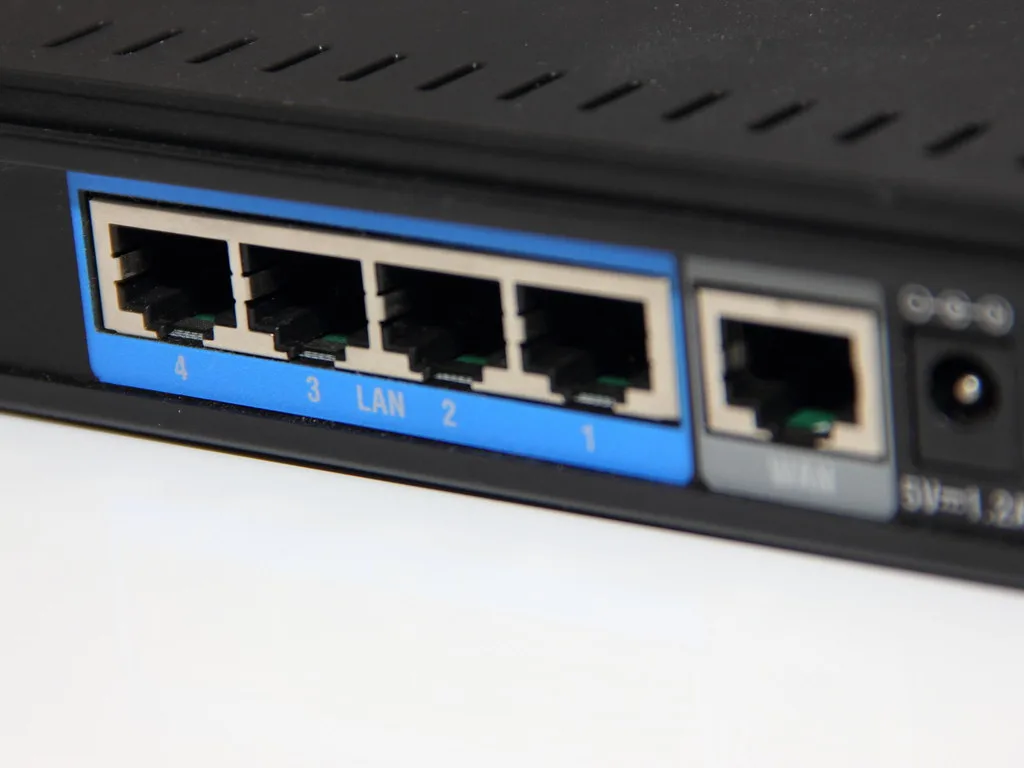
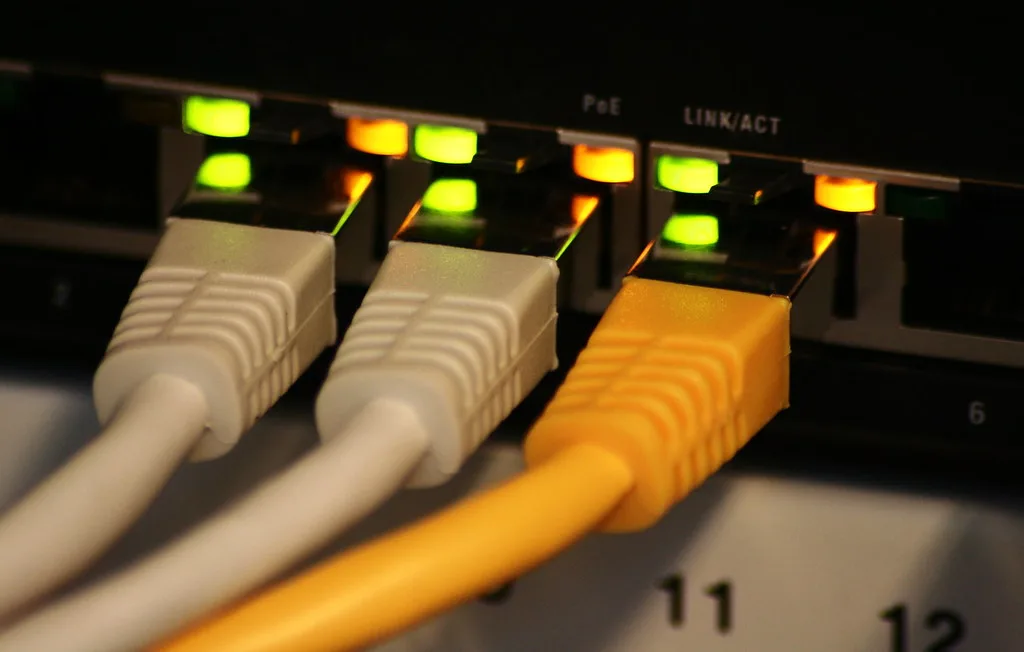
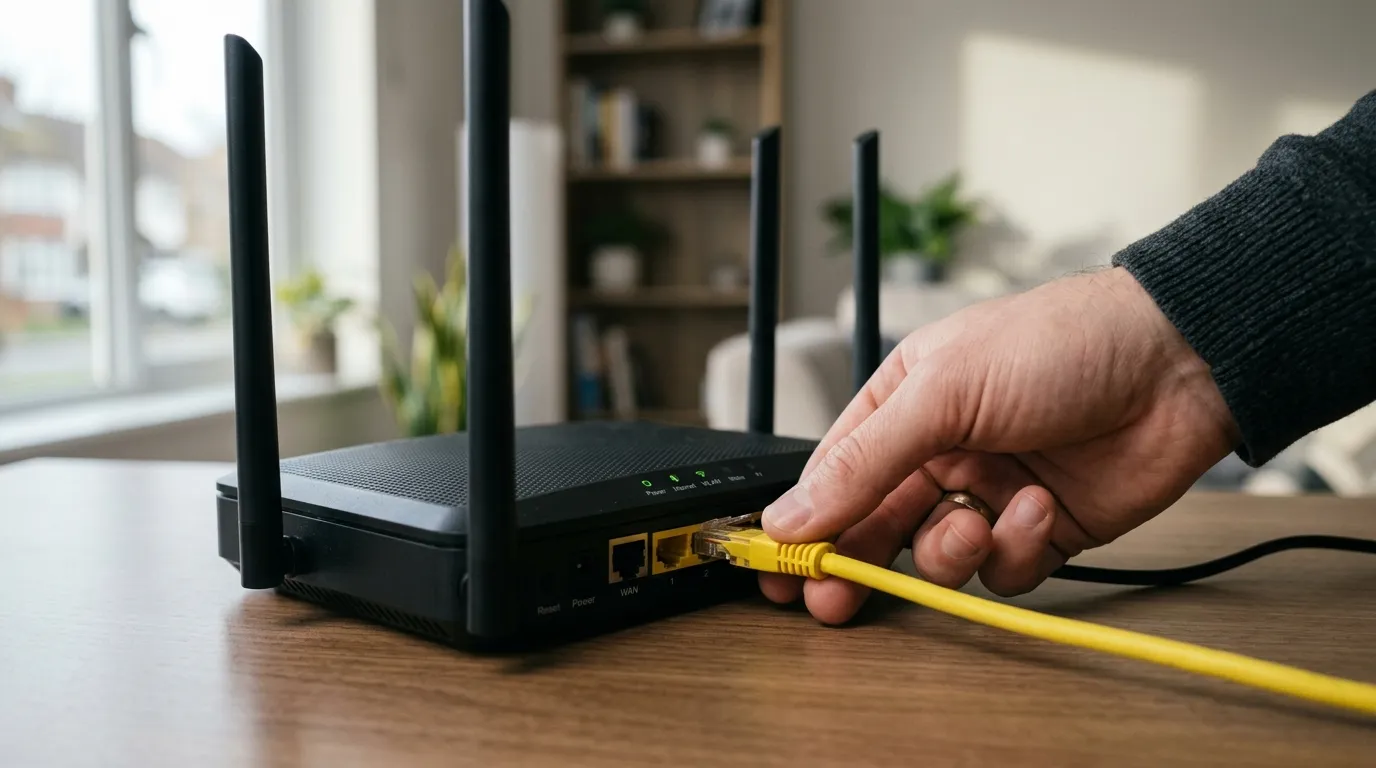
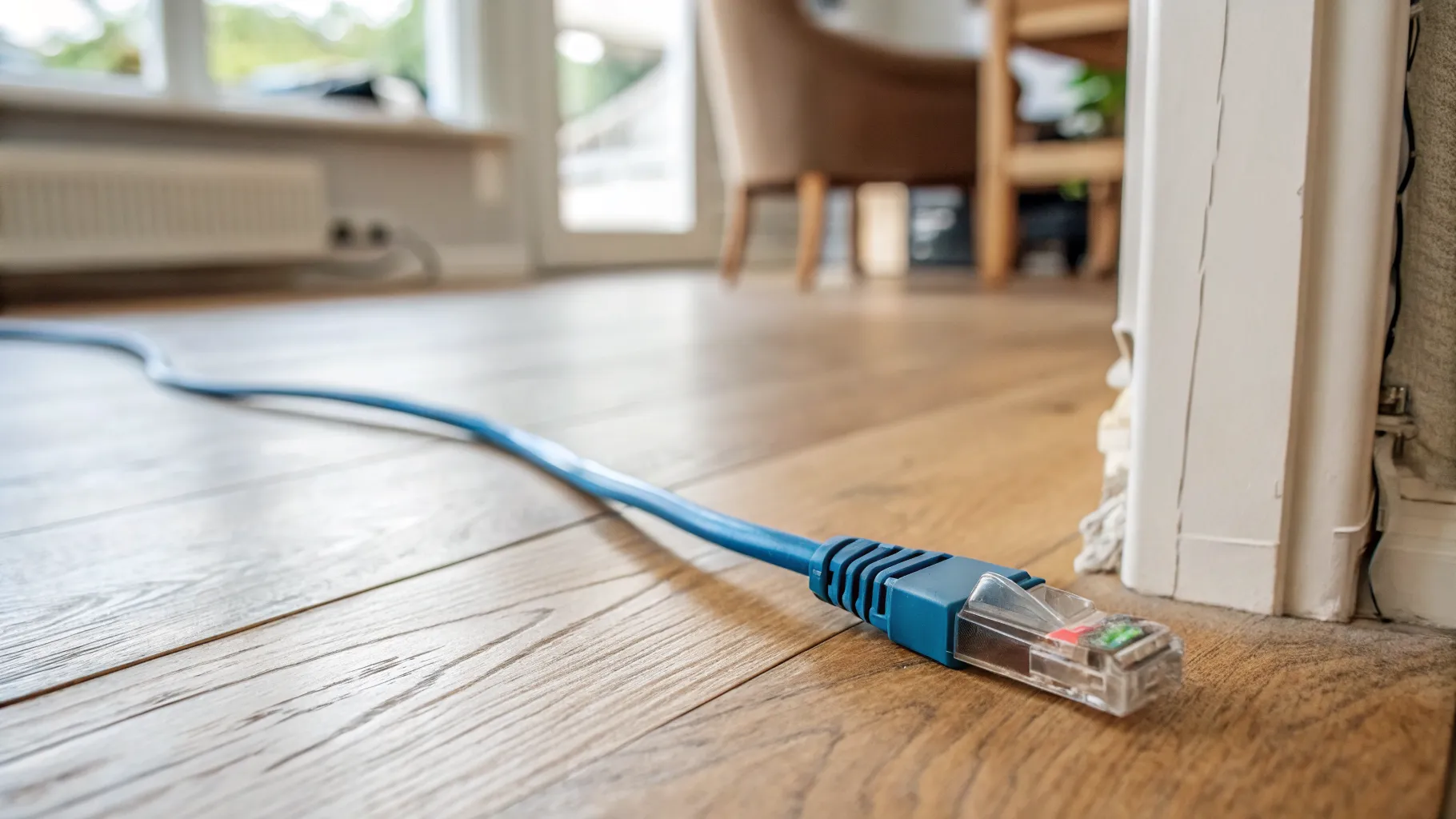
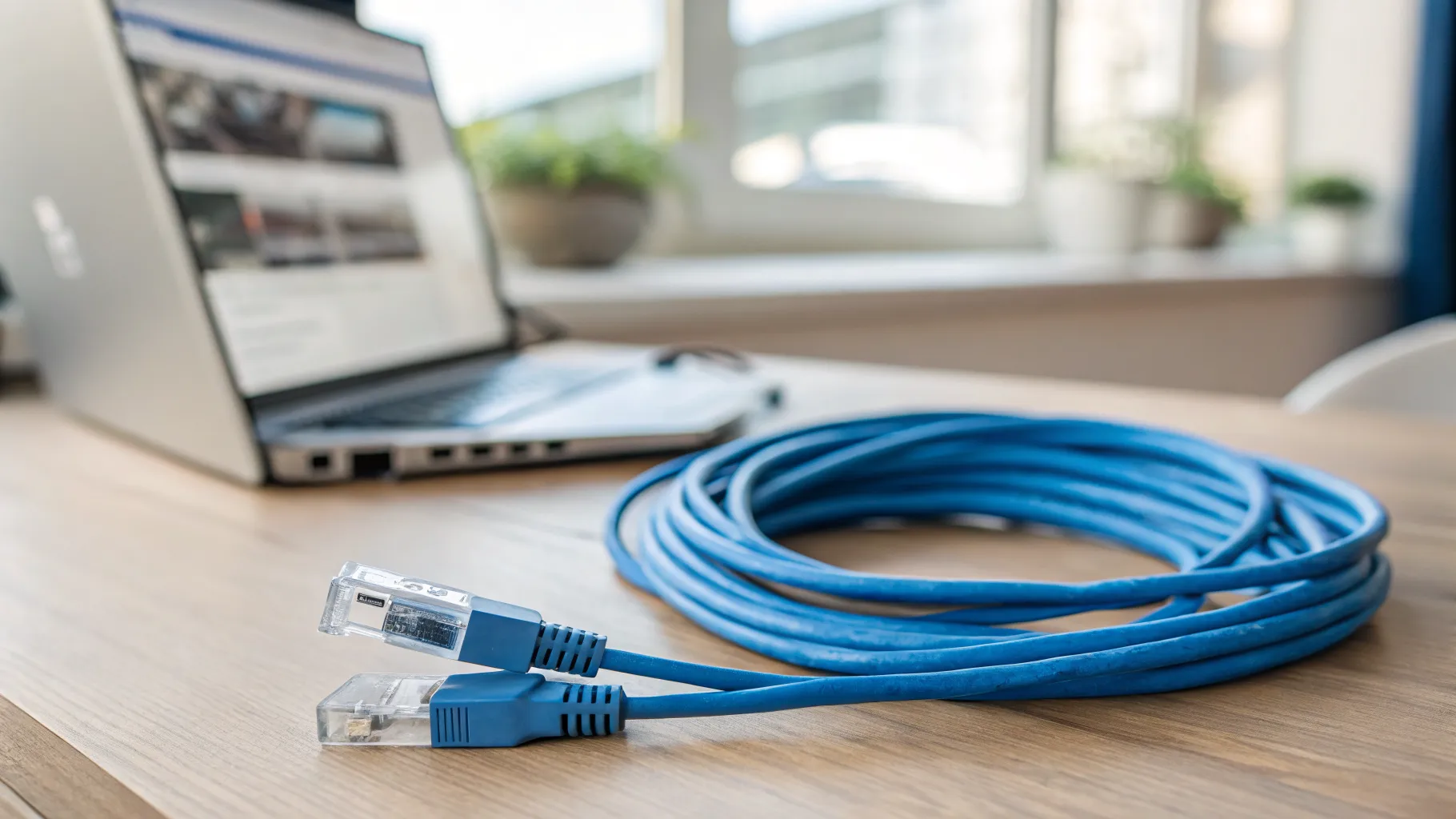
Because it connects over your network, wired performance matters. A NAS on a gigabit or 2.5Gb switch with a decent Cat 6 ethernet cable will feel far snappier than one leaning on Wi-Fi.
RAID is not a backup
This is the single most important thing to understand before you buy. Many NAS boxes have two or more drive bays and can mirror your data across them using RAID, so that if one drive dies the other keeps your files safe. That is genuine protection against a drive failing, and it is worth having.
But RAID is not a backup. If your files are deleted by mistake, hit by ransomware, corrupted, or the whole unit is stolen or destroyed in a fire, RAID copies the problem to both drives instantly. A NAS should be one part of the well-known 3-2-1 approach: three copies of your data, on two types of media, with one copy kept off-site (a cloud backup or a drive stored elsewhere). Treat the NAS as your convenient main copy, not your only one.
The drive compatibility trap
Two brands dominate the home market, Synology and QNAP, and there is a recent catch worth knowing.
Synology’s software (DSM) is the friendlier choice for a first NAS: cleaner, simpler and less troubleshooting. However, several of Synology’s newer models released from 2024 onward now expect Synology-branded or Synology-validated drives to unlock full health monitoring and some features. You can still fit third-party drives, but you may see compatibility warnings and lose certain functions. QNAP, by contrast, places no such restriction and takes any standard SATA drive, which matters if you already own drives or want to shop around on capacity.
Whichever you choose, fit drives built for a NAS (models such as WD Red or Seagate IronWolf are designed to run 24/7), and in a RAID array use matched drives of the same model and capacity. If you plan to run Plex, aim for a model with at least 4GB of memory, which is the sensible floor for smooth streaming and light apps.
How to choose the right NAS
Match the box to the job:
- Two bays suits most homes: one drive’s worth of usable space with a second mirroring it for failure protection.
- Four bays makes sense for large media libraries or a small office that wants more capacity and flexibility.
- Check the ports. A 2.5Gb network port is worth having if the rest of your kit supports it, so the NAS is not the bottleneck.
- Decide on the ecosystem. If you value the simplest life, Synology’s software wins; if you want maximum drive freedom and hardware value, QNAP is the pick.
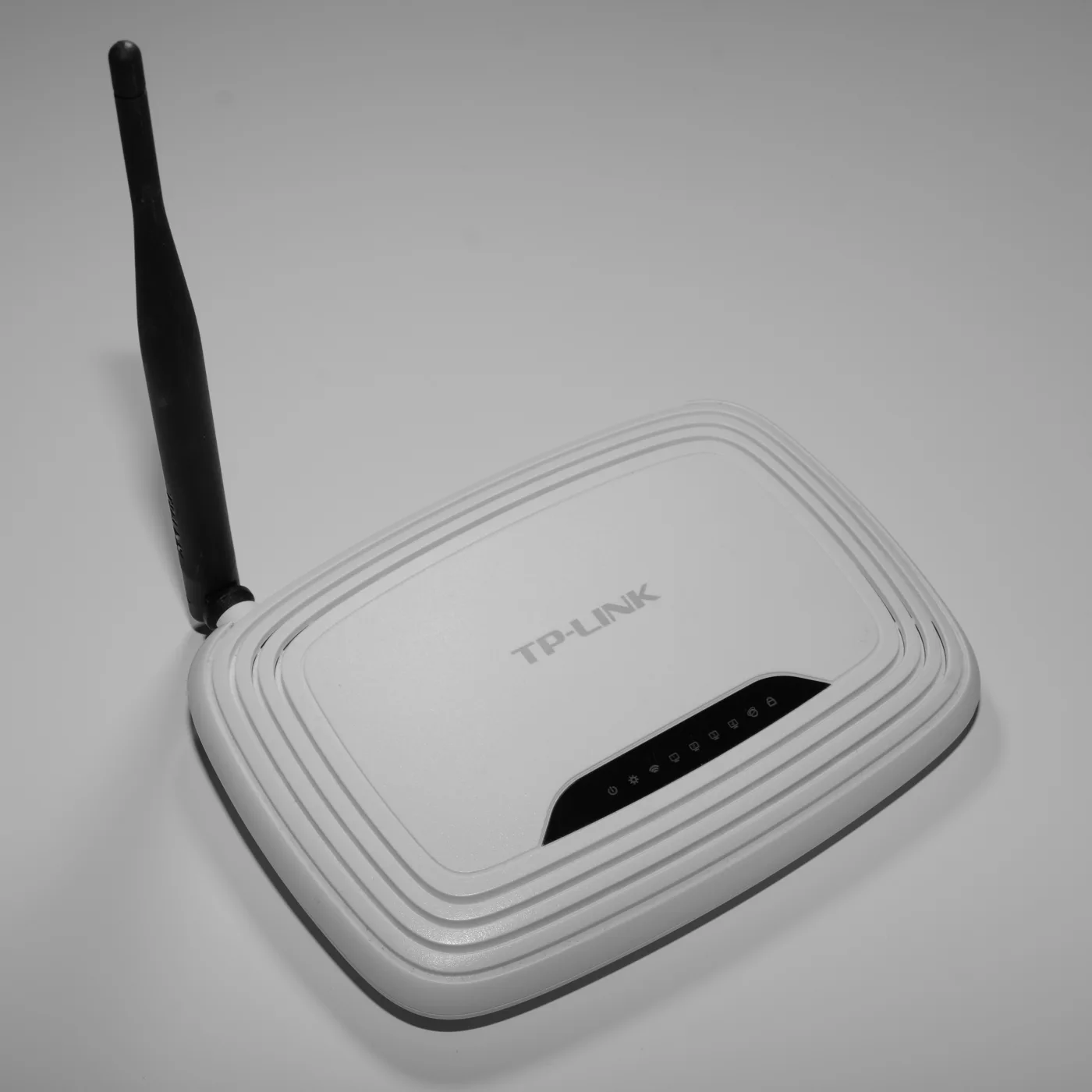
If a full NAS feels like more than you need, a simpler shared USB drive or a mesh router with a USB port can cover basic file sharing, though it will not match a NAS for backups, apps or media streaming. For the wider home-network picture, our mesh Wi-Fi guide and what broadband speed you actually need are good companion reads. Manufacturer sites such as Synology list current models and their drive compatibility notes, which is worth checking before you buy.
Frequently asked questions
What is a NAS in simple terms? A NAS (network attached storage) is a small box of hard drives that connects to your home router and shares its storage with every device on the network. It works like a private cloud for backups, photos, media streaming and shared files, all kept in your own home rather than on someone else’s servers.
Is a NAS the same as a backup? No. A NAS is a convenient main copy of your files, and RAID inside it protects against a single drive failing, but it does not protect against deletion, ransomware, theft or fire. Keep a separate off-site or cloud backup as well, following the 3-2-1 rule.
Do I need special drives for a NAS? Use drives designed to run continuously, such as WD Red or Seagate IronWolf. Note that some newer Synology models expect Synology-validated drives to unlock all features, while QNAP accepts any standard SATA drive, so check the compatibility list before buying.
How many drive bays do I need? Two bays suit most households, giving you mirrored protection against a drive failure. Choose four bays if you have a large media collection or a small office needing more capacity and flexibility. More bays also allow more resilient RAID setups.
Can a NAS run a Plex media server? Yes, a NAS is a popular way to run Plex or Jellyfin and stream your own films and music around the house. For smooth playback choose a model with at least 4GB of memory, and remember that streaming to many devices or converting video on the fly needs more power.
Does a NAS slow down my internet? No. A NAS runs on your local network and does not use your internet connection for in-home access, so streaming a film from it or backing up to it does not eat your broadband. Only remote access from outside the house uses your internet upload speed.