Why Is My Wi-Fi So Slow? 12 Fixes That Actually Work (UK)
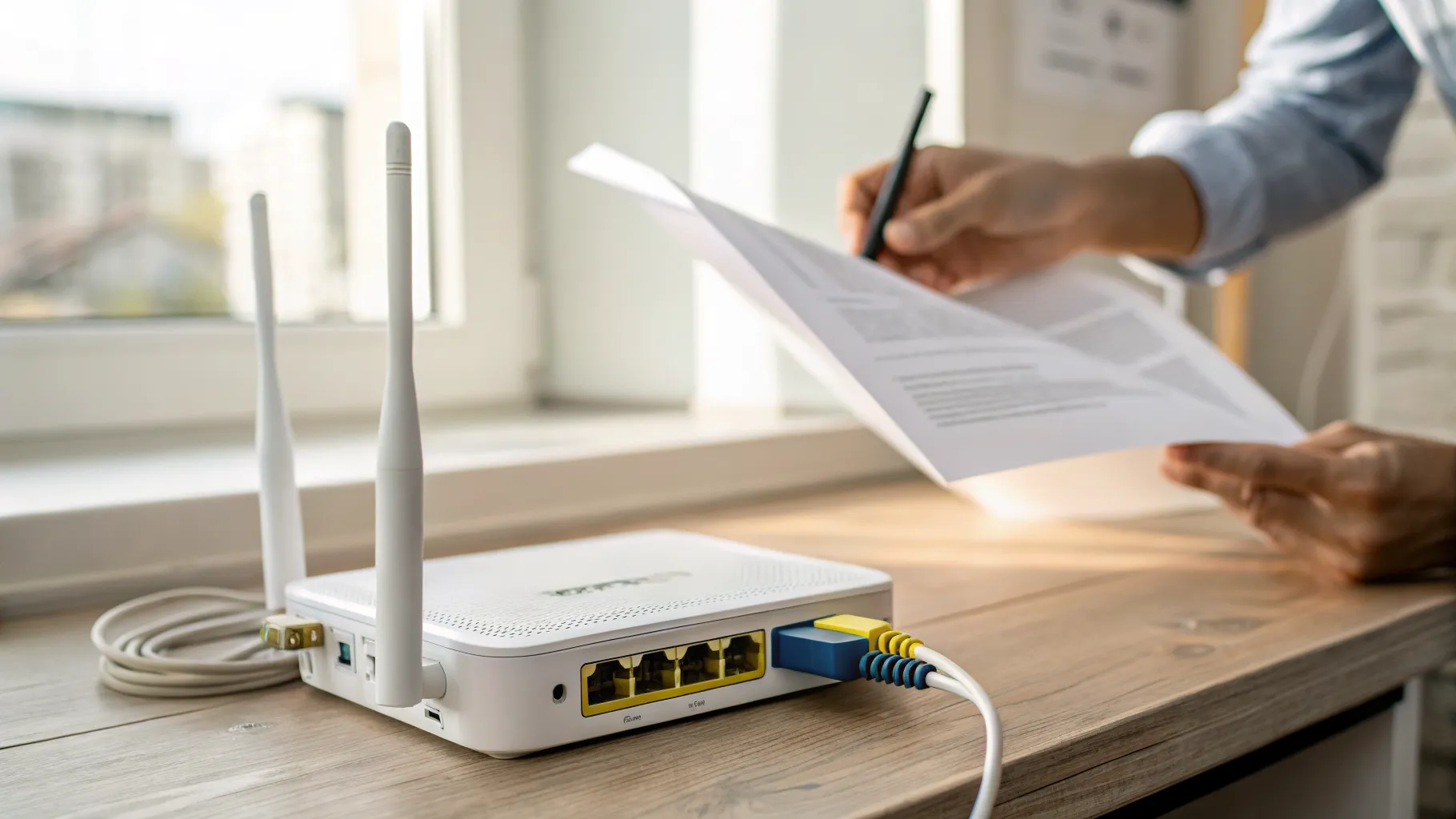
Your Wi-Fi is usually slow for one of three reasons: your device has dropped onto the crowded 2.4GHz band, the router is in a poor spot so the signal is fighting through walls, or something on your line (or your provider) is throttling the actual broadband speed coming into the house. The fastest way to find out which is to run a wired speed test, then a Wi-Fi test in the same room as the router. If the wired result is fine but Wi-Fi is poor, the problem is inside your home and you can fix most of it yourself in a few minutes.
This guide walks through 12 fixes in the order an engineer would try them, with the UK-specific details that most pages skip: what speed you should actually be getting, your rights under Ofcom’s speed rules, and the channel settings that work on British routers.
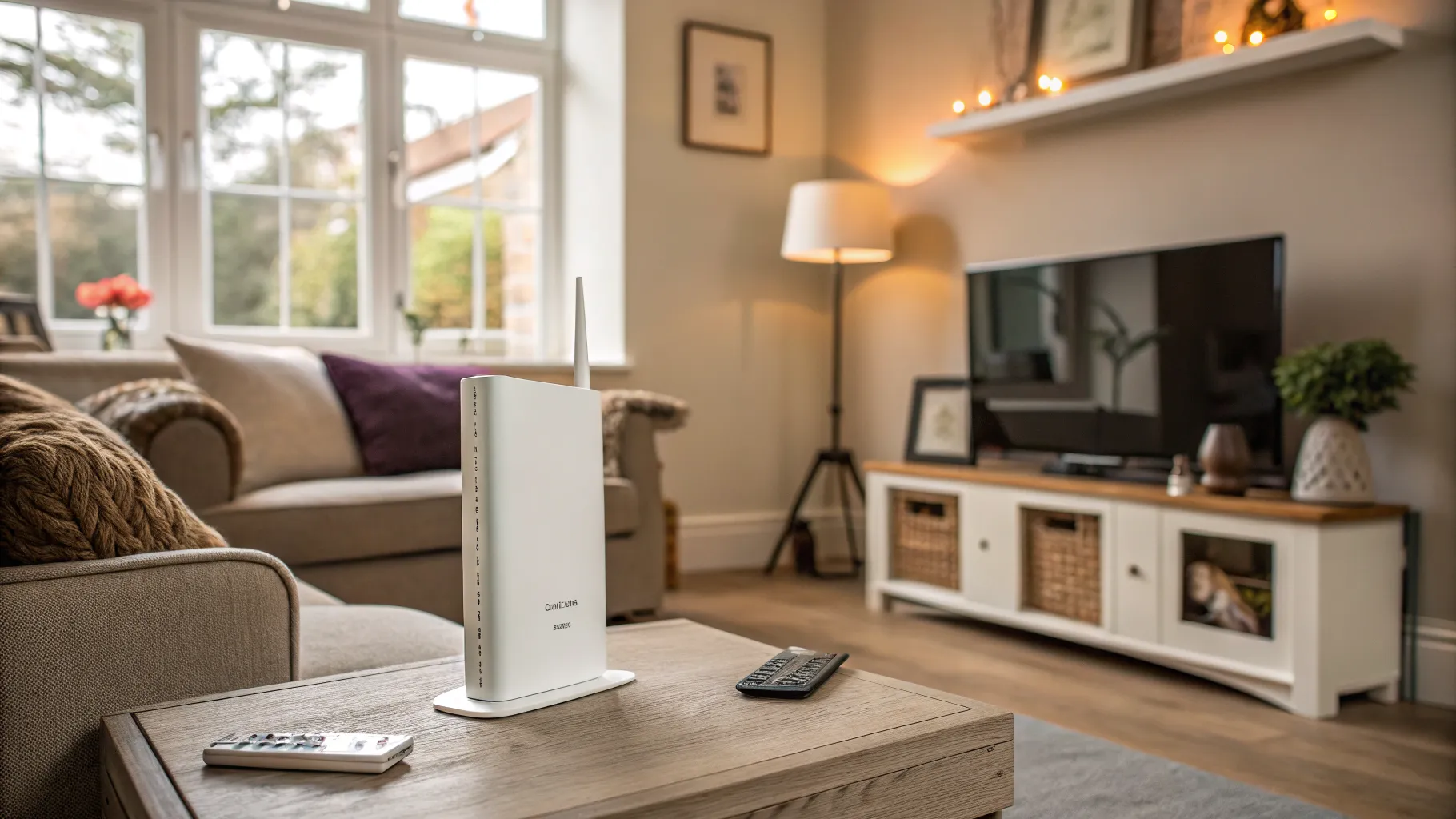
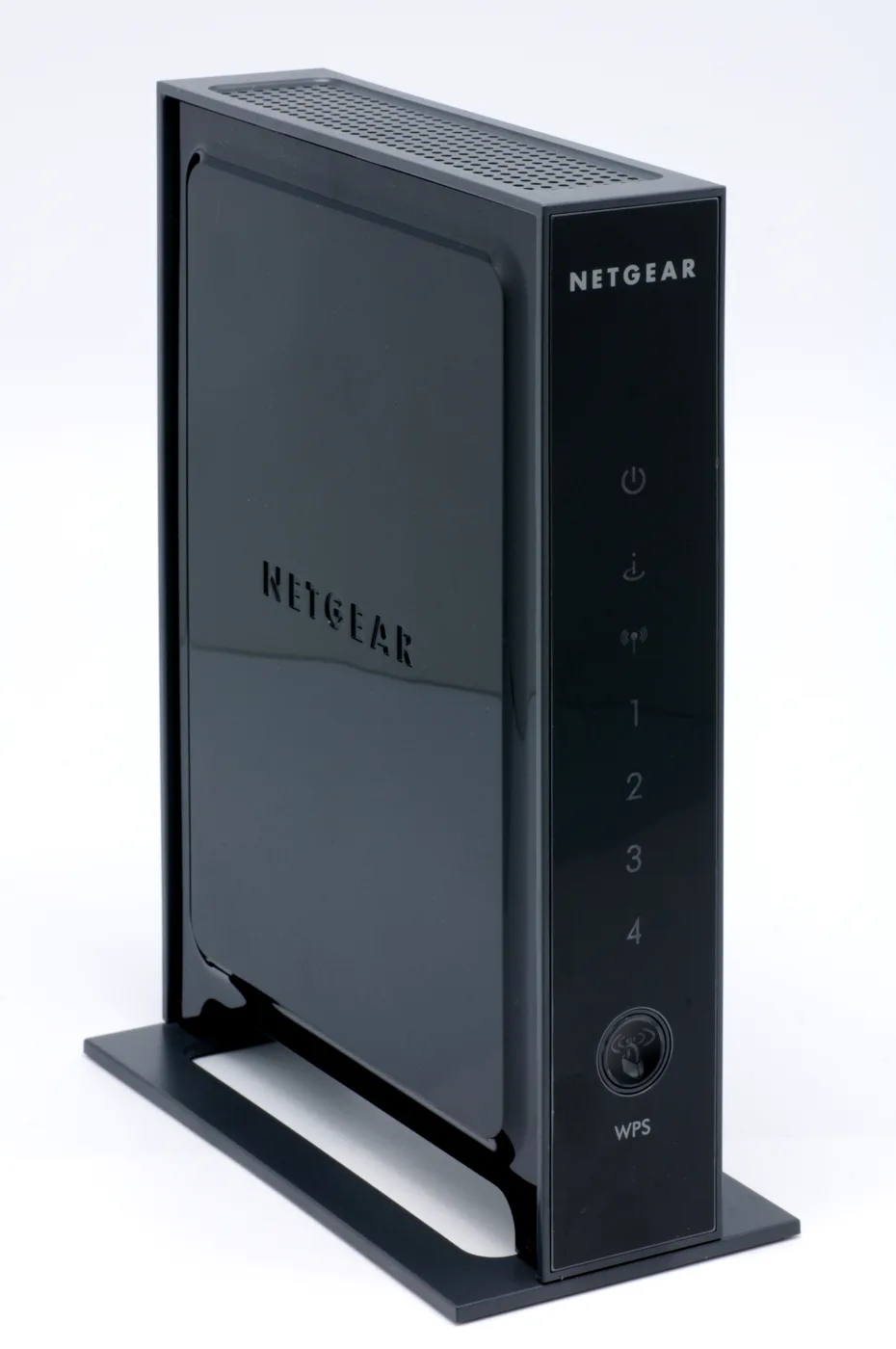
First, work out where the problem is
Before changing anything, find out whether you have a broadband problem or a Wi-Fi problem. They have completely different fixes.
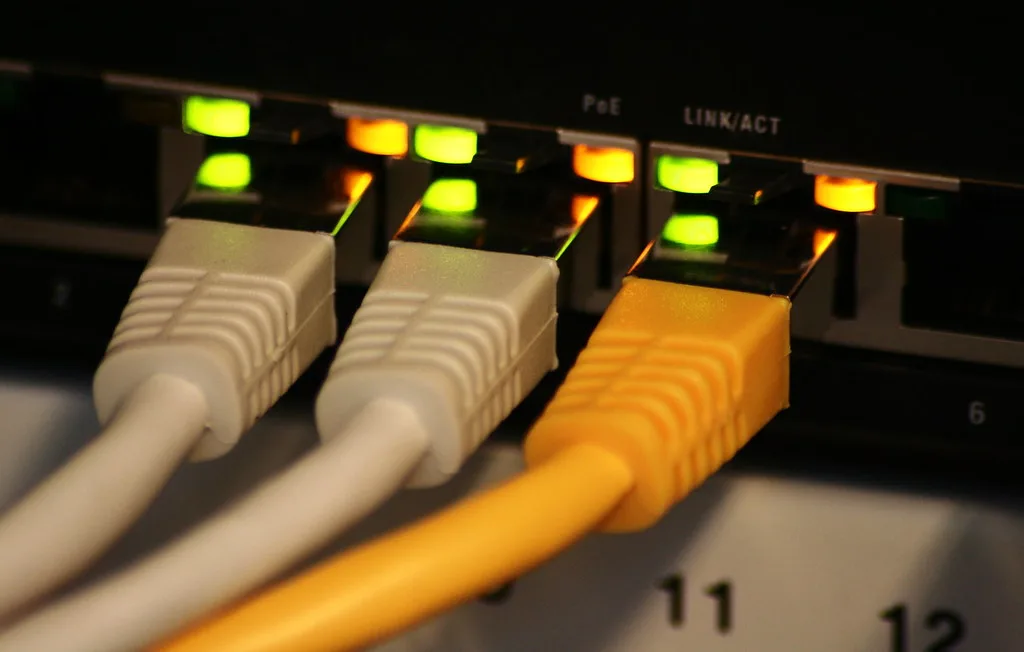
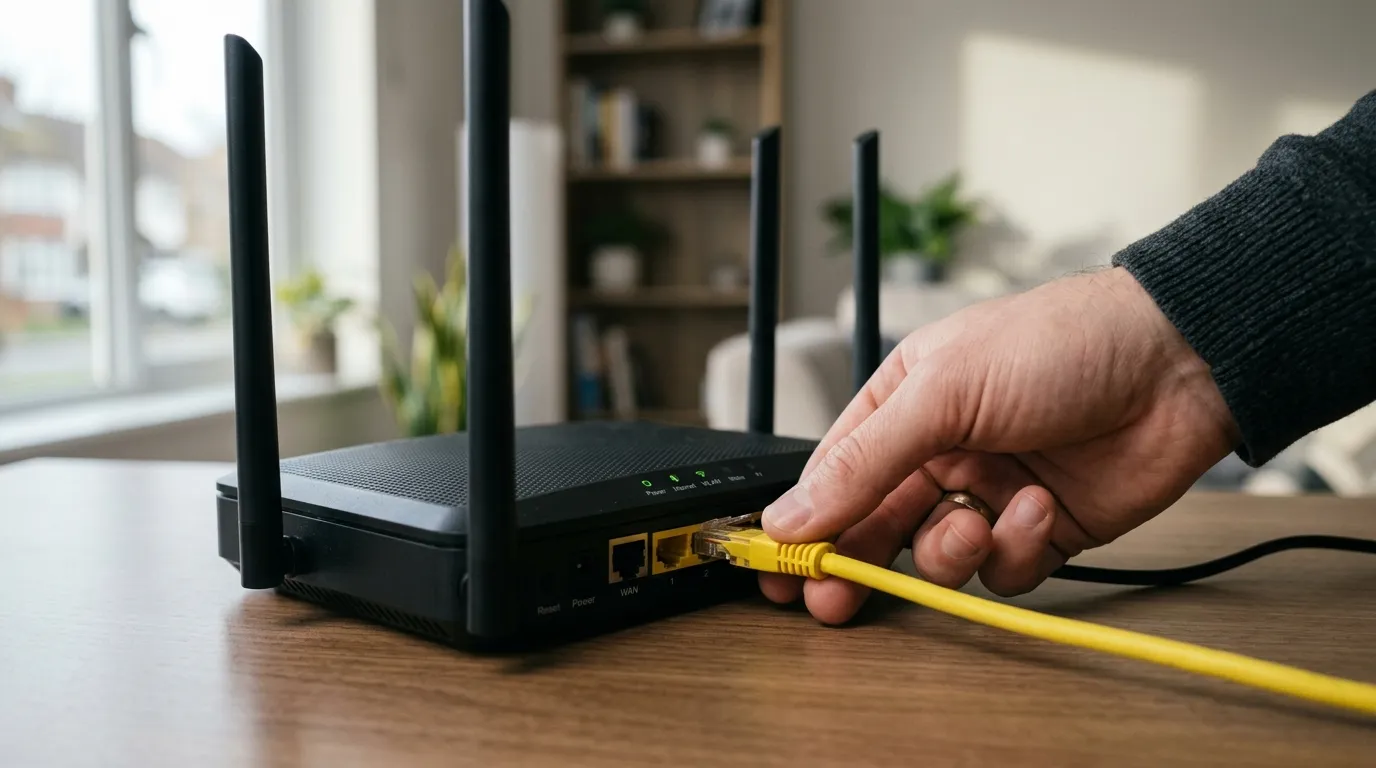
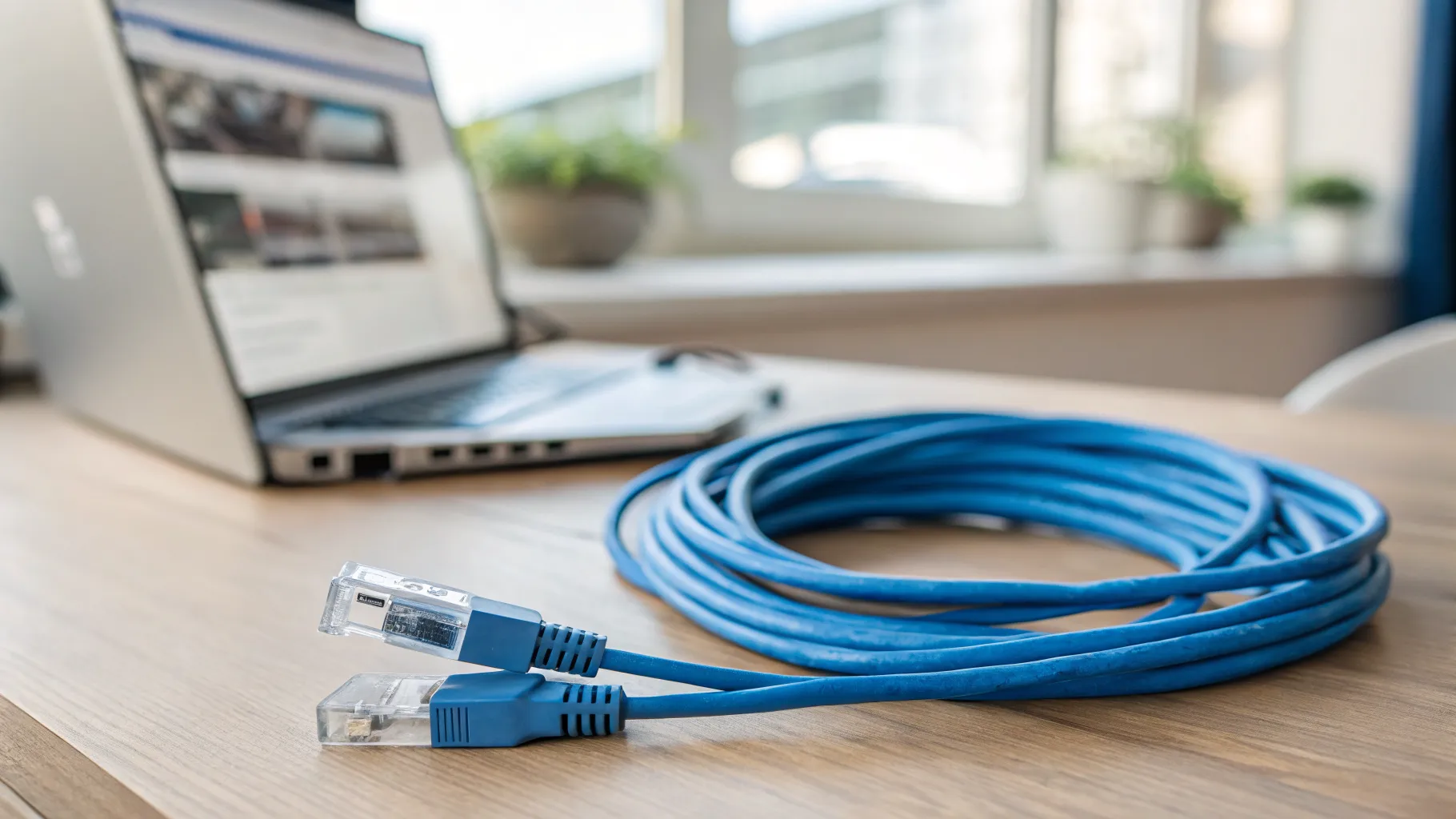
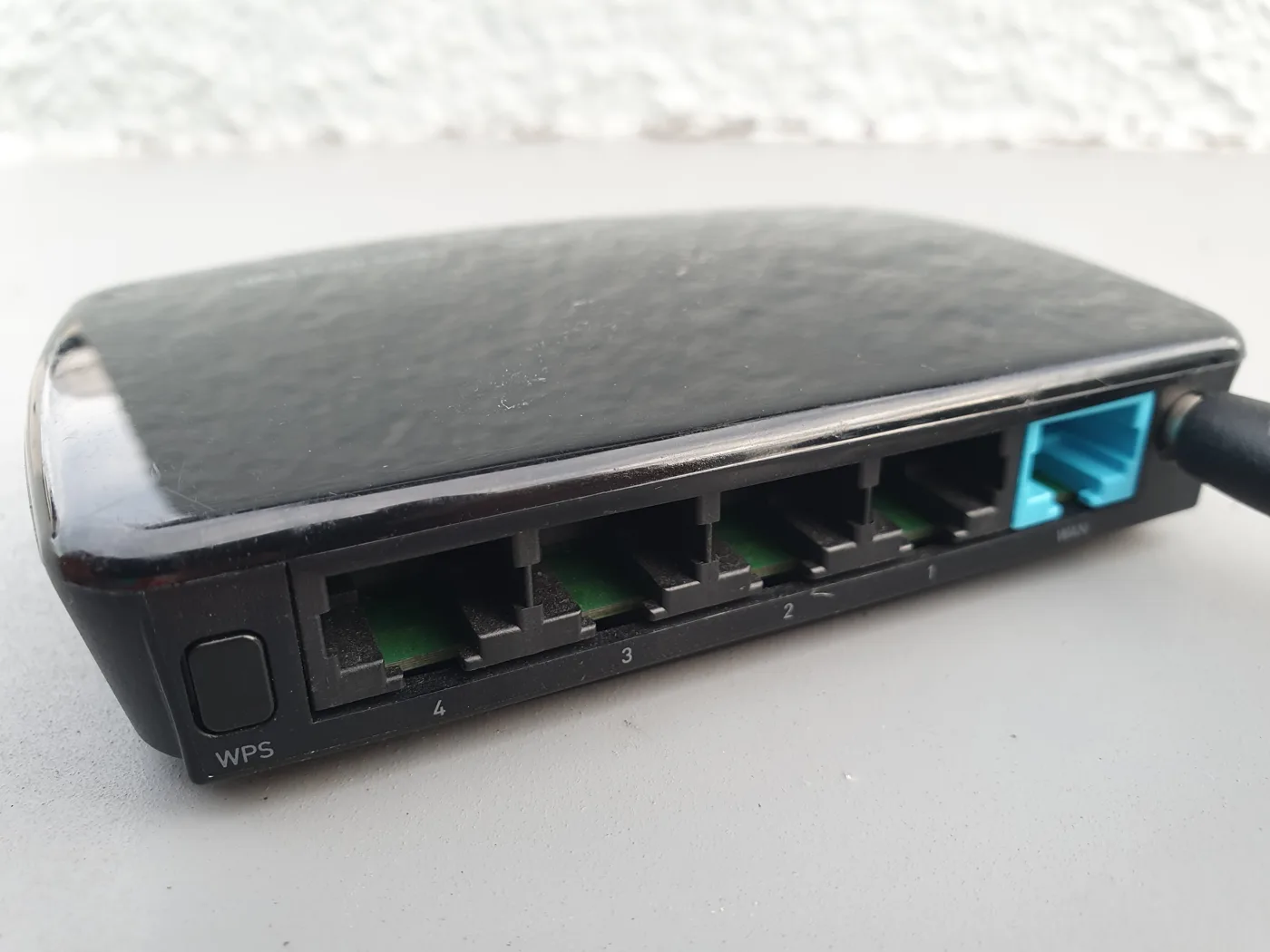
- Plug a laptop directly into the router with an Ethernet cable.
- Close other apps, pause any downloads or cloud backups, and run a speed test.
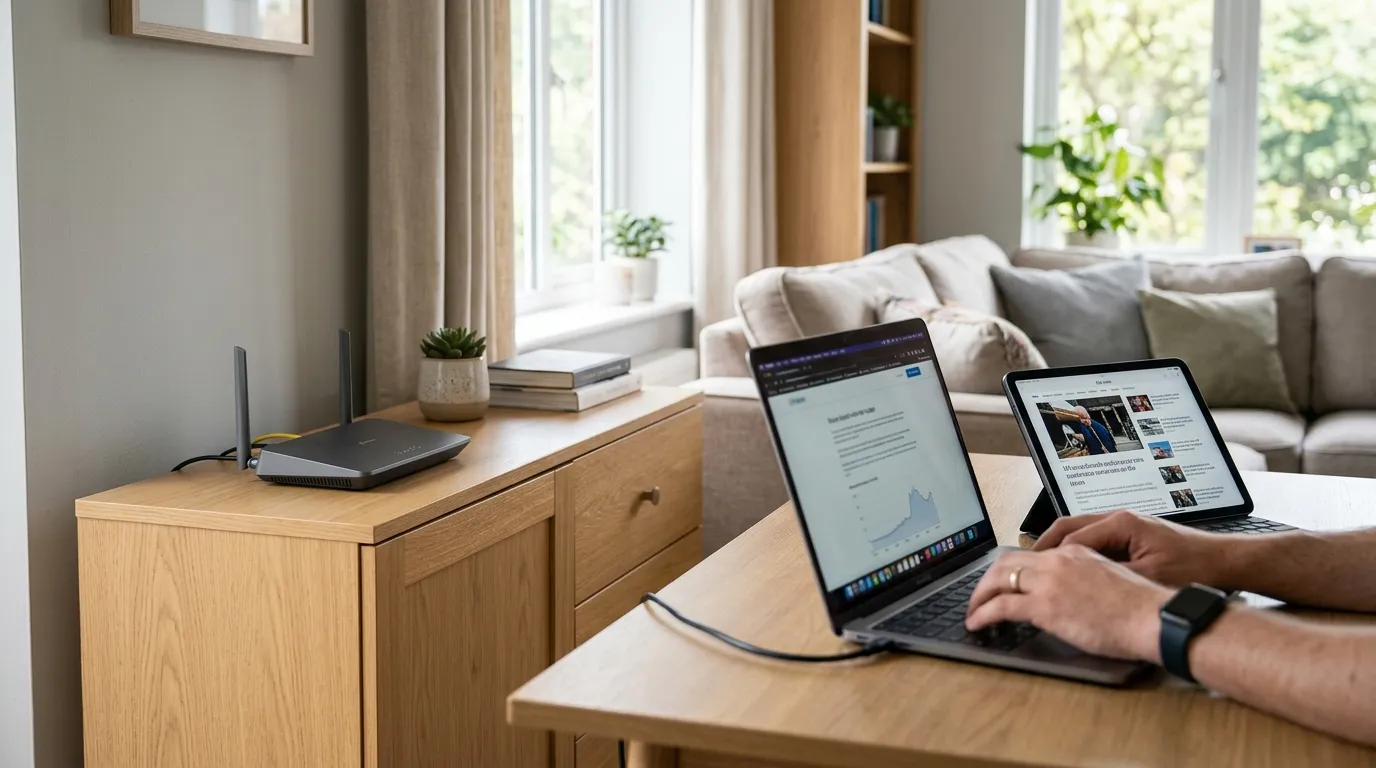
- Unplug the cable, connect that same laptop to Wi-Fi while standing next to the router, and test again.
- Walk to the room where Wi-Fi feels slow and test a third time.
If the wired number is close to what you pay for but Wi-Fi drops sharply as you move away, your line is healthy and the issue is wireless coverage or interference. If even the wired test is slow, the problem is your broadband line or your provider, and fixes 9 to 12 are where to focus.
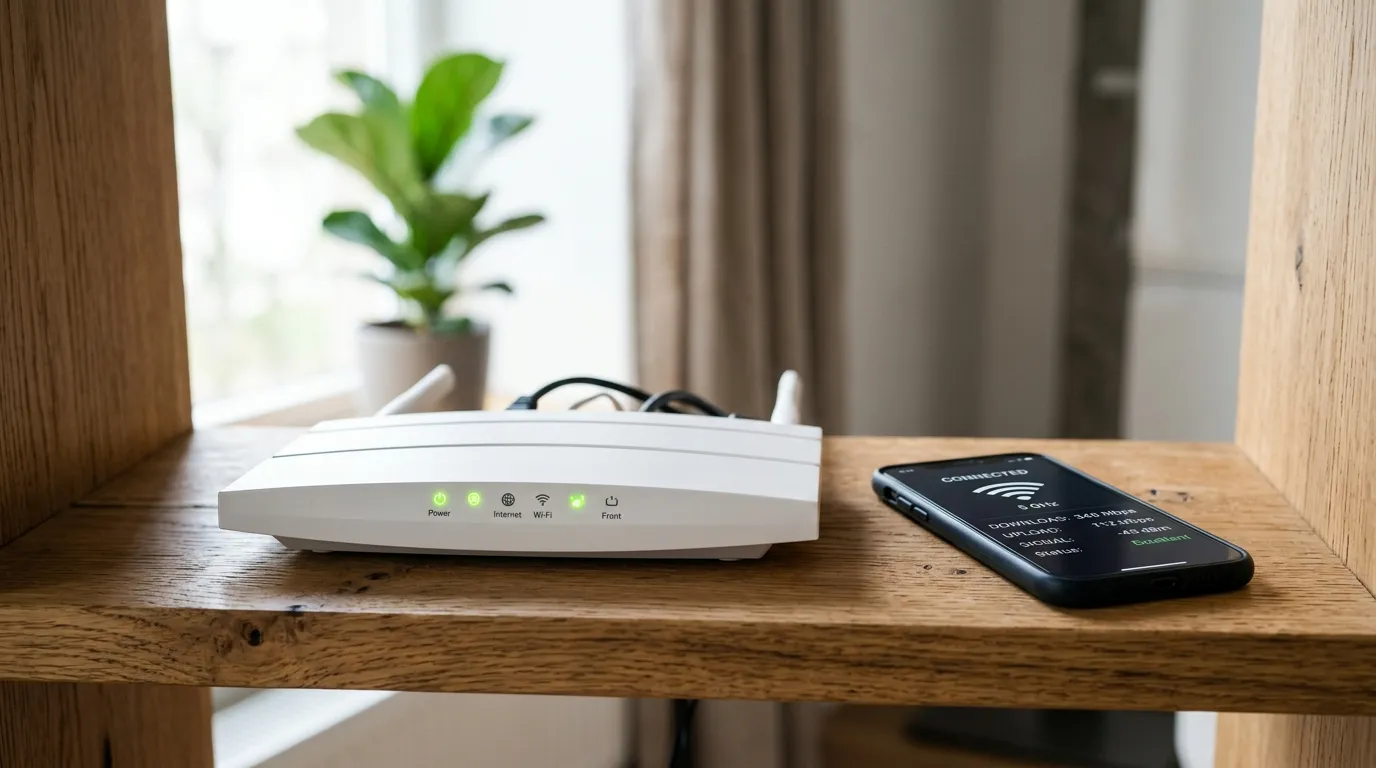
Run the test near the router, ideally wired. If you ever complain to your provider, they measure the speed at the router, so that is the figure that decides whether you are getting what you paid for.
The 12 fixes
1. Restart the router properly
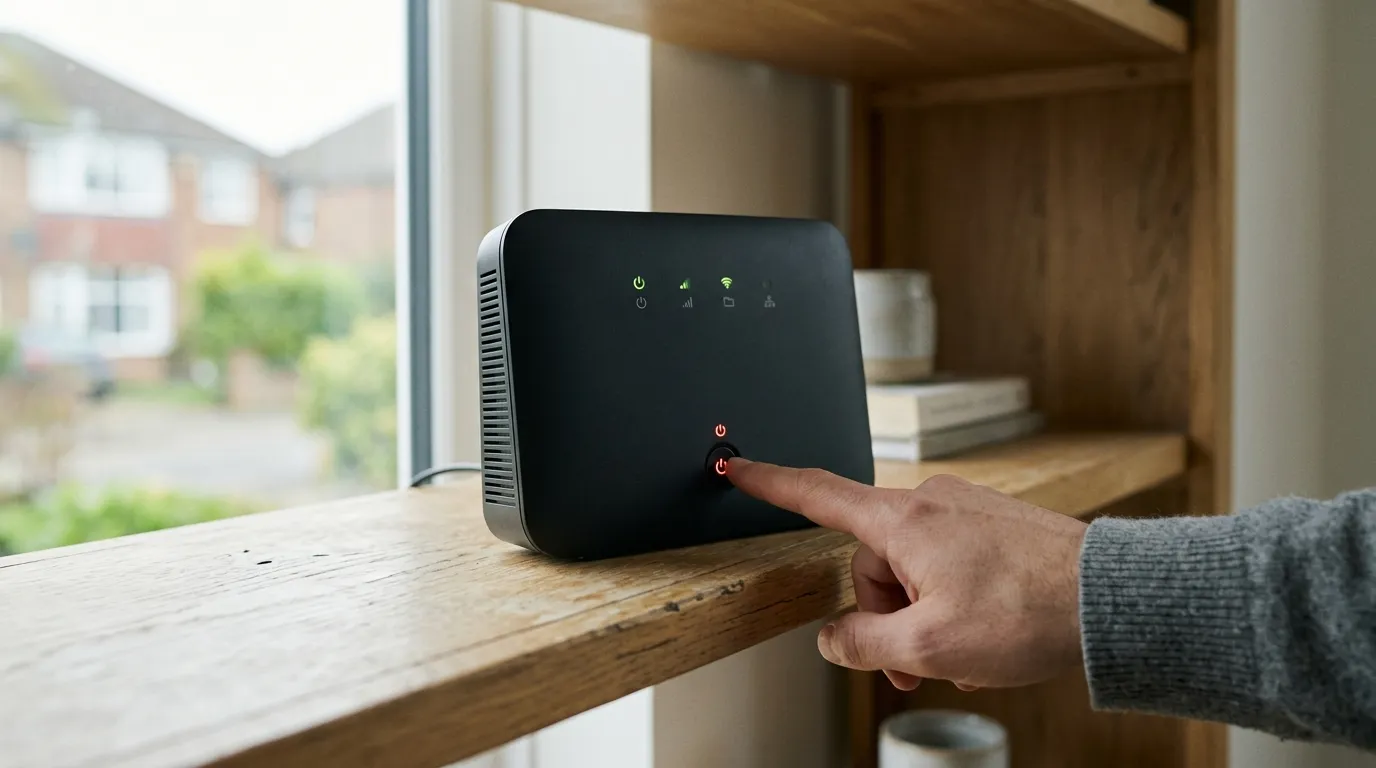
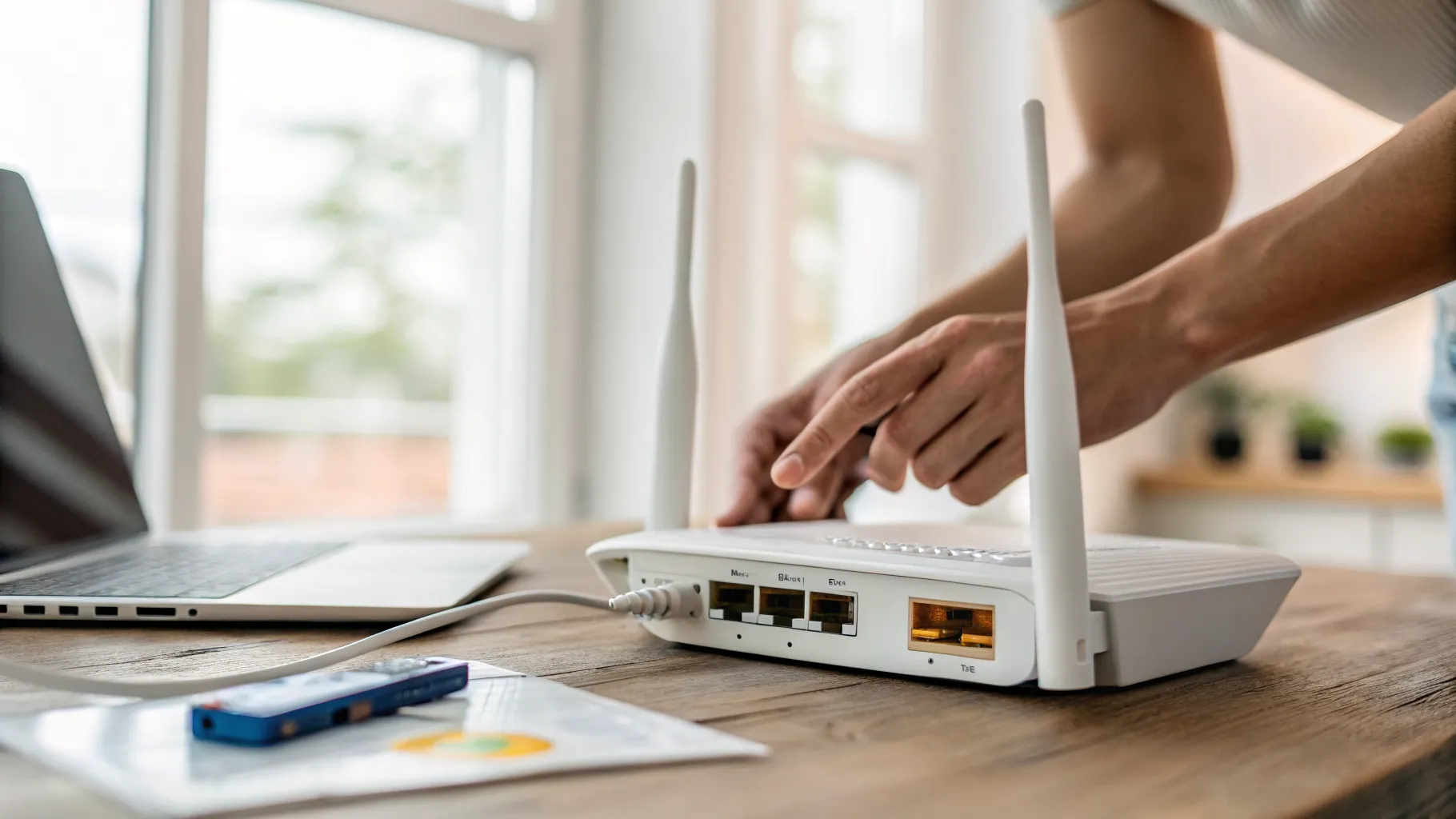
A genuine power cycle clears the temporary faults that build up over weeks: a clogged channel, a stalled connection, an overheating chip. Switch the router off at the wall, wait 30 seconds, then switch it back on and give it two to three minutes to fully reconnect. This is the single most effective first step and fixes a surprising share of “suddenly slow” complaints.
2. Move to the 5GHz band
Most homes have two Wi-Fi bands. The 2.4GHz band reaches further but is slow and crowded. The 5GHz band is far faster and suffers much less interference, though it does not pass through walls as well. If your phone or laptop has quietly latched onto 2.4GHz, you will get a weak result even with full bars.
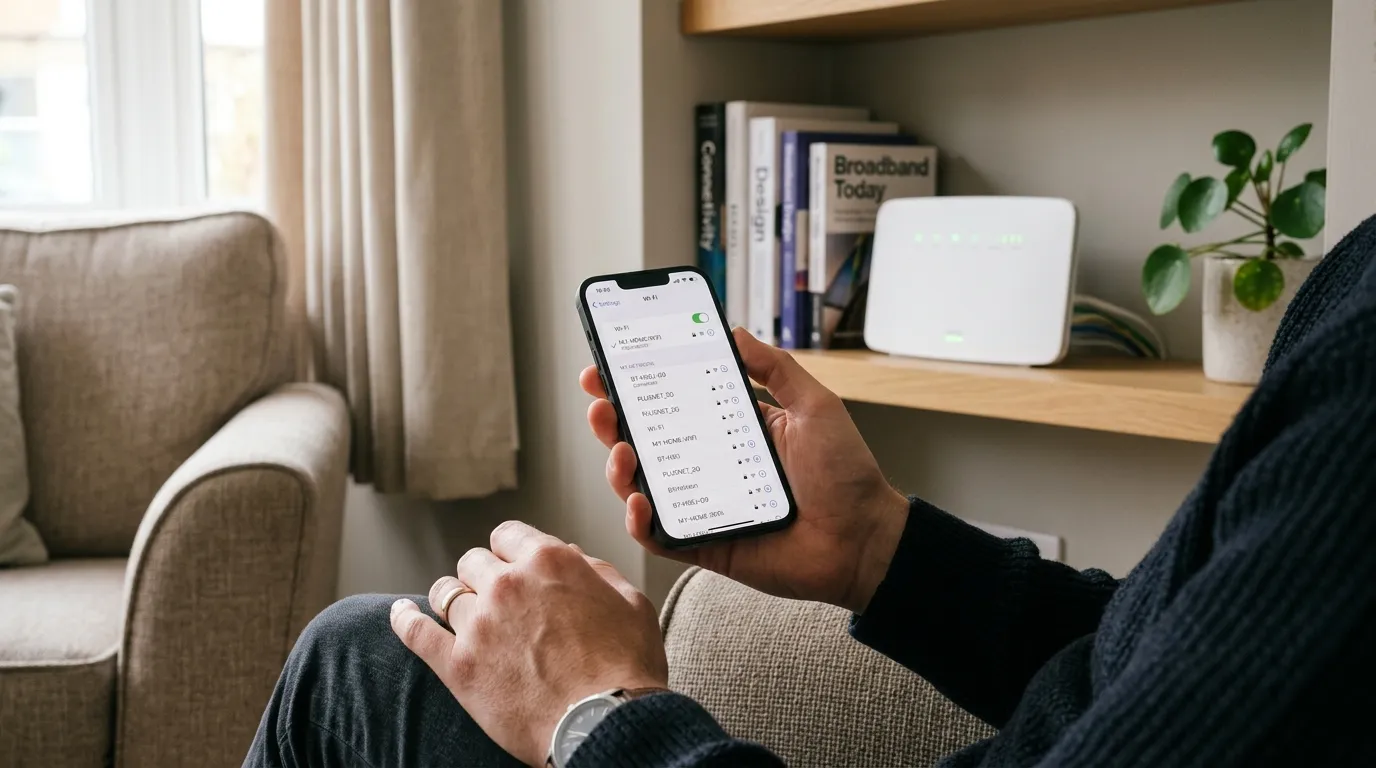
Many UK routers broadcast both bands under one name and decide for you, often badly. Some hubs let you split them and give each band its own name, such as “Home” and “Home-5G”, so you can connect to the 5GHz one when you are near the router. Whether you can do this depends on the model: Virgin Media hubs allow it once you turn off Intelligent WiFi (sometimes called Smart Connect) in the settings, while several newer provider hubs, including the BT Smart Hub 2 and the EE and Sky Wi-Fi 6 hubs, keep the bands combined and do not offer a split. Check your hub’s admin page or app to see which applies to you.
3. Reposition the router
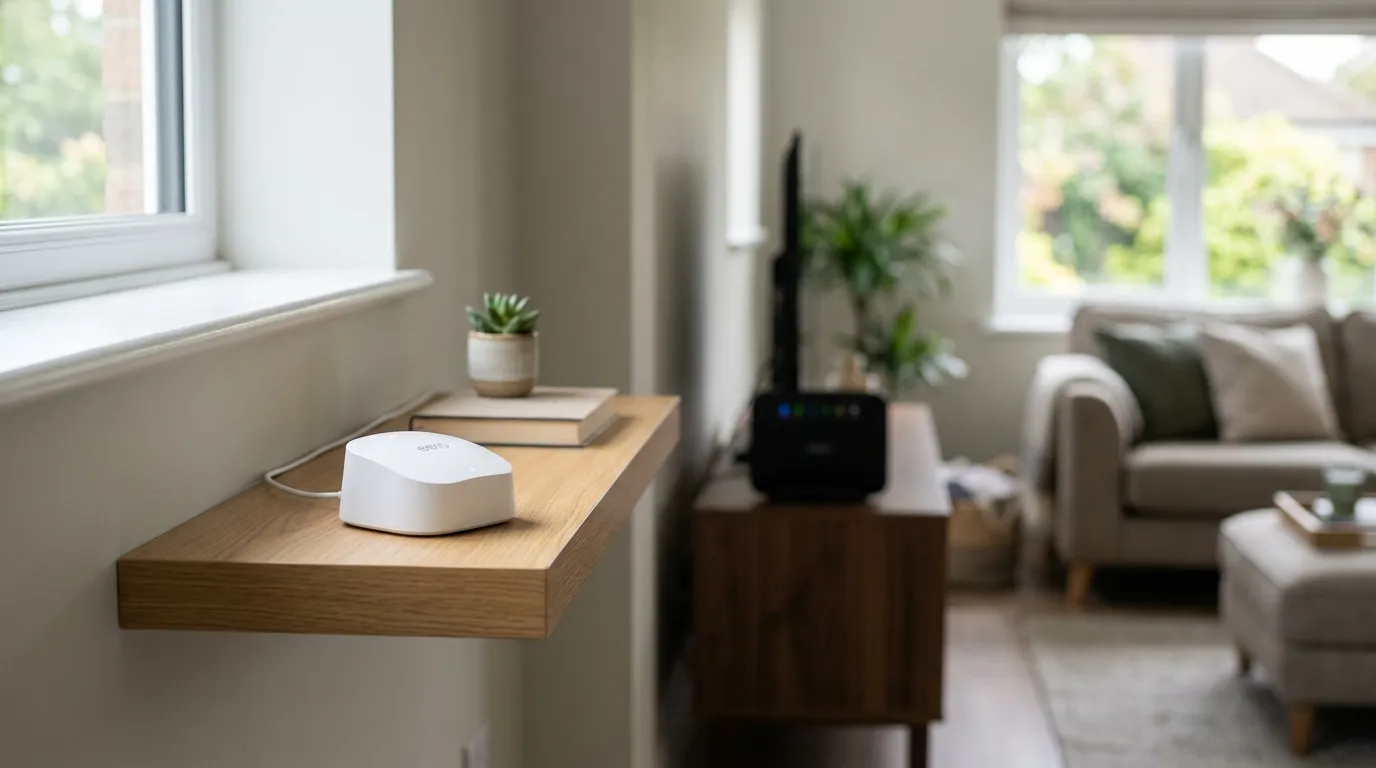
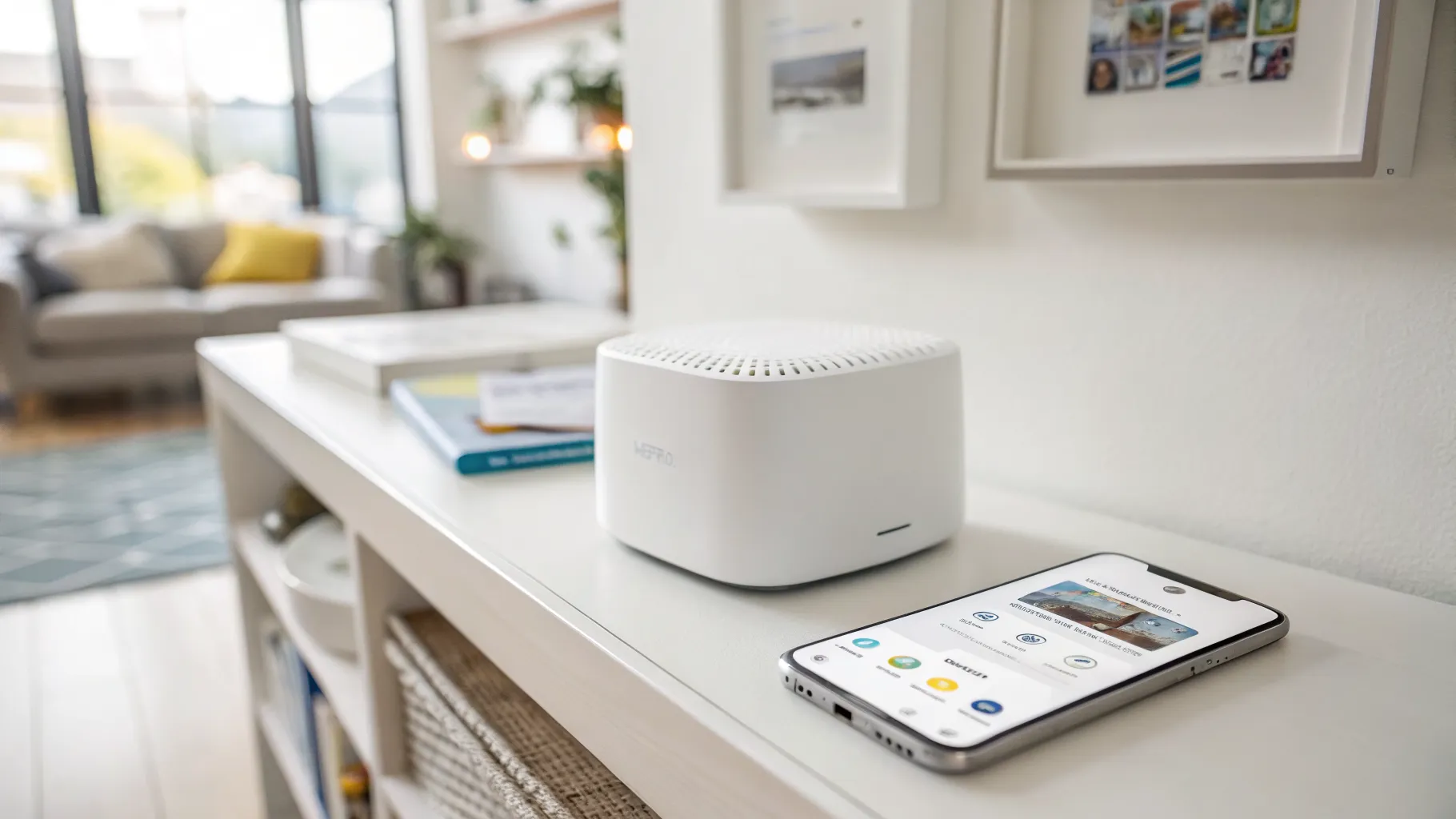
Wi-Fi radiates outwards from the router, so where it sits changes everything. UK homes are particularly affected because solid brick, stone and lath-and-plaster walls block wireless signals far more than the plasterboard common in newer builds.
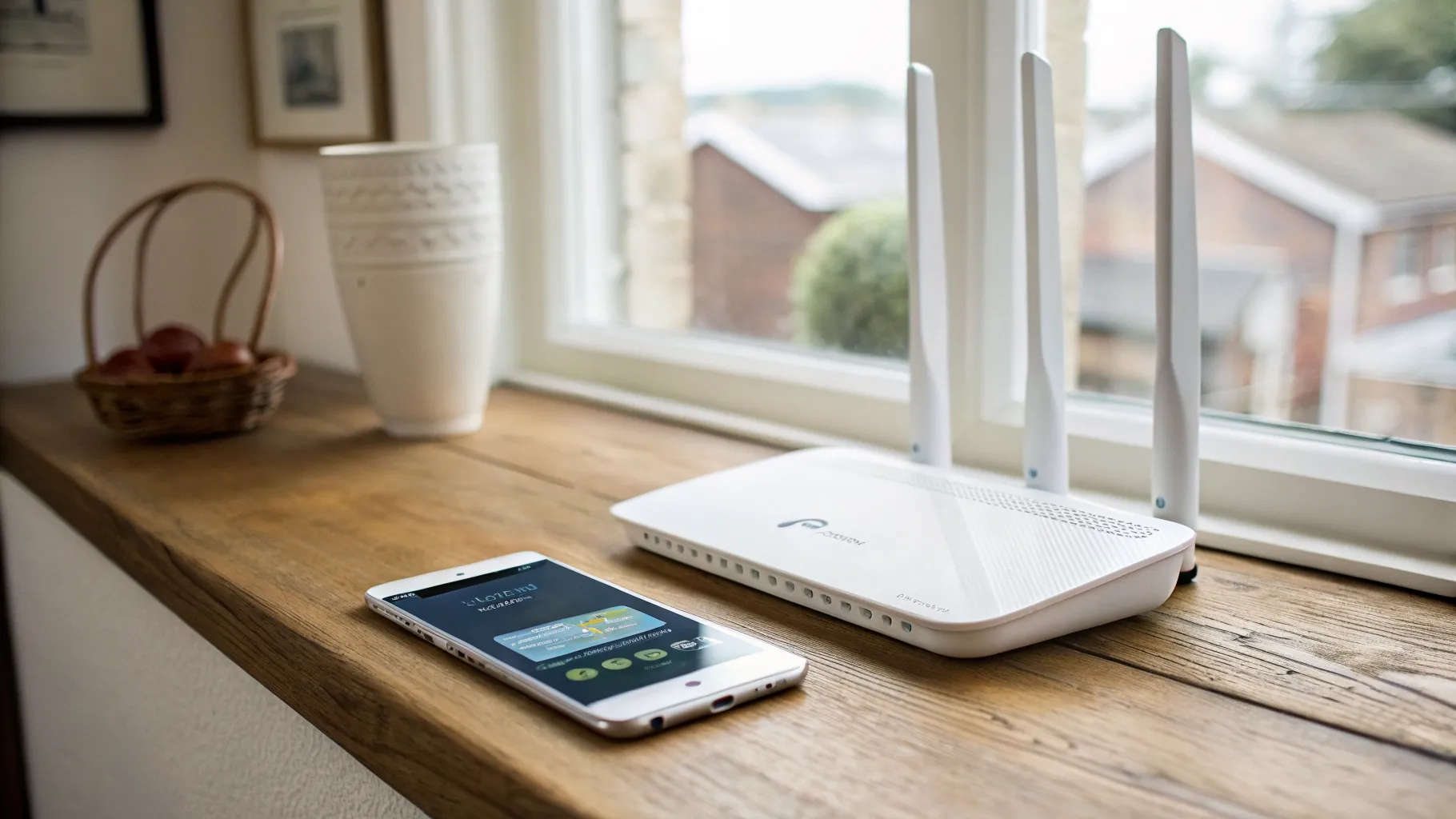
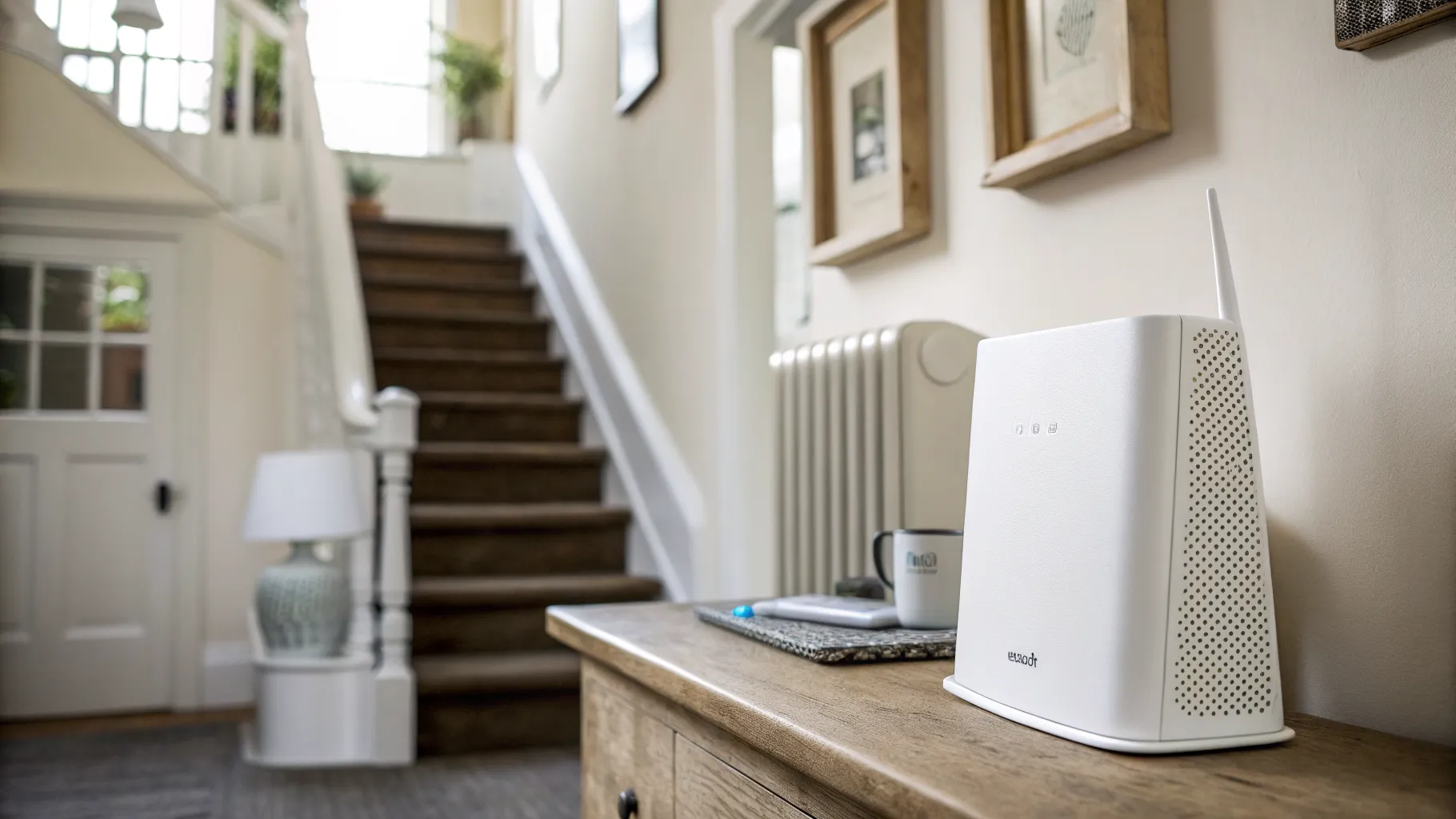
- Put it central and high, on a shelf rather than the floor.
- Keep it out in the open, never in a cupboard, drawer or media cabinet.
- Move it away from anything metal, a fish tank, or a large mirror.
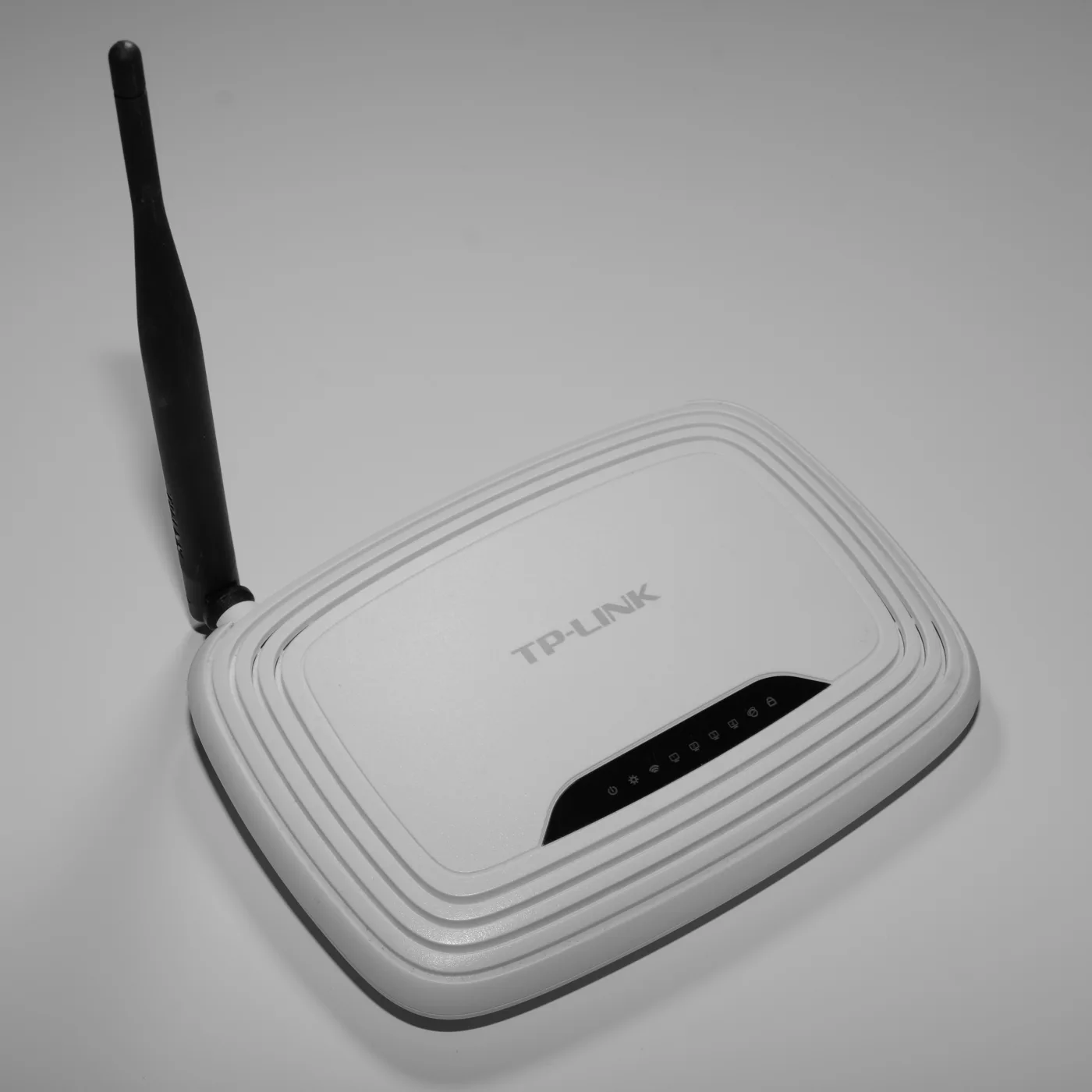
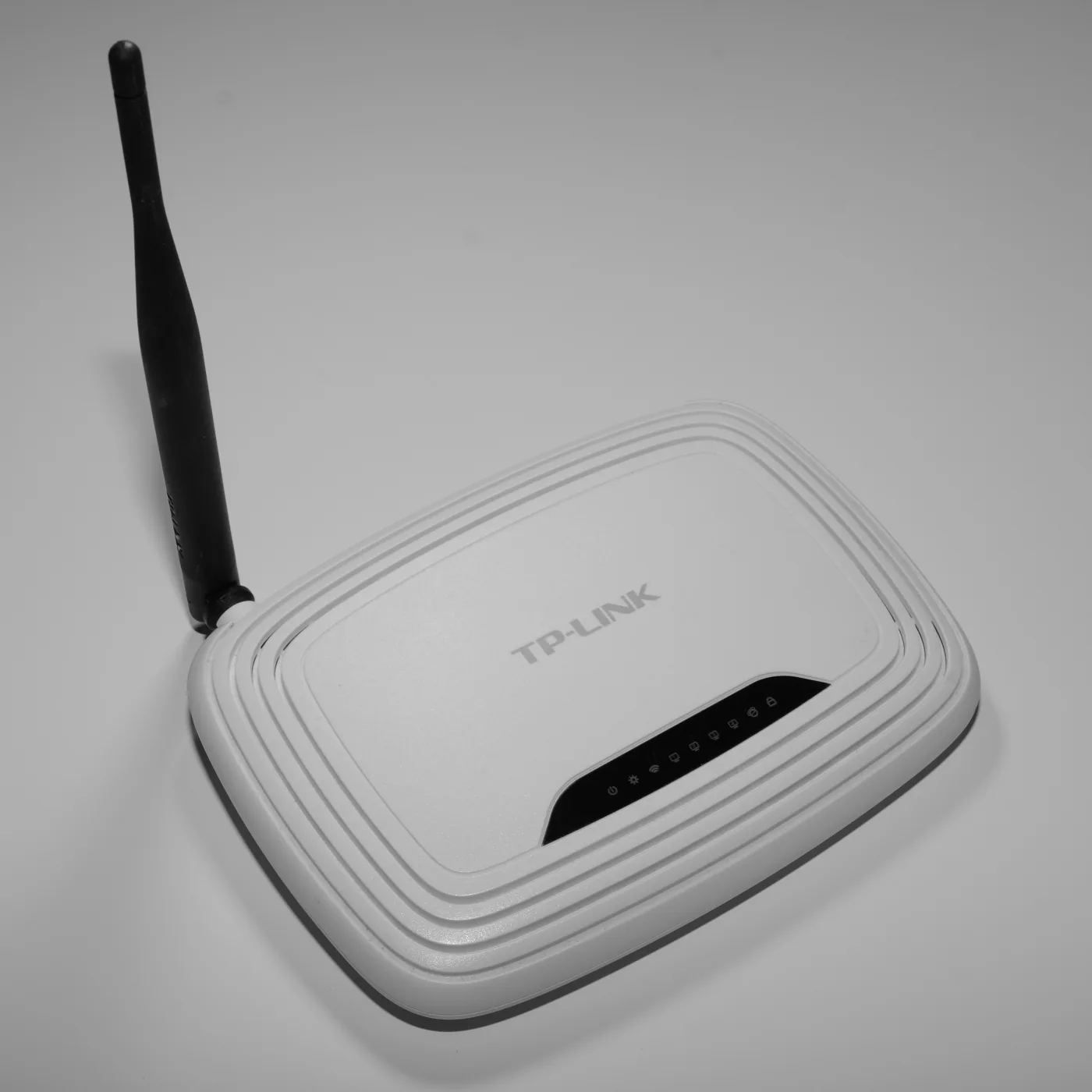
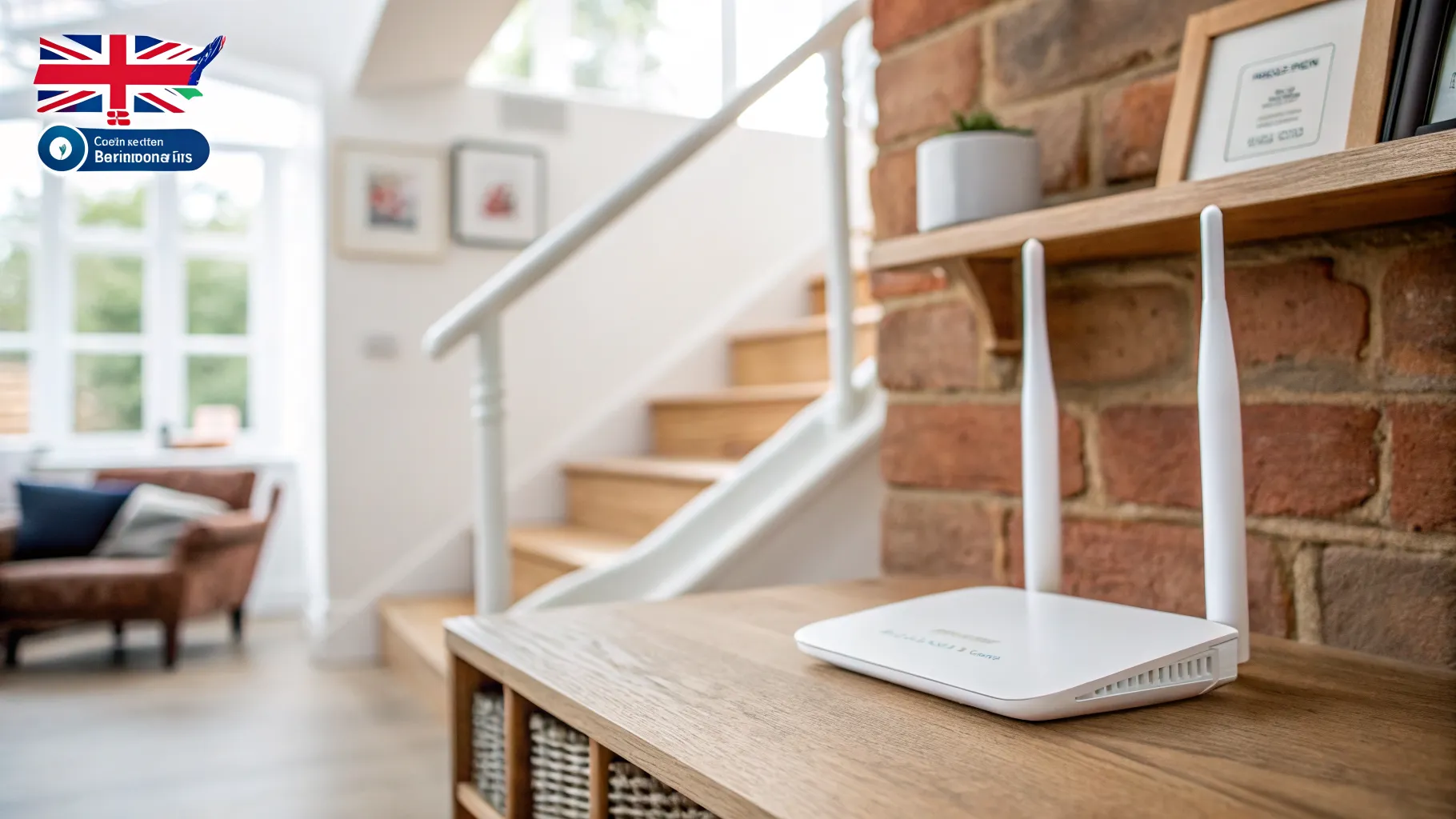
- Stand it upright with the aerials pointing up, if it has external ones.
Even moving the router off the floor and out of an alcove can lift speeds in the next room noticeably.
4. Kill the interference sources
The 2.4GHz band shares its frequencies with microwave ovens, Bluetooth devices, baby monitors, wireless doorbells and some cordless phones. A running microwave can flatten 2.4GHz Wi-Fi in the same room because it leaks energy at almost exactly that frequency. Keep the router away from the microwave and from baby monitors, and if speed drops only when the kitchen is in use, that is your culprit. Switching to 5GHz sidesteps most of this, because microwaves and Bluetooth do not operate there.
5. Change your Wi-Fi channel
Wi-Fi channels are like lanes. If you and every neighbour sit in the same lane, everyone slows down. The 2.4GHz band has only three channels that do not overlap: 1, 6 and 11. In the UK and the rest of Europe you may also see 12 and 13, but treat those as extensions of 11 because they interfere with it.
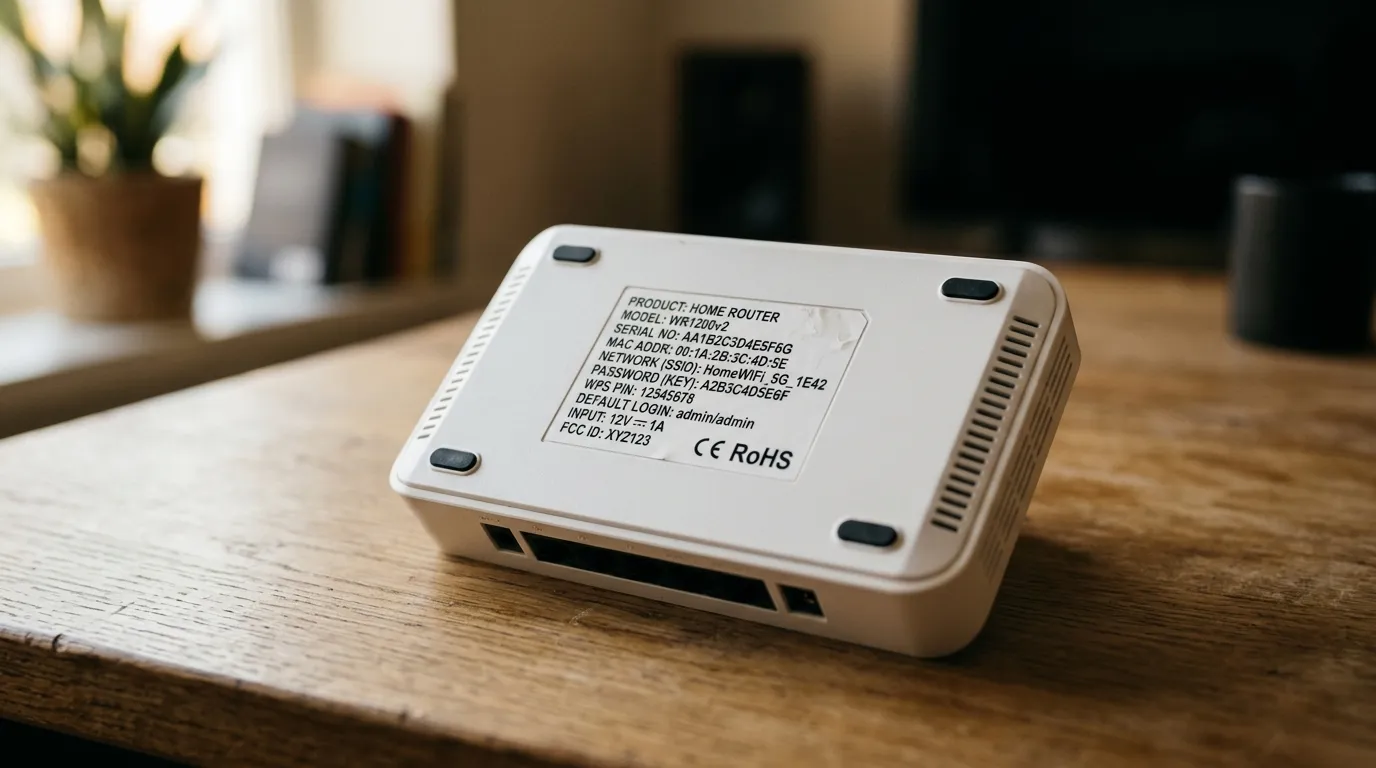
To change channel, open a browser, type your router’s address (usually 192.168.1.1 or 192.168.0.1, often printed on a sticker on the device), and sign in. Find the wireless or WLAN settings, then set the 2.4GHz band to channel 1, 6 or 11, whichever is least used near you. For 5GHz, start around channel 36 to 48 or 149 to 161. A free Wi-Fi analyser app shows which channels your neighbours are crowding so you can avoid them.
6. Find and stop the bandwidth hogs
One device chewing through the connection slows everything else. The usual offenders are 4K streaming, large game downloads and updates, video calls, and cloud backups running in the background. Check what is connected through your router’s admin page or app, pause anything heavy, and set big downloads to run overnight. If guests are draining the line, put them on a separate guest network so they cannot swamp your main one.
7. Update the router firmware
Router firmware is the software that runs the box, and old versions carry bugs and weaker performance. Most modern UK routers, including provider hubs, update themselves automatically, but it is worth checking the admin page for a firmware or update section and applying anything pending. After an update, restart the router.
8. Add a mesh system or extender (in that order)
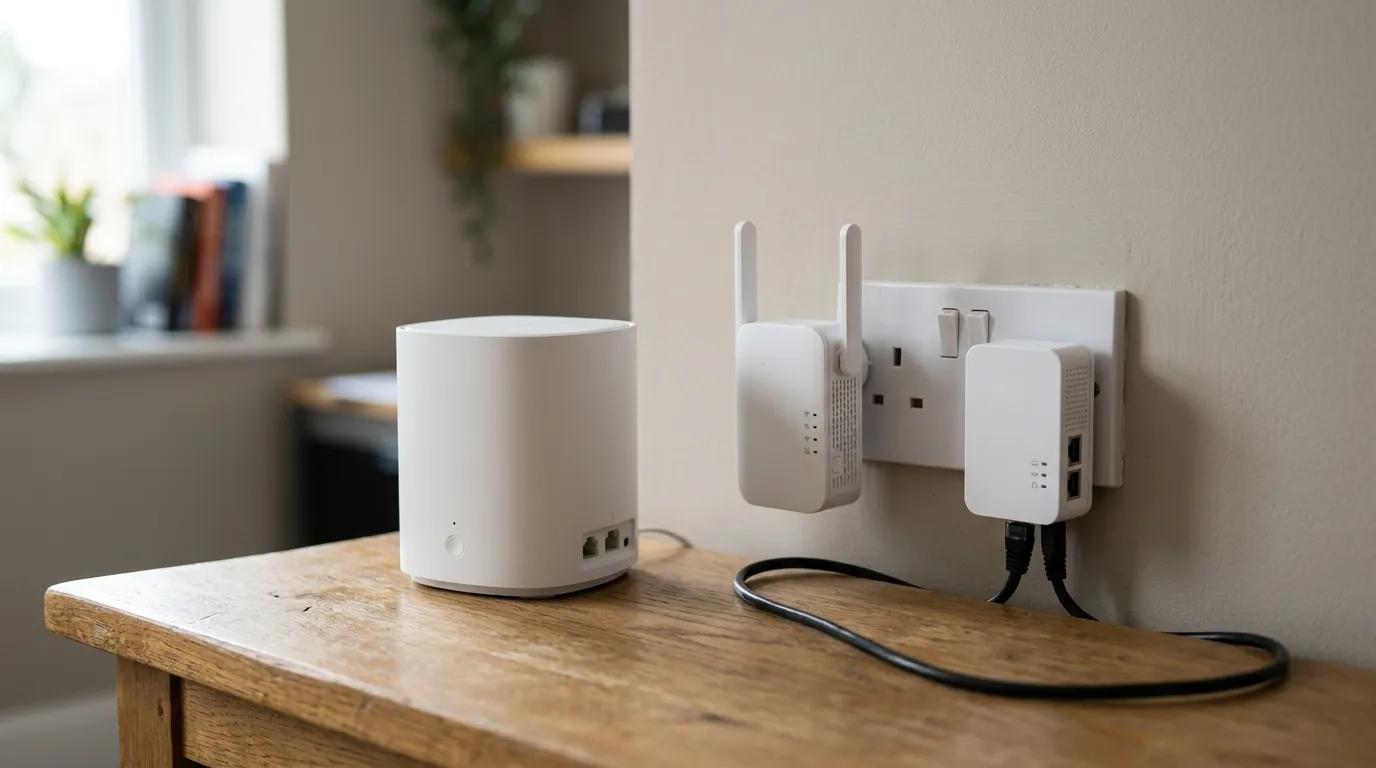
If one room is always weak no matter what you do, you need to extend coverage rather than keep fiddling. A mesh system uses two or three units that cover the home under one network name and hand your devices over smoothly as you move around. It is the better choice for whole-home coverage. A cheaper plug-in extender can rescue a single dead spot, but it often halves the speed it passes on and creates a second network you have to switch between manually. Powerline adapters, which send the signal through your mains wiring, are a useful middle option in older houses with thick walls.
9. Check what speed you should actually be getting
Slow is relative, so anchor it to a real number. When you signed up, your provider gave you a personalised minimum guaranteed speed for your specific line under Ofcom’s Broadband Speeds Code of Practice. That figure is based on busy-period performance between 8pm and 10pm, when networks are at their busiest, and it is lower than the headline average advertised. Dig out your contract or order email and compare it against your wired test. Across the UK, full fibre now reaches around 82% of homes and gigabit-capable broadband around 89%, so if you are stuck on an old copper FTTC or ADSL line, an upgrade may be available at your address.
10. Look at your line, not just your Wi-Fi
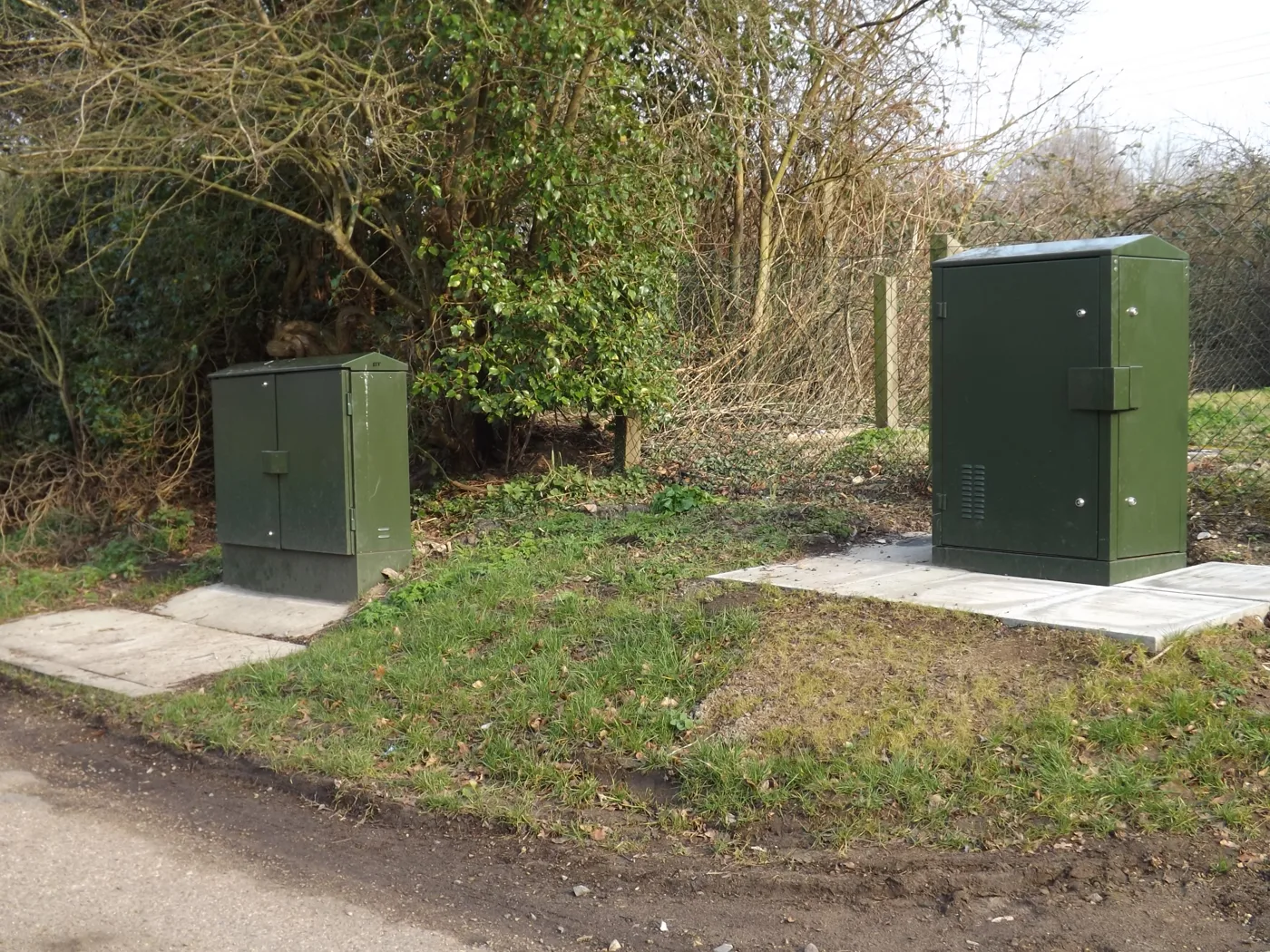
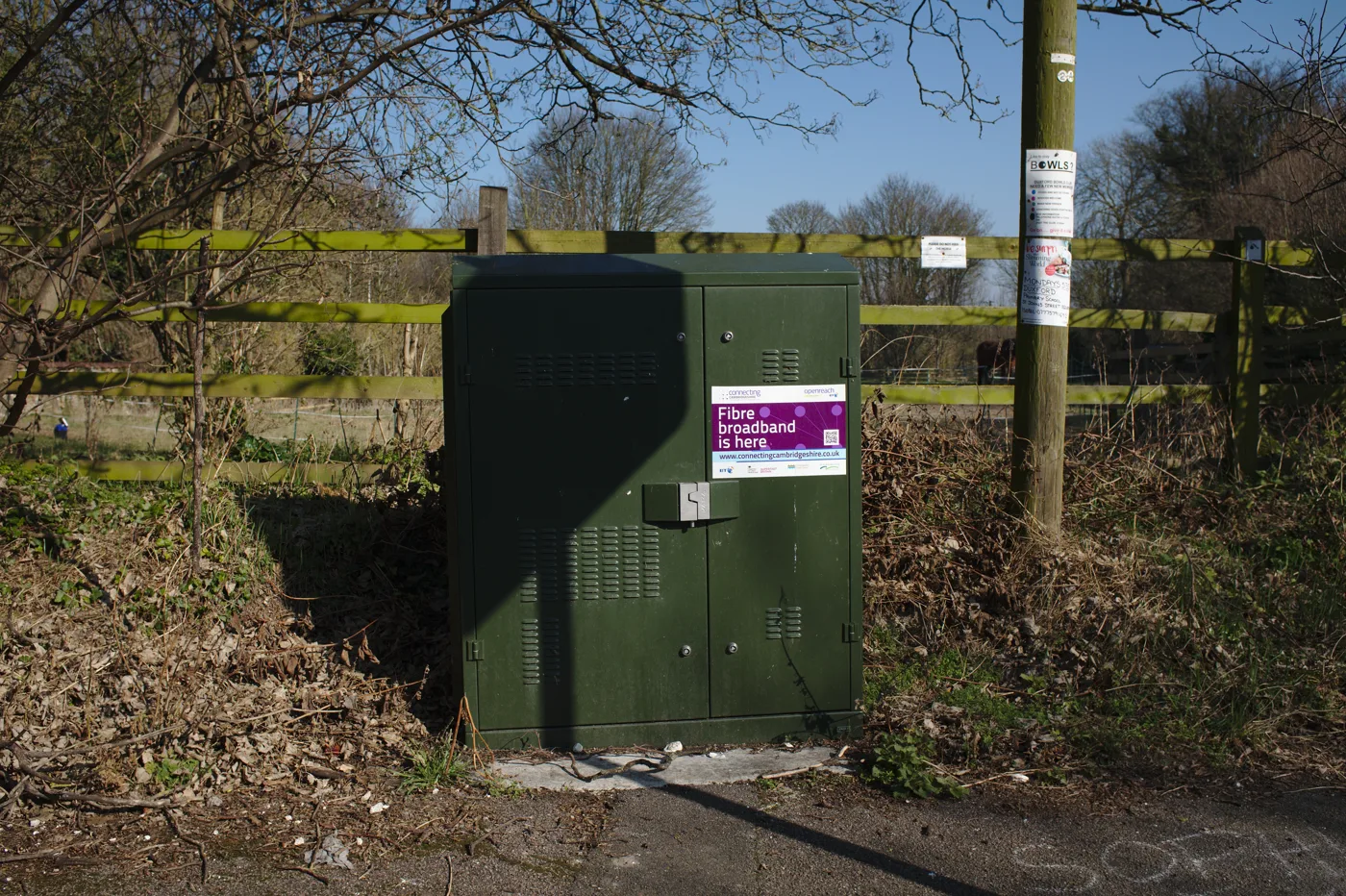
If your wired speed is genuinely poor, the broadband line itself may be the limit. Older copper connections lose speed the further you live from the street cabinet, and performance drops off sharply beyond a few hundred metres. The copper phone network is being retired across the UK, with the switch-off due to complete by 31 January 2027, so most homes will move to full fibre regardless. If you are still on copper and the line is the bottleneck, switching to a full-fibre (FTTP) package is the real fix, not another router tweak.
11. Replace an ageing router
A router more than four or five years old will not support the latest standards, and that caps your speed no matter how fast your line is. Newer routers using Wi-Fi 6, 6E or 7 handle many more devices at once and, on 6E and 7, can use the 6GHz band that Ofcom opened for Wi-Fi (the lower 6GHz range from 5925 to 6425MHz), which is wide open and far less congested. If your provider’s free hub is old, ask for the current model or buy your own.
12. Use your Ofcom rights if it stays slow
If your wired speed sits below your guaranteed minimum and your provider cannot fix it, you have leverage. Under the Code of Practice, the provider must resolve the problem within 30 days. If they cannot, you can exit the contract without penalty, and that right extends to any phone and TV services bundled with it. Report the slow speed, keep dated wired test results as evidence, and hold them to the 30-day window.
At a glance: which band should you use?
| 2.4GHz | 5GHz | 6GHz (Wi-Fi 6E / 7) | |
|---|---|---|---|
| Speed | Slowest | Fast | Fastest |
| Range through walls | Best | Moderate | Shortest |
| Interference | High (microwaves, Bluetooth, neighbours) | Low | Lowest |
| Best for | Far rooms, smart-home gadgets | Streaming, gaming, video calls | New devices near the router |
| UK channels to pick | 1, 6 or 11 | 36 to 48 or 149 to 161 | Auto |
Use 2.4GHz for distance and basic smart devices, 5GHz for anything that needs speed, and 6GHz if your router and device both support it.
Frequently asked questions
Why is my Wi-Fi slow even with full signal? Full bars only mean a strong link to the router, not a fast connection. You can have full signal while sitting on the crowded 2.4GHz band, sharing a busy channel with neighbours, fighting microwave interference, or competing with another device hogging the line. It can also mean the broadband line itself is the limit. Run a wired speed test to separate a line problem from a Wi-Fi problem.
Should I use 2.4GHz or 5GHz? Use 5GHz when you are near the router and want speed for streaming, gaming or video calls. Use 2.4GHz for rooms further away or behind thick walls, and for low-demand smart-home gadgets, because it reaches further even though it is slower.
How do I find the least crowded Wi-Fi channel? Install a free Wi-Fi analyser app on your phone. It shows which channels nearby networks are using. On 2.4GHz, pick whichever of channels 1, 6 or 11 is least busy. Change it on your router’s admin page, then restart the router.
Does the number of devices slow down Wi-Fi? Yes. Every active device shares the same connection, and heavy ones such as 4K streaming, game downloads and cloud backups take a large share. Older routers also struggle to manage many devices at once, which is a common reason a busy household slows in the evening.
How can I tell if it is my router or my broadband provider? Plug a laptop straight into the router with an Ethernet cable and run a speed test. If the wired result matches roughly what you pay for, the line is fine and the issue is your Wi-Fi. If the wired result is also slow, the problem is the broadband line or the provider, and you should check it against your guaranteed minimum speed.
What is a good broadband speed in the UK? It depends on the household, but full fibre now reaches most UK homes and easily covers streaming on several screens, gaming and video calls at once. The figure that matters for your contract is the personalised minimum guaranteed speed your provider quoted you, measured at the busy 8pm to 10pm period.
Still slow after all this?
If your wired speed is below your guaranteed minimum and the fixes above have not helped, the problem is your line or provider, not your setup. Read your rights in full on the Ofcom broadband speeds page, and check whether faster full fibre is now available at your address using Ofcom’s Connected Nations coverage data.
If it is a coverage problem inside the home, see our guides on extending Wi-Fi to a dead spot and choosing the right Wi-Fi channel for the next steps.