BT, Sky, Virgin and EE Router Default Passwords Explained
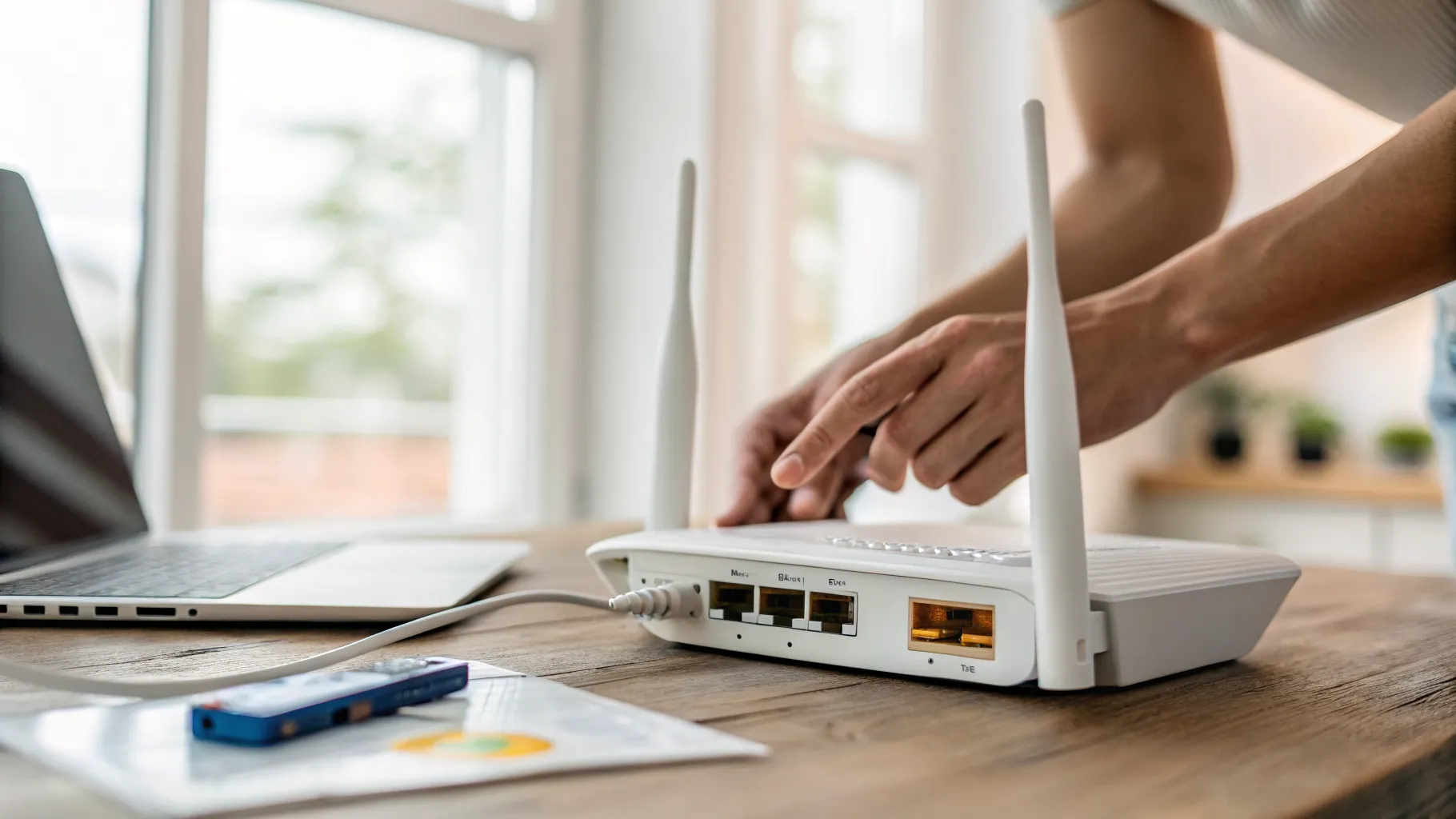
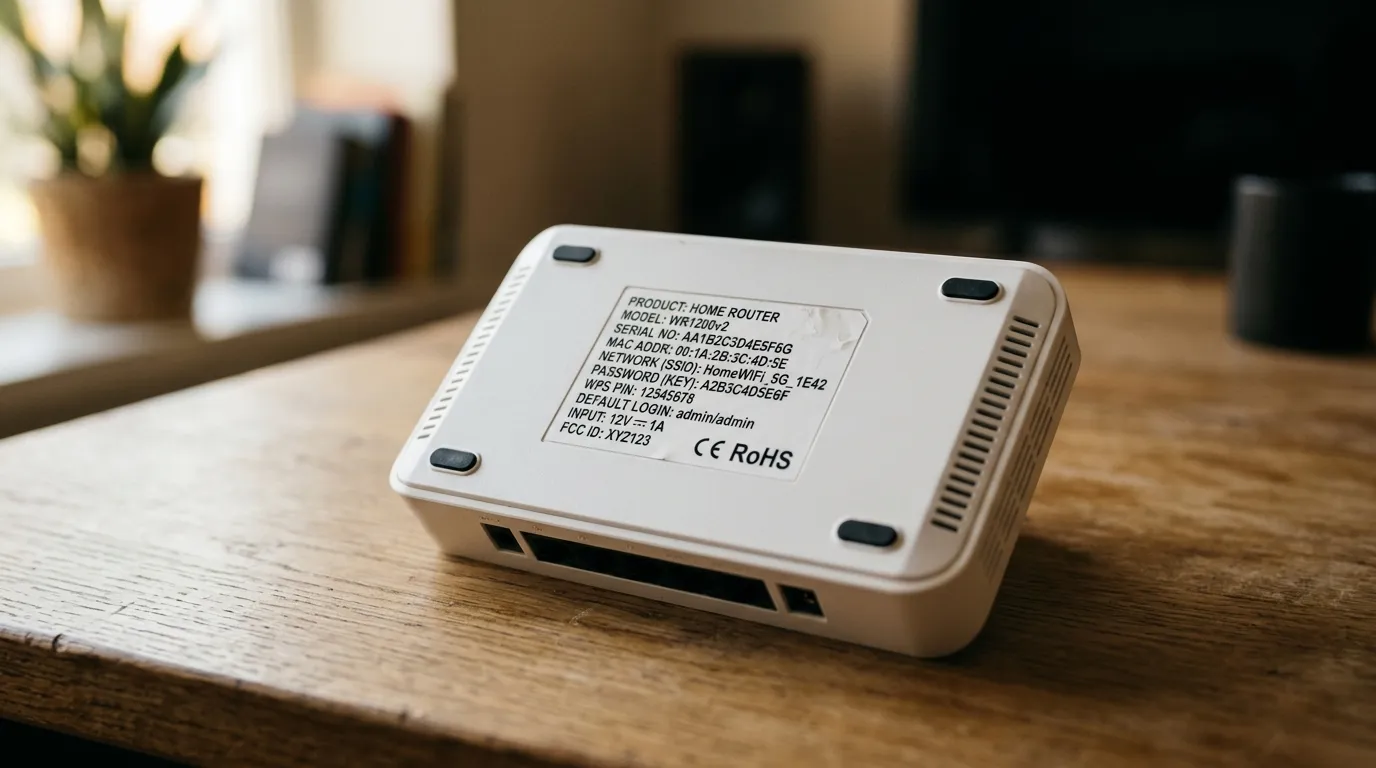
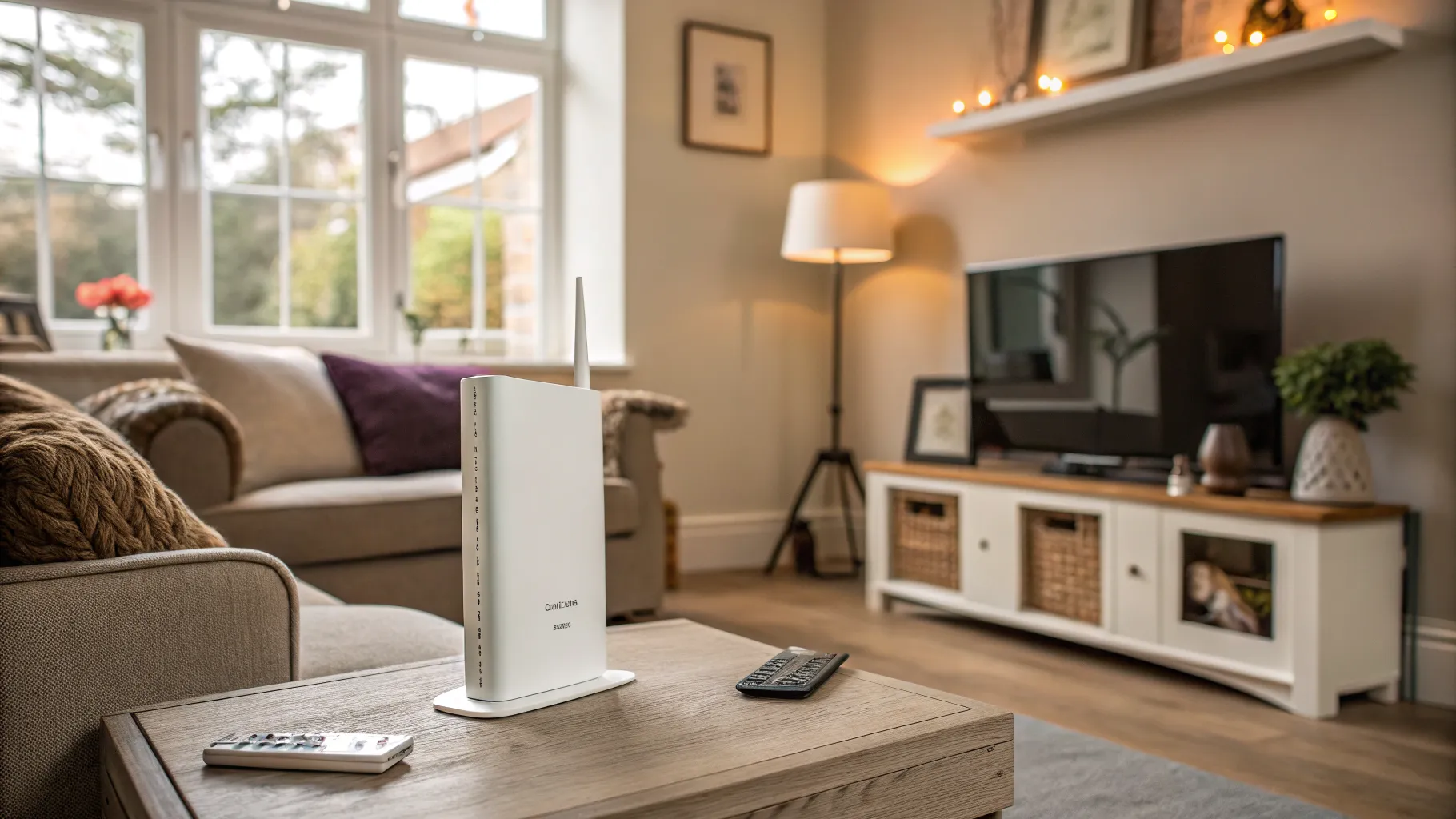
If you came here looking for a master default password for your BT, Sky, Virgin Media or EE hub, here is the honest answer up front: for almost every hub these providers have shipped in the last several years, there is no universal default. Each hub leaves the factory with its own unique passwords, and they are printed on the hub itself, on a sticker on the base, a card on the back, or a pull-out tab. The lists you find on router-password sites that say “admin / admin” or “admin / sky” are wrong for current kit, and there is a legal reason for that: since 29 April 2024 it has been illegal to sell consumer connectable products, routers included, with universal default passwords in the UK. The Product Security and Telecommunications Infrastructure regime on GOV.UK sets this out, with the Office for Product Safety and Standards enforcing it against manufacturers that break the rules.
So the real job is not finding a secret password. It is knowing where your hub prints its unique one, which of the two printed passwords you actually need, and what to do if the printed one no longer works.
Two passwords, two different doors
Every UK hub has two separate credentials, and mixing them up is behind most failed logins:
- The Wi-Fi password (also called the wireless key or network key). Devices use this to join your wireless network. It is the one you read out to guests.
- The admin password (Virgin calls it the “settings password”, BT and EE call it the admin password). This signs you into the hub’s settings pages, where you can change the Wi-Fi name, set up port forwarding or apply parental controls.
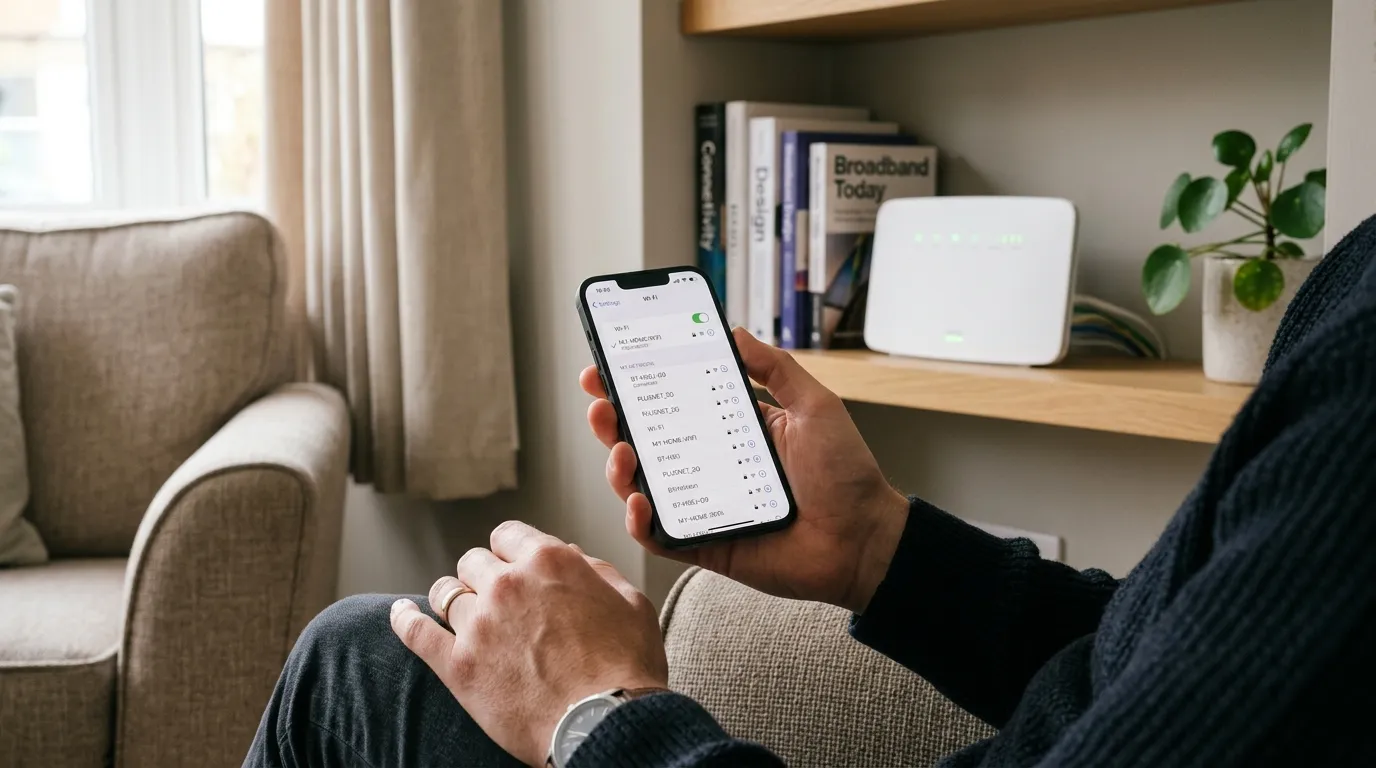
Virgin Media prints the two separately on the base label, and its own help pages are explicit that they are different things. BT and EE print both on the same card. Sky muddies the water on one model: the Sky Broadband Hub (Hub 4) uses the Wi-Fi password printed on the back as the admin password too, which is exactly why “admin / sky” fails on it and fills the Sky forums with confused posts.
If you are typing the Wi-Fi key into the settings login, or the settings password into your phone’s Wi-Fi prompt, the hub will reject it every time. Check which door you are knocking on first.
Every major UK hub at a glance
| Provider | Settings address | Username | Where the default password lives |
|---|---|---|---|
| BT (Smart Hub 3, Smart Hub 2, Smart Hub) | 192.168.1.254 | admin | Pull-out “Hub settings card” on the back of the hub |
| BT (Home Hub 3, 4, 5) | 192.168.1.254 | admin | Label on the base of the hub |
| EE (Smart Hub 7 Pro/Plus, Smart Hub 6 Plus, EE Smart Hub) | 192.168.1.254 | admin | Card on the back of the hub |
| Sky (SR101, SR102, Sky Q Hub) | 192.168.0.1 | admin | Default admin password is sky |
| Sky Broadband Hub (Hub 4) | 192.168.0.1 | admin | Wi-Fi password on the back of the hub doubles as the admin password |
| Sky Max Hub, Gigafast+ Hub | My Sky app (web UI locked down) | n/a | Wi-Fi card; settings managed in the app |
| Virgin Media (Hub 3, 4, 5) | 192.168.0.1 | n/a | Separate Wi-Fi password and “settings password”, both on the base label |
| Virgin Media Hub 5x | 192.168.0.1 | n/a | Removable password card with QR code, plus settings password |
Two patterns worth noticing. EE and BT share the same login address, 192.168.1.254, because EE’s hubs sit on the same BT Group platform; Sky and Virgin both use 192.168.0.1. And the only “universal” default left standing is sky on Sky’s older hubs, hardware that predates the 2024 rules. Everything current is unique per device.
If the address itself will not load, your device may be pointing at the wrong gateway entirely. Our guide to logging into your router at 192.168.1.1 shows how to find the exact address in 30 seconds with ipconfig rather than guessing.
BT: the settings card is everything
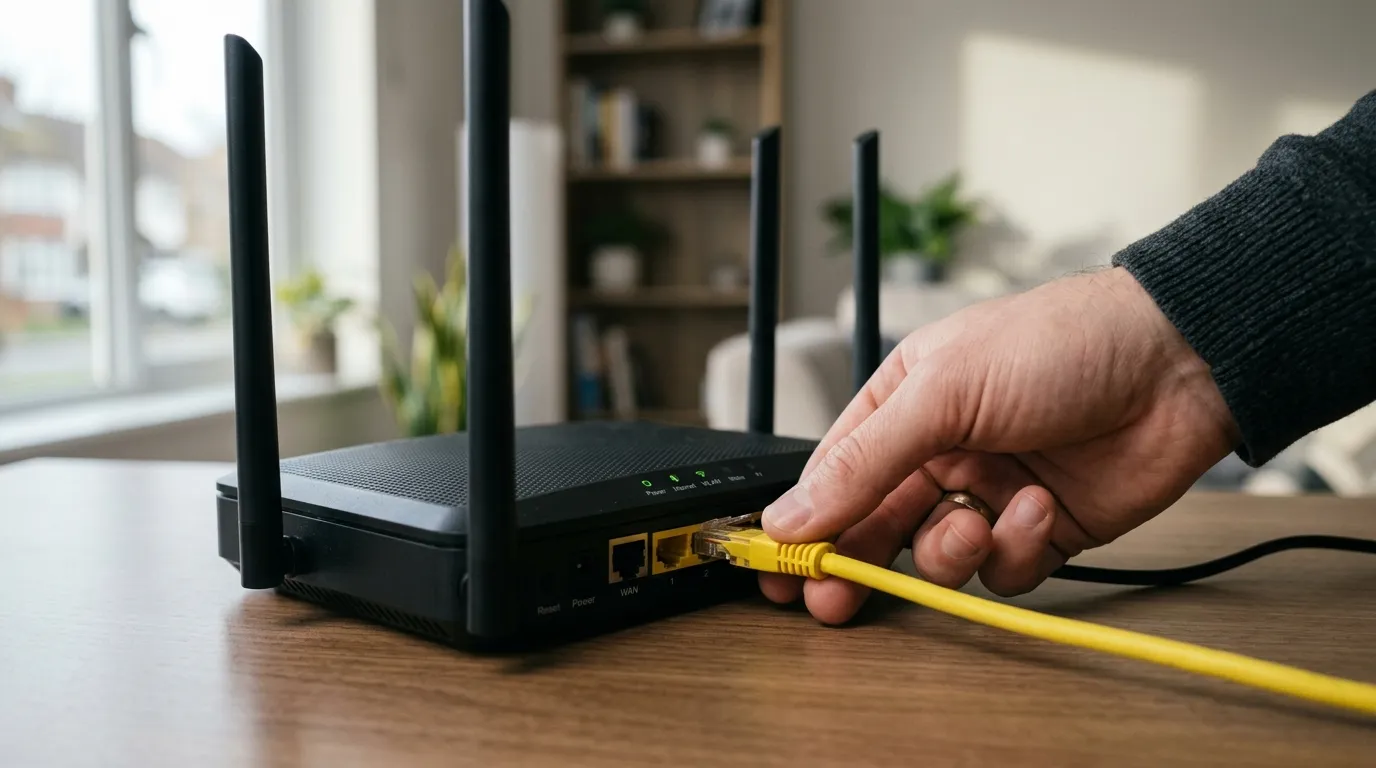
BT hubs have never had a single shared admin password in the current era. On the Smart Hub 3, Smart Hub 2 and the original Smart Hub (including the Ultrafast variant), pull out the “Hub settings card” from the slot on the back: it carries the unique admin password and the Wi-Fi details. On the older Home Hub 3, 4 and 5, the same details are on the base label instead.
You manage the hub through Hub Manager at 192.168.1.254. One BT-specific rule worth knowing before you change anything: BT’s published guidance for the Smart Hub range says Wi-Fi passwords must be 12 to 63 characters with upper case, lower case and numbers; the older Home Hubs accept 8 to 63 characters.
And one BT-specific trap: from the Smart Hub 2 onward there is no admin password override. If you change the admin password from the printed default and later forget it, BT’s hubs offer no recovery route. The only way back in is a pinhole factory reset, which wipes every custom setting and restores the credentials on the settings card. If that is where you are, read how to reset your router without losing your settings first, because the restart-versus-reset distinction matters and there are settings worth writing down before you press anything.
Sky: three generations, three different answers
Sky is the provider where “what is the default password” genuinely depends on the model.
Older hubs (SR101, SR102, Sky Q Hub). Settings live at 192.168.0.1, username admin, default password sky. A factory reset (hold the reset pin until the power light flashes) puts these defaults back.
Sky Broadband Hub (Hub 4). Same address and username, but the admin password is the Wi-Fi password printed on the back of the hub, not sky. This single change generates a steady stream of “admin/sky not working” threads on Sky’s own community.
Sky Max Hub and Gigafast+ Hub. These are app-managed. The local web interface at 192.168.0.1 is largely locked down: it redirects to myrouter.io, will not let you change the network name locally, and even port forwarding can only be edited in the app. To change the Wi-Fi name or password, open the My Sky app, go to the Broadband tab, then look under Product Settings. If you have been fighting the web page on a Max Hub, stop; Sky has moved that hub’s controls into the app on purpose.
Virgin Media: two printed passwords, do not mix them
Virgin’s hubs (Hub 3, 4, 5 and the full-fibre Hub 5x, plus the older Super Hub 2 and 2ac) all use 192.168.0.1, and the base label carries two distinct credentials: the default Wi-Fi network name and password, and a separate settings password for the admin pages. There is no universal Virgin admin password.
The classic failure, common enough that Virgin’s community forum has long threads on it for the Hub 5, is typing the Wi-Fi password at the 192.168.0.1 login and being told it is incorrect. The settings page wants the settings password, the other line on the label. Check the label again before assuming the hub is broken.
The Hub 5x, Virgin’s XGS-PON full-fibre hub with Wi-Fi 6 and a 10Gbps Ethernet port, ships with a removable password card with a QR code rather than relying only on the base label, so check the box if the label looks sparse. For Hub 3, 4 and 5, you can also change Wi-Fi settings in the Virgin Media Connect app: open the Broadband tab, then find WiFi networks in the menu.
EE: BT’s address, EE’s hubs
EE’s Hub Manager lives at 192.168.1.254, the same address as BT, with username admin and a unique default admin password on the card on the back of the hub, alongside the Wi-Fi details. There is no universal EE default.
EE’s current line-up runs from the EE Smart Hub (2023) and Smart Hub 6 Plus up to the Smart Hub 7 Plus and Smart Hub 7 Pro; the 7 Plus launched in December 2025 as EE made Wi-Fi 7 standard across all its full-fibre plans. Whichever model you have, both passwords can also be changed from the broadband section of the EE app. If you are on an older Bright Box or a BT-branded Smart Hub from EE, the card-on-the-hub rule still applies.
Should you change the printed defaults?
The printed defaults are unique and reasonably strong, so this is less urgent than it was in the admin/admin era. But the sticker itself is the weak point: anyone with physical access to the hub can read both passwords. In a shared house, an HMO, a holiday let, or any home where the hub sits in view of visitors, a photo of the label hands over both your Wi-Fi and your settings page. Most people never touch either credential: Broadband Genie’s 2025 router security survey found 81% of UK broadband users had never changed their router’s admin password.
Sensible practice, in line with National Cyber Security Centre guidance:
- Change the Wi-Fi password to something you can share verbally. The NCSC recommends three random words as a memorable, hard-to-guess format. Remember BT’s Smart Hubs need 12 to 63 characters with upper case, lower case and numbers.
- Change the admin or settings password to something different from the Wi-Fi password, and record it somewhere safe. On BT Smart Hub 2 and later there is no forgotten-password override, so losing it means a factory reset.
- Expect every device to disconnect when you change the Wi-Fi password; you will re-enter the new key on each phone, TV and smart plug once.
A factory reset always restores the printed defaults, so the sticker is also your safety net: you can never lock yourself out permanently, only inconveniently. And once you are inside the settings, it is worth a minute to pick a better Wi-Fi channel while you are there.
Frequently asked questions
What is the default password for my BT Hub? There is no shared BT default. The admin password is unique to your hub and printed on the pull-out settings card on the back (Smart Hub 3, Smart Hub 2, Smart Hub) or the base label (Home Hub 3, 4, 5).
Why doesn’t admin/sky work on my Sky Broadband Hub?
The password sky only applies to older hubs (SR101, SR102, Sky Q Hub). The Sky Broadband Hub uses the Wi-Fi password printed on the back of the hub as its admin password, and the newer Max and Gigafast+ Hubs are managed in the My Sky app instead.
Is the admin password the same as the Wi-Fi password? Usually not. The Wi-Fi password joins devices to your network; the admin (or settings) password opens the hub’s configuration pages. Virgin prints them as two separate lines on the base label. The one exception is Sky’s Hub 4, where one password does both jobs.
Does a factory reset put the router back to the password on the sticker?
Yes. A factory reset restores every printed default, including sky on older Sky hubs. It also wipes any custom Wi-Fi name, password and settings you had applied, so note those down first.
I changed my BT hub’s admin password and forgot it. Can I recover it? Not on the Smart Hub 2 or later: BT removed the override feature, so the only route back is a pinhole factory reset, after which the password on the settings card works again.
Why can’t I change anything at 192.168.0.1 on my Sky Max Hub? That hub’s web interface is deliberately locked down and redirects to myrouter.io. Wi-Fi name, password and port forwarding changes are all made in the My Sky app under Broadband, then Product Settings.