KVM Switch Guide: Share One Keyboard and Monitor Across PCs
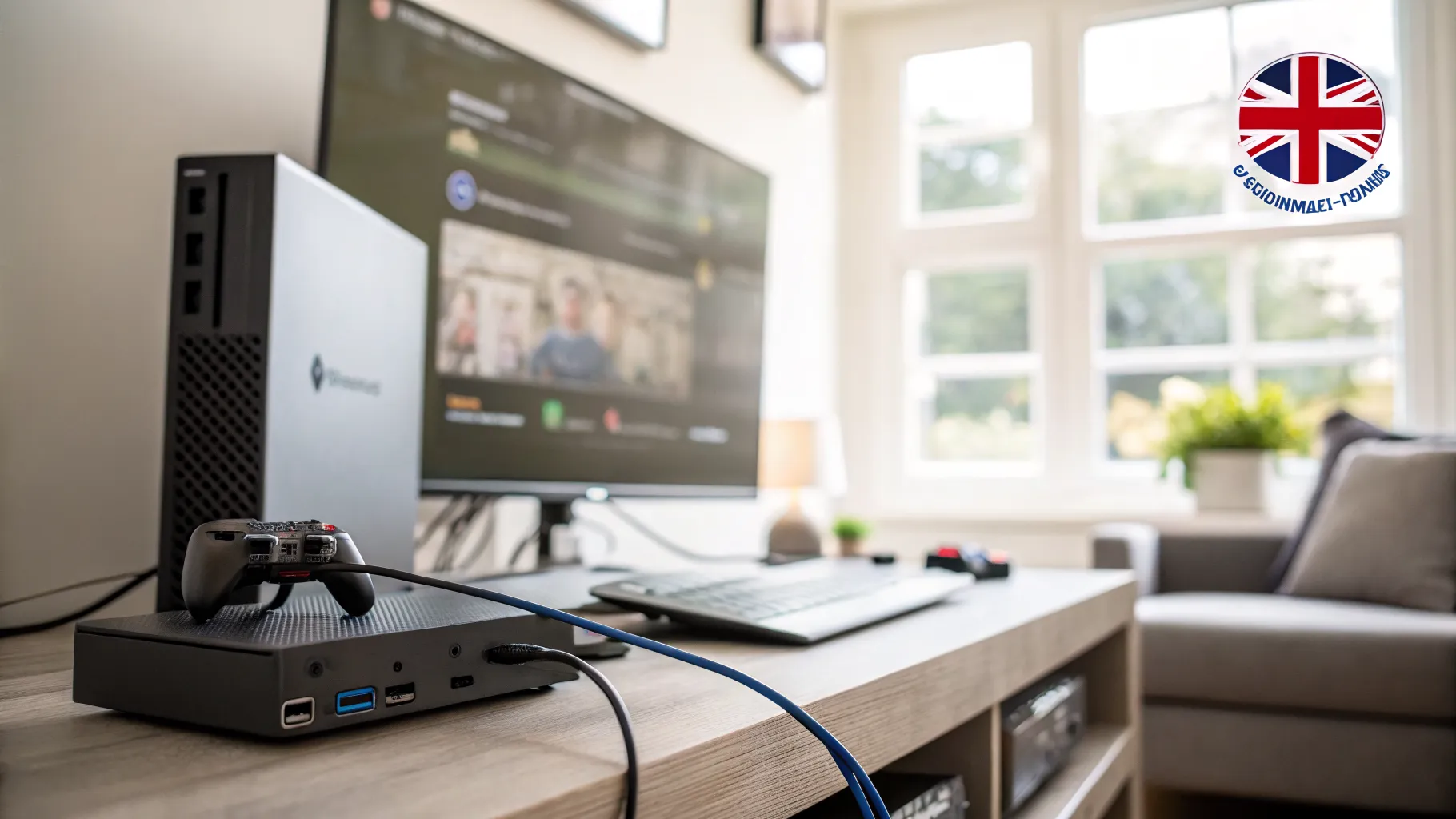
A KVM switch lets one keyboard, video display and mouse drive several computers, with a button or a hotkey to jump between them. KVM is just those three words. The classic use is a work laptop and a personal desktop sharing one good monitor and one good keyboard, instead of two of everything and a desk you cannot see. The concept is simple. Buying one is not, because the specification that decides whether you will love it or bin it is rarely on the front of the box.
What it does, and what it does not
A KVM carries your video signal and your USB peripherals from whichever machine is selected. Press the button, and the monitor, keyboard and mouse all move to the other PC at once. Some also switch audio and a shared USB hub, so a webcam, headset or printer follows too.
What it does not do is join the computers together. There is no file sharing and no shared clipboard. It is a physical switch, not a network. If what you actually want is to move files or a clipboard between two machines, a KVM is the wrong purchase and a bit of software is the right one.
EDID: the thing that decides whether you will keep it
This is the section other buying guides skip, and it causes more returns than every other factor combined.
Your monitor tells your computer what it can do (resolutions, refresh rates, colour formats, audio modes) via a block of data called EDID, Extended Display Identification Data. The GPU reads it and configures itself. Fine, until a KVM sits in the middle.
When you switch away, the monitor effectively vanishes from the machine you left. The Hot Plug Detect voltage drops, and Windows does what it does when a screen is unplugged: it reconfigures the desktop. Windows resize. Icons pile into the top left. Audio drops back to basic stereo. Switch back and it does it again in reverse. Do that twenty times a day and you will hate your desk.
EDID emulation is the fix. A KVM with it stores the monitor’s profile and keeps presenting it to every connected computer whether or not that computer is currently selected. As far as each machine knows, the monitor never left. No re-detection, no rearranging.
Two practical points that matter:
DisplayPort is worse than HDMI for this. The same KVM can behave perfectly over HDMI and rearrange your desktop aggressively over DisplayPort, because capturing and emulating EDID is straightforward on HDMI and genuinely difficult on DisplayPort. If you have the choice and you do not need DisplayPort’s bandwidth, HDMI is the quieter life.
“EDID” on the box is not a promise. Plenty of listings mention EDID without doing full emulation on every port. If the desktop-rearranging problem is the one you are trying to solve, look for explicit per-port EDID emulation and read reviews from people using your connector.
If you are on a Mac, the behaviour is different but not immune, and the same emulation logic applies.
Choosing the connector and resolution
Work out your worst case, then buy for it:
- Single 1080p or 1440p monitor: almost anything works. This is the easy case.
- 4K at 60Hz: common and well supported. HDMI 2.0 or DisplayPort 1.2 is enough.
- 4K at 120Hz or above, or 1440p at 144Hz+: now you need real bandwidth. DisplayPort 1.4 or HDMI 2.1, and you are in the pricier tier. Products in this class advertise 4K at 144Hz or 165Hz and 8K at 60Hz. VESA’s own DisplayPort FAQ is the place to check what each version and Display Stream Compression actually deliver, rather than trusting a product listing.
- Dual or triple monitors: the price climbs fast, and so does the chance of EDID trouble. Every extra screen is another handshake to go wrong.
The trap: your KVM, your cables and your GPU ports must all support the mode you want. A DP 1.4 KVM fed by a DP 1.2 cable is a DP 1.2 system, and the failure looks like a flickering or blank screen rather than an honest error. Buy certified cables and do not reuse the mystery one from a drawer.
Also check your outputs before ordering. A dual-monitor DisplayPort KVM assumes your PC has two DisplayPort outputs. Plenty of laptops have one output and a USB-C port, which needs a different product or an adapter, and adapters are where handshakes go to die.
USB matters more than you think
The video gets all the attention and then the peripherals let you down.
Many cheap KVMs run USB 2.0 on the peripheral ports. Fine for a keyboard and mouse. Not fine for a webcam, a fast external drive, or a high-polling-rate gaming mouse. If you intend to switch a webcam between machines, USB 3.0 on the KVM is not optional.
Two more USB details worth knowing:
- Some keyboards and mice do not survive hotkey switching. Multimedia keyboards, anything with its own software, and wireless dongles can behave oddly. KVMs that advertise “multimedia keyboard supported” are addressing exactly this.
- Wireless dongles want a dedicated port. A unifying receiver on a switched hub can take a second or two to re-enumerate, which is the difference between switching feeling instant and feeling broken.
Hotkey, button or both
Front-panel button, keyboard hotkey (often double-tapping Scroll Lock), or a wired remote on the desk. Hotkeys are the fastest until the hotkey clashes with something in an application, at which point you will want the physical button. Get one that offers both, and check the hotkey can be remapped.
When a KVM is the wrong answer
Be honest about the alternatives before you buy:
- Your monitor has picture-by-picture and a USB switch built in. Many recent monitors will do the whole job themselves. Check yours first; it may be free.
- You just want one keyboard across two machines on the same desk, both with their own screens. Software (Synergy, Barrier, Logitech Flow and similar) does this better, and shares the clipboard as well.
- One machine is a laptop you only dock occasionally. A dock is simpler and does more.
A KVM earns its place when you need one good monitor shared, or when the machines must stay physically separate, which is the usual reason a work laptop cannot use clipboard-sharing software in the first place.
Related gear: our USB-C to USB adapter guide covers the adapter side, USB extender cables the reach problem, and HDMI extenders if the second machine lives in another room.
Frequently asked questions
What does a KVM switch do? It connects one keyboard, monitor and mouse to two or more computers and switches all three between them at once, by button or hotkey. Many also switch audio and a shared USB hub. It does not link the computers together, so there is no file or clipboard sharing.
Why does my desktop rearrange when I switch my KVM? Because switching away drops the Hot Plug Detect signal, so Windows thinks the monitor was unplugged and reconfigures the desktop. Windows resize and icons move to the top left. A KVM with EDID emulation prevents this by continuously presenting the monitor’s profile to every connected computer, so no machine ever sees the display disappear.
Is EDID emulation worth paying for? If you switch more than a couple of times a day, it is the single feature worth paying for. Without it, every switch can rearrange your windows, and no other specification compensates. It matters most on DisplayPort, where the problem is worst.
Is HDMI or DisplayPort better for a KVM switch? HDMI, unless you need DisplayPort’s bandwidth. EDID emulation is far easier to implement over HDMI, so the identical setup often behaves perfectly on HDMI while rearranging the desktop over DisplayPort. Choose DisplayPort when you need high refresh rates at 4K, and accept that you must buy more carefully.
Will a KVM switch work with 4K at 144Hz? Only if the KVM, the cables and your GPU outputs all support it, which means DisplayPort 1.4 or HDMI 2.1 throughout. Switches in this class exist and advertise 4K at 144Hz or 165Hz, but a single underspecified cable silently reduces the whole chain and usually shows up as flicker or a blank screen.
Can I use a KVM switch with a webcam? Only on a KVM with USB 3.0 peripheral ports. Many cheaper switches use USB 2.0, which is adequate for a keyboard and mouse but not for a webcam or fast storage. Check the USB specification, not just the video specification.
Do I need a KVM switch if my monitor has a built-in USB switch? Probably not. Many recent monitors combine picture-by-picture with a built-in USB switch and will do the whole job with no extra hardware. Check what your monitor already offers before spending anything.