How to Log Into Your Router at 192.168.1.1 (UK Routers)
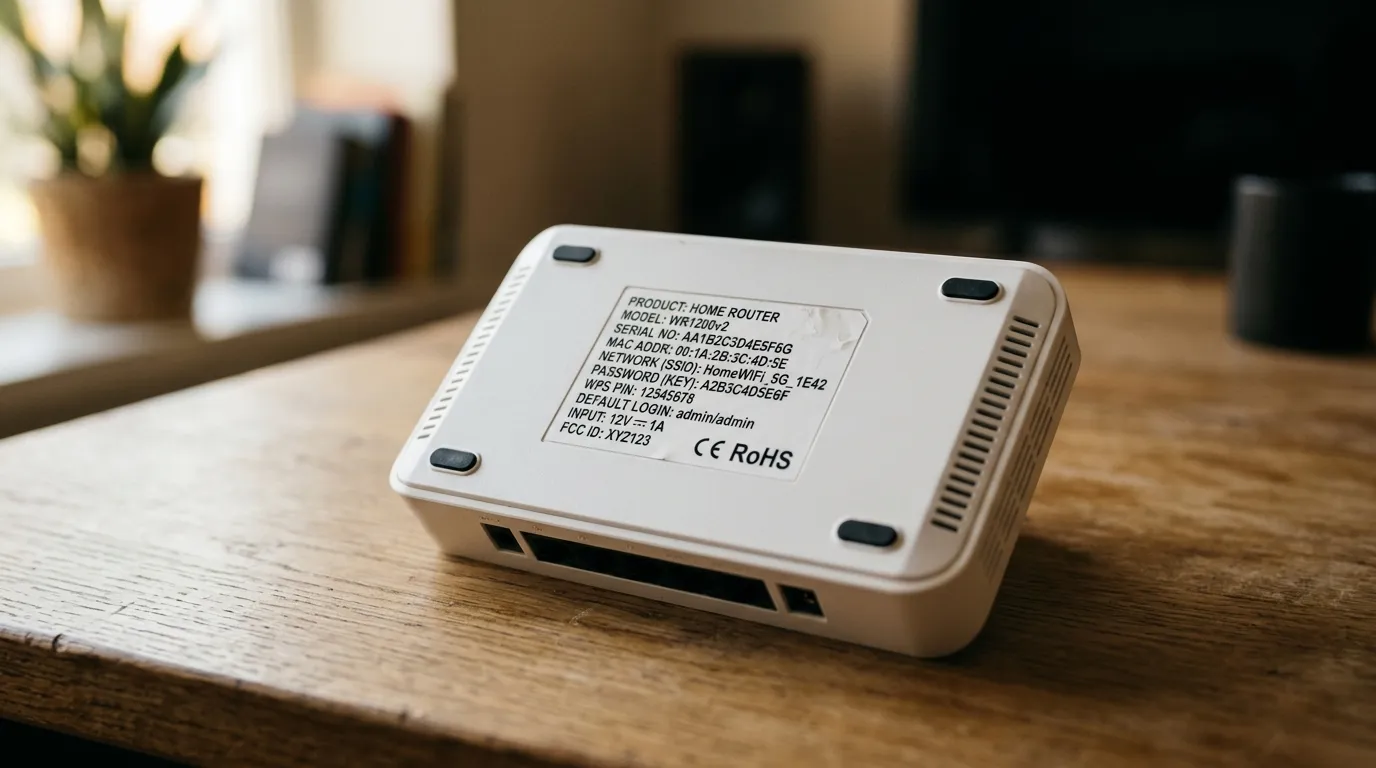
To log into your router at 192.168.1.1, open a web browser, type 192.168.1.1 into the address bar (not the search box) and press Enter, then sign in with the admin username and password printed on the sticker on your router. On most UK hubs the username is admin. If the page will not load, your router almost certainly uses a different address: BT, EE and Plusnet hubs use 192.168.1.254, while Sky and Virgin Media hubs use 192.168.0.1.
That last point trips up most people. 192.168.1.1 is a common default, but it is not universal in the UK, so the first job is checking that it is actually your router’s address.
Does your UK router actually use 192.168.1.1?
The address you type is your router’s “default gateway”. It varies by provider and hardware. Here is what the major UK ISPs ship with.
| Provider / hub | Login address | Username | Password |
|---|---|---|---|
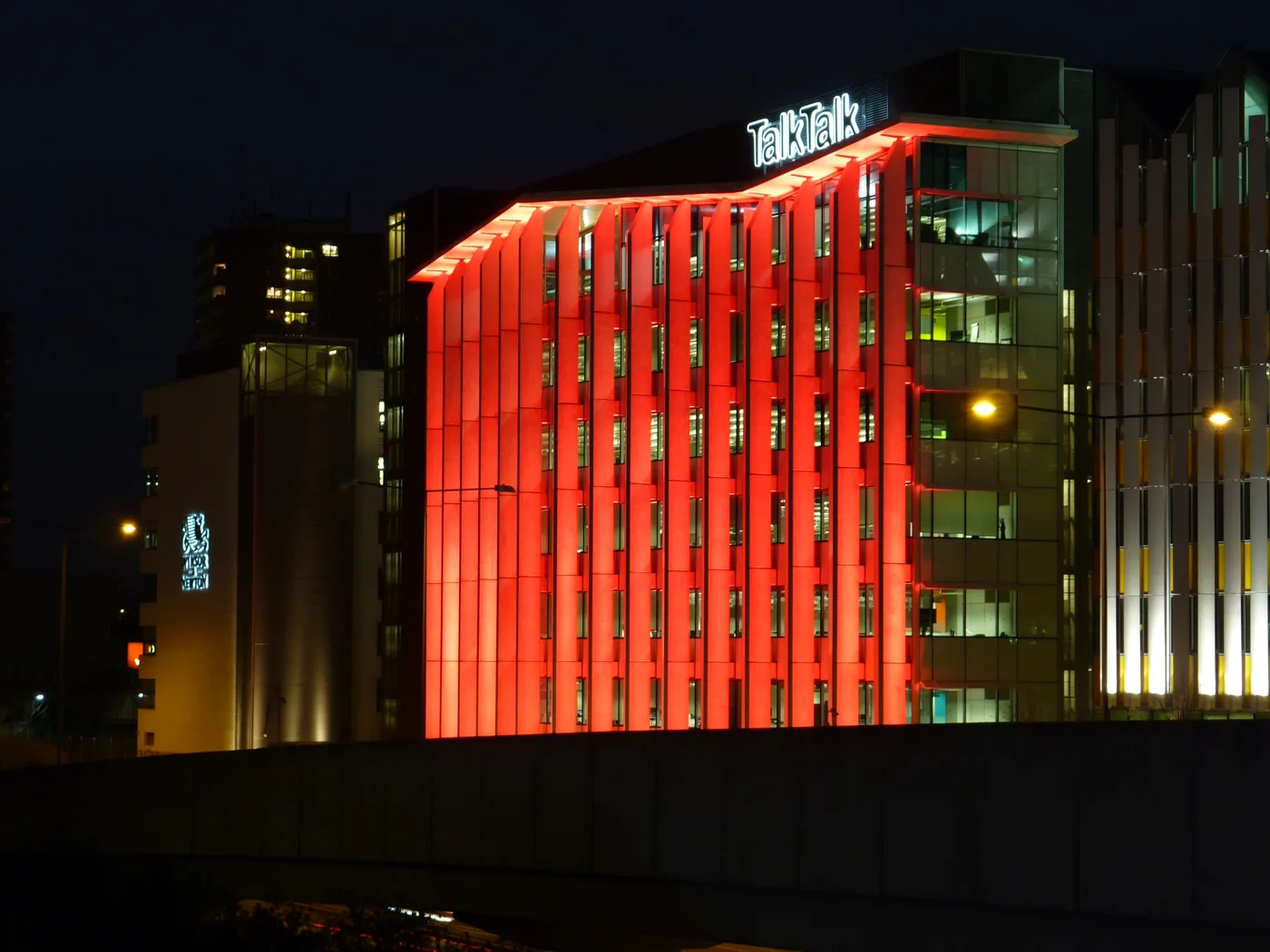
| TalkTalk (Huawei hubs) | 192.168.1.1 | admin | admin (or sticker) |
| BT Smart Hub / Smart Hub 2 | 192.168.1.254 | admin | admin (or sticker) |
| EE Smart Hub | 192.168.1.254 | admin | sticker |
| Plusnet Hub Two | 192.168.1.254 | admin | unique code on card |
| Sky Hub / Q Hub / Max Hub | 192.168.0.1 | admin | sticker code |
| Virgin Media Hub 3/4/5 | 192.168.0.1 | admin | sticker code |
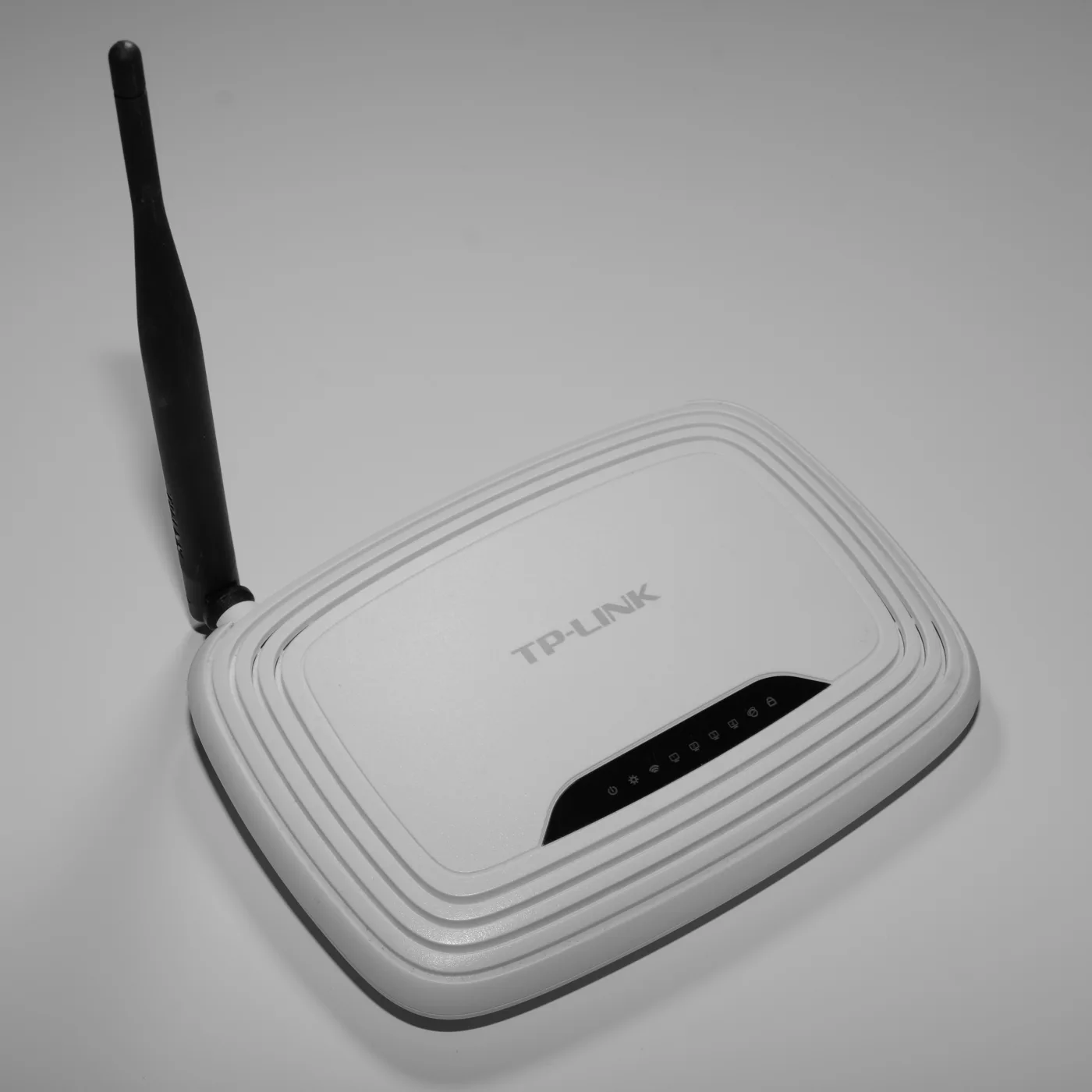
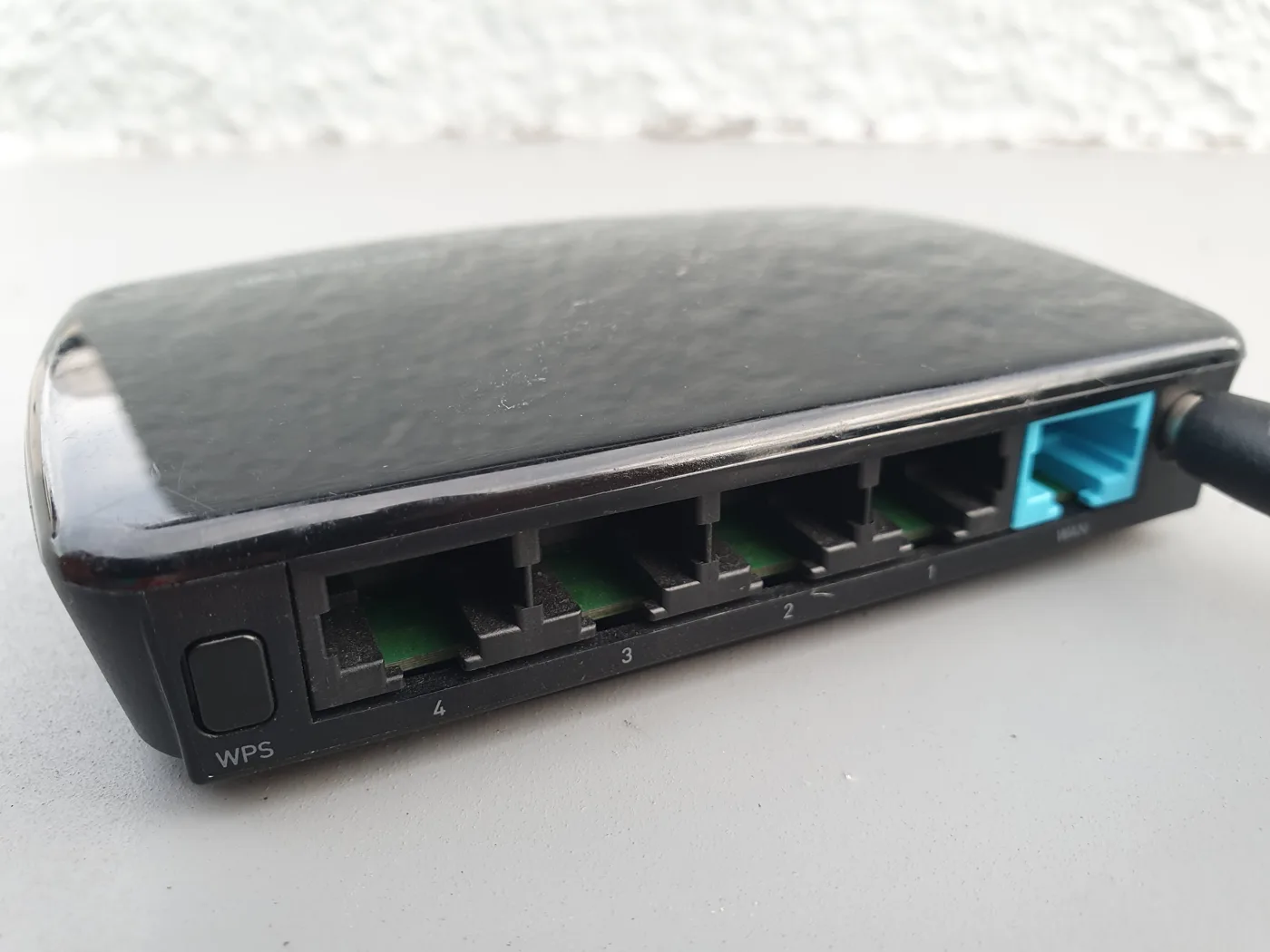
If you bought your own router or have a third-party model, common defaults are 192.168.1.1, 192.168.0.1 or 192.168.1.254. The exact figure is printed on the label, so flip the unit over before you guess.
Find your router’s exact address in 30 seconds
Rather than trial and error, ask your device for the gateway directly. It will never be wrong.
On Windows 10 or 11
- Press the Windows key, type
cmdand open Command Prompt. - Type
ipconfigand press Enter. - Find the line that reads “Default Gateway”. The number beside it is your router’s login address.
On a Mac
- Open the Apple menu, then System Settings, then Network.
- Click your active Wi-Fi or Ethernet connection, then Details.
- Open the TCP/IP tab. The address next to “Router” is the one to type into your browser.
On an iPhone or Android phone
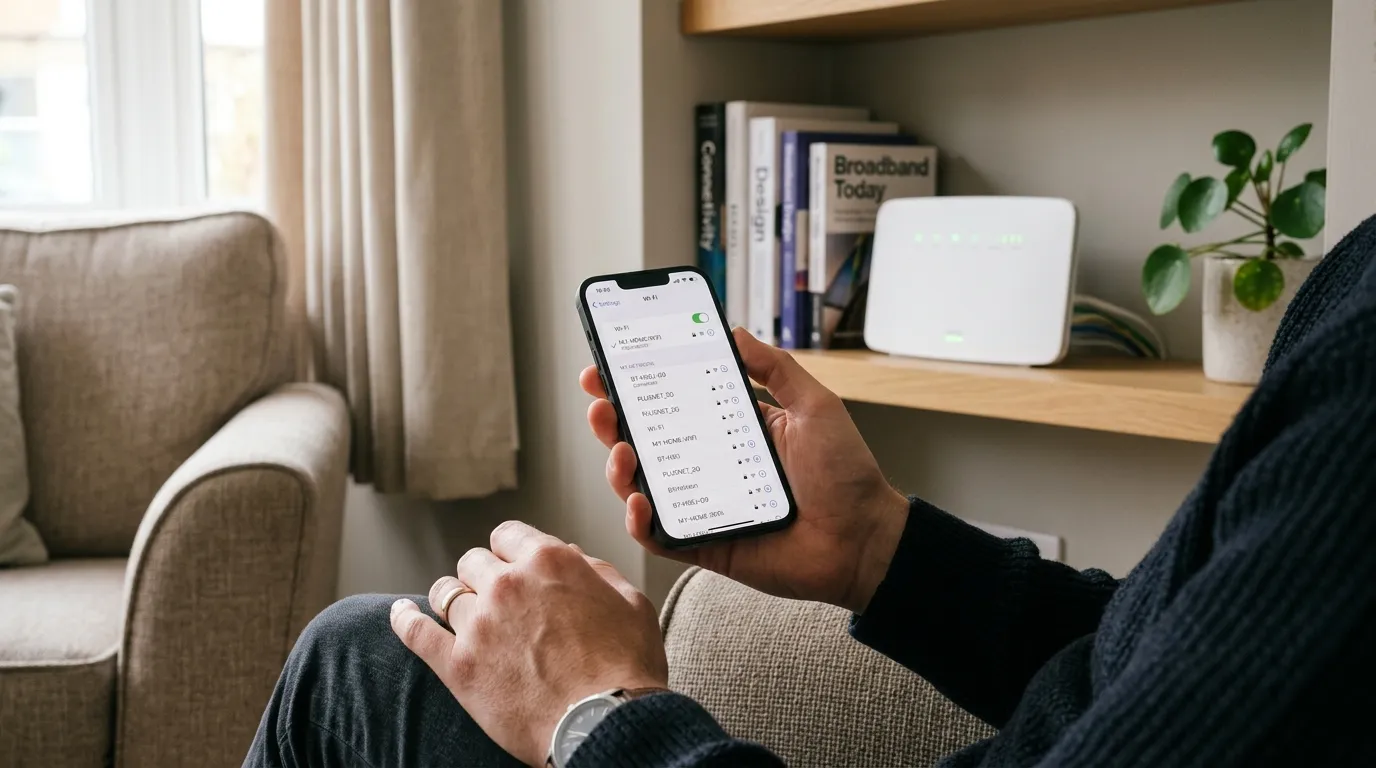
On iPhone, go to Settings, Wi-Fi, tap the small “i” next to your network and look at “Router”. On Android, open Settings, then Network and internet, tap your Wi-Fi network, then view the network details or Gateway field. Whatever it shows, that is the address to enter.
Step-by-step: logging in
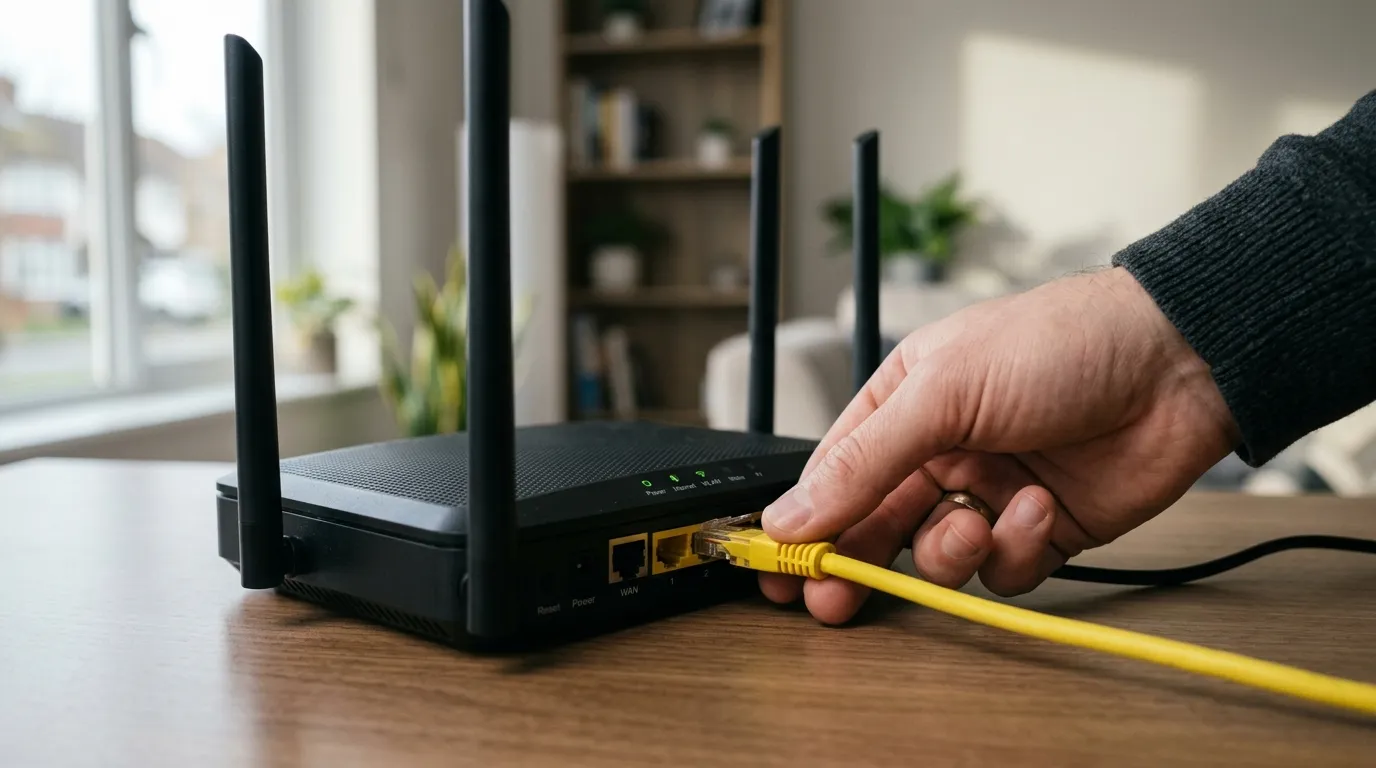
- Connect to your router first, either over Wi-Fi or with an Ethernet cable. You cannot reach the admin page on mobile data.
- Open a web browser (Chrome, Edge, Safari or Firefox).
- Type
http://192.168.1.1into the address bar at the very top, not the Google search field, and press Enter. - When the login screen appears, enter the username and password. Check the sticker on the router if you have never changed them.
- You are now in the admin panel and can change your Wi-Fi name, password, parental controls and other settings.
Tip: type http:// rather than https://. Most router login pages do not use an SSL certificate, so forcing https can produce a security warning or a blank page.
“192.168.1.1 is not working”: the common fixes
If the page refuses to load, work through these in order. Most cases are one of the first three.
- Wrong address. This is the number one cause. Run
ipconfigor check Network settings as above and use the gateway it reports. Many UK hubs are on 192.168.1.254 or 192.168.0.1, not 192.168.1.1. - A typo. It is digits only. People often type
192.168.l.l(lowercase L) or192.168.o.1(the letter O) by mistake. Use the number 1 and the number 0. - Not connected to the router. You must be on that router’s own network. If you are on a neighbour’s Wi-Fi, mobile data or a work VPN, you will not reach it. Turn off any VPN and reconnect to your home Wi-Fi.
- Browser is searching, not navigating. If your browser shows search results for “192.168.1.1”, you typed it into the search bar. Put it in the address bar and add
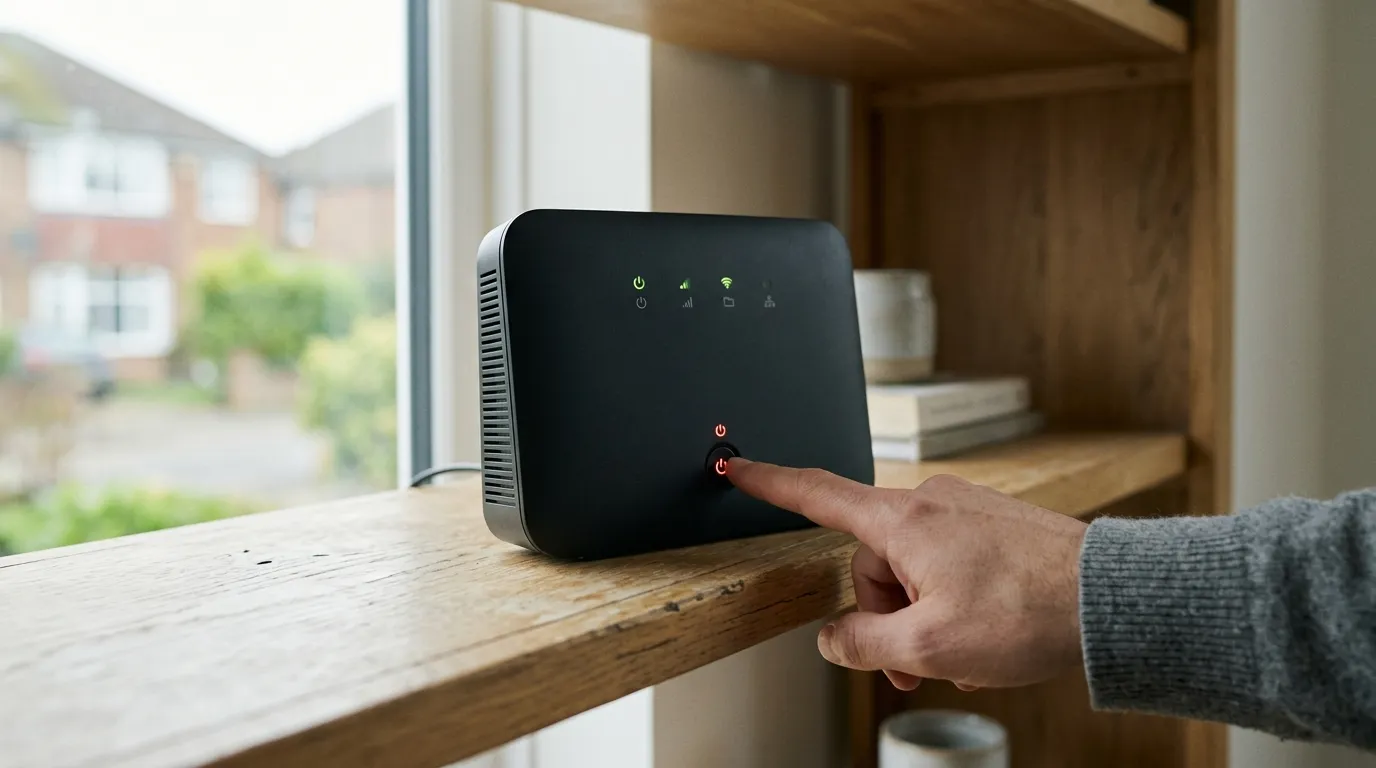
http://in front. - Router needs a restart. Switch the hub off at the wall, wait 30 seconds and power it back on. Give it two or three minutes to come back up before trying again.
- Security software interfering. Some antivirus and firewall tools block local admin pages. Temporarily pause web protection, log in, then turn it back on.
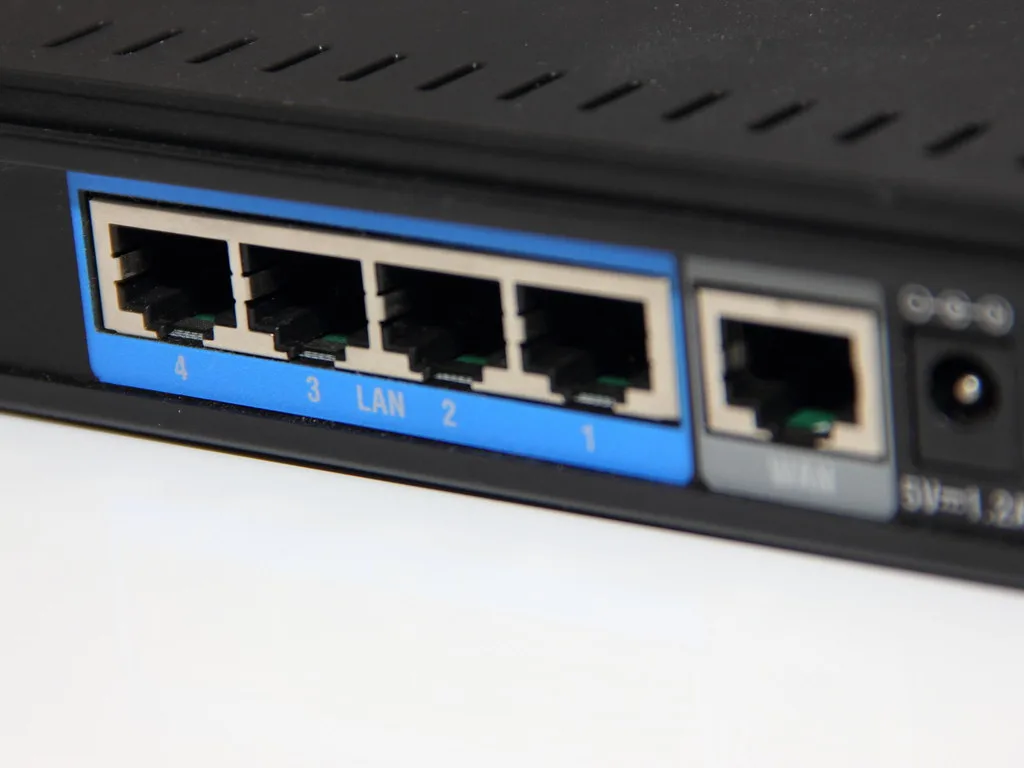
If you still cannot get in, you can hold the recessed reset button on the back of the router for around 10 to 30 seconds to return it to factory settings. This wipes your custom Wi-Fi name and password too, so only do it as a last resort, and never on a Virgin Media, Sky or BT hub mid-contract without checking your provider’s guidance first.
Forgotten the admin password?
The admin password is not the same as your Wi-Fi password, though some hubs use the Wi-Fi key for both. Start with the sticker on the underside or back of the router, which lists the default admin or “settings” password. If someone changed it and the note is lost, a factory reset is the only reliable way back in. After a reset, the router reverts to the printed defaults.
Once you are in, change the default admin password to something only you know. Since 29 April 2024, the UK’s Product Security and Telecommunications Infrastructure (PSTI) regime has banned manufacturers from shipping devices with weak, guessable default passwords, with penalties up to £10 million or 4% of global turnover. That law covers the manufacturer, not your own settings, so setting a strong unique password is still on you. The National Cyber Security Centre has practical guidance on securing smart devices.
For more on locking things down after you are in, see our guide to securing your home Wi-Fi network. If you are setting up a brand new hub from scratch, the new router setup checklist walks through every step.
Frequently asked questions
Why won’t 192.168.1.1 load on my UK router?
Most likely your router uses a different address. BT, EE and Plusnet hubs are usually on 192.168.1.254, and Sky and Virgin Media hubs on 192.168.0.1. Run ipconfig on Windows or check Network settings on a Mac to see the real default gateway, then type that instead.
What is the default username and password for 192.168.1.1?
On many UK hubs the username is admin and the password is either admin or a unique code printed on a sticker on the router. There is no single universal password, and modern routers often force you to set your own during setup. Always check the label on the device.
Is 192.168.1.1 the same as my Wi-Fi password? No. 192.168.1.1 is the web address you use to reach the router’s settings page. Your Wi-Fi password is the key you enter to connect a phone or laptop to the network. They are separate, although some routers do reuse the Wi-Fi key for the admin login.
Why does the page show a security warning?
You probably typed https://. Router admin pages are local and usually have no SSL certificate, so use http://192.168.1.1 instead. The warning is normal for a device on your own network and does not mean anything is wrong.
Can I log into my router from my phone? Yes, as long as the phone is connected to that router’s Wi-Fi, not mobile data. Open a browser, type the gateway address, and sign in exactly as you would on a computer.
Is it safe to change router settings? Yes, the common ones are. Changing your Wi-Fi name, password or parental controls is routine. Be more careful with advanced options like port forwarding, DNS and firmware, and note your existing values before you change anything so you can put them back.
How do I reset the router password if I am locked out? Try the printed default on the sticker first. If that fails, hold the reset button for roughly 10 to 30 seconds to restore factory settings, which clears the custom password. Remember this also resets your Wi-Fi name and password, so you will need to reconnect your devices afterwards.