Wi-Fi Keeps Dropping or Disconnecting? Step-by-Step Fix
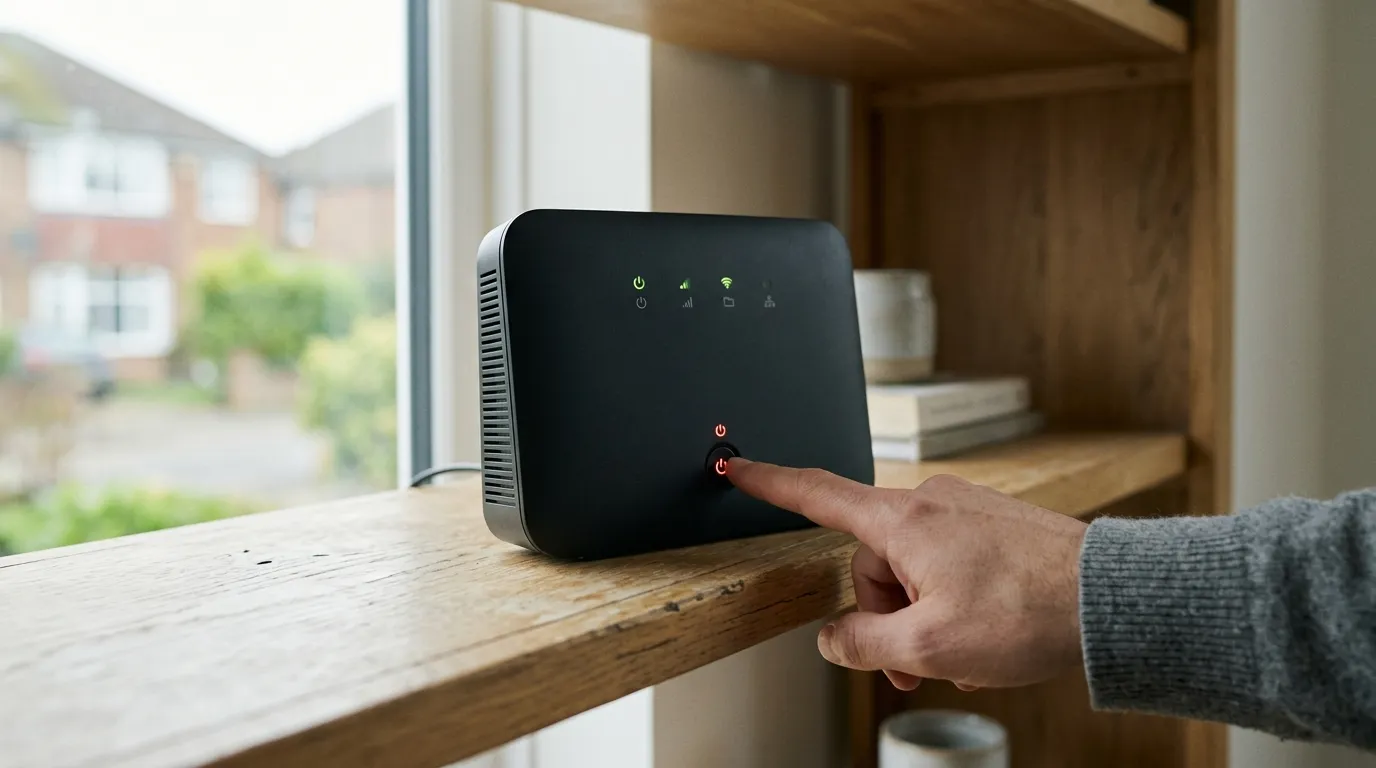
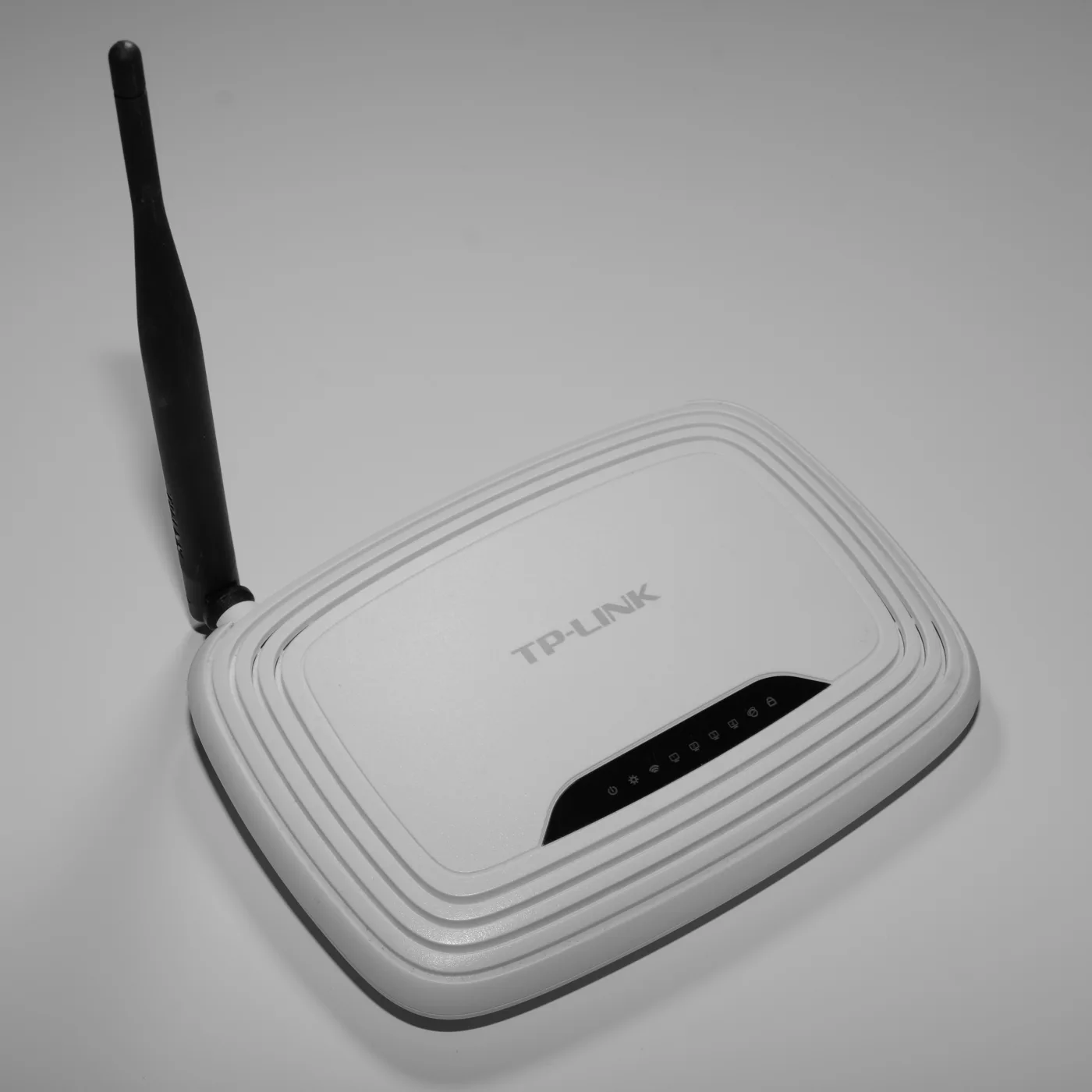
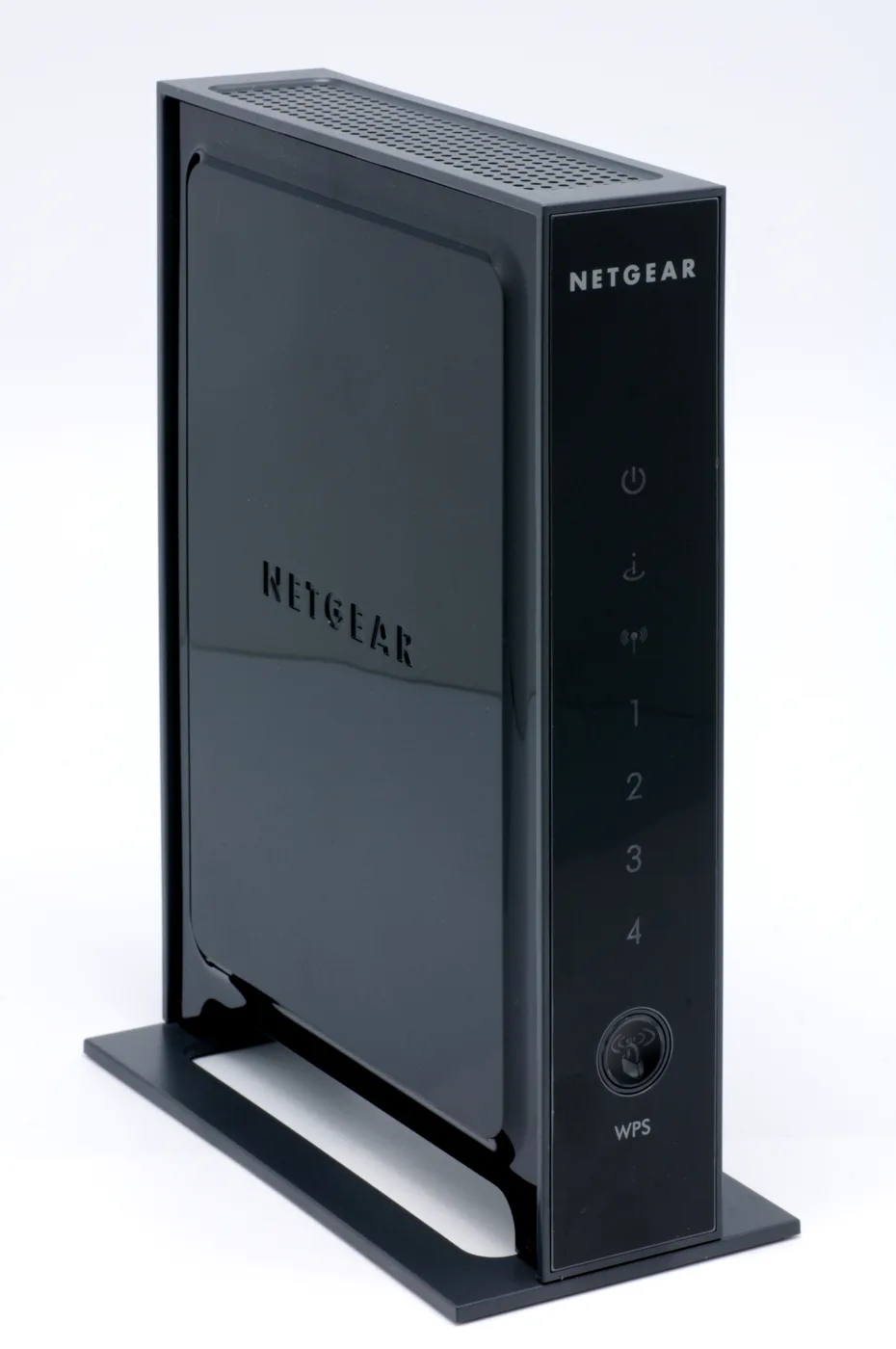
If your wifi keeps dropping, start by restarting the router (unplug it for 30 seconds, plug it back in, wait two to three minutes for the lights to settle). If drops continue, change the 2.4GHz channel to 1, 6 or 11, split the 2.4GHz and 5GHz bands into separate network names, and move the router away from anything metal, electrical or water-filled. If every device loses connection at once, the fault is usually the line or the router itself, not your wifi.
Most “wifi keeps dropping” problems fall into one of four buckets: the router needs a reset, the radio channel is congested, something is interfering with the signal, or there is an actual broadband line fault. Work through the steps below in order. Each one takes a few minutes and rules out a cause, so you stop at the fix instead of guessing.
First, work out what is actually dropping
Before you change any settings, narrow down the problem. This decides which fixes are worth your time.
| What you see | Most likely cause | Where to go |
|---|---|---|
| One device drops, others stay online | That device, its drivers, or the band it joins | Steps 5 and 6 |
| Every device drops at the same time | Router or broadband line | Steps 1 and 7 |
| Drops only far from the router | Range and signal blockage | Steps 3 and 4 |
| Drops at the same time each day | Interference (microwave, neighbour’s wifi, a timer) | Steps 2 and 4 |
| Drops since a recent storm or new device | Line fault or a new source of interference | Steps 4 and 7 |
A quick test: open a continuous ping on a laptop or phone (Windows: ping -t bbc.co.uk in Command Prompt; Mac: ping bbc.co.uk in Terminal). Watch it while the wifi misbehaves. If the replies stop and “request timed out” appears, then resume, you are watching the drop happen in real time. That tells you whether it is constant or intermittent.
Step 1: Restart the router properly
A restart clears the router’s memory and forces it to pick fresh radio channels. It fixes a surprising share of drop-outs on its own.
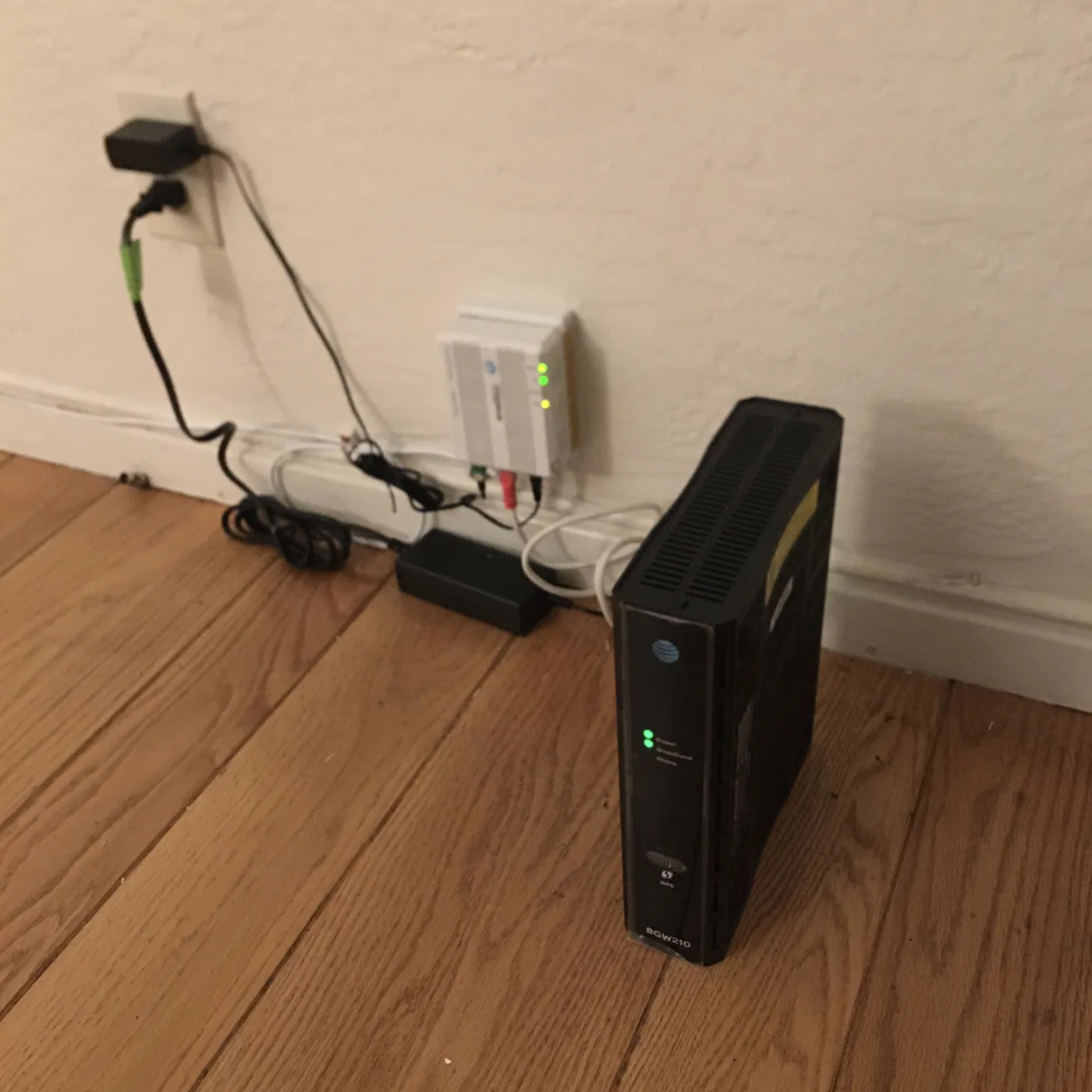
- Unplug the router from the mains (do not just use the standby button).
- Leave it off for 30 seconds.
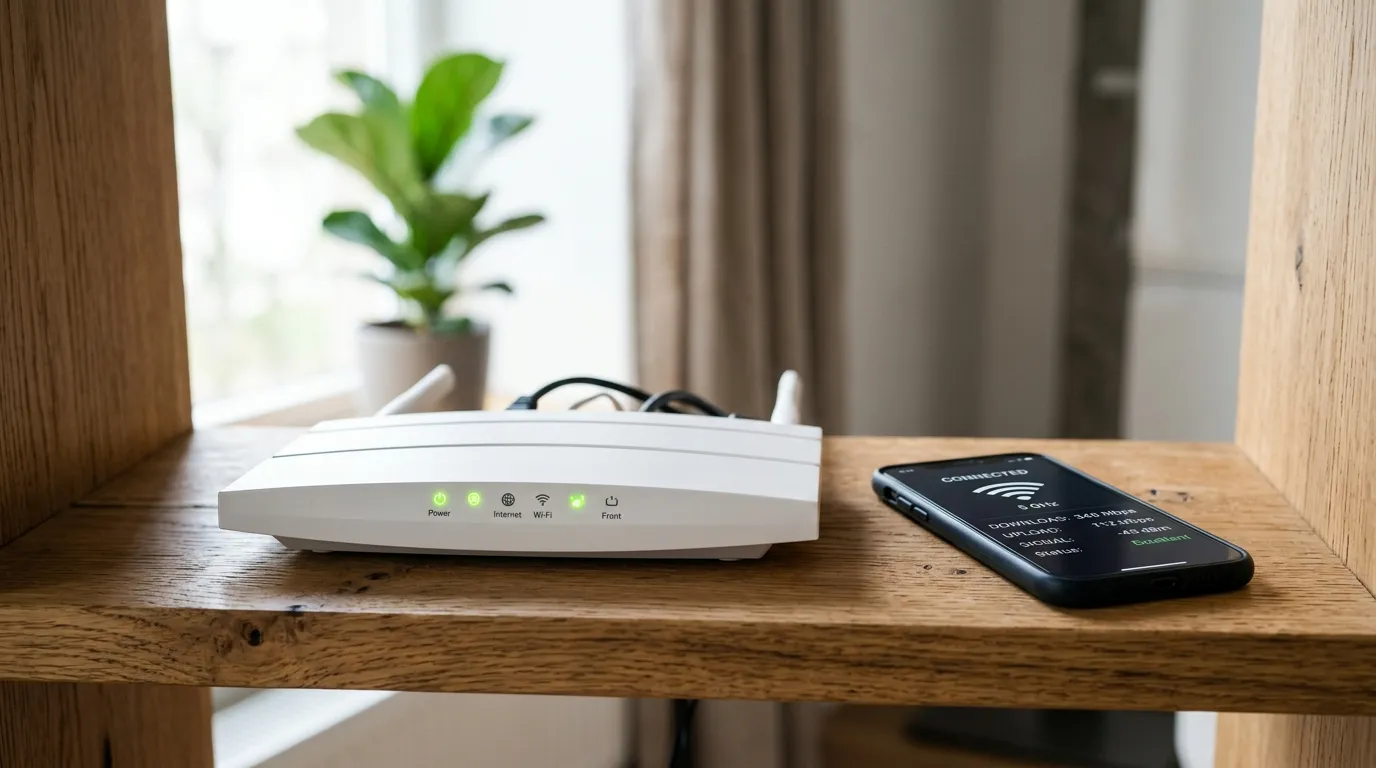
- Plug it back in and wait two to three minutes until all the lights are steady, not flashing.
- Reconnect a device and test.
Do this no more than once. If you are restarting the router every day to keep wifi alive, that is a symptom of a deeper fault, usually overheating, old firmware, or a line problem covered below, not a real fix.
Step 2: Change the wifi channel
Wifi runs on radio channels, and in a street full of routers those channels overlap and fight each other. This is one of the most common reasons wifi keeps dropping in flats and terraces.
On the 2.4GHz band, only channels 1, 6 and 11 do not overlap. Any other channel partly sits on top of two neighbours, which causes dropped packets and random disconnects. Set your 2.4GHz band to 1, 6 or 11, whichever is least used near you.
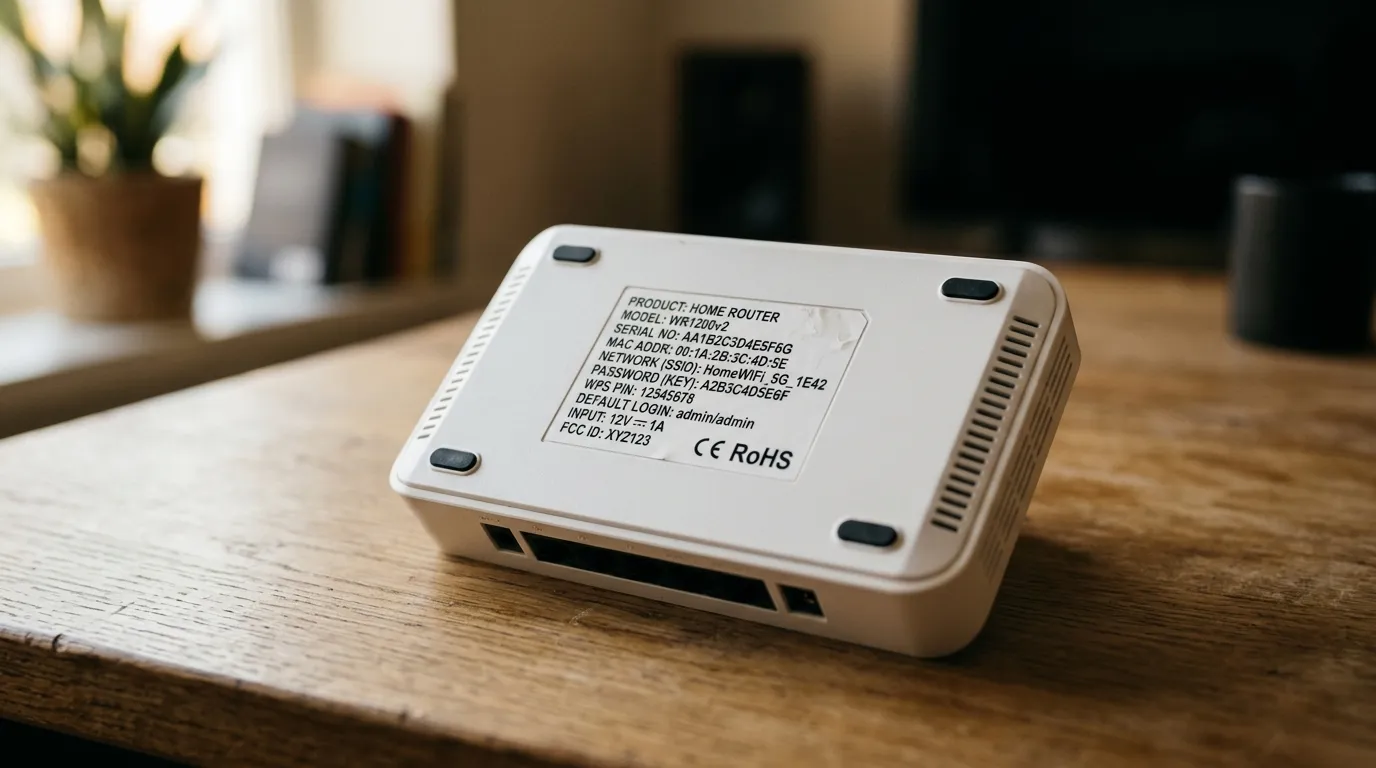
- Log into your router’s settings page (type the address on the sticker, often
192.168.1.1or192.168.0.1, into a browser). - Find the wireless or wifi settings.
- Set the 2.4GHz channel to 1, 6 or 11. If it is on “Auto” and still dropping, pick one manually.
- For 5GHz, leaving it on Auto is usually fine, as that band has far more non-overlapping channels.
- Save and let the router restart.
A free wifi analyser app on an Android phone will show you which channels your neighbours are crowding so you can pick the quietest one. (Apple restricts this on iPhone.)
Step 3: Move the router to a better spot
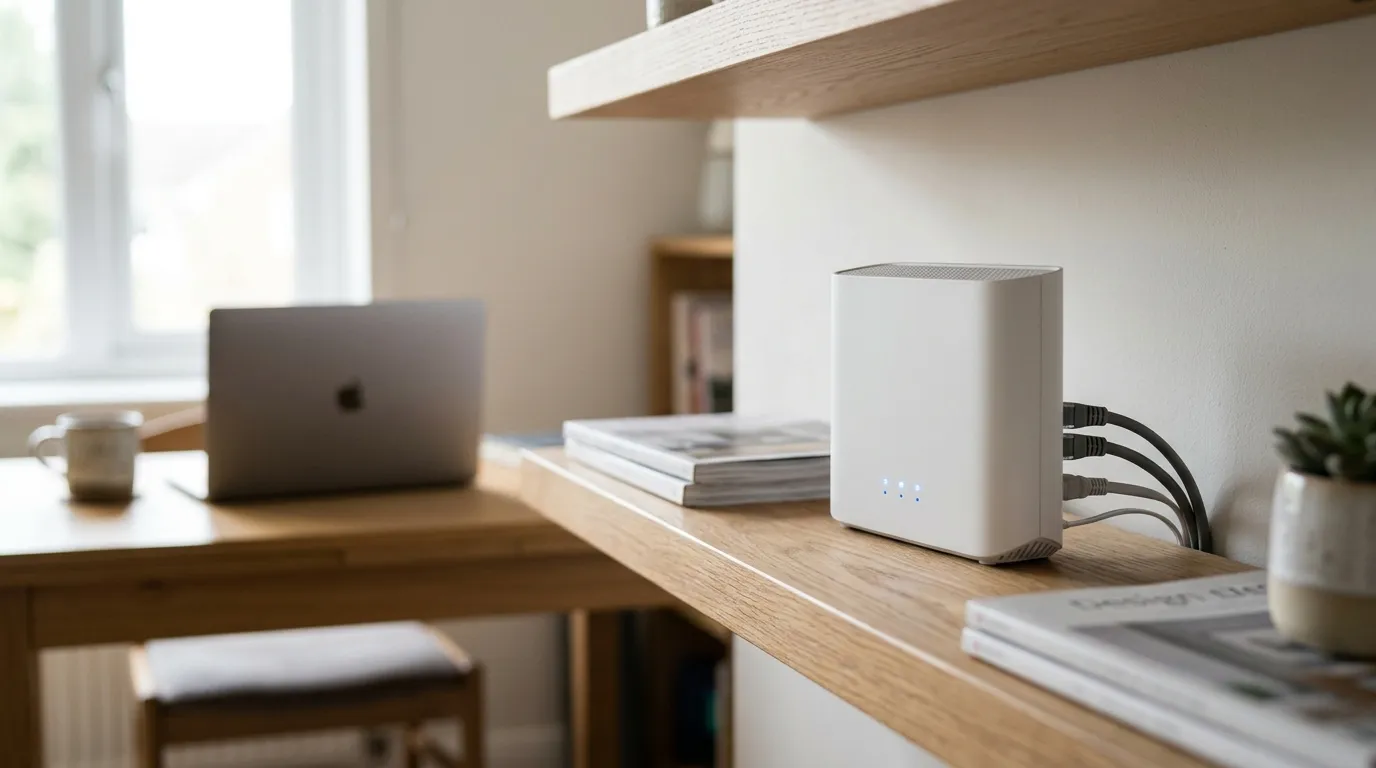
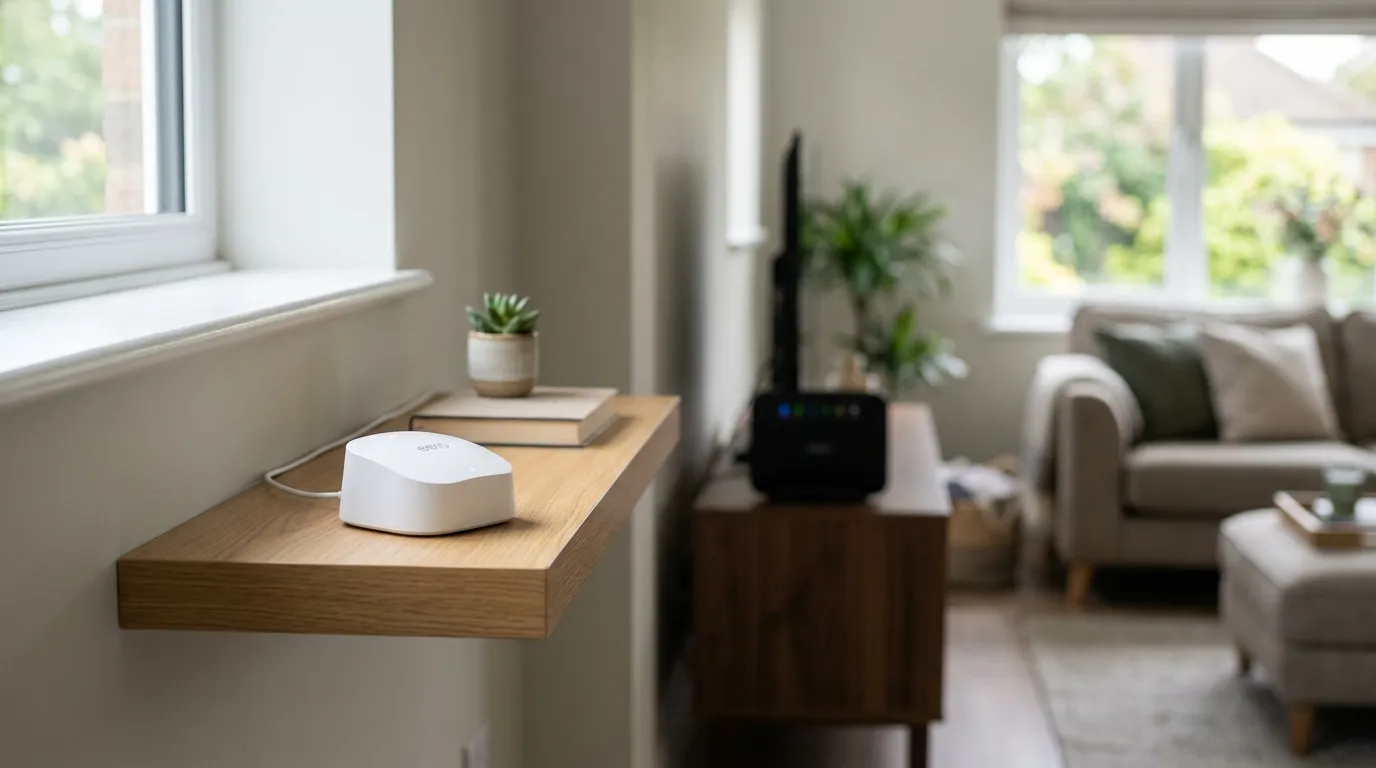
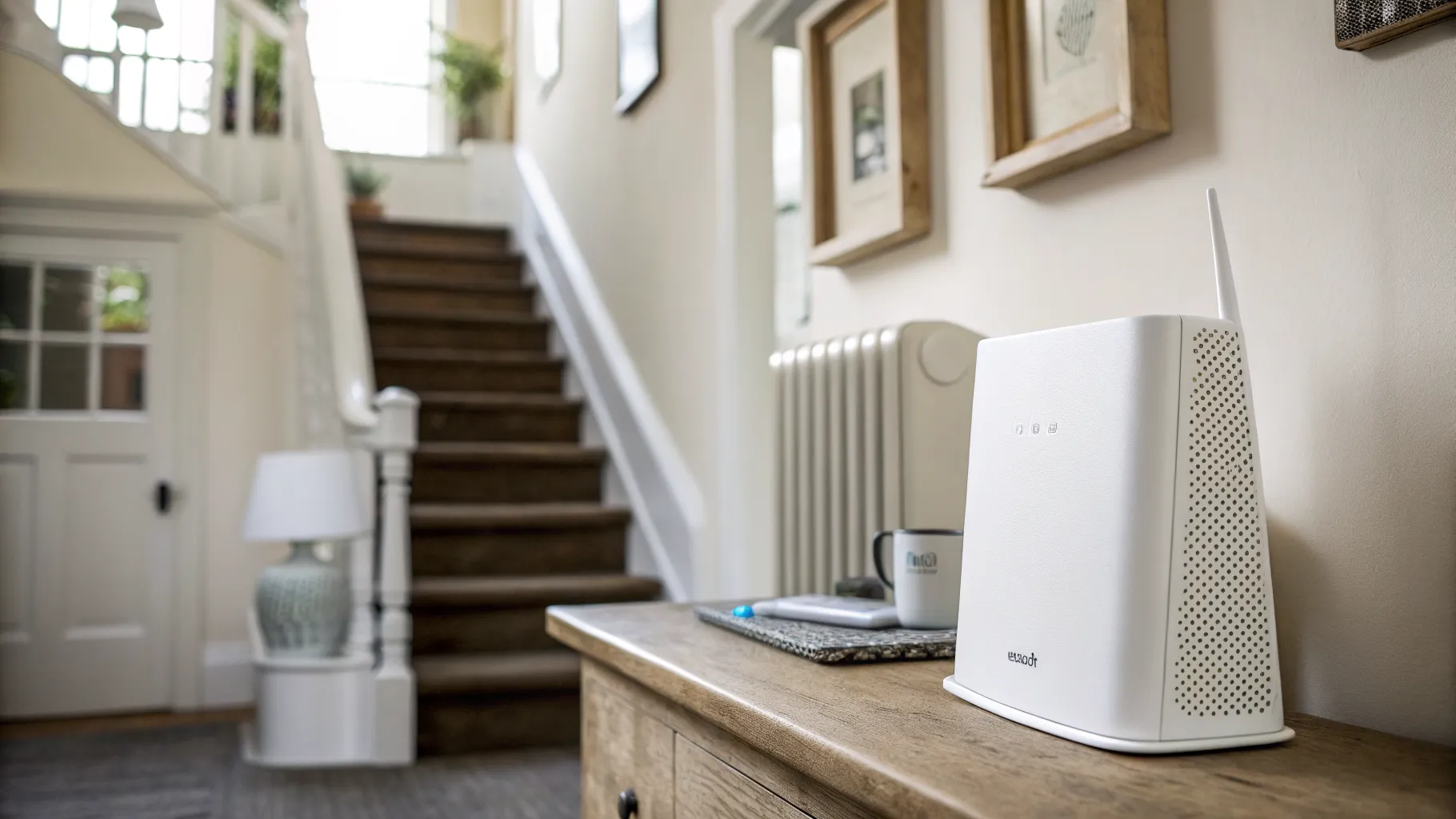
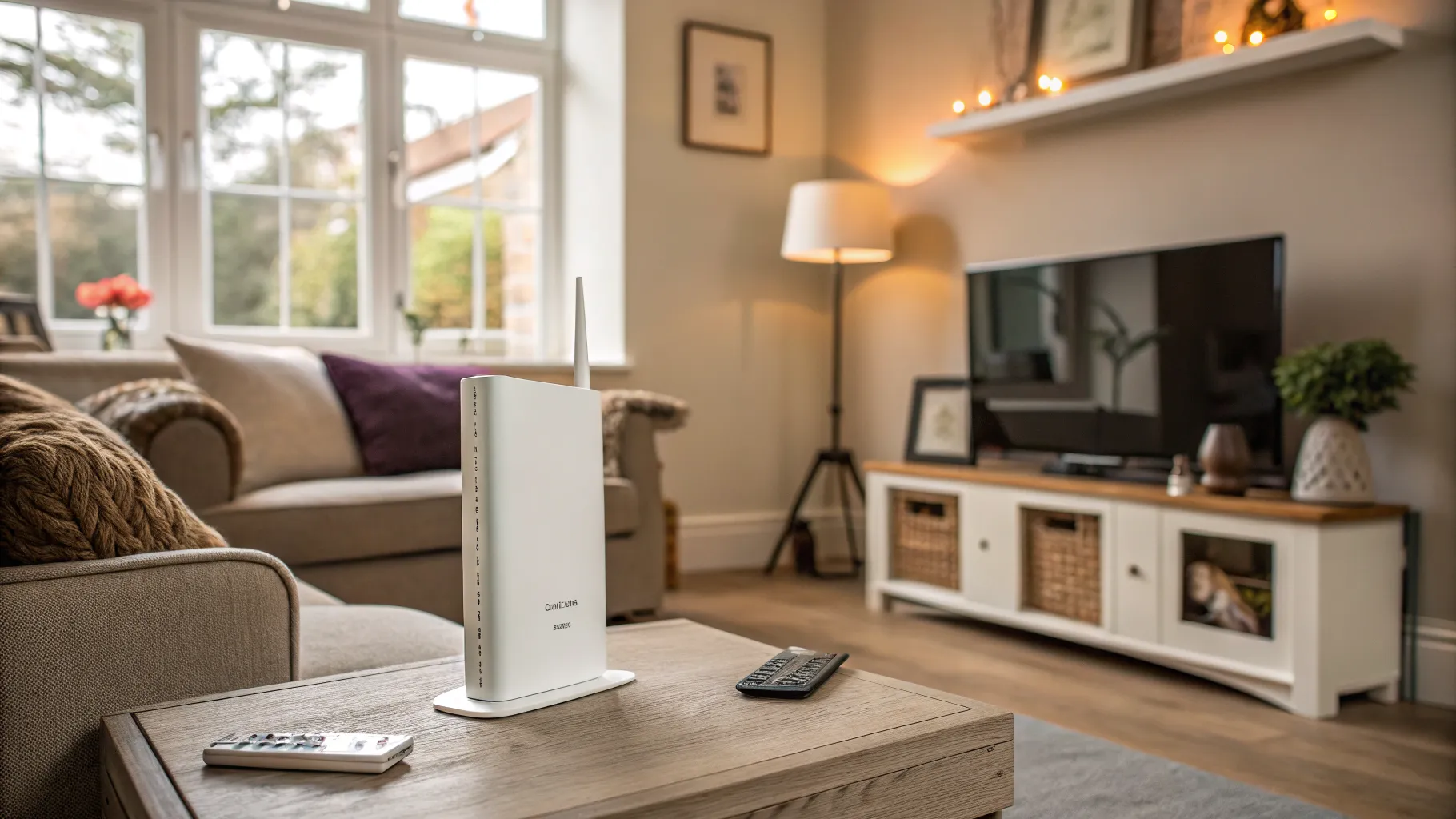
Ofcom’s official advice is to place the router centrally in the home and off the floor, for example on a shelf, so the signal is not lost into the ground or out through a wall. A router stuffed in a cupboard, behind the TV, or on the floor by the front door is fighting a losing battle.
Keep these away from the router, because they all weaken or block wifi:
- Water: radiators, fish tanks, hot water tanks, even a stack of full water bottles.
- Metal: mirrors, filing cabinets, foil-backed insulation, metal shelving.
- Glass and masonry: thick brick or stone internal walls are far harder for wifi to pass through than hollow plasterboard.
Lift the router off the floor, get it out of any enclosed unit, and aim for a clear line of sight to the rooms where you use wifi most.
Step 4: Remove sources of interference
Plenty of everyday gear pumps out radio noise on the same frequencies as your wifi. Ofcom specifically names microwave ovens, baby monitors, fairy lights and cordless phones as common culprits. Cordless DECT home phones and some Bluetooth speakers sit right next to the wifi bands too.
- Move the router at least a couple of metres from microwaves, baby monitors and cordless phone base stations.
- If wifi drops every time the microwave runs, that is your answer, so do not make video calls while it is on.
- A USB 3.0 hard drive or hub plugged in near the router can spray interference across the 2.4GHz band. Move it away or use a different port.
- Unplug or relocate cheap unbranded chargers and LED string lights near the router, as some leak noise.
Step 5: Split the 2.4GHz and 5GHz bands
Most routers broadcast 2.4GHz and 5GHz under one network name and silently move devices between them (“band steering”). When it works it is convenient. When it fails, a device that only supports 2.4GHz, such as an older smart plug, doorbell or printer, gets shoved towards 5GHz, fails to connect, and drops off the network repeatedly.
The fix is to give each band its own name:
- In the router settings, turn off “Smart Connect” or “band steering”.
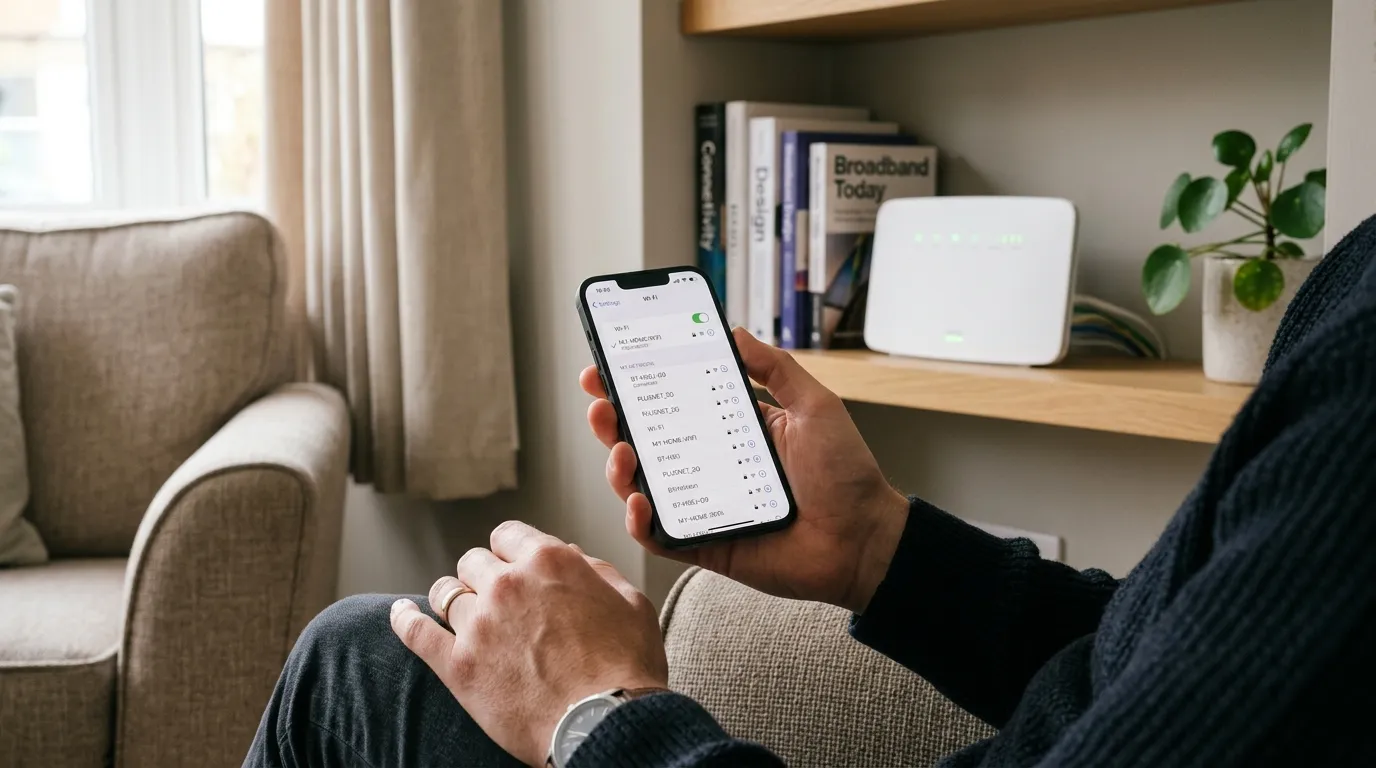
- Rename the 2.4GHz network with a “-2.4” suffix and the 5GHz with a “-5G” suffix.
- Connect older or far-away devices to the 2.4GHz network (better range, passes through walls more easily).
- Connect laptops, phones and TVs that are near the router to the 5GHz network (faster, less crowded).
If your router supports the newer 6GHz band (Wi-Fi 6E or Wi-Fi 7), the UK opened the lower 6GHz band for licence-exempt home wifi, so it is clean and barely used. Put high-bandwidth devices that are close to the router on it.
Step 6: Fix the one device that keeps dropping
If everything else stays online and only one laptop, phone or smart device drops, the problem is on that device, not the network.
- Forget the network on the device and rejoin it, retyping the password.
- Update the wifi adapter driver (Windows) or install pending system updates (Mac, phone, tablet).
- On a Windows laptop, open Device Manager, find the wireless adapter under Network adapters, open Properties, then Power Management, and untick “Allow the computer to turn off this device to save power”. Windows powering down the adapter is a classic cause of one laptop dropping while everything else is fine.
- Restart the device.
Step 7: Rule out a broadband line fault
If you have done everything above and the whole house still drops, the problem may be the broadband line, the master socket, or the router hardware.
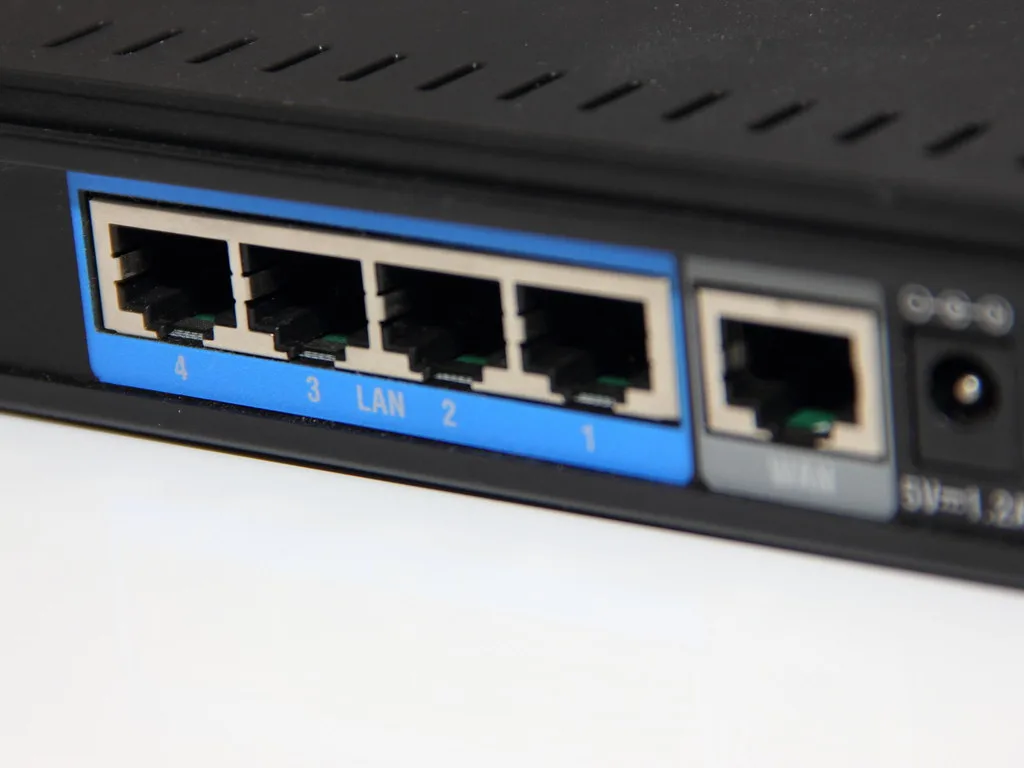
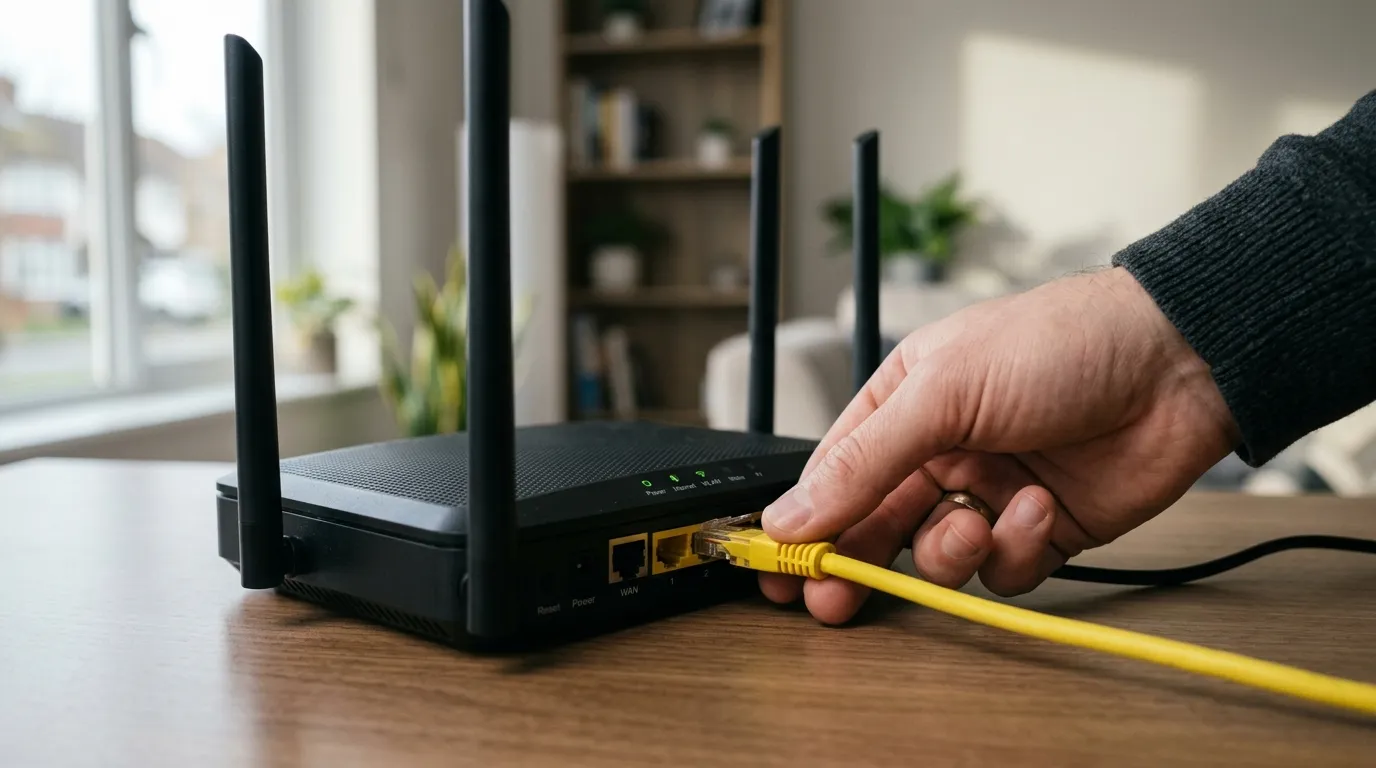
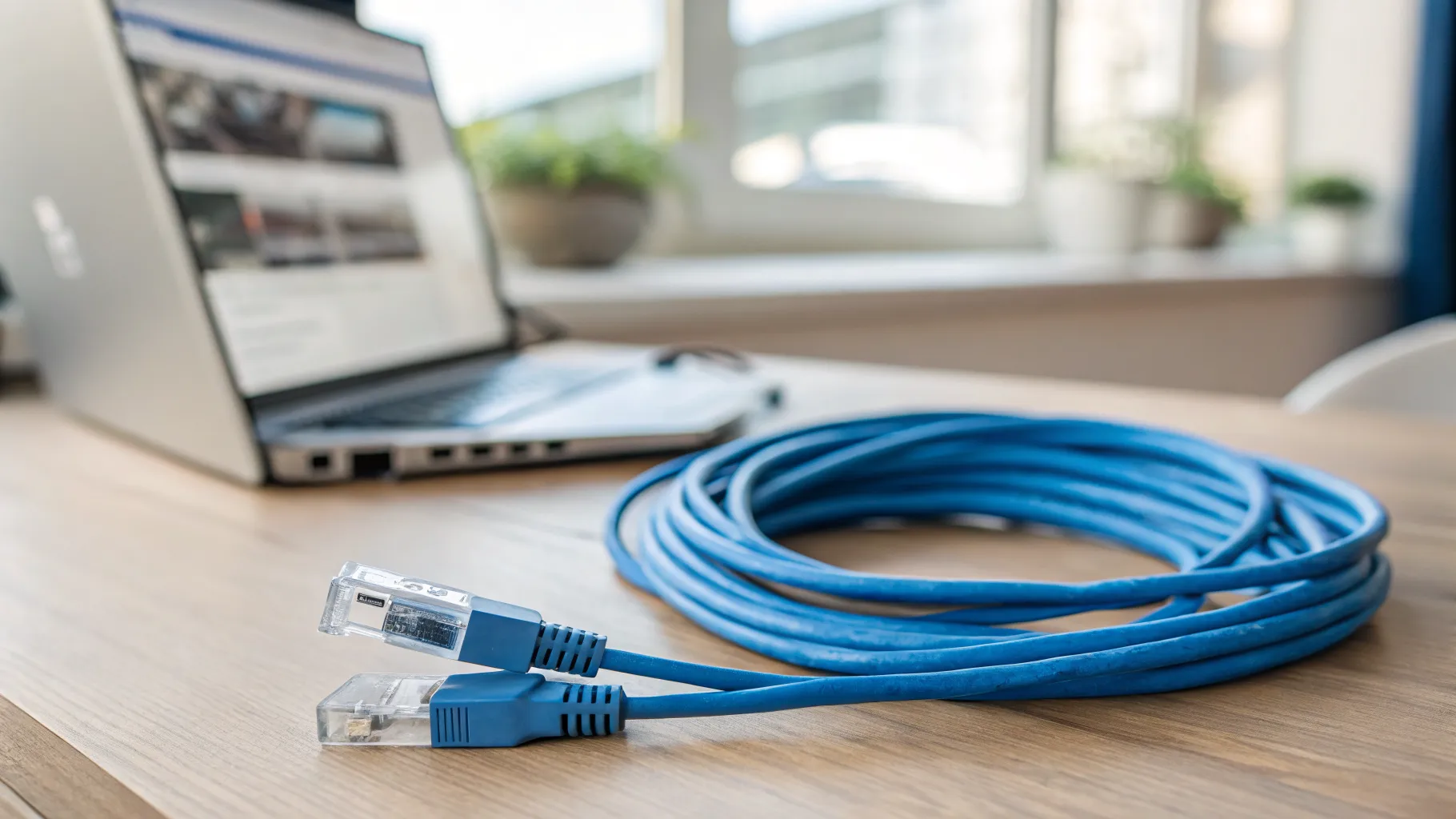
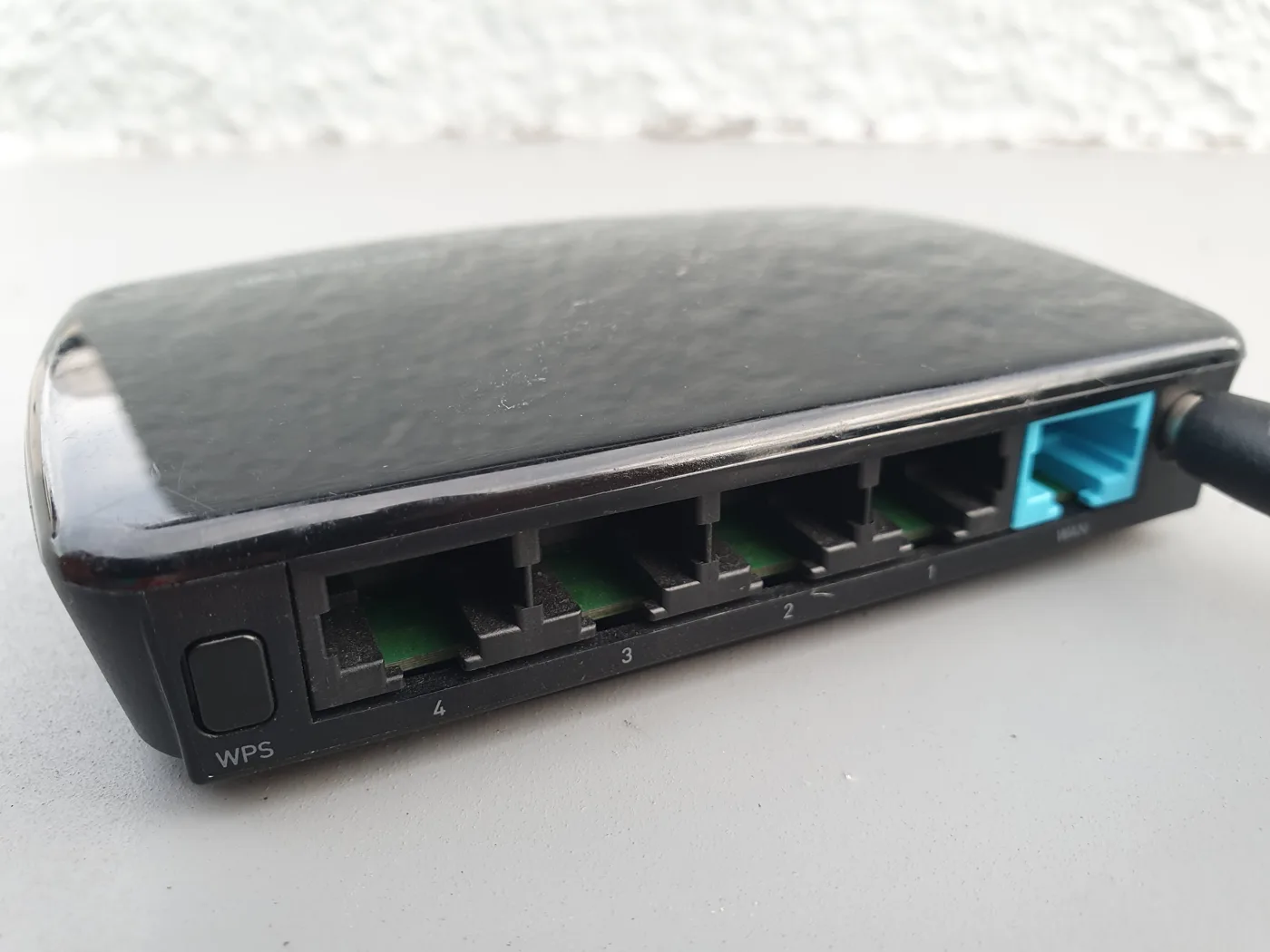
- Plug a device into the router with an ethernet cable. Ofcom notes a wired connection is usually more stable than wifi. If the wired connection also drops, the fault is the line or router, not your wifi.
- Check your provider’s status page or app for a known outage in your area.
- If you have a separate master socket, connect the router directly to it and remove any phone extension leads, splitters or unfiltered devices on the line.
- Report the fault to your provider and ask them to run a line test.
Under Ofcom’s rules, if you suffer a total loss of broadband and it is not fixed by 11:59pm on the second full working day after you report it, your provider must pay automatic compensation for each day it stays broken, usually added as account credit within 30 days, without you having to chase it. Reporting the fault promptly also starts that clock.
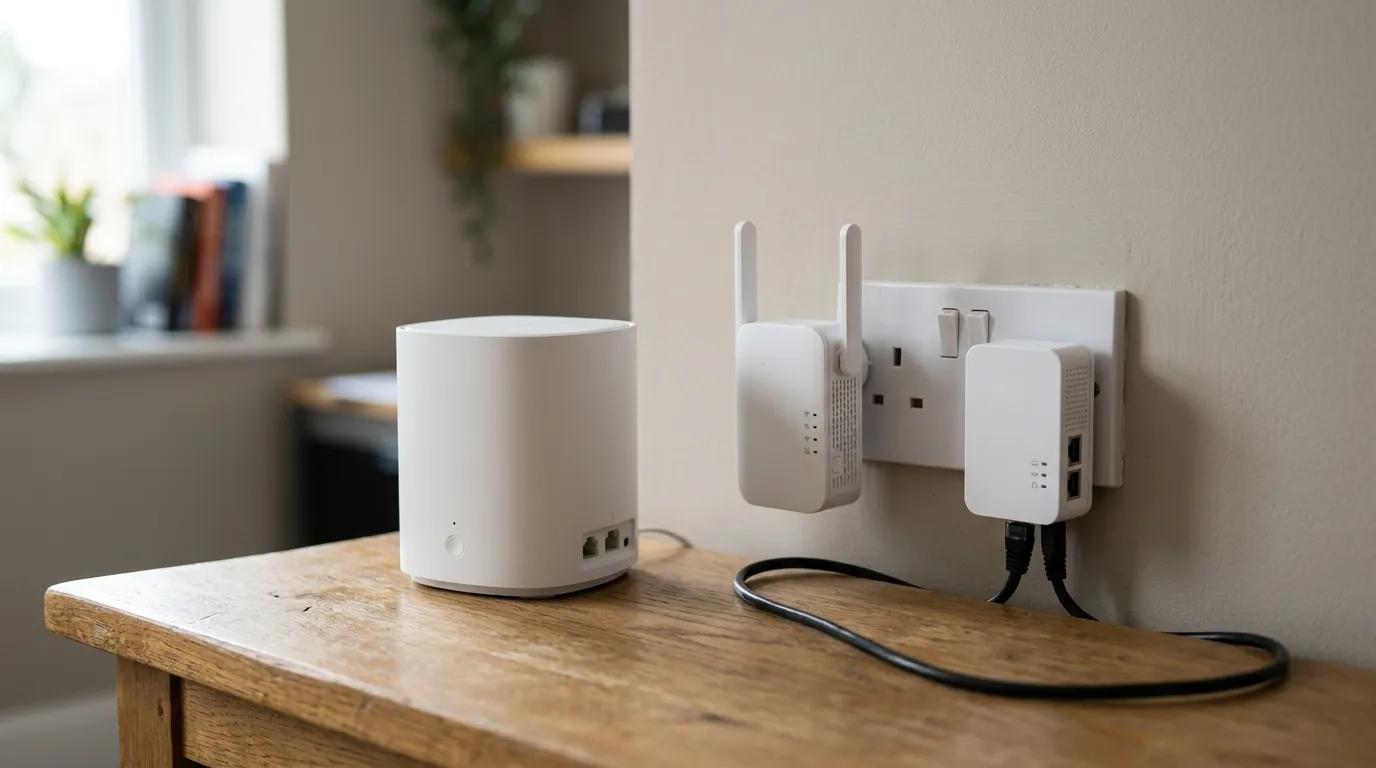
For more help with weak signal in specific rooms once the dropping is fixed, see our guide on extending wifi to a garden room or extension and how to set up a mesh system without dead zones.
Frequently asked questions
Why does my wifi keep dropping at the same time every day? A daily pattern points at interference or a scheduled event. Common causes are a microwave used at mealtimes, a neighbour’s device on a timer, or your provider running overnight line tests. Watch the clock when it drops, then check whether an appliance is running, and try moving your 2.4GHz band to channel 1, 6 or 11 to dodge a busy neighbour.
My wifi drops on one phone but not on anything else. Why? That is almost always the device, not the network. Forget the network and rejoin it, install any pending updates, and on a Windows laptop stop the system from powering down the wifi adapter to save battery. If only that device is affected, changing router settings will not help.
Should I use the 2.4GHz or 5GHz band to stop drops? Use 2.4GHz for range and for devices far from the router or behind thick walls, and 5GHz for speed when you are close. If your router merges both into one name and a device keeps dropping, split them into separate network names so older 2.4GHz-only gadgets stop being pushed onto a band they cannot reach.
Does restarting the router actually fix wifi dropping? Often, yes, because it clears the router’s memory and lets it pick fresh, less crowded channels. It is the right first step. But if you have to restart it daily to keep wifi alive, treat that as a warning sign of overheating, outdated firmware or a line fault rather than a fix.
When is it the broadband line and not my wifi? If a device plugged into the router by ethernet cable also loses connection, your wifi is not the problem, as the fault is on the line or the router itself. At that point, check for an outage and report it to your provider so the automatic compensation clock starts.