How to Fix Wi-Fi Dead Spots at Home: 9 Proven Fixes
Most Wi-Fi dead spots come down to two things: how far the signal has to travel and what it has to pass through to get there. A 2.4GHz router reaches roughly 45 metres indoors, but a single internal brick wall can cut the signal by 40 to 60 percent, and a dense concrete floor can block as much as 80 percent. That is why the back bedroom, the loft conversion and the kitchen extension so often drop out. The good news: most of the fixes that actually work cost nothing. Here are nine, ordered the way an engineer would try them, free settings first, paid hardware last.
1. Move the router to a central, raised spot
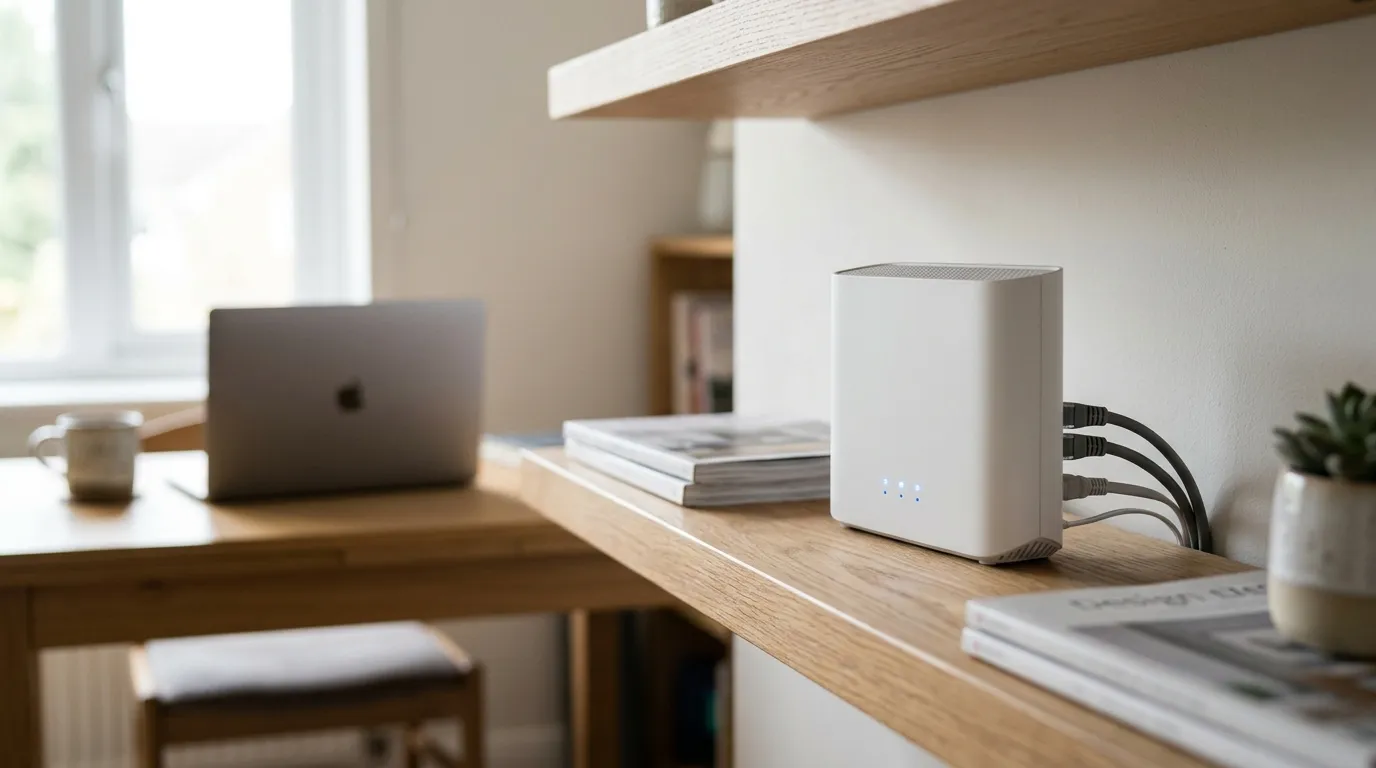
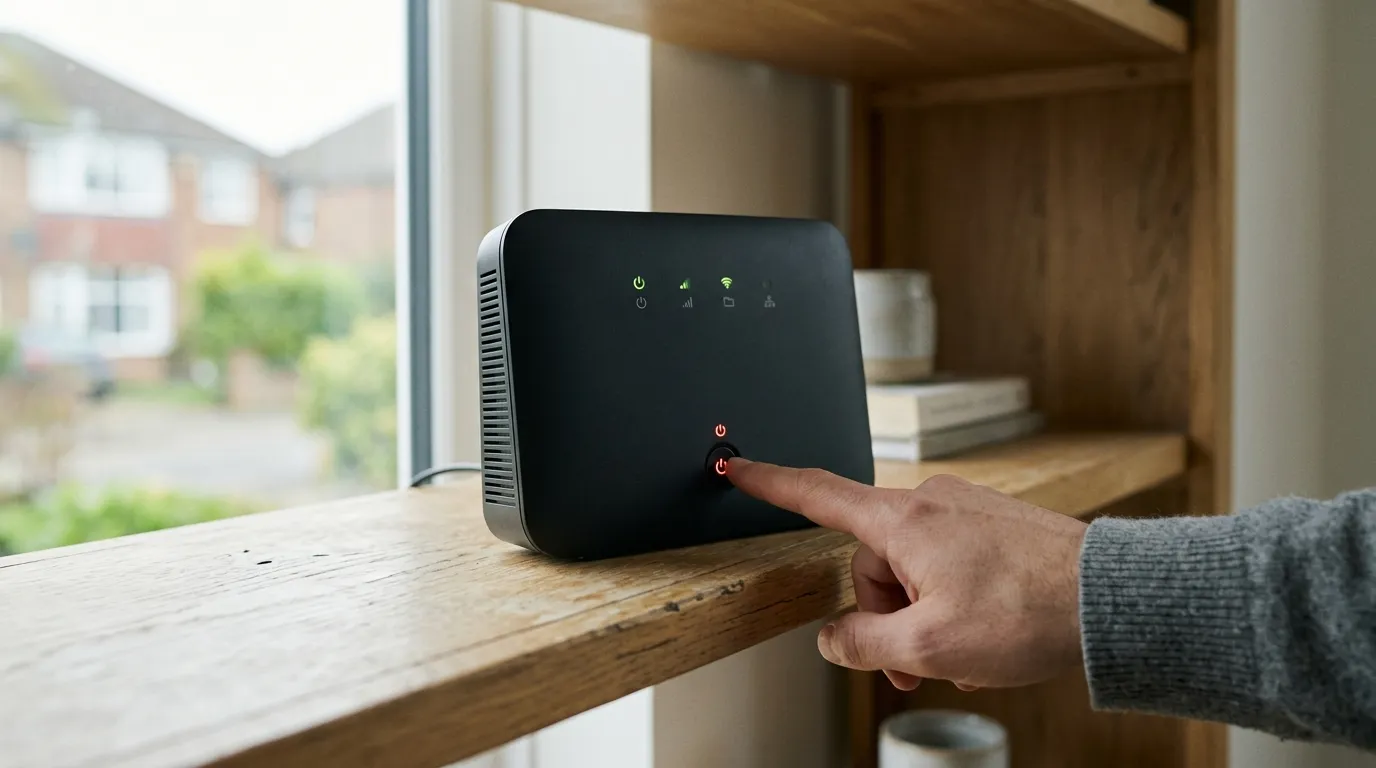
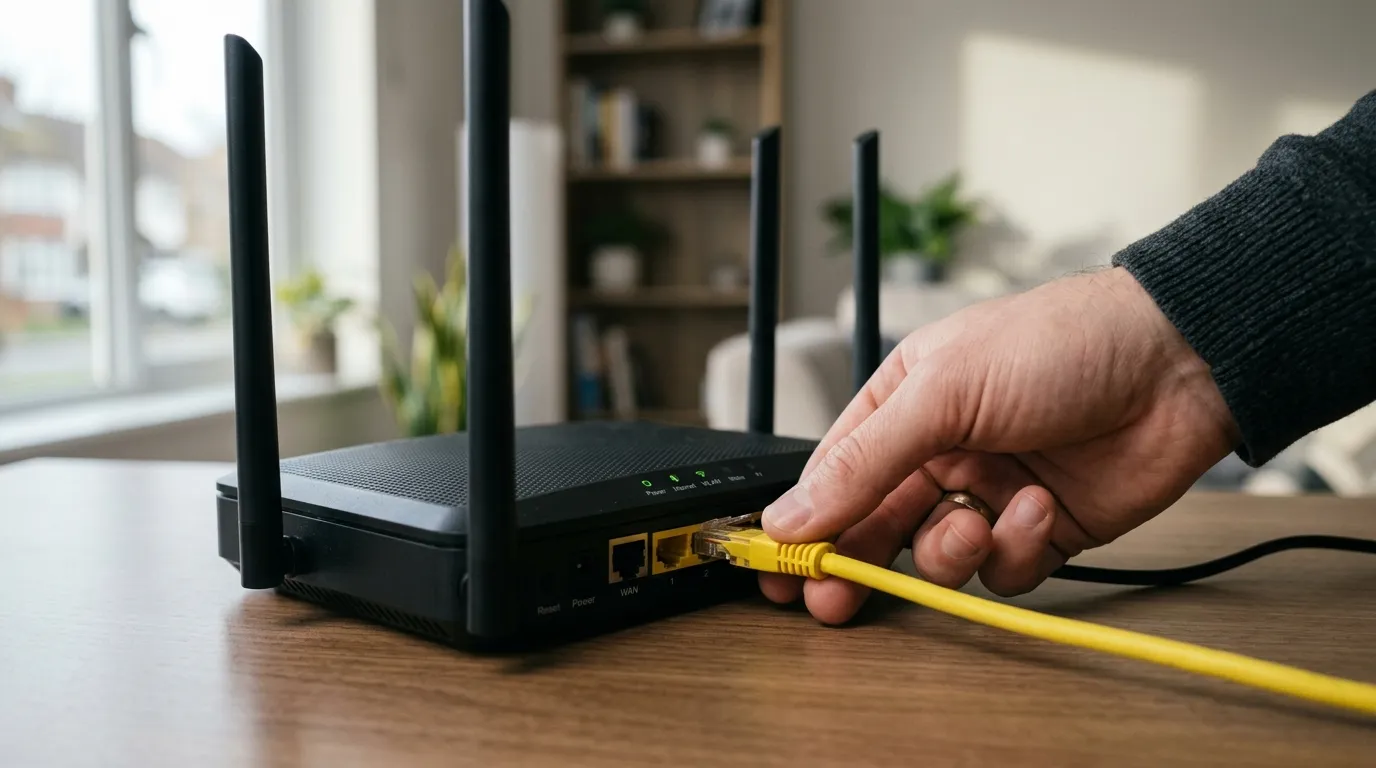
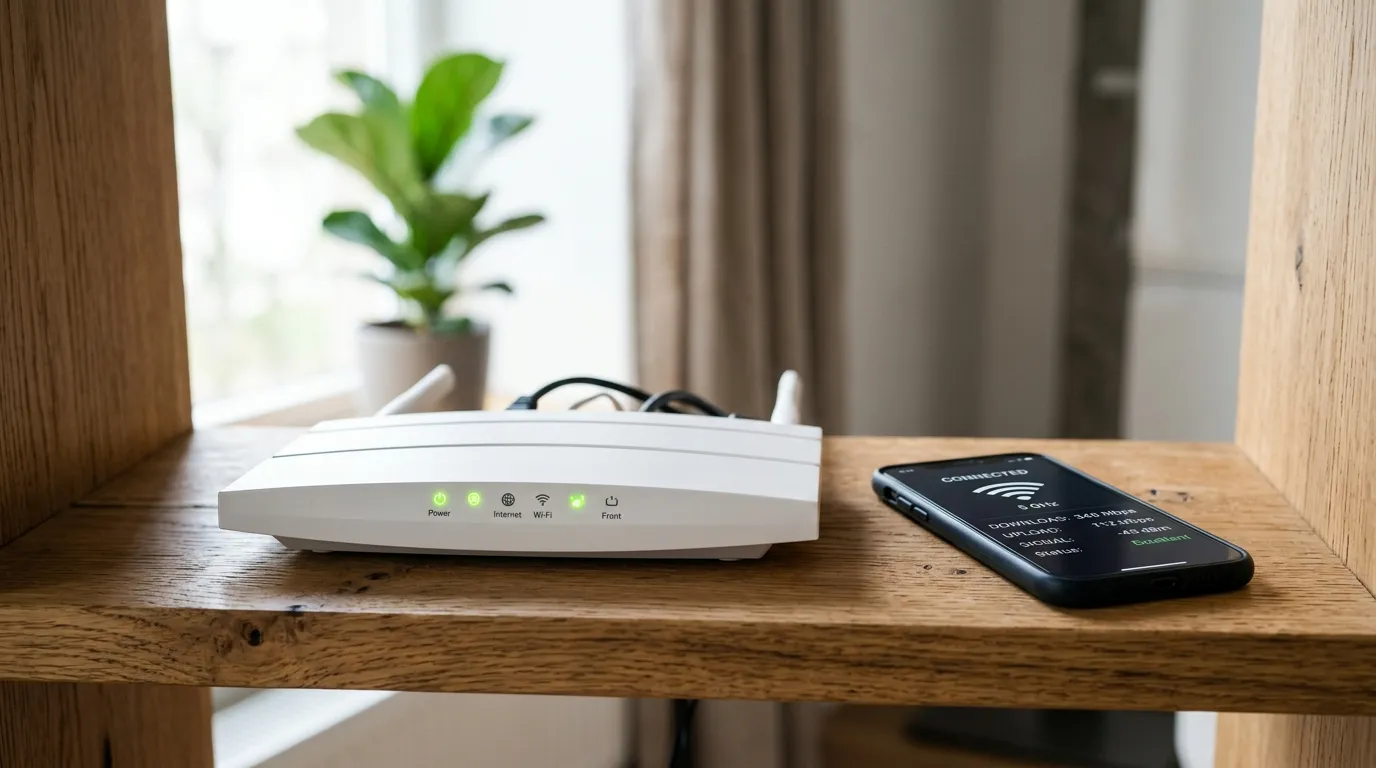
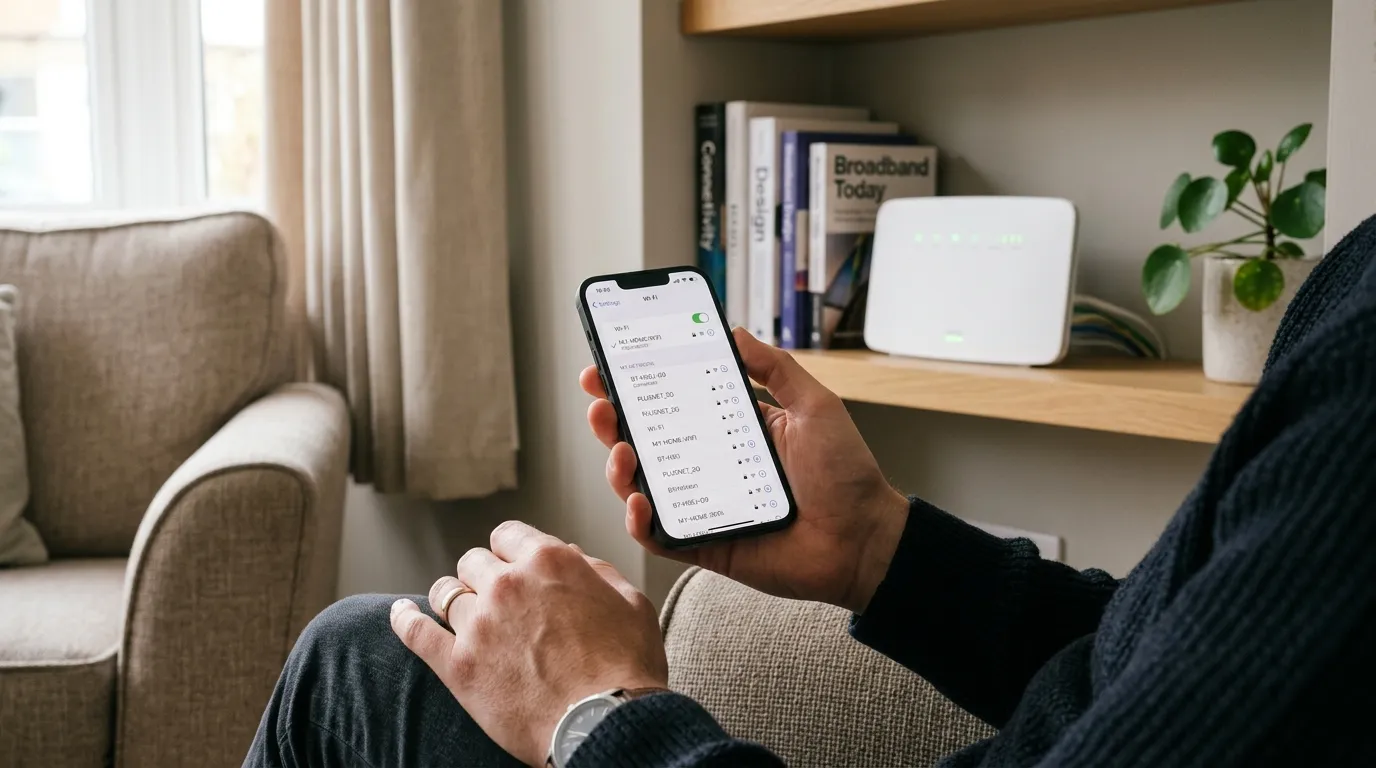
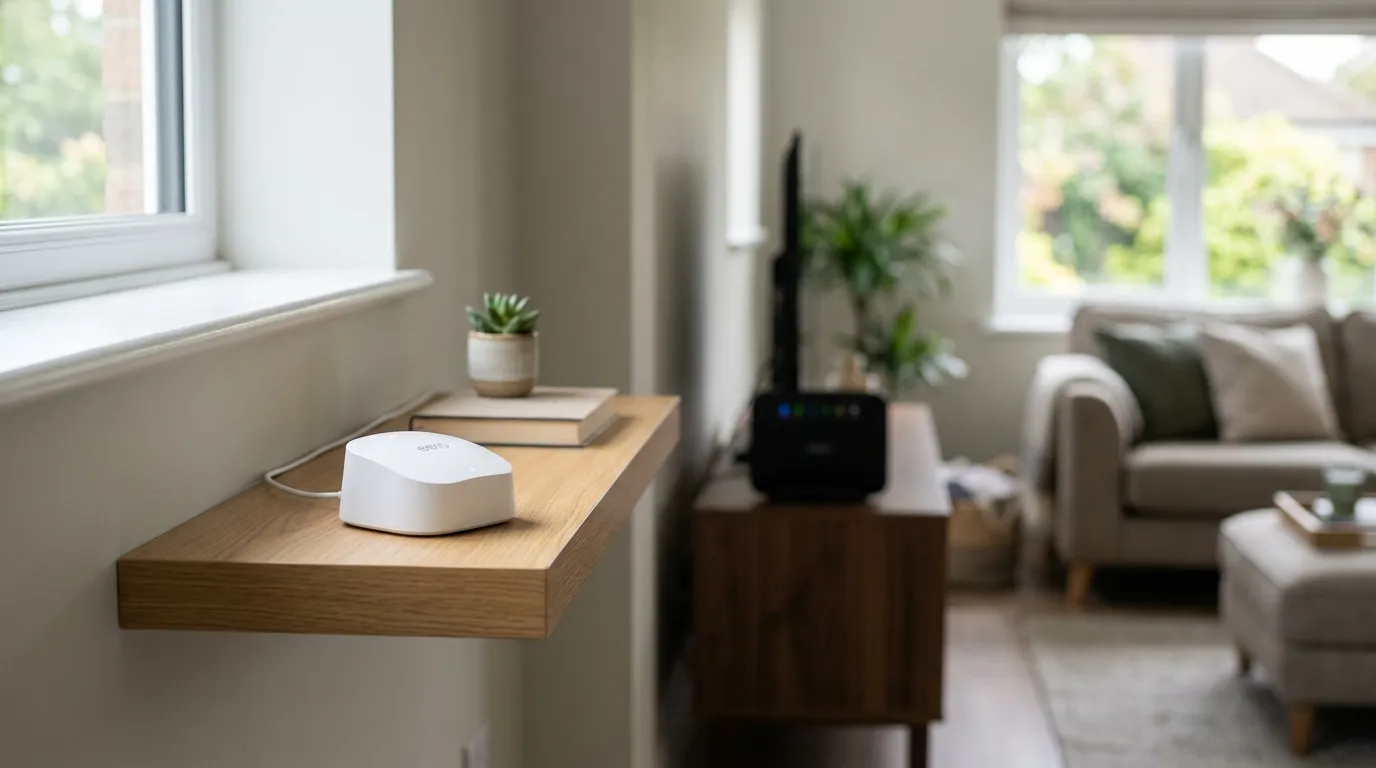
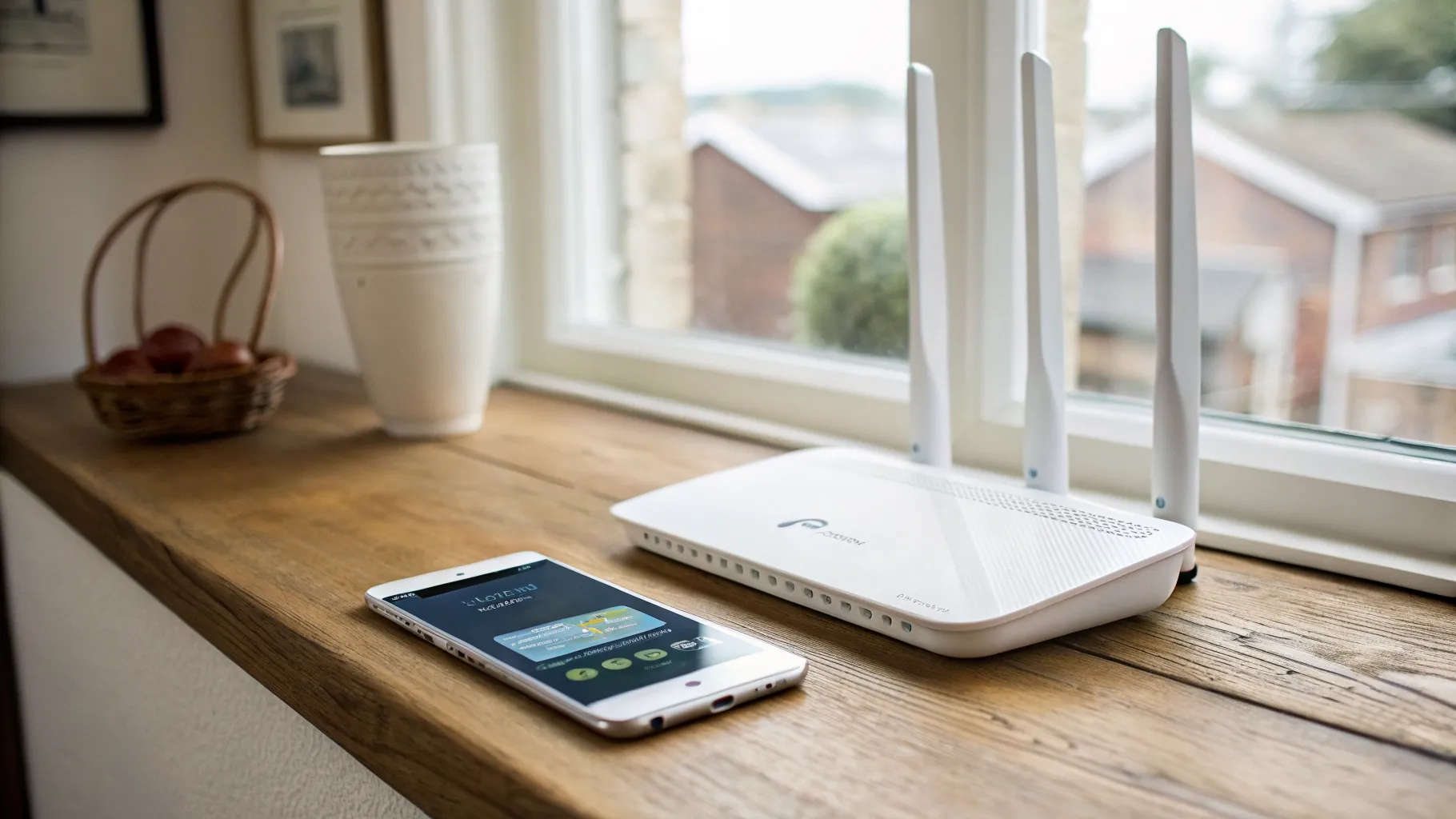
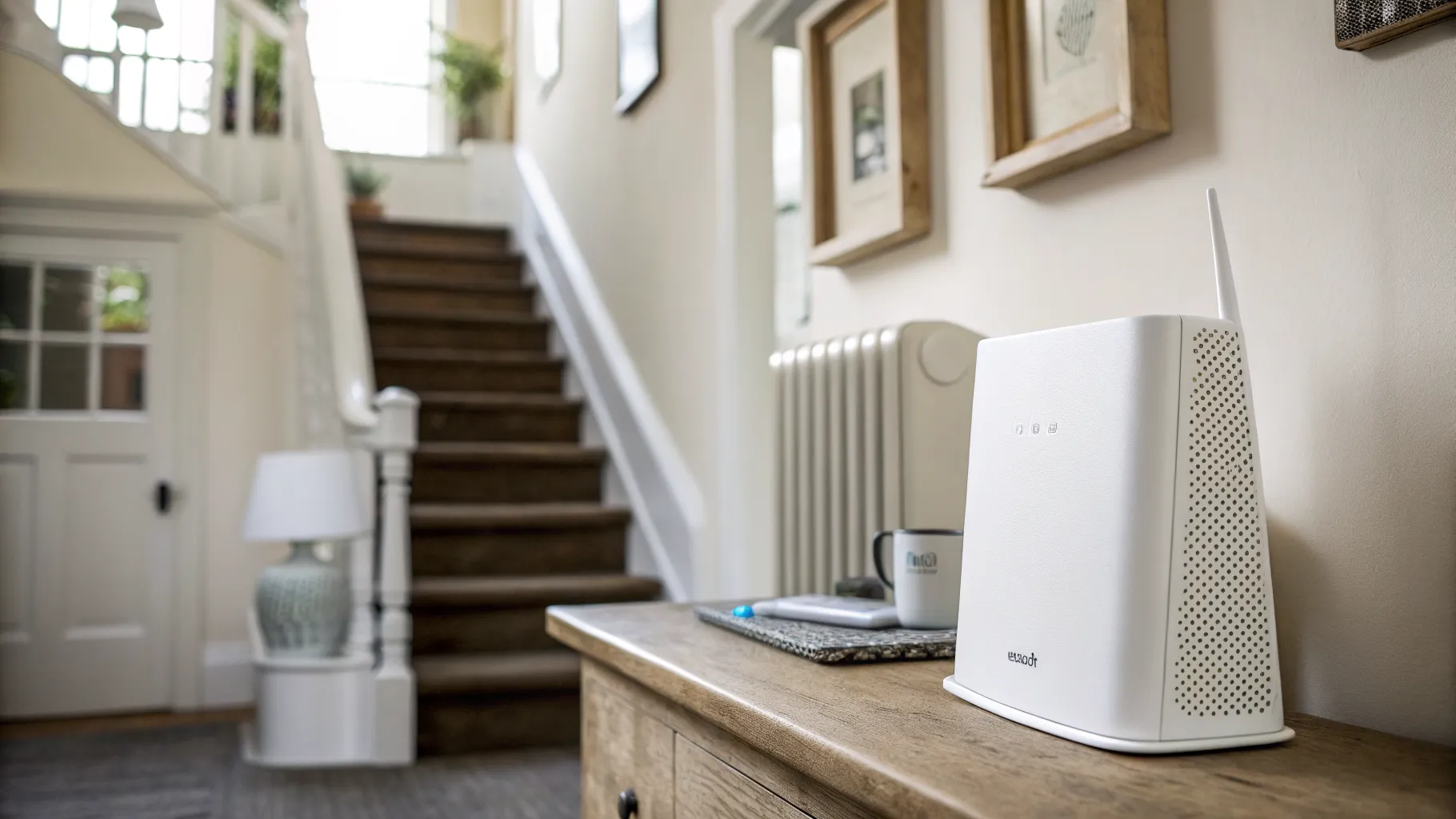
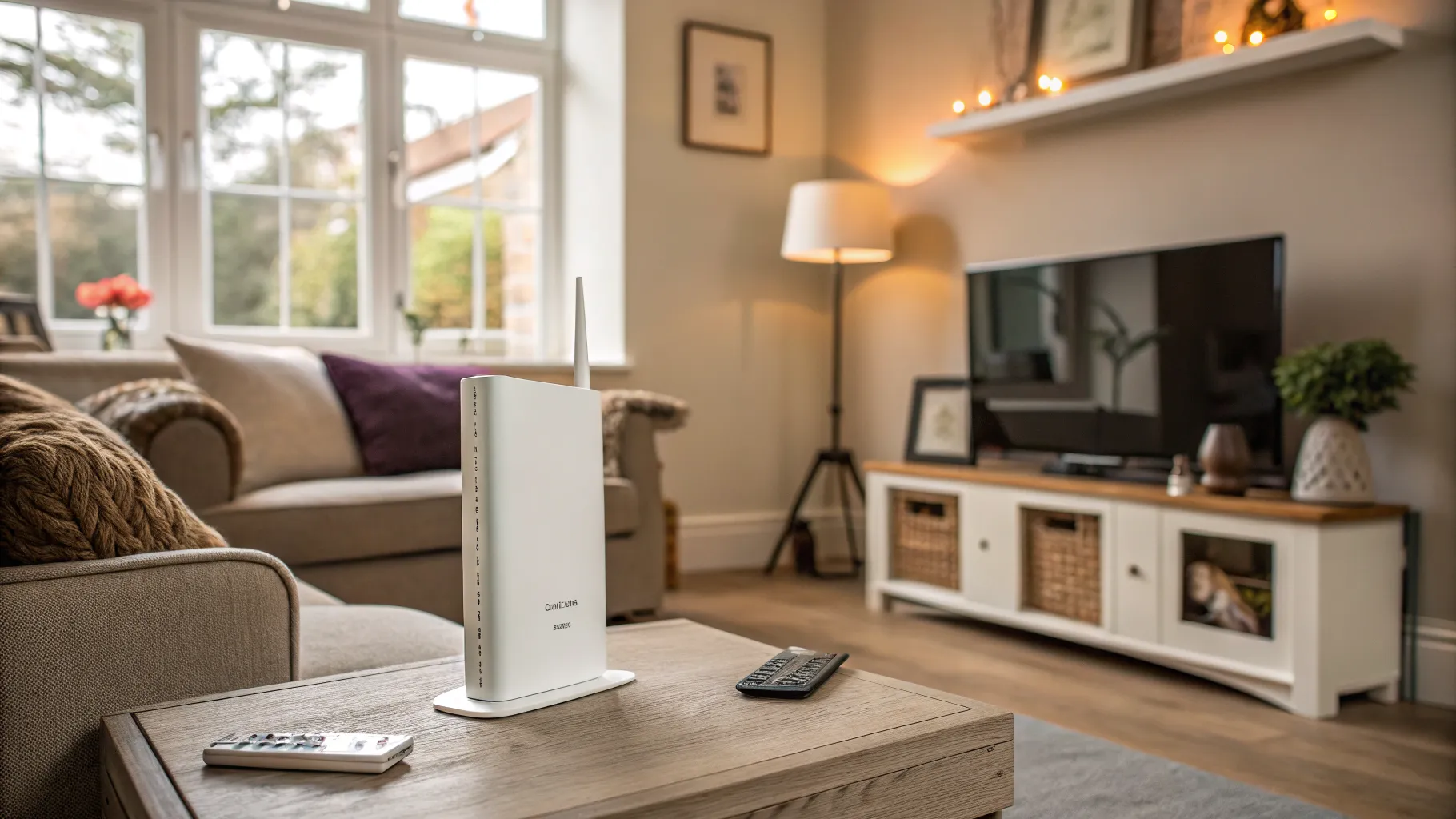
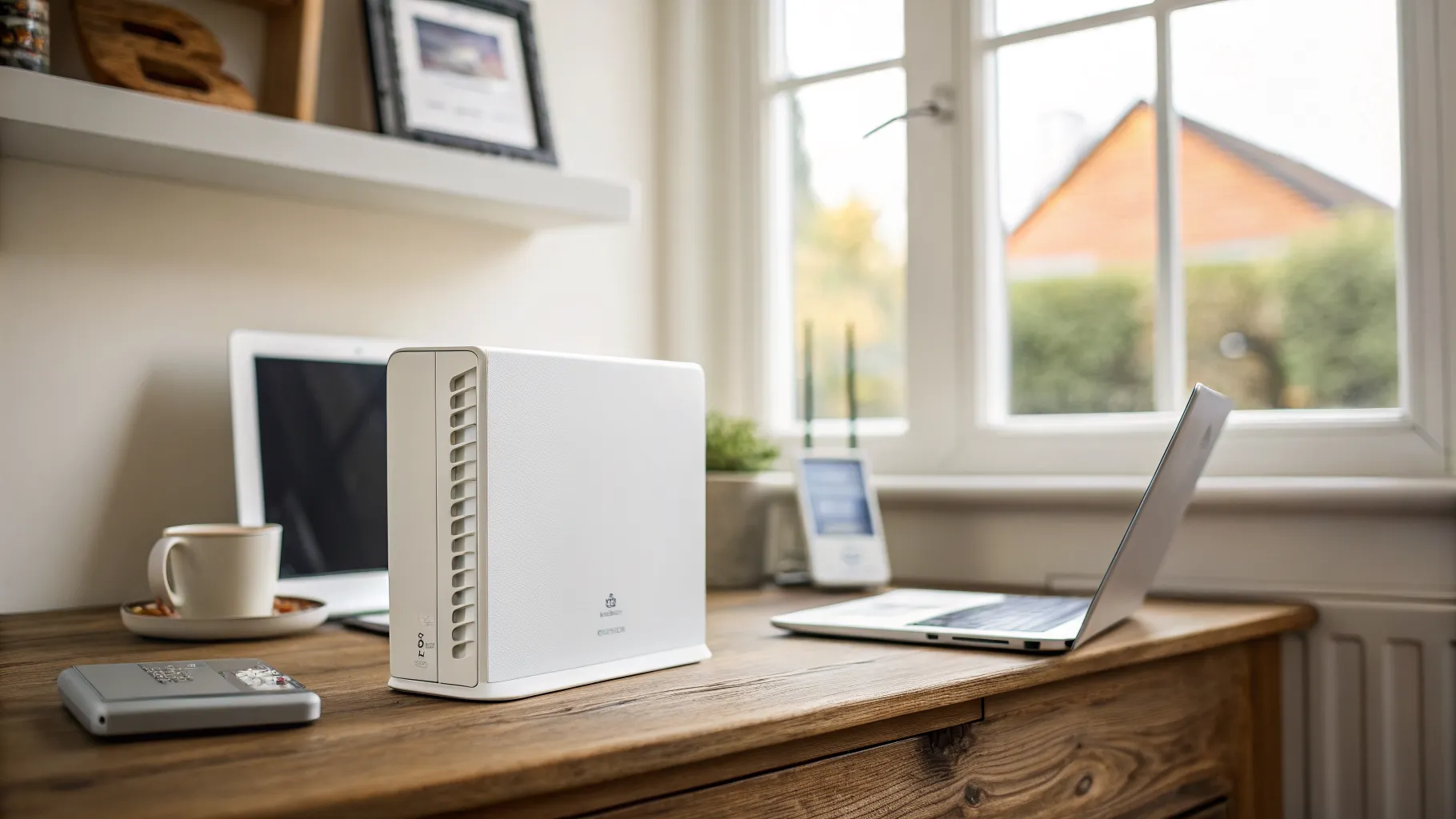
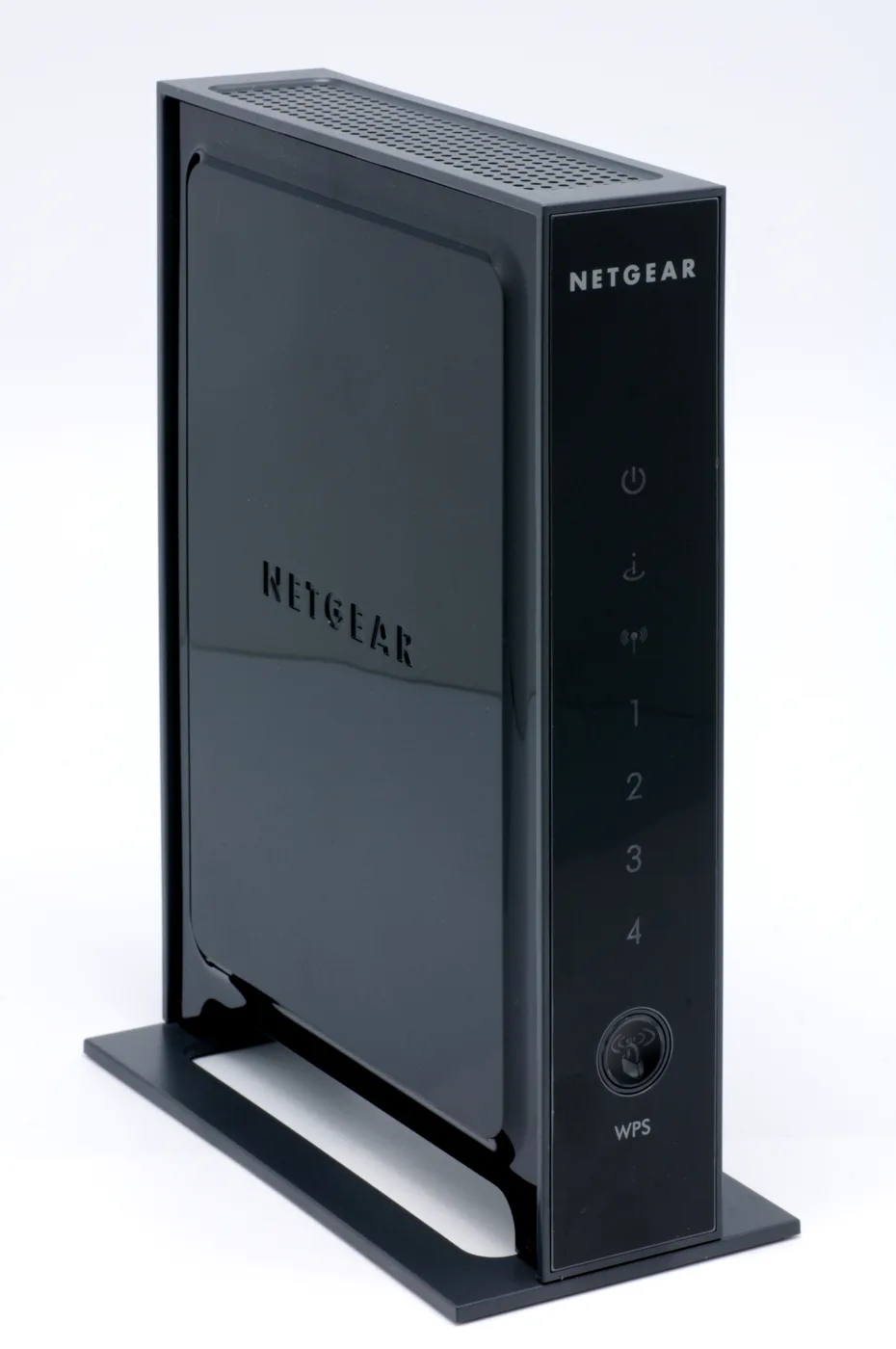
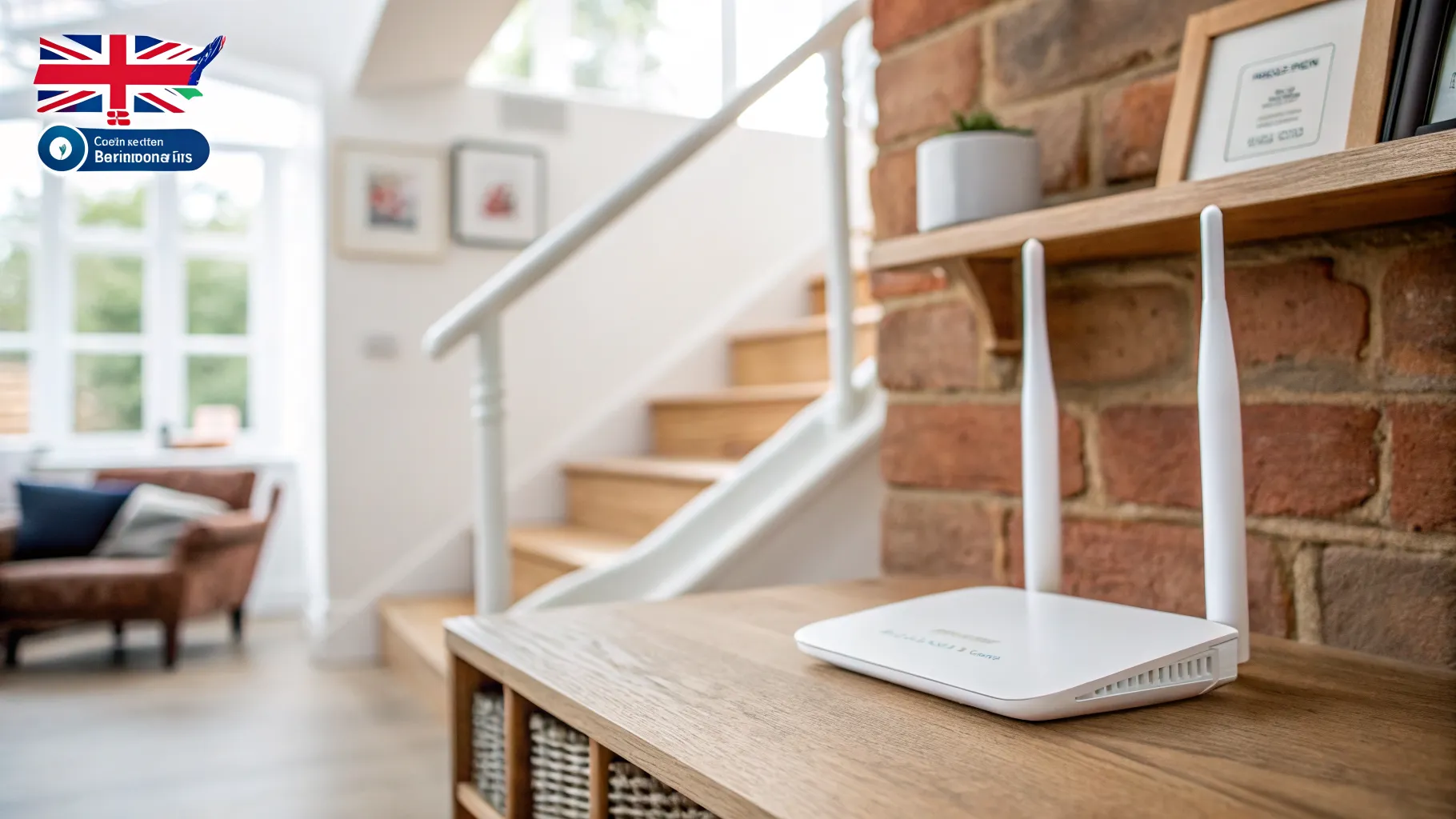
The single highest-impact change costs nothing. Ofcom’s own advice is to place the router centrally and off the floor, on a shelf rather than in a cupboard under the stairs or behind the telly. Wi-Fi radiates outward in roughly a sphere, so a router stuffed in a corner sends half its signal into the wall, the floor or next door’s garden. Lifting it onto a shelf stops the signal being absorbed by the ground; centring it shortens the worst-case distance to every room.
If your hub has to live by the master socket near the front door (common in UK homes), that is the start of the problem, not the end of it. Note where the dead spot is relative to the router, then work through the steps below. A router that is buried also tends to overheat, which quietly throttles performance over time. For a broader walkthrough of speed problems, see /why-is-my-wifi-so-slow/.
2. Clear interference near the router
Ofcom names specific culprits to keep the router away from: microwave ovens, baby monitors, fairy lights and cordless phones, plus radiators and fish tanks. The reasons are physical. Microwaves operate around 2.4GHz, the exact band much of your Wi-Fi uses, so an active microwave can stamp all over the signal. Water, metal and glass (a fish tank ticks all three) absorb and reflect radio waves, and a radiator is a slab of metal sitting in the signal path.
The fairy-lights warning is real but overstated. It takes a large volume of lights close to the router to matter; one string across the mantelpiece is not your problem. What matters far more is distance and line of sight. Give the router a clear, open position away from large metal objects and the microwave.
3. Use the right band: 2.4GHz for range, 5GHz for speed
Modern routers broadcast on two bands, and they behave very differently. 5GHz is faster but short-ranged and easily blocked; tested against a brick wall the signal drops about 83 percent. 2.4GHz is slower but travels much further and punches through walls better, dropping only around 63 percent against the same wall. For a far dead spot, 2.4GHz is usually the band that still reaches.
Many UK routers use “band steering” to hand devices a single network name and decide the band for you, which is convenient but can park a distant device on 5GHz when it needs 2.4GHz. If your hub lets you split the bands into two named networks, do it, then connect the device in the dead spot to the 2.4GHz one. You trade peak speed for a connection that actually holds.
4. Change the Wi-Fi channel to dodge your neighbours
The 2.4GHz band has only three non-overlapping channels (1, 6 and 11) and it is shared with Bluetooth, microwaves and every neighbouring network. In a terrace or a block of flats those three lanes get jammed, which shows up as a slow or flaky spot even with a decent signal. The 5GHz band has many more non-overlapping channels and far less congestion, so simply having a device prefer 5GHz can clear it.
Most modern routers auto-select the least congested channel, and Ofcom confirms they optimise automatically, so this is rarely your first move. But if a Wi-Fi analyser app shows half the street crowded onto channel 6, you can set the channel manually in the router admin page. Full instructions are in /change-wifi-channel/. If the connection drops rather than just slows, the channel may not be the cause; see /wifi-keeps-dropping-fix/.
5. Update the router firmware
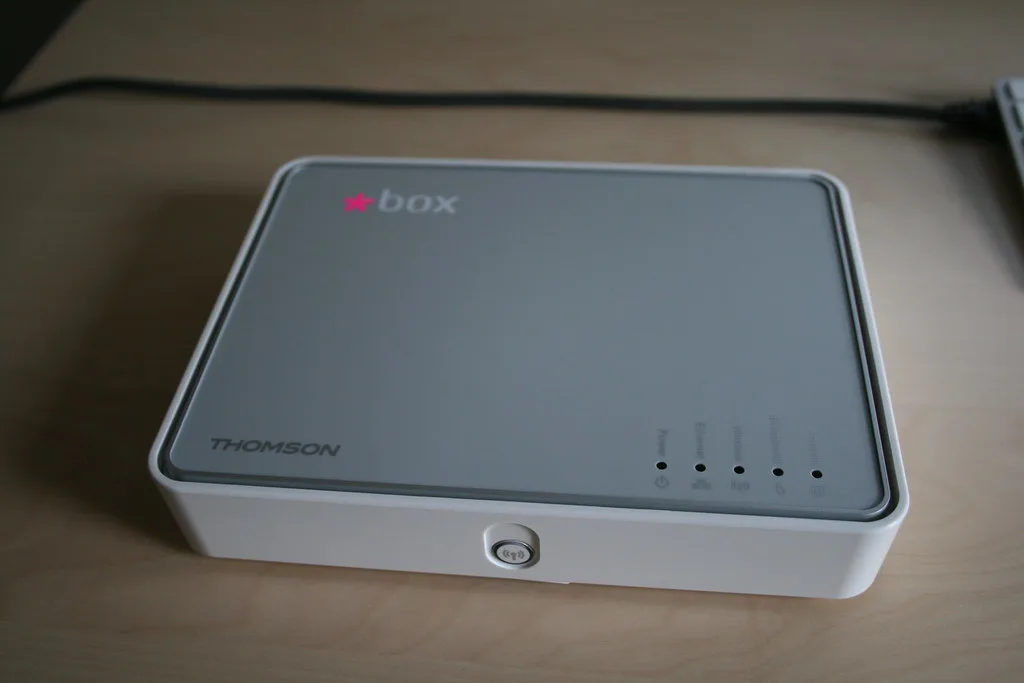
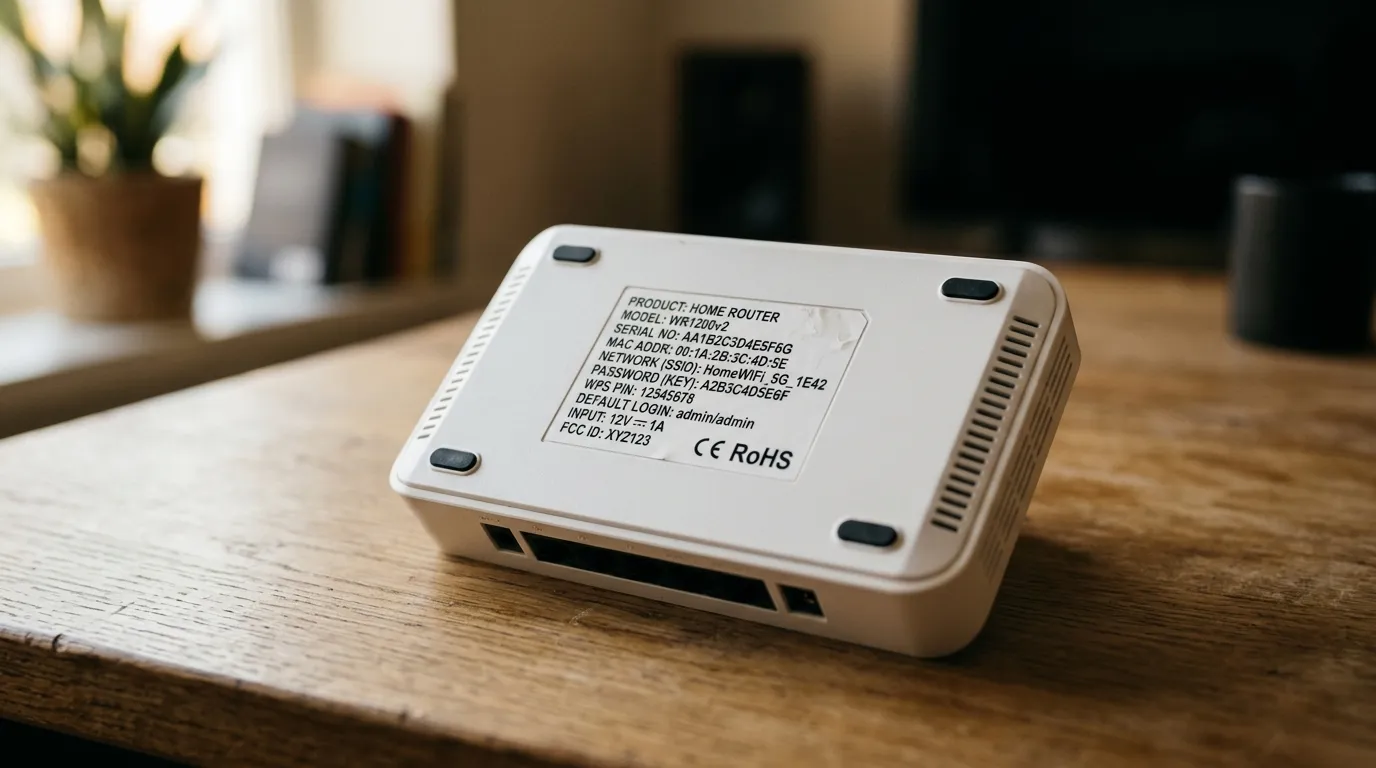
Manufacturers ship firmware updates that improve stability, connectivity and security, and an out-of-date router can be the reason a connection keeps faltering. Most ISP-supplied hubs (BT, Sky, Virgin Media O2, EE) update themselves automatically overnight, so there is usually nothing to do. Older kit or a third-party router you bought yourself may need a manual update from the admin page, normally under a “firmware” or “router update” menu. It is a five-minute job that occasionally fixes a dead spot outright by patching a known bug.
6. Angle the antennas in different directions
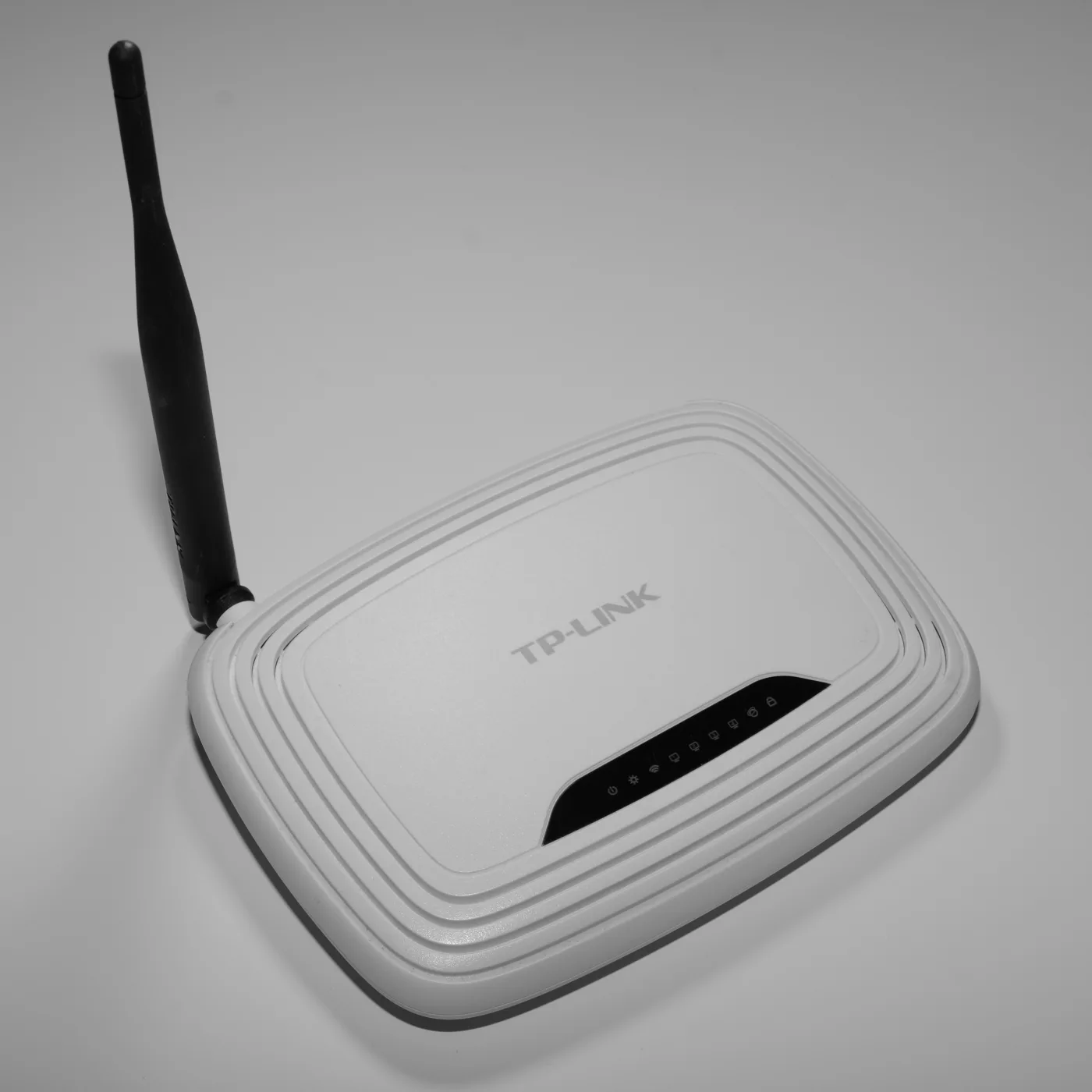
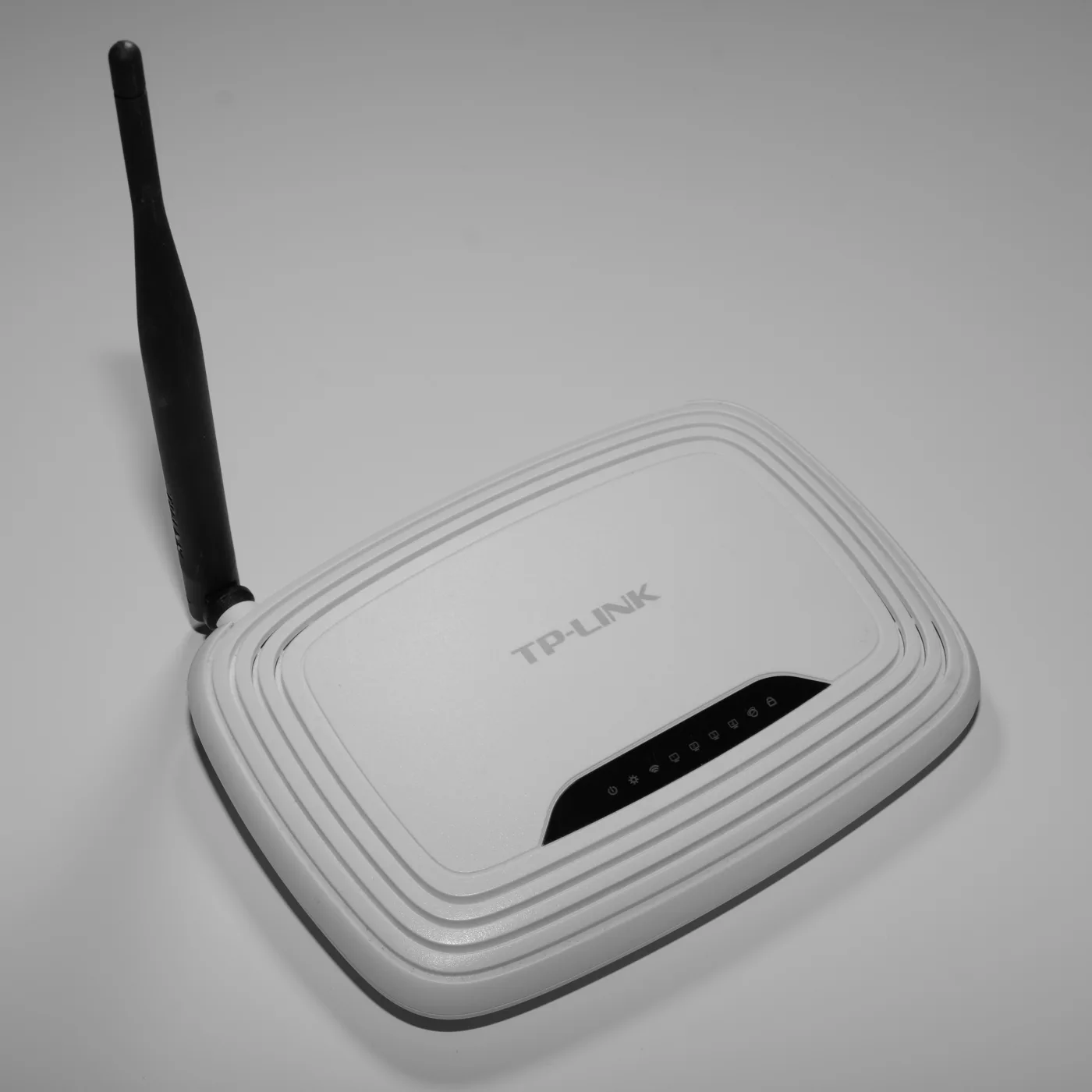
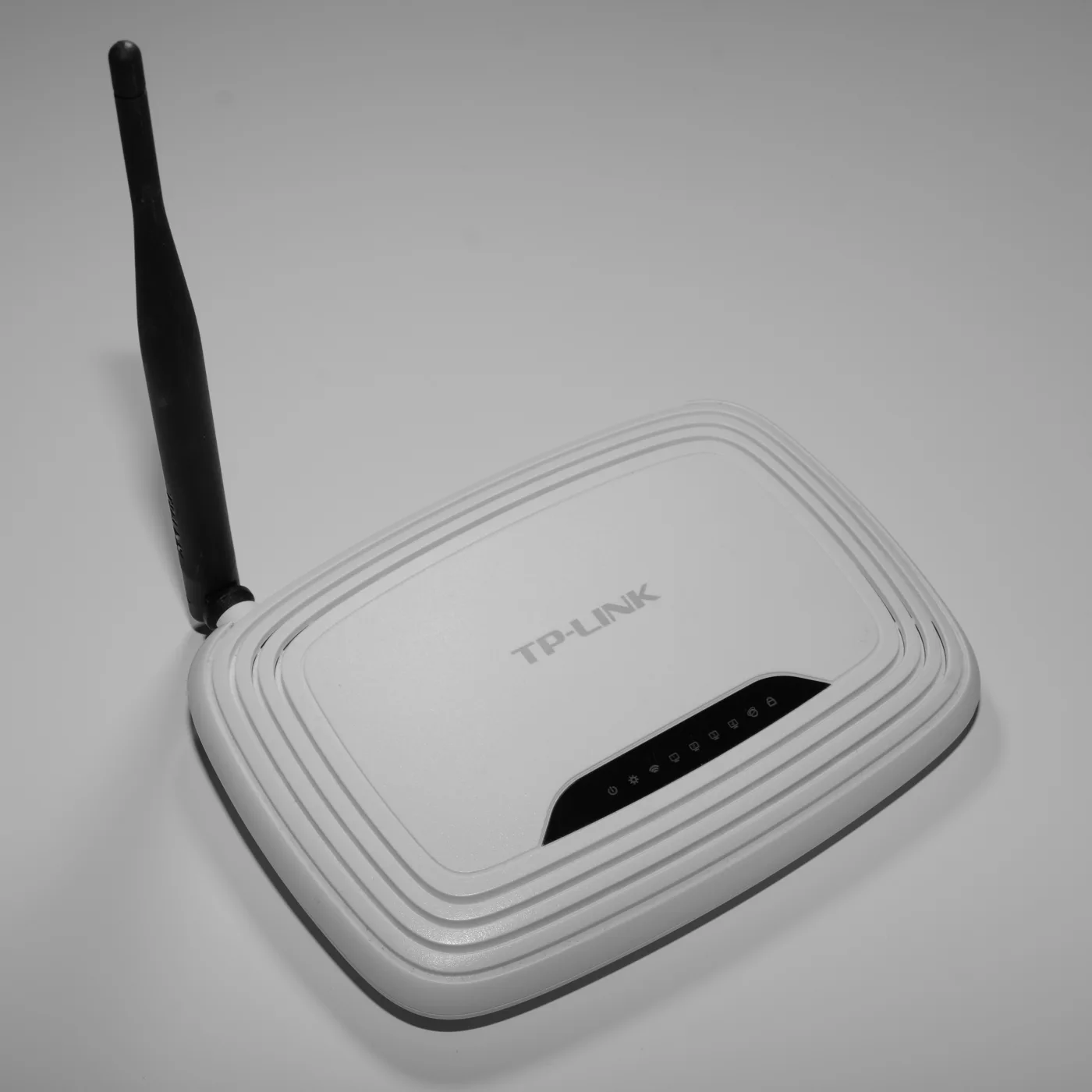
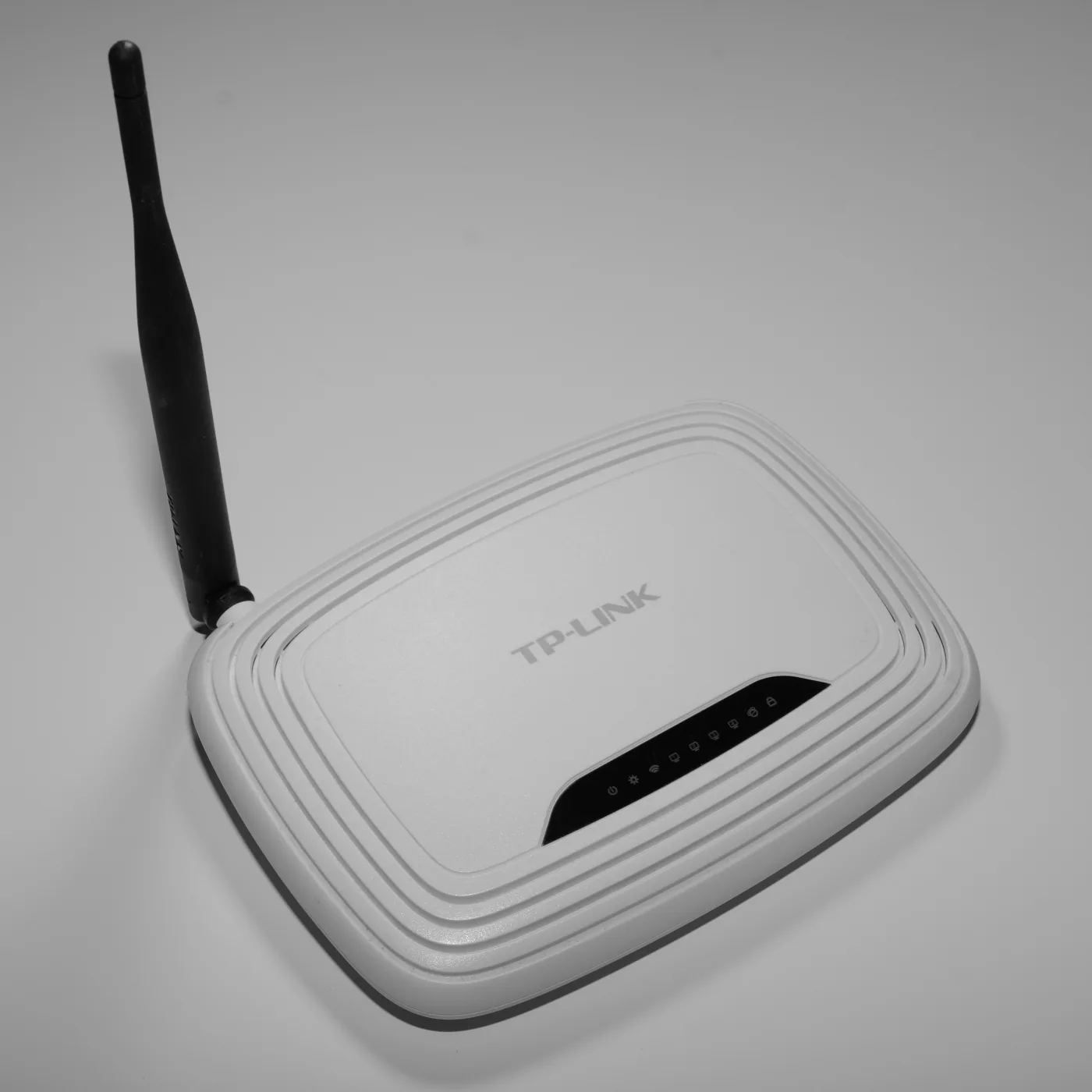
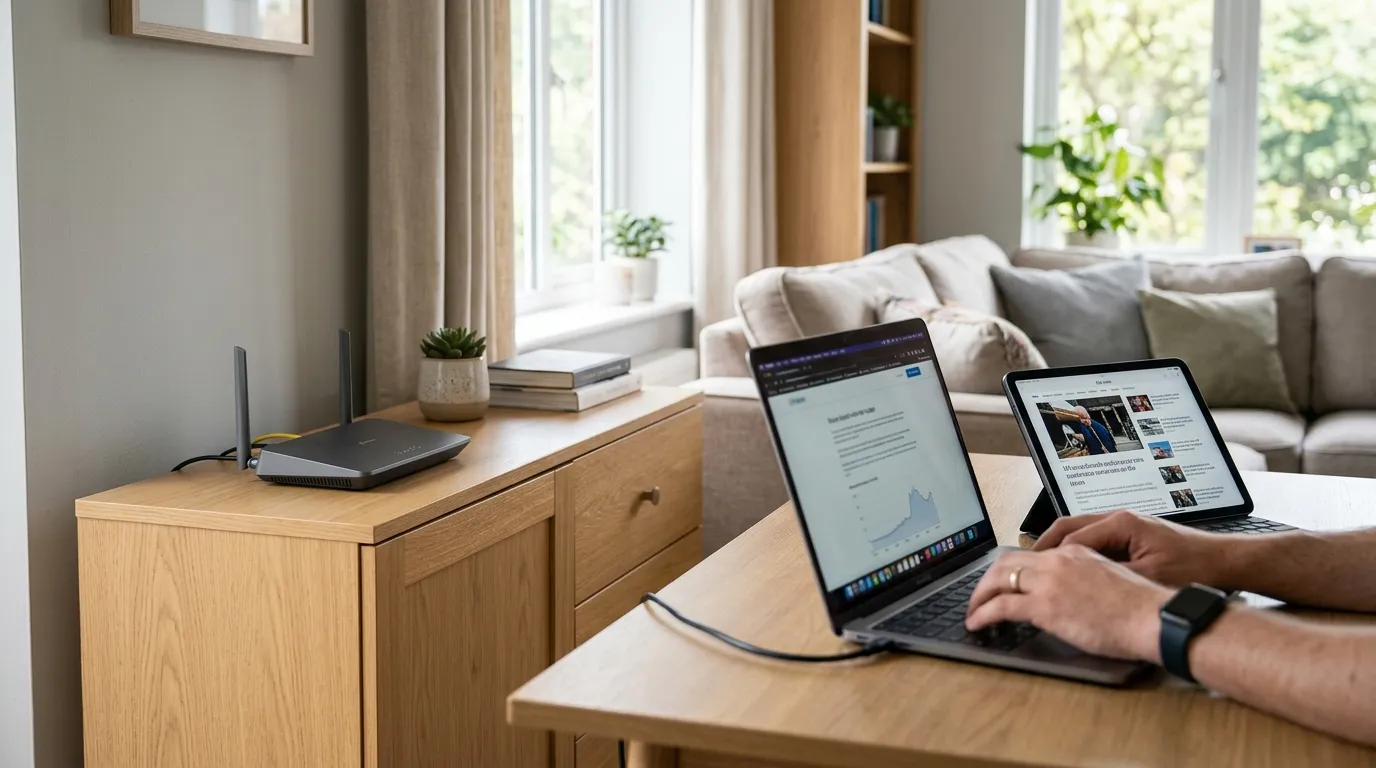
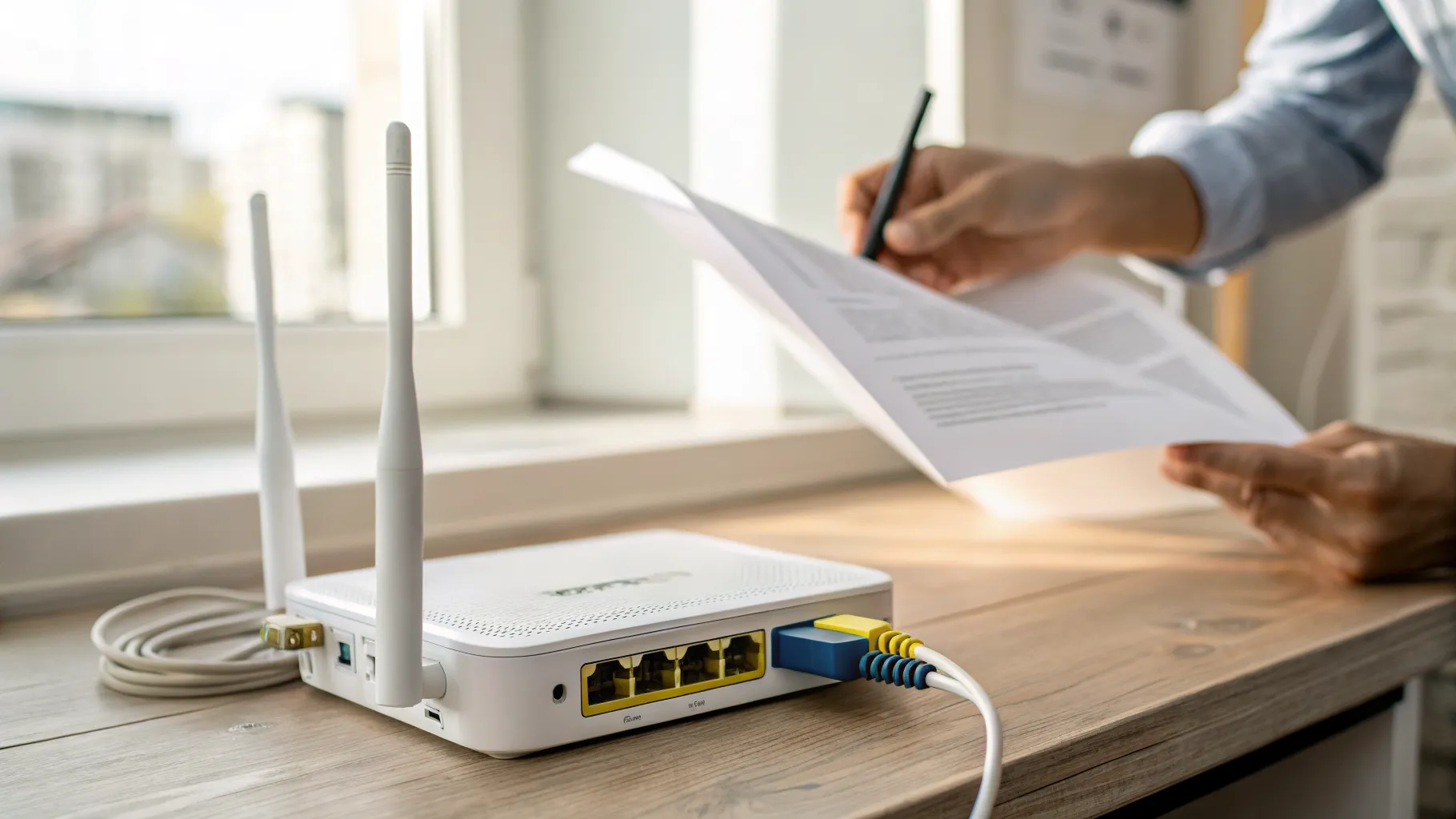
If your router has external aerials, do not point them all straight up. Wi-Fi radiates outward perpendicular to the antenna, so an antenna pointing vertically blankets the floor it sits on, while one laid horizontally throws signal up and down to other floors. With two or more aerials, set one vertical and one horizontal to cover both a sprawling bungalow and an upstairs landing at once. Routers with internal antennas (most ISP hubs) give you nothing to adjust here, so skip to the next step.
7. Fit a mesh Wi-Fi system
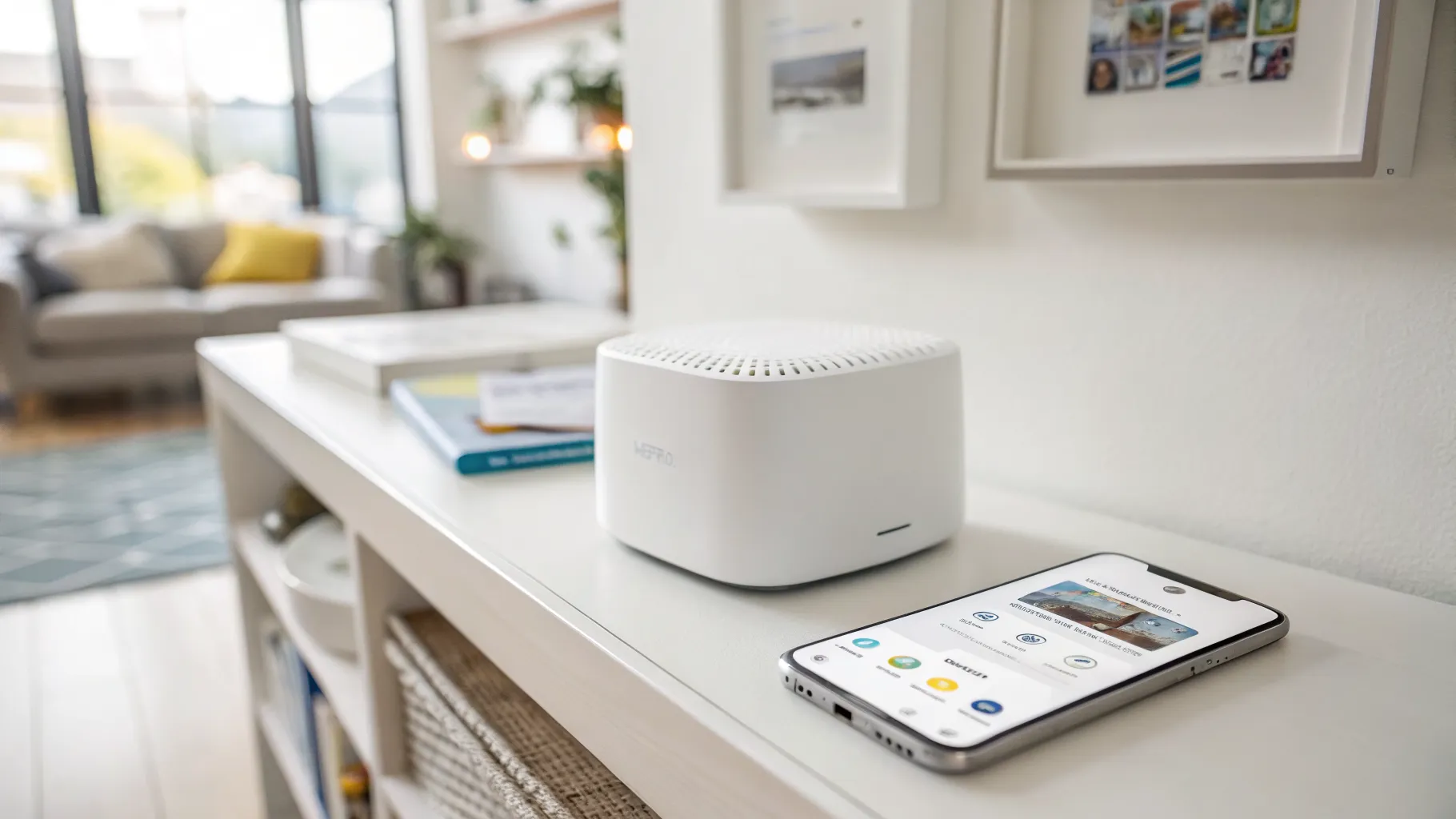
If you have worked through the free fixes and a room still drops out, mesh is the most effective whole-home cure. Multiple units create one continuous network: a single name and password, with devices roaming automatically to the strongest node as you move around. That is the key difference from an extender, which often forces you to switch networks by hand, and Ofcom notes that mesh improves coverage without reducing performance the way extenders, repeaters and boosters can.
Reputable mesh ranges sold in the UK include TP-Link Deco, Amazon eero, Netgear Orbi, ASUS ZenWiFi, Google Nest Wifi and Linksys Velop. Systems span Wi-Fi 5, Wi-Fi 6/6E and the newest Wi-Fi 7, from budget three-packs at the lower end to large-home systems at the premium end. For a thick-walled solid-brick or stone property, look for tri-band models with a dedicated backhaul radio so the link between nodes does not steal from your devices. We compare the options in /best-mesh-wifi-uk/, and weigh the approaches in /mesh-vs-extender-vs-powerline/.
What your ISP already offers
Before buying retail mesh, check what your provider sells, because it is designed to pair with your existing hub.
| ISP | Product | What it does |
|---|---|---|
| BT | Complete Wi-Fi | Coverage guarantee backed by extra free discs if one is not enough. The original black BT discs pair with the Smart Hub 2; BT is now supplying white EE Smart Wi-Fi units as the replacement. |
| EE | Smart Wi-Fi | Mesh discs that work with the Smart Hub 2 to extend coverage room to room. |
| Sky | Broadband Boost / WiFi Max | Guarantees a minimum speed in every room or money back, subject to terms. Boost is the older add-on; WiFi Max is the newer version with a higher guaranteed floor. |
| Virgin Media O2 | Intelligent Wi-Fi Pods | Mesh pods that pair with the Virgin Media Hub (Hub 3 and later). |
Two things to flag. BT’s original black discs only pair with the Smart Hub 2, so an older hub needs upgrading first, and newer customers receive the white EE units instead. And every one of these guarantees comes with conditions on which rooms count, typically excluding outbuildings, garages and unconverted lofts, which is exactly where many people want coverage, so read the terms before relying on it.
8. Run a wired (Ethernet) backhaul
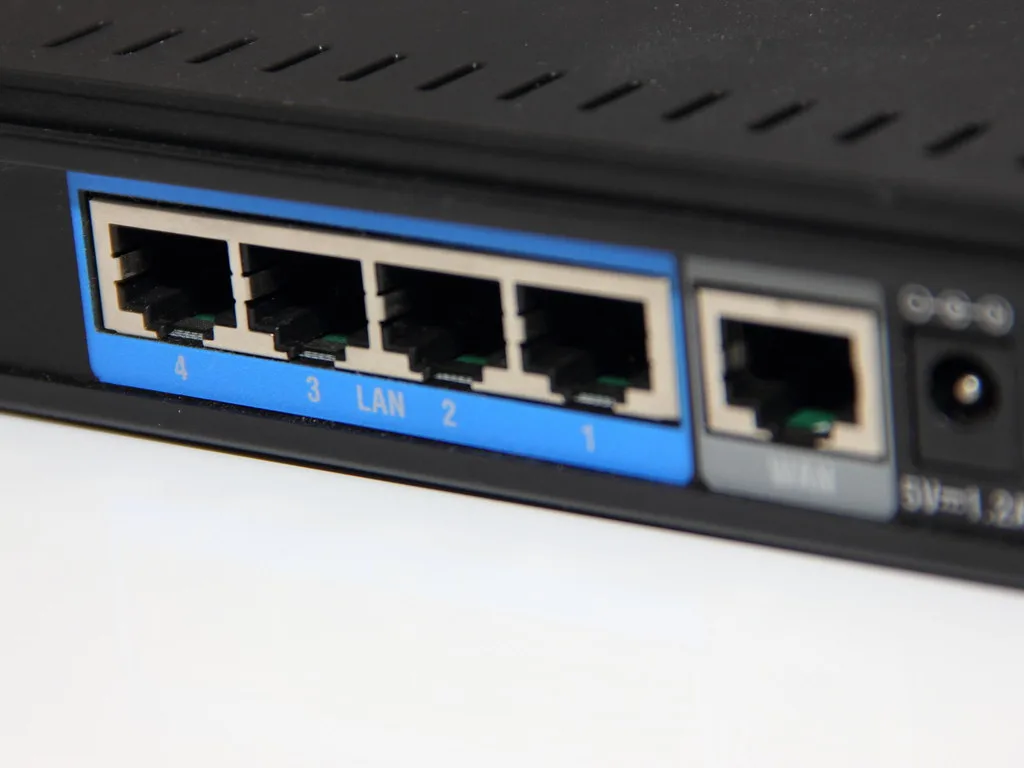
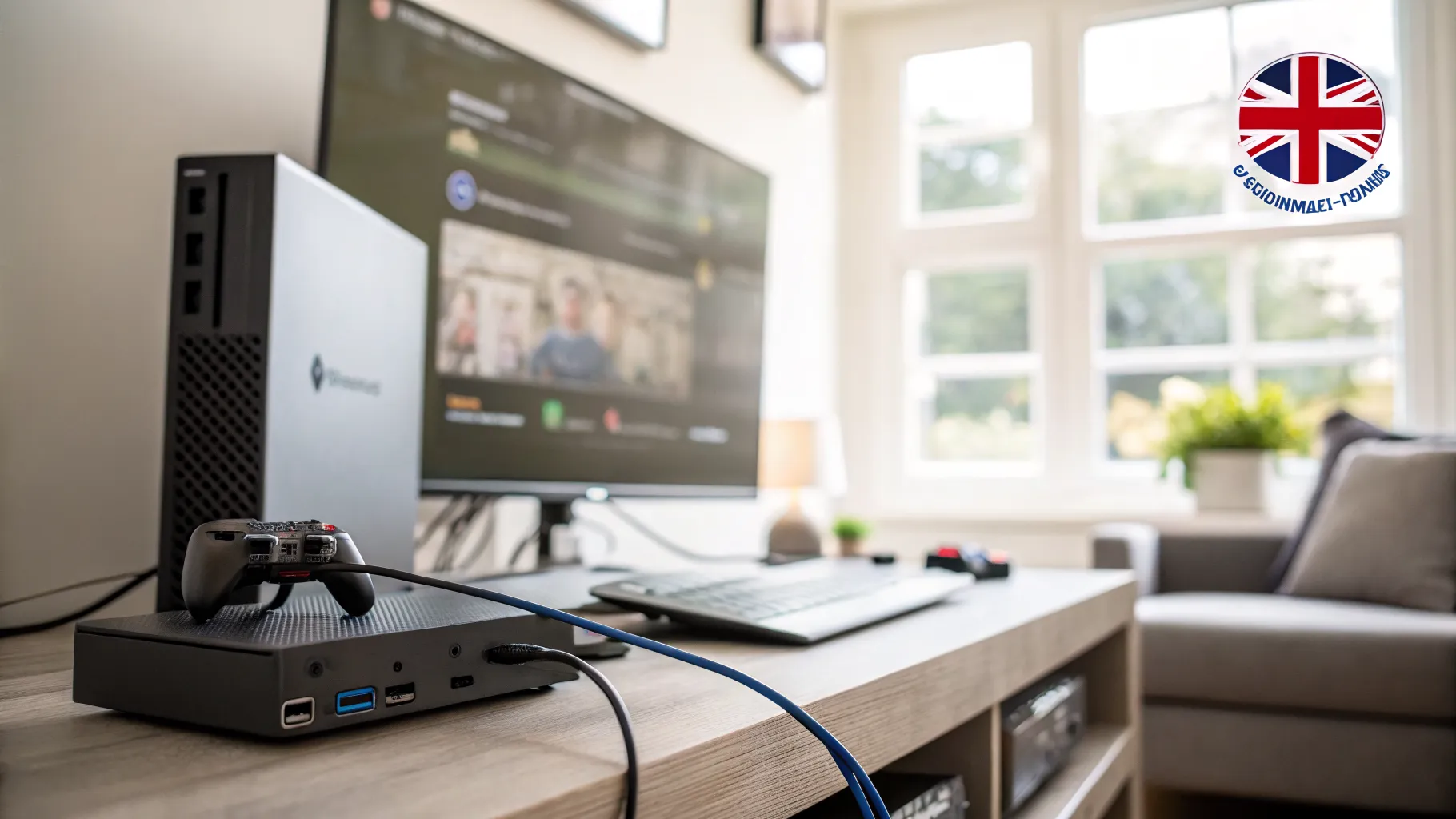
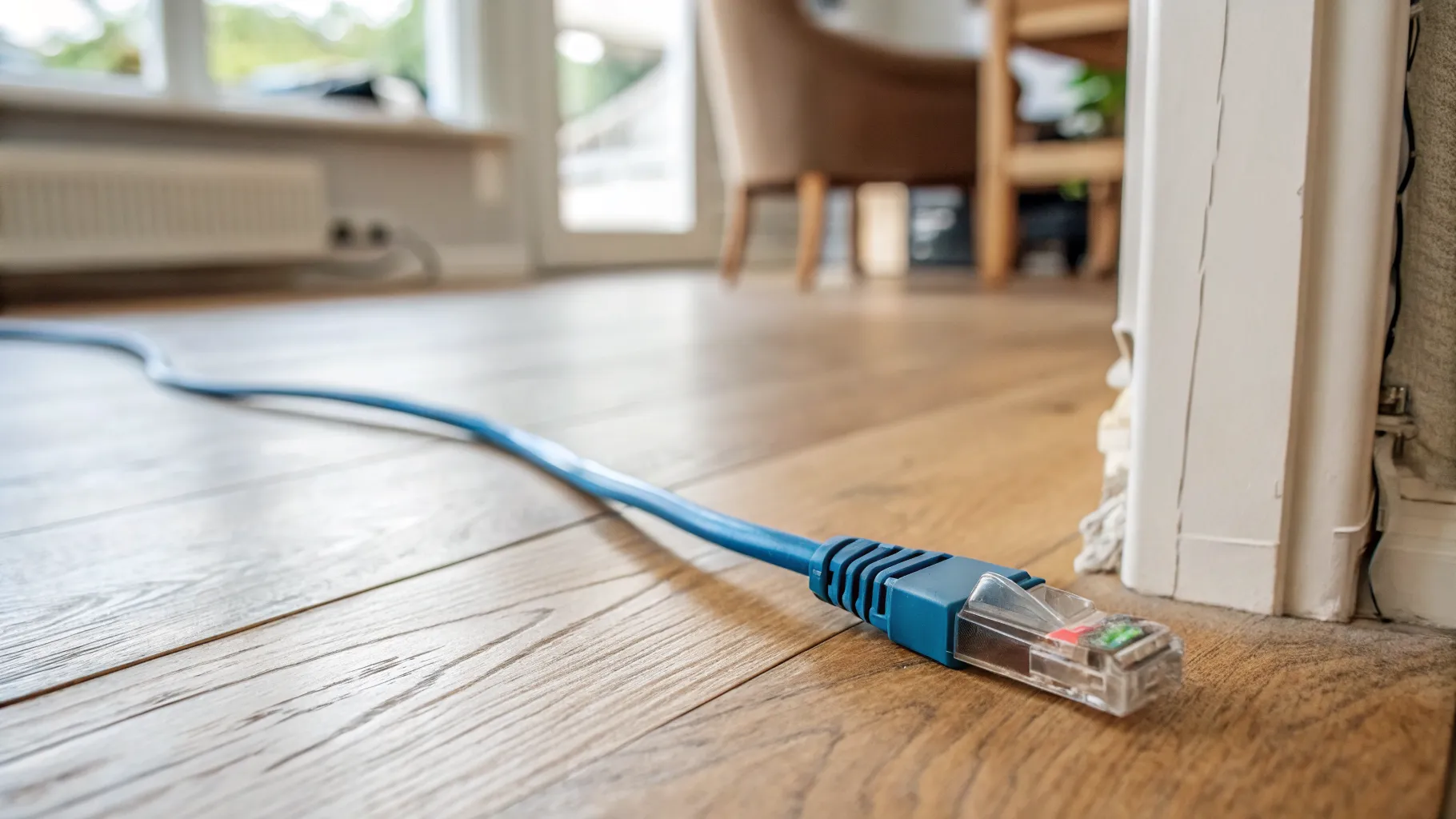
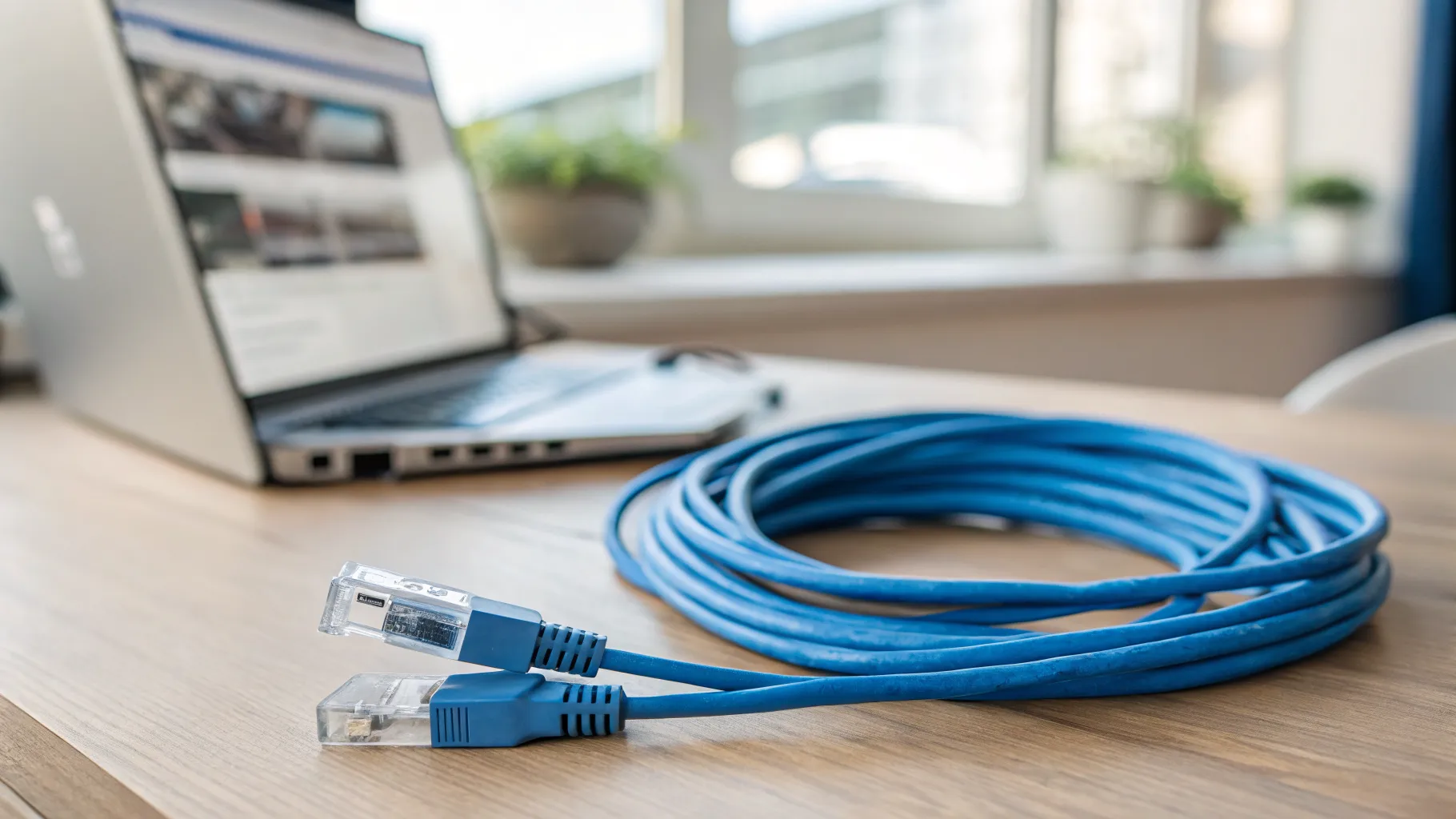
For a fixed dead spot, the most reliable fix is not wireless at all. Ofcom states plainly that Ethernet cables often provide a better connection than Wi-Fi for devices that do not move. Running a cable to a desktop, smart TV or games console in the problem room removes the dead spot entirely.
The same idea works for mesh. Connecting mesh nodes by Ethernet rather than wirelessly (“wired backhaul”) preserves full speed and is the most dependable setup, especially through thick walls, because the nodes no longer have to sacrifice radio capacity to talk to each other. If you can get a cable to the far node, do it; it turns a good mesh into a great one. Where running cable is impractical, the next step is the workaround.
9. Powerline adapters: the wired-ish workaround
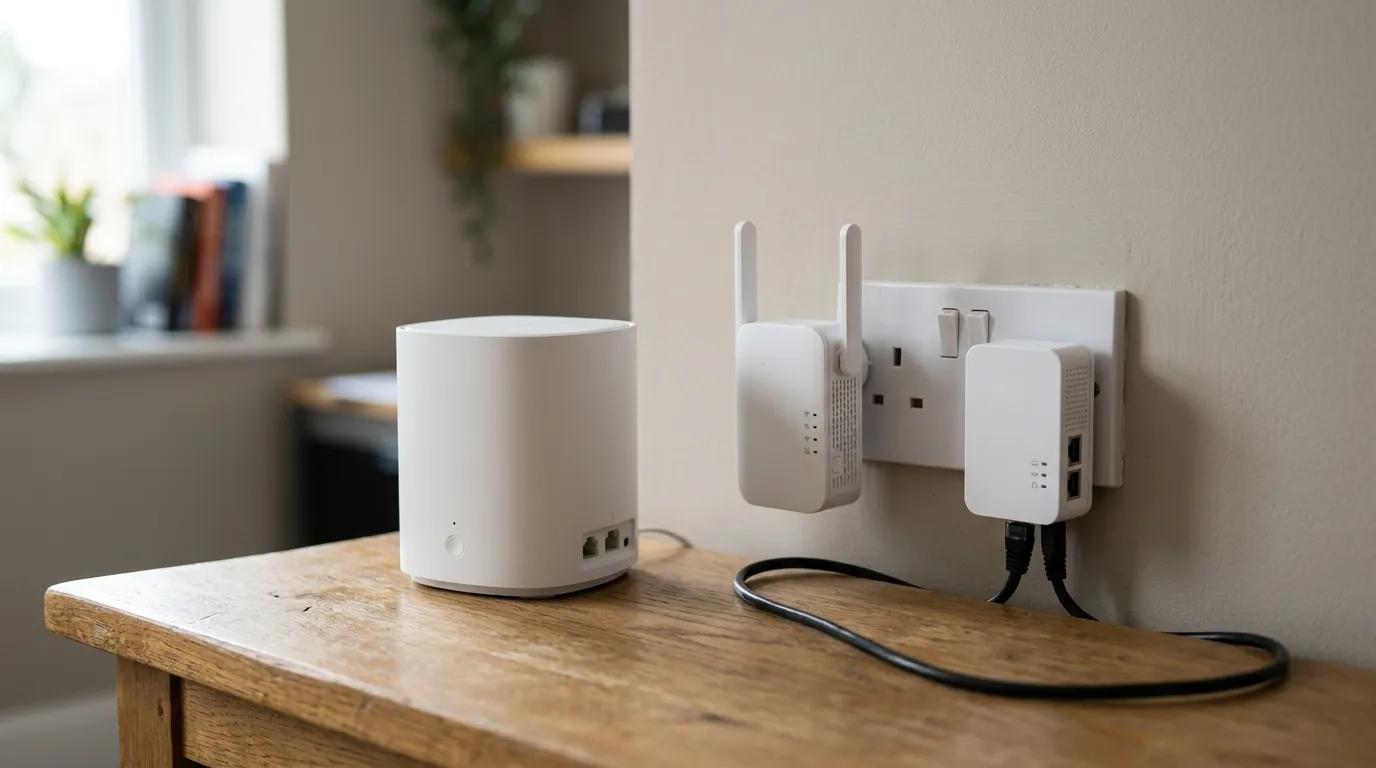
A powerline adapter sends data over your home’s mains wiring: one plugs in near the router, another in the distant room, and the link travels through the existing electrics. Real-world speeds typically land around 100 to 400Mbps with low latency. It is a tidy way to feed a wired link, or even a mesh node or access point, into a room you cannot cable to.
The catch is the wiring itself. Performance varies a lot with the age and quality of your house’s circuits, and old or noisy wiring can make it unreliable. Two rules improve your odds: plug the adapters straight into a wall socket, never a multi-plug extension lead, and treat the result as house-dependent (test before you commit). In a modern home it can be excellent; in an older property with mixed circuits it may underwhelm.
Last resort: a Wi-Fi extender
An extender, repeater or booster is the cheapest option, but it sits last for a reason. The same radio receives and rebroadcasts the signal, which typically halves throughput, and many create a separate network name you must switch to manually. Ofcom notes they can affect speeds and responsiveness, whereas mesh does not.
If you do use one, placement is everything. Plug it halfway between the router and the dead zone, not inside the dead zone. An extender can only rebroadcast a signal it can still hear clearly, so putting it in the weak-signal room just amplifies a weak signal. Our pick of decent units is in /best-wifi-extenders-uk/.
The order that works
Work top to bottom and stop when the dead spot clears. Move and raise the router, clear interference, get the device onto the right band, check the channel, update firmware and angle the antennas. All free. Only then spend money, and spend it in the right order: mesh (ideally with wired or powerline-fed backhaul) for whole-home coverage, a single Ethernet run for one fixed device, and an extender only as a last resort. For the underlying placement advice we lean on throughout, see Ofcom’s guidance on improving your Wi-Fi experience.
Frequently asked questions
Why do I have a Wi-Fi dead spot in just one room? Almost always distance plus what the signal passes through. An internal brick wall cuts signal 40 to 60 percent and a dense concrete floor up to 80 percent, so a far corner or upstairs room can fall below usable levels even when the rest of the house is fine. The first fix is moving the router more centrally; the last is mesh.
Should I use the 2.4GHz or 5GHz band for a far room? 2.4GHz. It reaches further (around 45 metres indoors) and passes through walls far better; against a brick wall it loses about 63 percent of signal versus 83 percent for 5GHz. You give up top speed, but a stable connection beats a fast one that keeps dropping.
How high should my router be? Off the floor, on a shelf, roughly at head height and out in the open. On the ground, half the signal is wasted into the floor; raised and central, it covers the room evenly and reaches upstairs better.
Can my microwave really slow down my Wi-Fi? Yes, while it is running. Microwaves operate around 2.4GHz, the same band as much of your Wi-Fi, so an active microwave near the router can disrupt the signal. Keep the router away from it, and put nearby devices on 5GHz where the microwave does not interfere.
Mesh, extender or powerline: which should I choose? Mesh for whole-home coverage and automatic roaming on one network name. Powerline to carry a reliable wired-style link to one distant room when you cannot run a cable. An extender only as a cheap last resort, and even then plugged halfway between router and dead zone, never inside it. Our mesh vs extender vs powerline guide goes deeper.
Is an extender worth it, or does it just halve my speed? It often does halve throughput, because one radio both receives and rebroadcasts. It is fine for light use in a single hard-to-reach spot, but for serious coverage mesh is the better buy because it does not take the same speed penalty.
Do powerline adapters work in old houses? Sometimes. They send data over your mains wiring, so performance depends heavily on the age and quality of the circuits, and old or noisy wiring can make them unreliable. Plug them straight into the wall (not an extension lead) and test before committing.
What is Ethernet backhaul and do I need it? It means connecting your mesh nodes by cable rather than wirelessly. It preserves full speed and is the most reliable option, especially through thick walls. You do not strictly need it, but if you can run a cable to a node it is a big upgrade.
Is BT Complete Wi-Fi, Sky Broadband Boost or Virgin Wi-Fi Pods worth paying for? They can be, because they are tuned to pair with your existing hub. Watch the conditions: BT’s original discs pair only with the Smart Hub 2 and newer customers now get the white EE Smart Wi-Fi units, while the Sky and Virgin guarantees cover a defined set of rooms and exclude outbuildings, garages and unconverted lofts. Read the small print before you rely on a guarantee.
Do I need to update my router’s firmware? Probably not manually. Most ISP hubs update automatically overnight. Older or third-party routers may need a manual update from the admin page, and it is worth doing because updates fix stability, connectivity and security issues.
How should I angle my router’s antennas? If it has external aerials, point them in different directions, one vertical and one horizontal, rather than all straight up. Signal radiates outward perpendicular to the antenna, so mixed angles cover both the same floor and the rooms above and below.