Tools
Wi-Fi Channel Finder
By the HomeWire team
●
Updated 2026
●
Tested in real UK homes
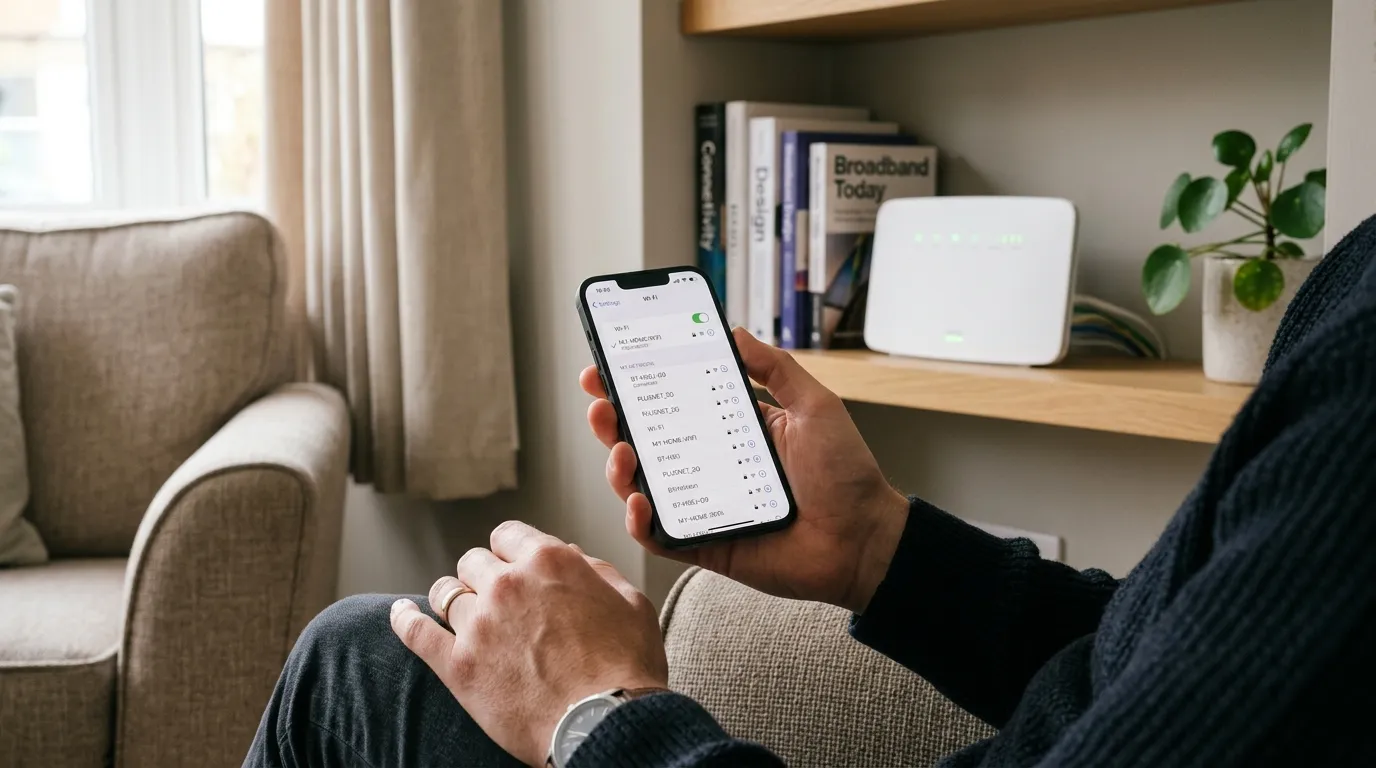
Slow, stuttery Wi-Fi at home is usually not your broadband, it is your neighbours: too many routers shouting over each other on the same channel. This finder walks you through a 60 second scan on your phone, then tells you the single least-crowded channel to switch to on each band. The key thing most people get wrong: on 2.4GHz only channels 1, 6 and 11 truly avoid overlap, so picking anything else just adds to the noise.
Scan the Wi-Fi around you
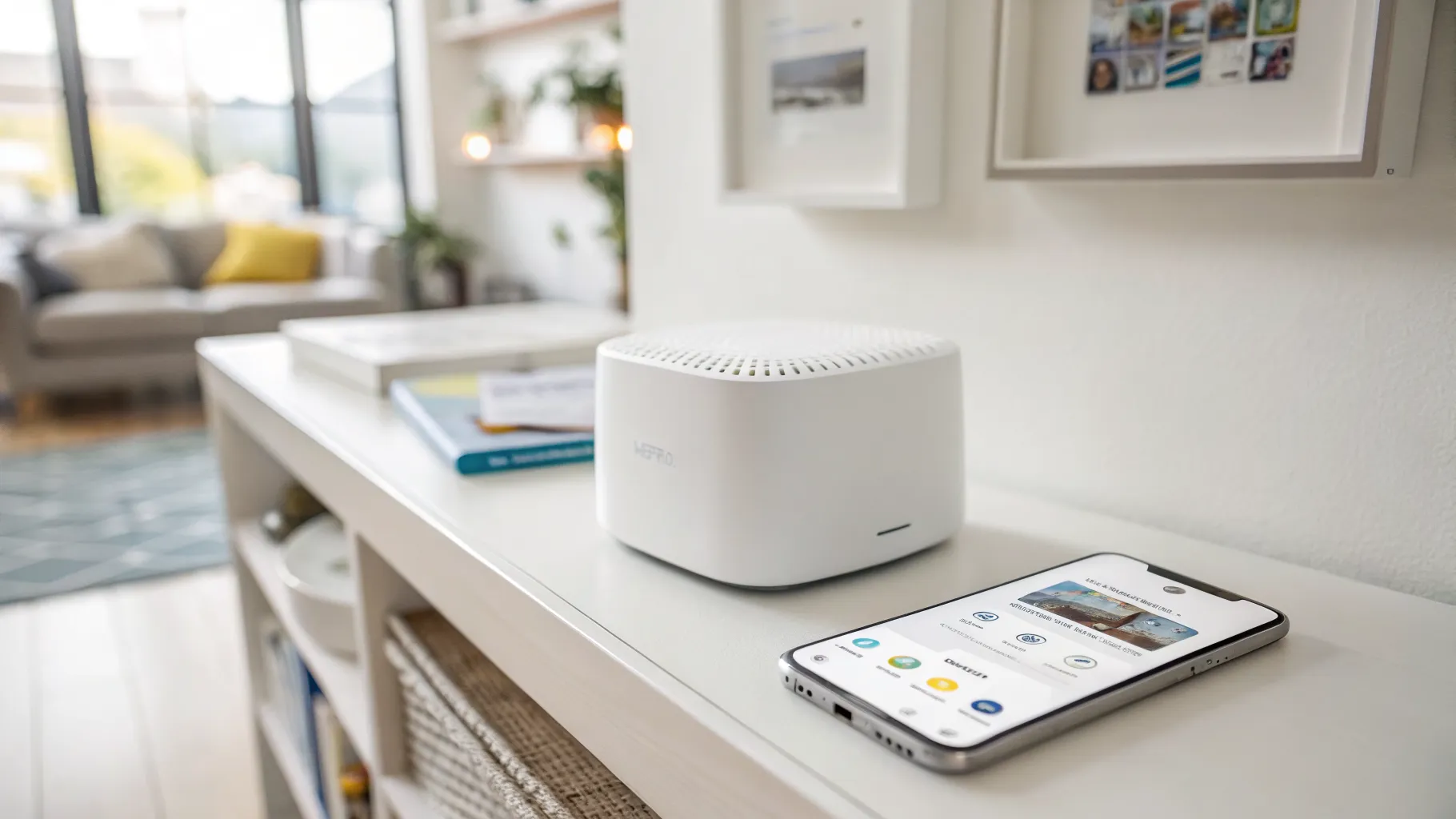
Stand where the trouble is (the room with the weak signal) and open the Wi-Fi list on your phone.
How to see channels on Android and iPhone
- Android: install a free analyser such as "WiFiman" or "Network Analyzer", open it, and look at the channel graph. Each network sits on a numbered channel.
- iPhone: Apple hides channel numbers, so use the free "AirPort" tab in "Network Analyzer" or check your router's own app (BT, Sky, Virgin and EE apps all show nearby networks). On a laptop you can also run netsh wlan show all (Windows) or hold Option and click the Wi-Fi icon (Mac).
- You only need rough counts, not exact numbers. Count how many networks sit on or near each channel below.
Tell us what you saw
Then change it on your router
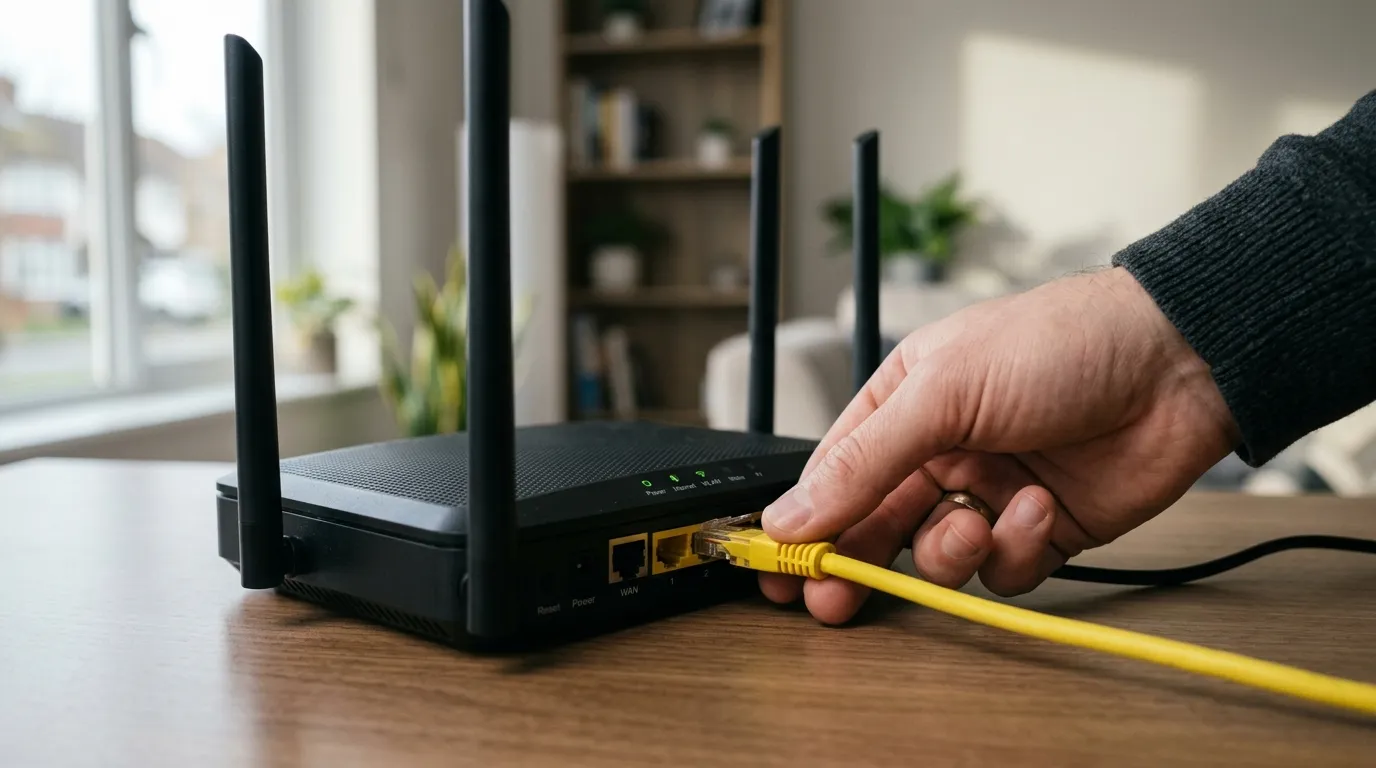
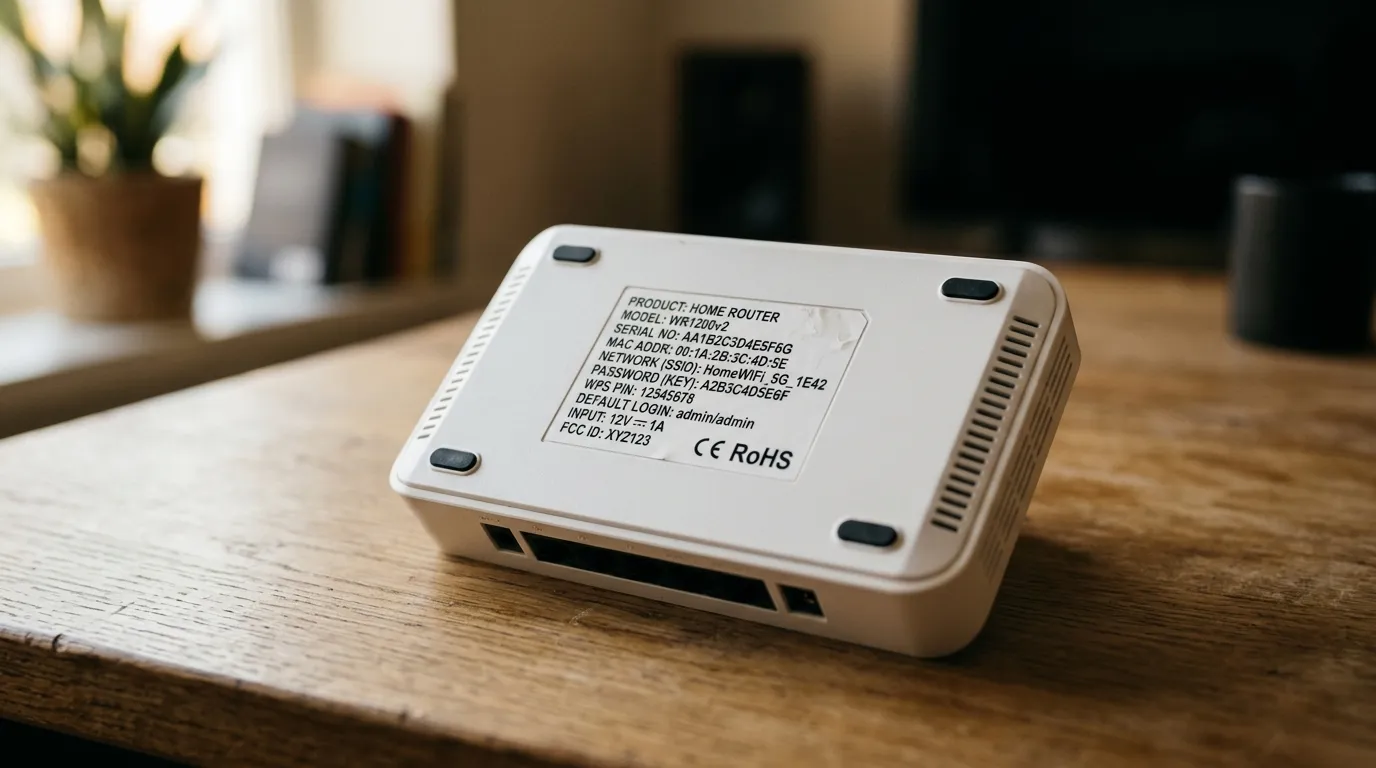
Log in to your router (type its address, usually 192.168.1.1 or 192.168.0.1, into a browser, or use your provider's app), open the wireless or Wi-Fi settings, switch the channel from "Auto" to the number above, and save. Set the 2.4GHz width to 20MHz and the 5GHz width to 80MHz unless you have a reason not to.
Where the setting lives on common UK routers
- BT Smart Hub / Hub 2: bthomehub.home (or 192.168.1.254) → Advanced Settings → Wireless → 2.4GHz / 5GHz → Channel Selection.
- Sky (Sky Hub / Sky Broadband Hub): 192.168.0.1 → Wireless → Channel. Newer Sky hubs hide this; use the Sky app or call to disable band steering first.
- Virgin Media Hub 3/4/5: 192.168.0.1 → Advanced settings → Wireless → pick 2.4 or 5GHz → Channel. Putting the Hub in modem mode and using your own router gives full control.
- EE Smart Hub: 192.168.1.1 → Advanced Settings → Wireless → Channel Selection.
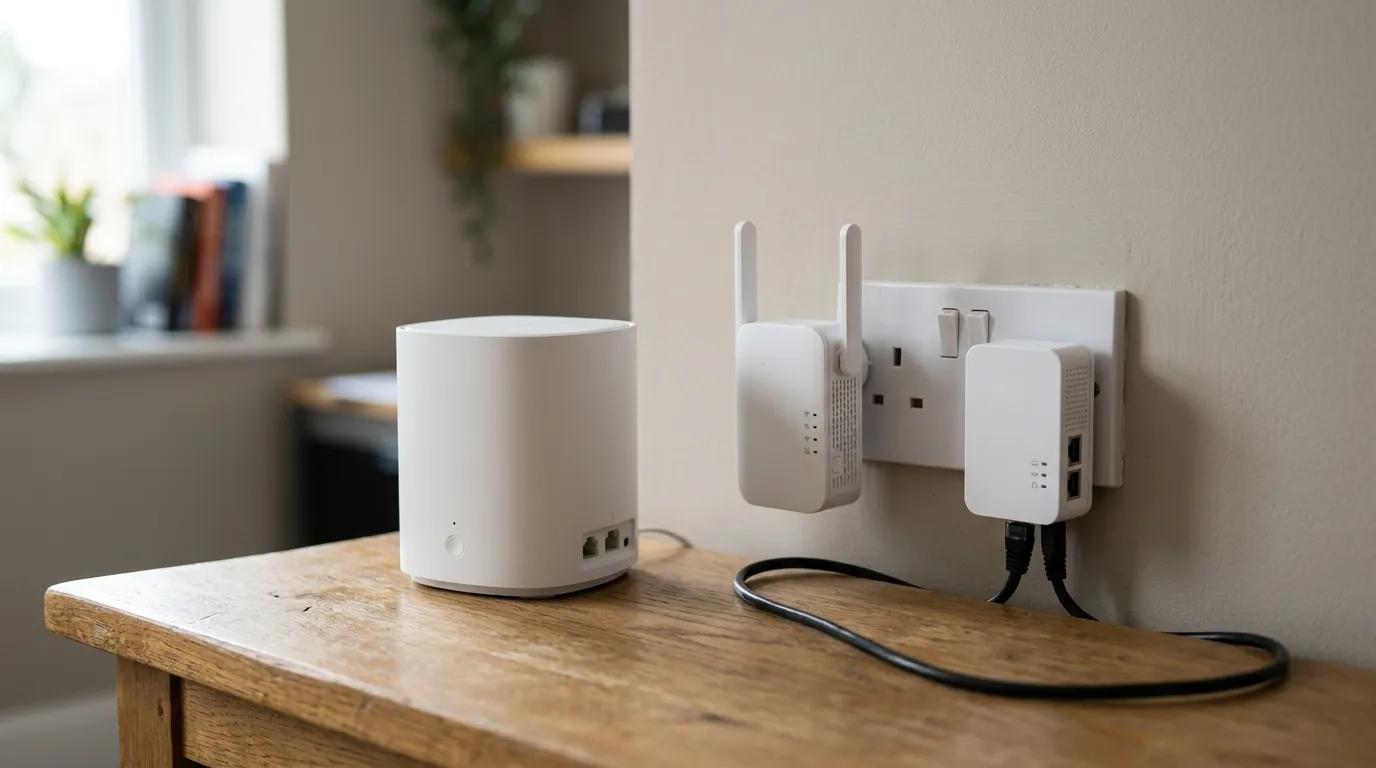
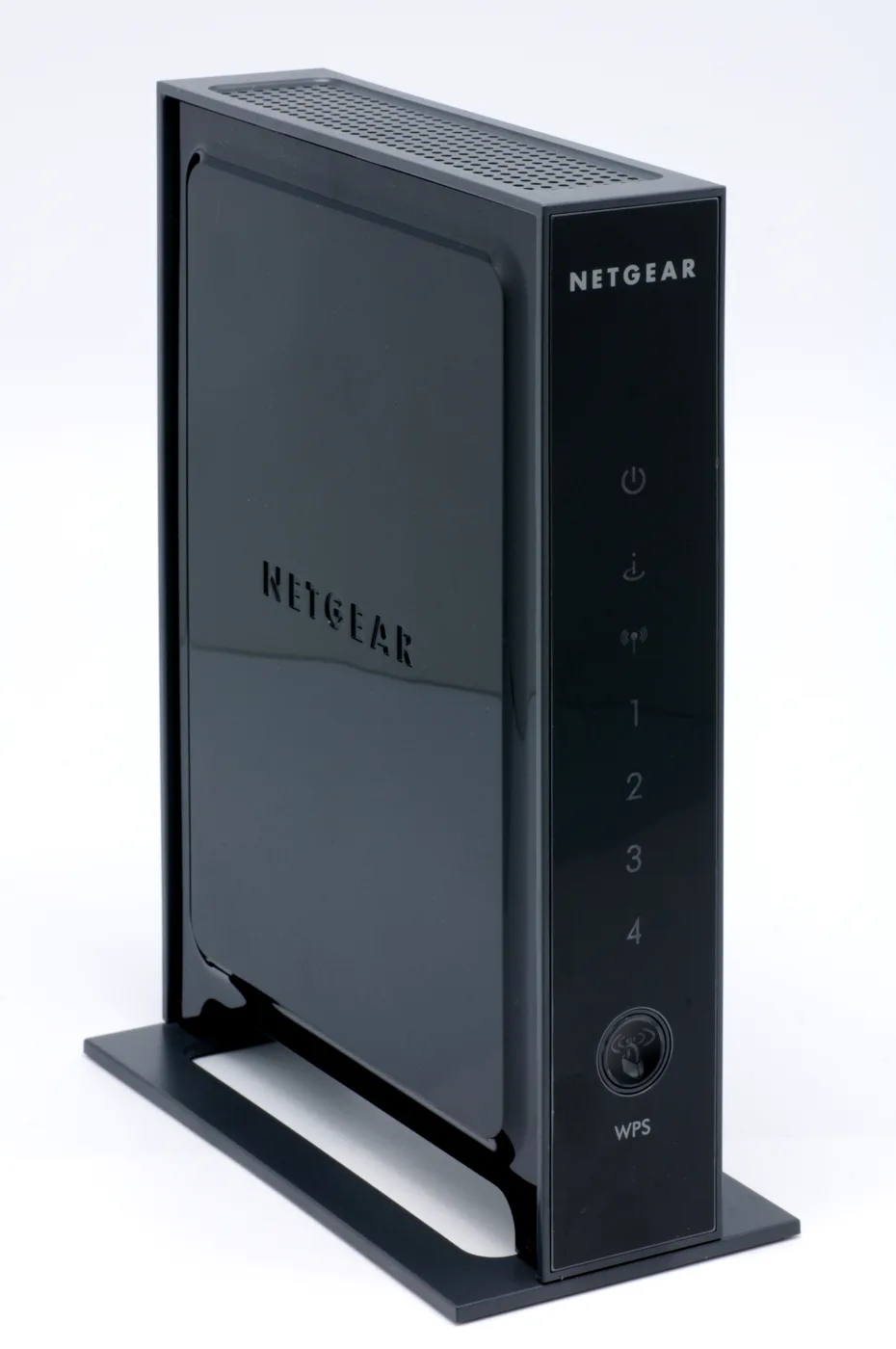
- TP-Link / Asus / Netgear (own router or mesh): the app or web admin → Wireless / Wi-Fi → per-band Channel and Channel Width.