How to Reset Your Router Without Losing Your Settings
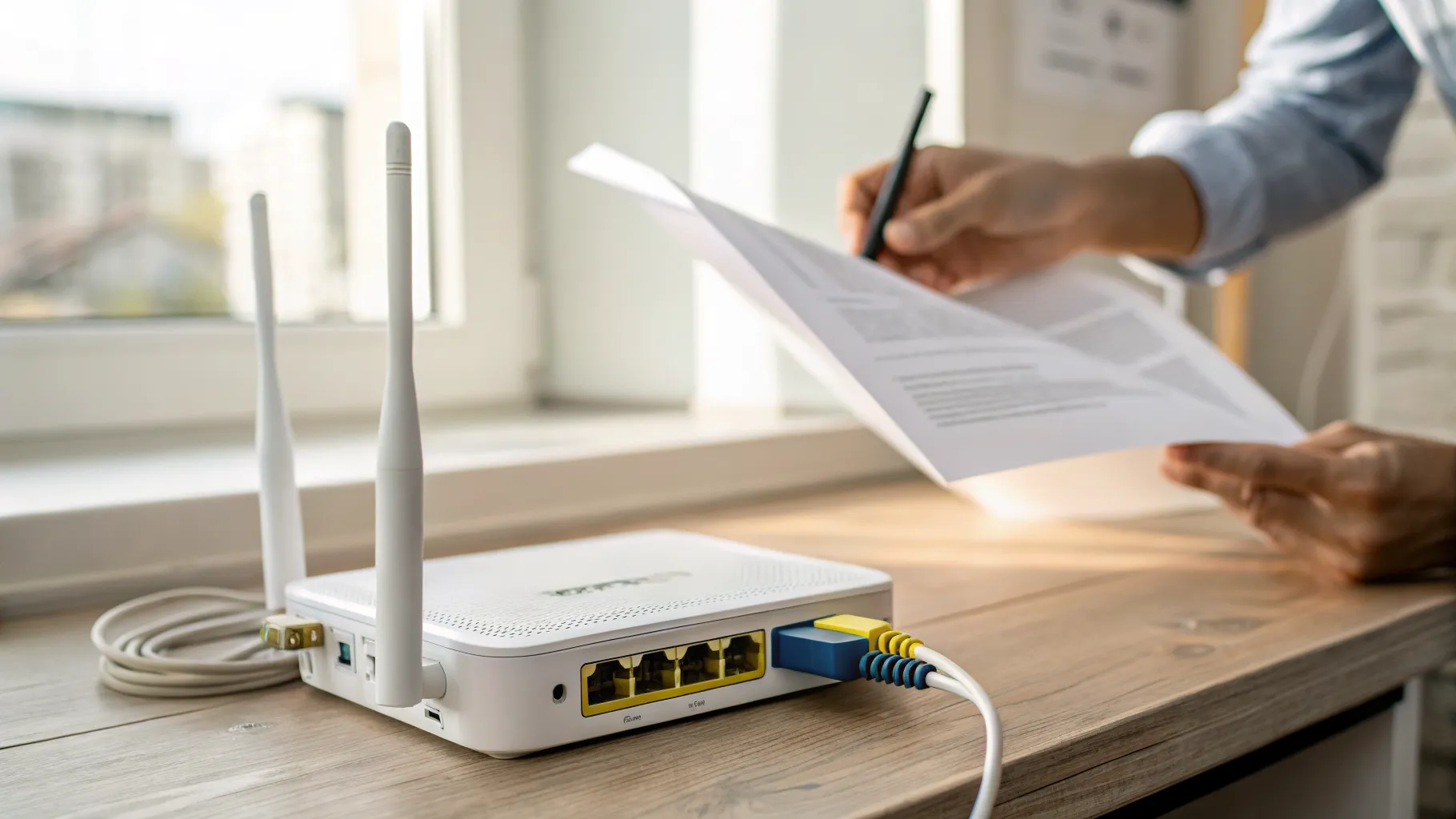
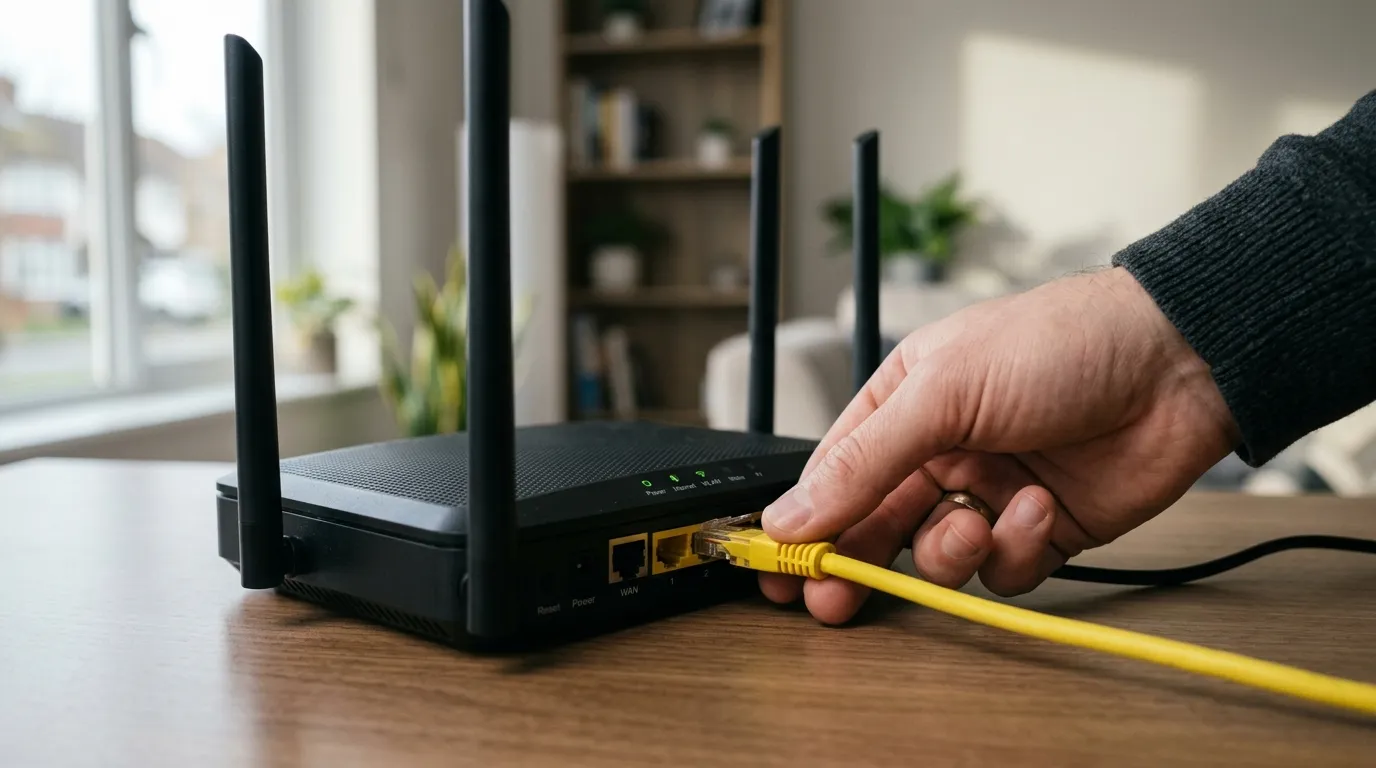
Here is the short answer: a restart (turning the router off and on again) keeps every one of your settings, and it fixes most slowdowns and dropouts. A factory reset, the one you do with a paper clip in the pinhole, wipes everything back to the defaults printed on the sticker. If you have a BT, Virgin Media, Sky or EE hub, there is no way to back your settings up first, so the trick to “resetting without losing your settings” is either to restart instead, or to write your settings down before you press that pinhole.
This guide walks through both, hub by hub, for the routers most UK homes actually have.
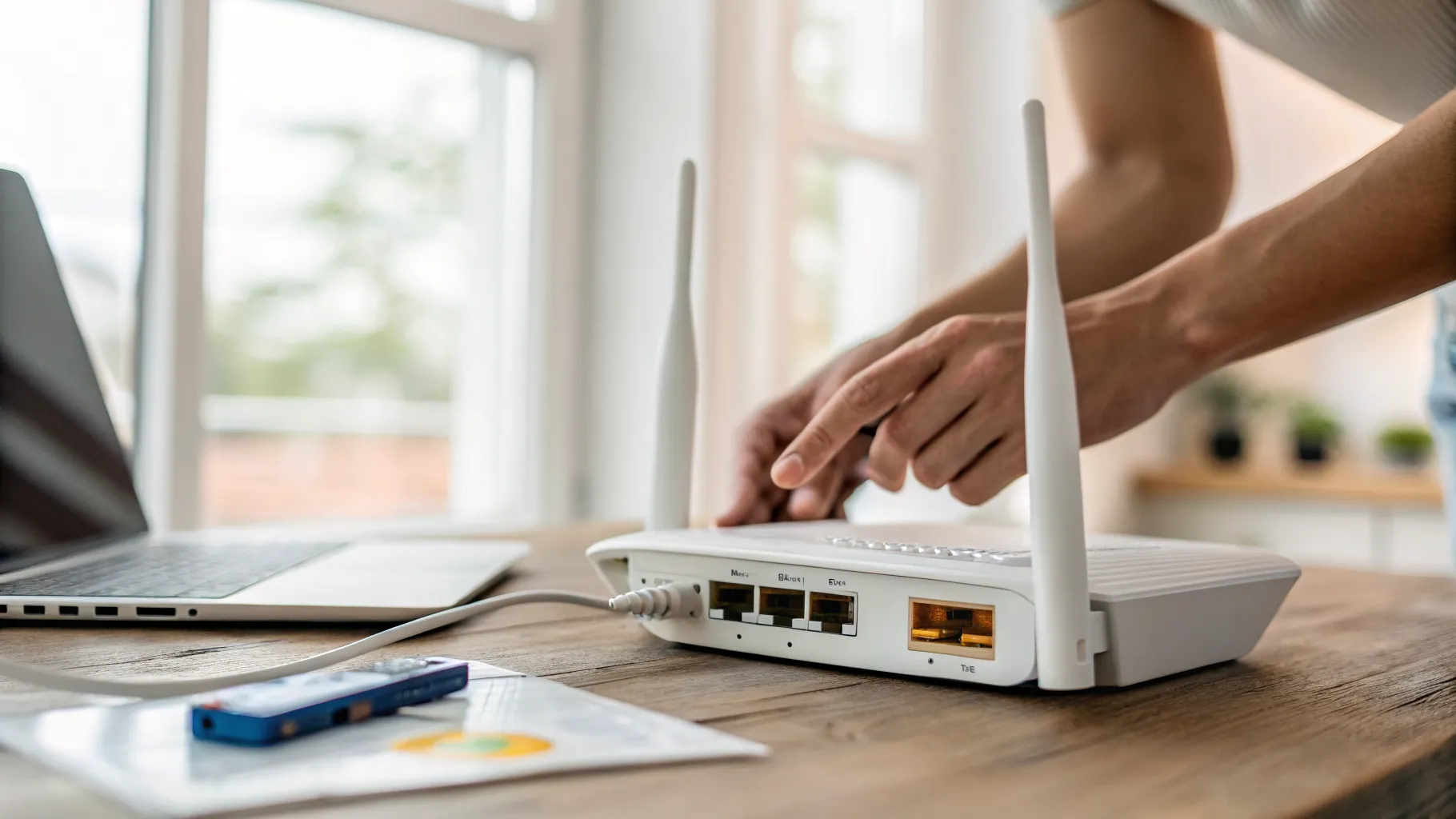
Restart and reset are two different things
People use “reset” for both, but your router treats them very differently:
| What you do | What you keep | When to use it | |
|---|---|---|---|
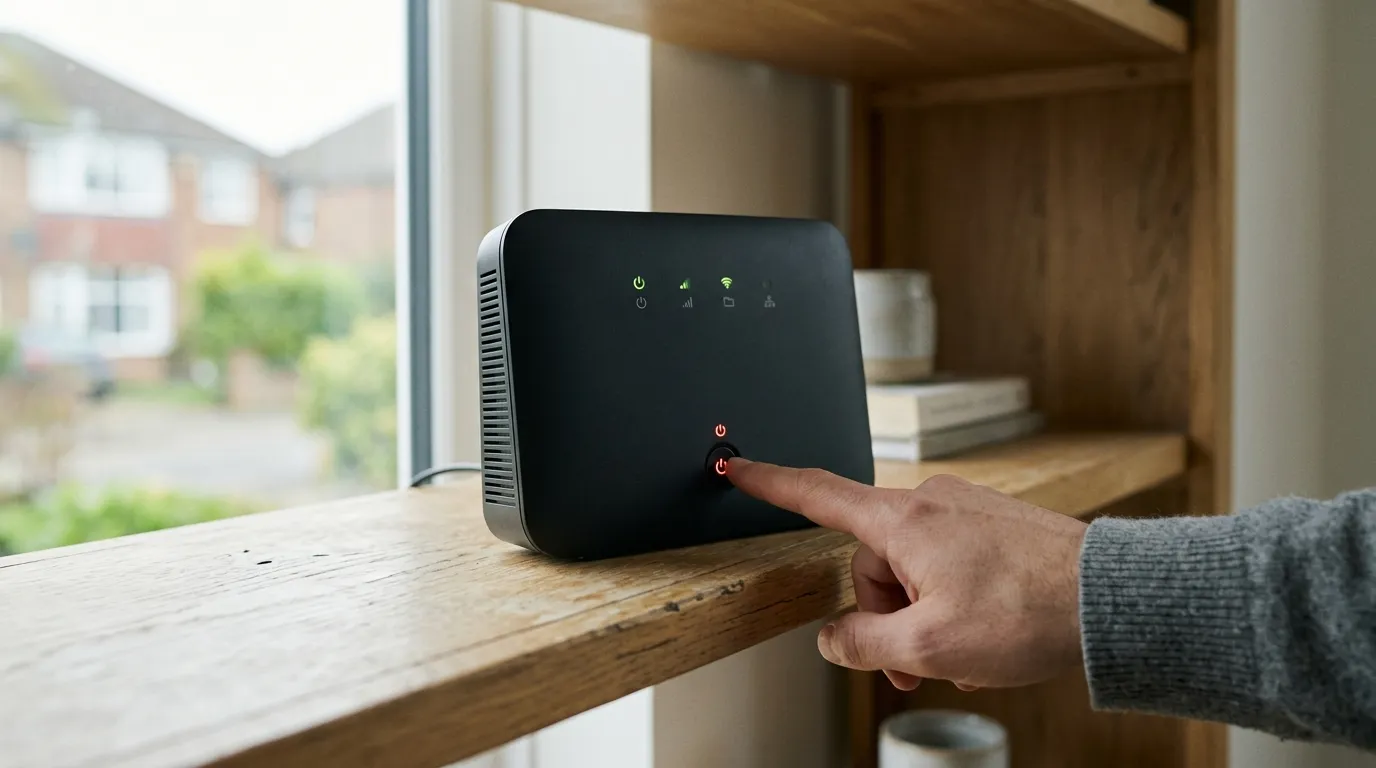
| Restart (reboot / power cycle) | Turn it off and on, or press the restart button | Everything: Wi-Fi name, passwords, port forwarding, parental controls, the lot | First response to slow speeds, dropouts, devices refusing to connect |
| Factory reset | Paper clip in the recessed pinhole, held for a set time | Nothing. Everything goes back to the sticker defaults | Last resort: forgotten admin password, settings in a mess, ISP support asks for it |
A restart clears the router’s working memory and forces it to renegotiate its connection. That alone sorts a surprising share of problems; if your connection is sluggish, start with a restart before reading our guide on why your Wi-Fi is so slow. If the restart does not do it, Ofcom’s practical tips for improving broadband speed cover the other usual suspects: electrical interference near the router, an ageing router, and using a wired connection where you can.
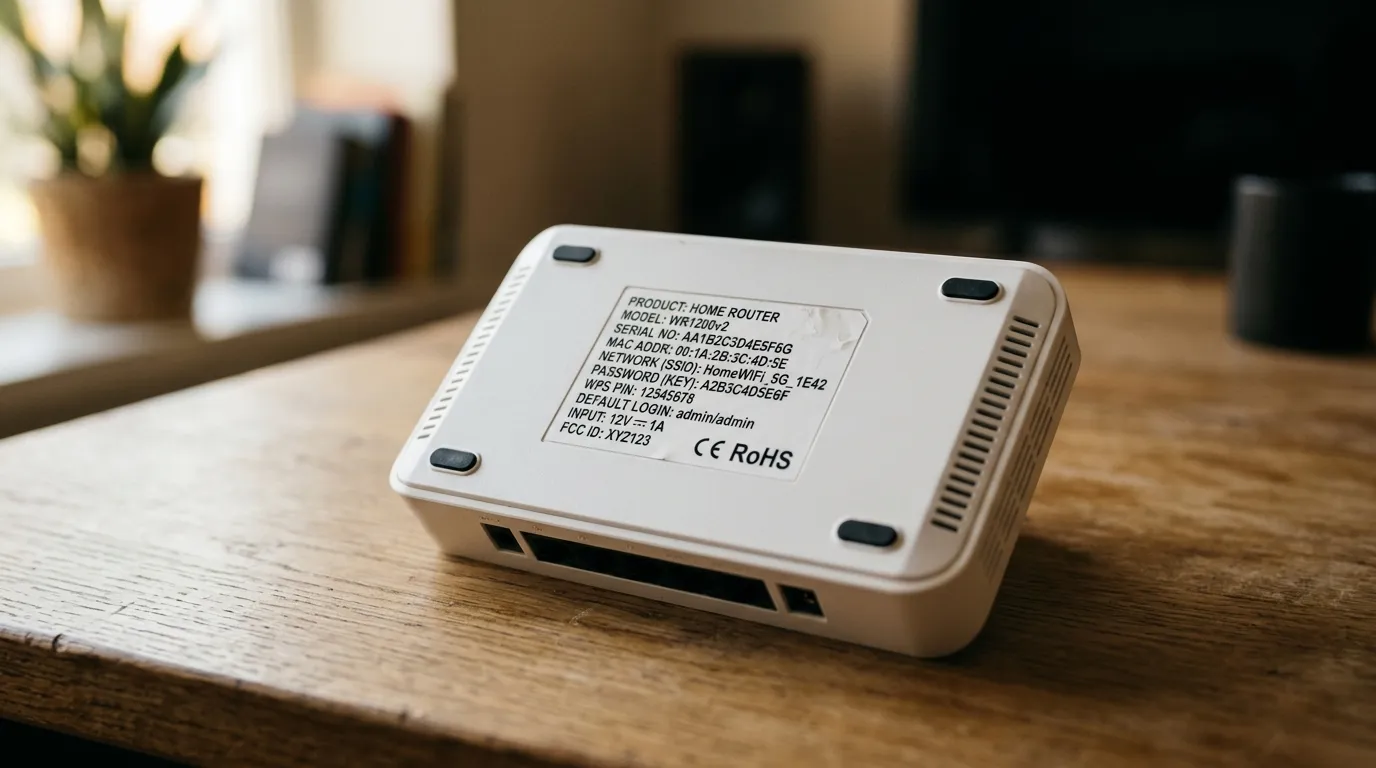
A factory reset, by contrast, deletes your custom Wi-Fi name and password, your admin password, port forwarding rules, parental controls, guest Wi-Fi and any paired extenders or mesh discs. The hub goes back to the network name and password printed on the card or base of the unit.
What you lose in a factory reset, and what comes back on its own
On an ISP hub, the broadband line settings recover automatically. BT, Virgin, Sky and EE hubs reconfigure themselves to your connection after a reset, so you will not lose internet access for more than a few minutes (Virgin advises leaving its hubs 5 to 10 minutes to start back up).
Everything you set yourself does not come back:
- Custom Wi-Fi network name (SSID) and password
- Admin password for the settings pages
- Port forwarding rules (for game consoles, CCTV, home servers)
- Parental controls and access schedules
- Guest Wi-Fi networks
- Any DNS changes
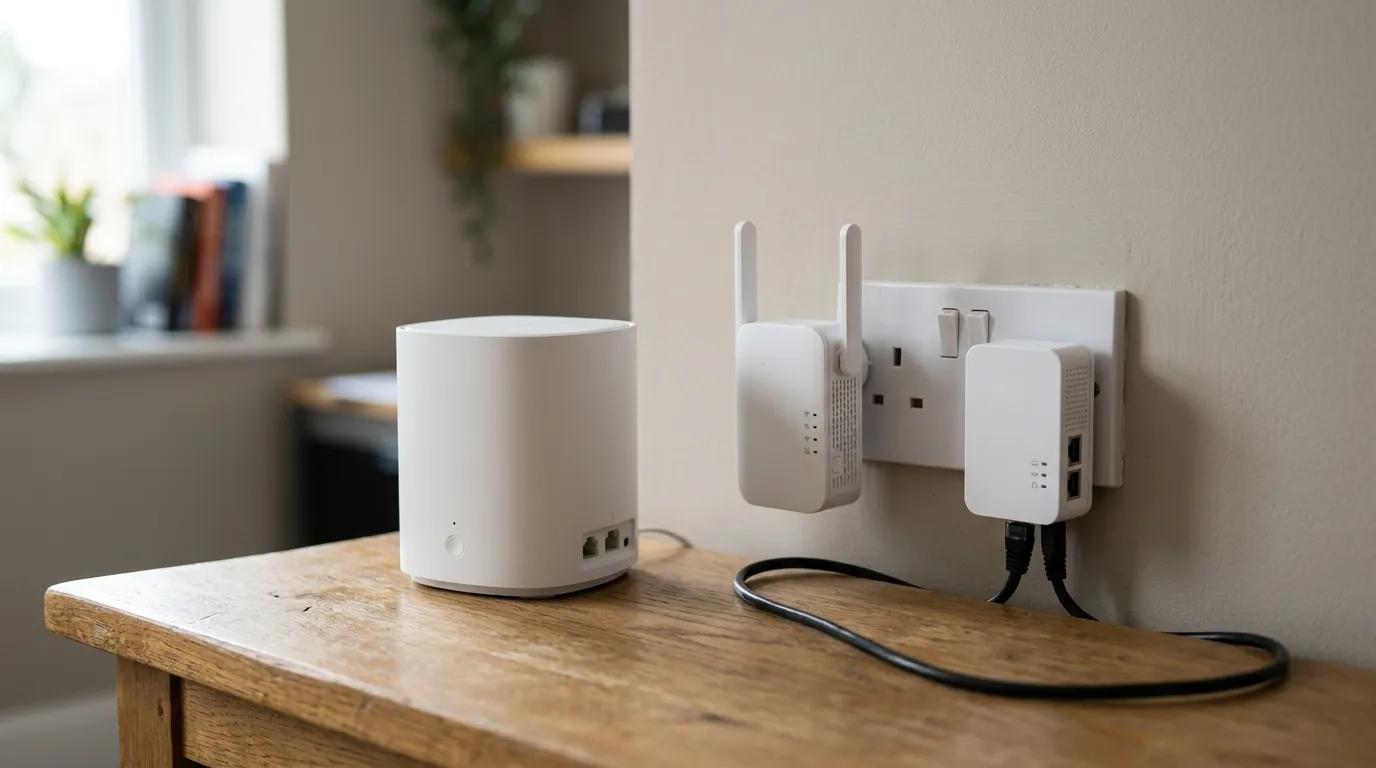
- Paired Wi-Fi extenders or mesh discs, which need re-pairing
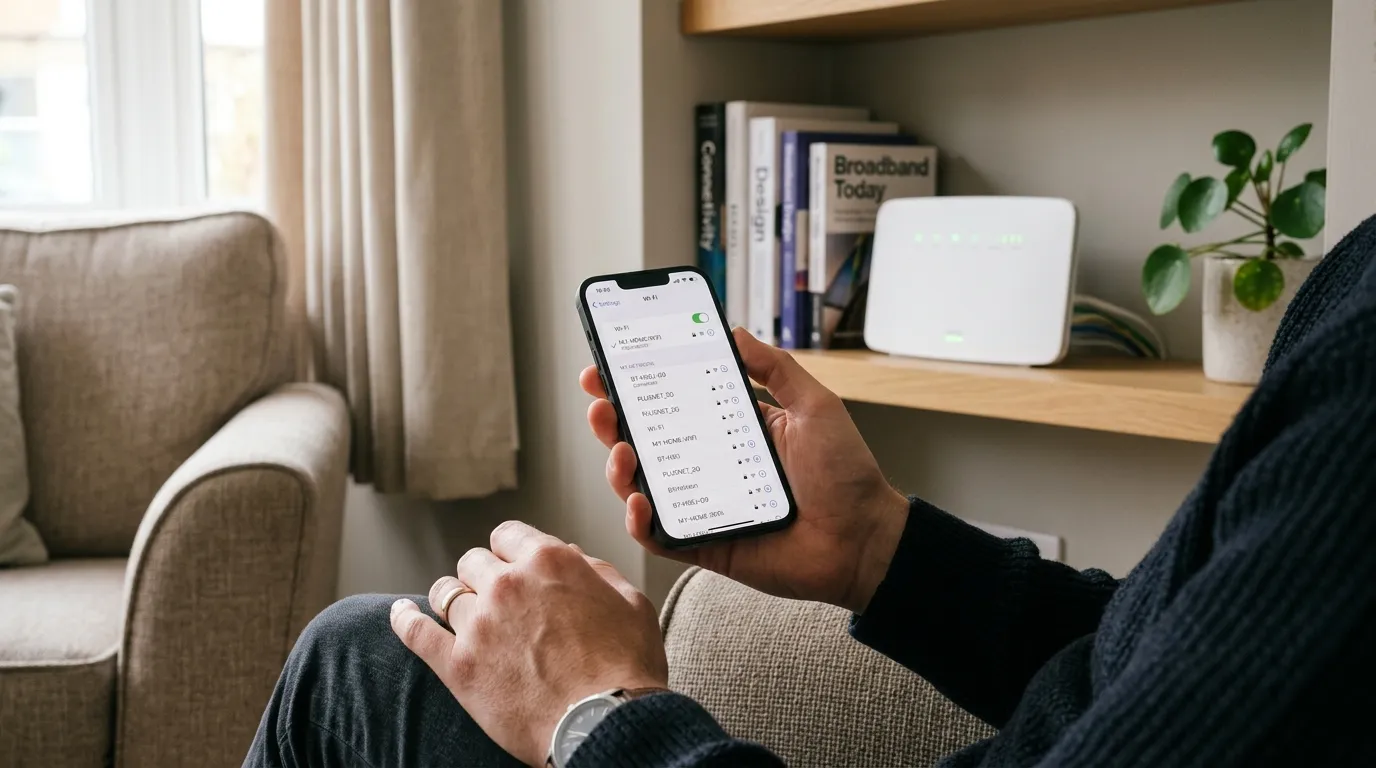
That last one bites hardest. Every smart plug, doorbell, thermostat and printer in the house knows your old Wi-Fi name and password. If the reset changes those back to the sticker defaults, every device drops off until you either reconnect each one or rename the new network to match the old name and password exactly. The renaming trick is usually far less painful, which is exactly why you need the old details written down first.
The pre-reset checklist: write these down first
ISP hubs have no settings export. Before any factory reset, log in to the hub’s settings pages (see our walkthrough for logging in to your router at 192.168.1.1) and copy or screenshot:
- Wi-Fi network name and password (both bands if shown separately)
- Admin password, if you changed it from the sticker
- Port forwarding rules: every rule’s name, internal IP, and port numbers
- DNS settings, if you changed them from the default
- Guest network name and password
- Device reservations / static IPs, if you set any
- Parental control schedules and blocked sites
Five minutes with the screenshot key saves an evening of re-typing Wi-Fi passwords into smart bulbs.
Hub-by-hub: restart and reset steps for UK ISP routers
Exact button locations and hold times differ between providers, and getting the hold time wrong is the usual reason a reset “doesn’t work”.
| Hub | Restart | Factory reset |
|---|---|---|
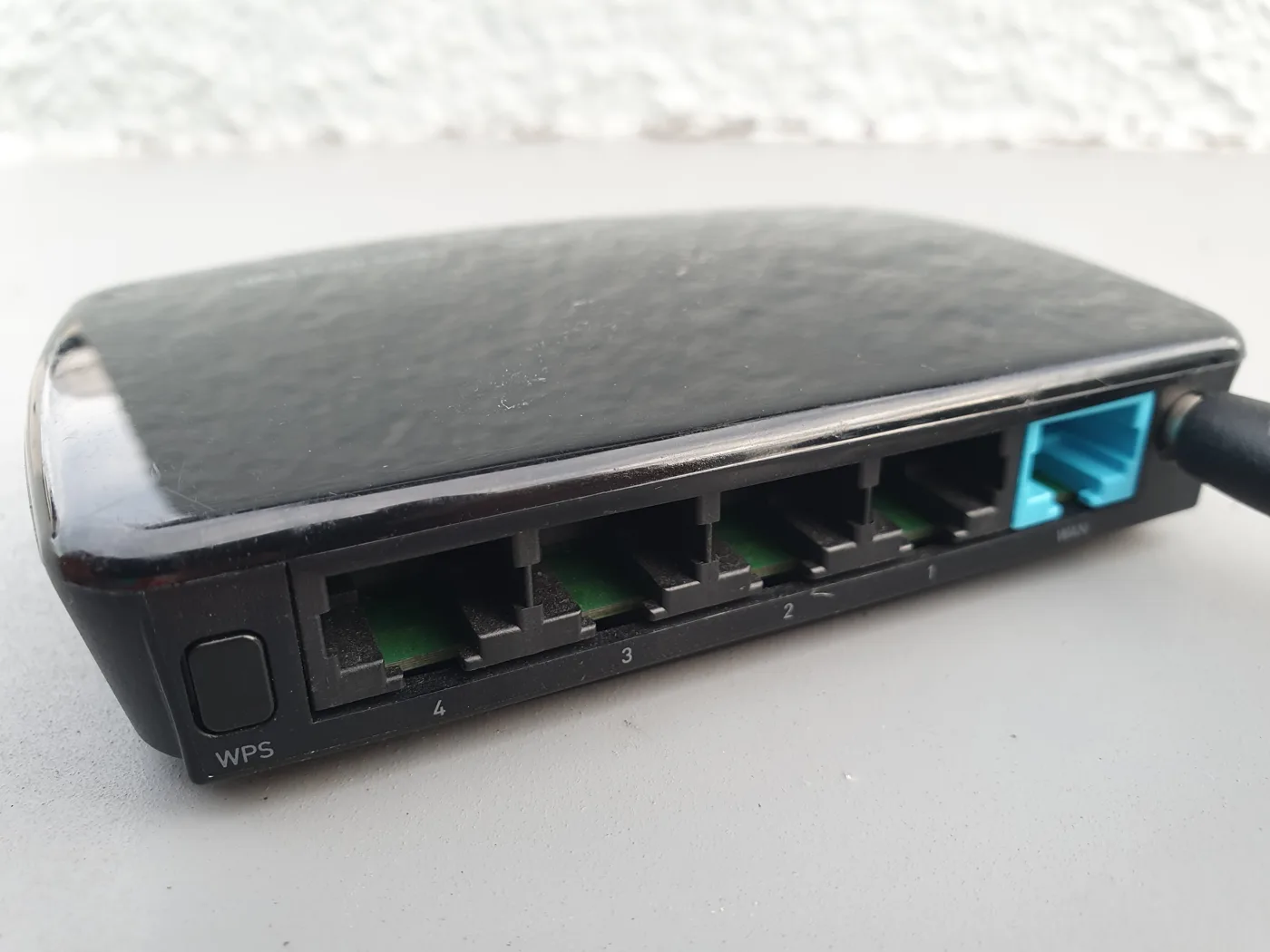
| BT Smart Hub / Smart Hub 2 | Press and release the Restart button, or power off for 20 seconds | Recessed Factory Reset pinhole on the back: hold 20 seconds on a Smart Hub, only 5 seconds on a Smart Hub 2 |
| Virgin Media Hub 3/4/5/5x | Switch off at the wall, wait 10 seconds, switch back on; allow 5 to 10 minutes | With the hub powered on, pen into the reset pinhole, hold 10 seconds |
| Sky Max Hub (white hub) | Power off and on at the wall | No labelled reset button: hold the WPS button on the side for about 30 seconds until the front light flashes green, then release |
| Older Sky Broadband Hub / Sky Hub | Power off and on at the wall | Reset button on the back, hold about 10 seconds until the power light flashes green; do not unplug mid-reset |
| EE Smart Hub / Smart Hub Plus | Power button on the back (separate from reset) | Reset button on the back: press 5 seconds (standard button) or hold 20 seconds with a paper clip (pinhole version) |
A few hub-specific notes:
- BT: the hold time depends on the model: BT’s factory reset help page says 20 seconds for the original Smart Hub but only 5 seconds for the Smart Hub 2, so check which one you have before blaming the hub. After either, the hub restarts and is ready when the light turns steady blue.
- Virgin Media: the hub is ready at a solid white power light. The settings page lives at 192.168.0.1, and the settings password is printed on the base of the hub; it is a different password from the Wi-Fi one. You may see older advice telling Hub 3 owners to hold the pinhole for 60 seconds; Virgin’s current official guidance says 10 seconds for all its hubs.
- Sky Max Hub: this one catches people out because there is no reset button anywhere on it. Sky’s help team has confirmed the method is the WPS button on the side, held for roughly 30 seconds until the front light flashes green; a steady white light means the reset is done. Sky does not publish a single tidy consumer page for it, so if the 30-second hold does not take, contact Sky rather than guessing.
- EE: a factory reset removes wireless settings, Guest Wi-Fi, Compatibility Wi-Fi and LED brightness, and reverts the network name and password to the card on the back. The hub can take up to 5 minutes and shows aqua/blue lights when done. Any EE Wi-Fi extenders need re-pairing afterwards.
Ignore any guide that mentions a “30-30-30 reset” (hold 30 seconds powered on, 30 off, 30 on again). That is a legacy technique for old hardware and does nothing useful on a modern UK hub.
Third-party routers: the only ones that truly reset without losing settings
If you bought your own router or mesh system, you get the feature ISP hubs lack: a proper settings backup. Export a config file before the reset, restore it after, and everything comes back.
- ASUS: Administration, then Restore/Save/Upload Setting, then Save. You get a Settings_(model).CFG file; restore it through the Upload option on the same page. It only works on the same model.
- TP-Link: Advanced, then System Tools, then Backup & Restore. Saves a conf.bin file.
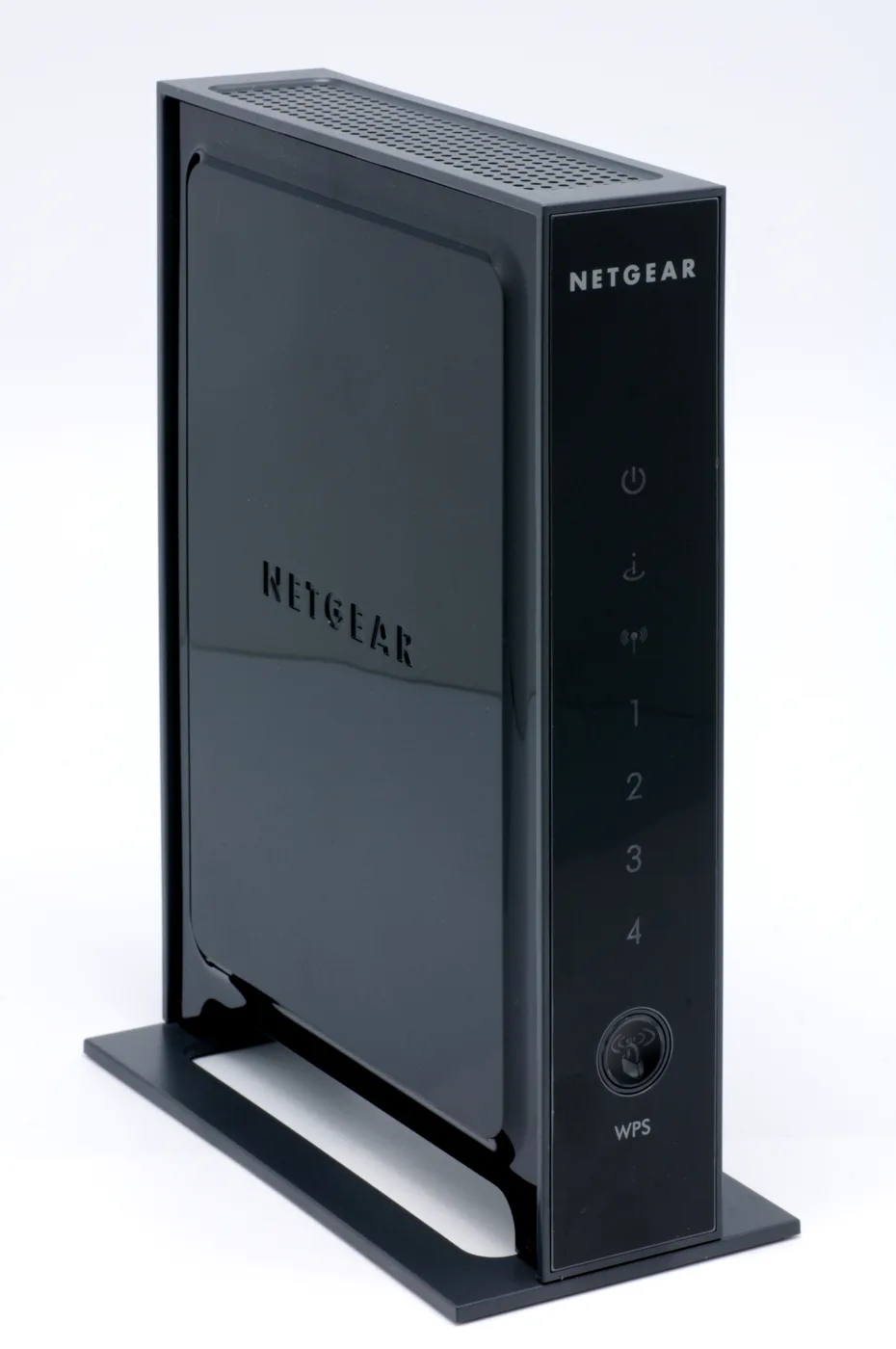
- Netgear: log in at routerlogin.net, then Advanced, Administration, Backup Settings. Saves a .cfg file.
Two caveats. The backup file is model-specific, so it will not move your settings to a different router. And after a factory reset, a third-party router may ask for your ISP login details again before it reconnects, so have those handy; ISP hubs pick up line settings automatically, third-party kit does not always.
If your ISP hub is the real problem rather than its settings, it may be time to look at the best mesh Wi-Fi systems for UK homes instead of resetting the same hub for the third time this month.
When a factory reset is actually the right call
Most problems do not need one. Work up this ladder:
- Restart the router and the device that is misbehaving.
- Connection keeps dropping? Try the steps in our guide to fixing Wi-Fi that keeps dropping before reaching for the paper clip.
- Slow Wi-Fi in a busy area? Changing your Wi-Fi channel often does more than a reset ever will.
- Reset only when you have forgotten the admin password, the settings are in a state you cannot untangle, or your provider’s support team asks you to.
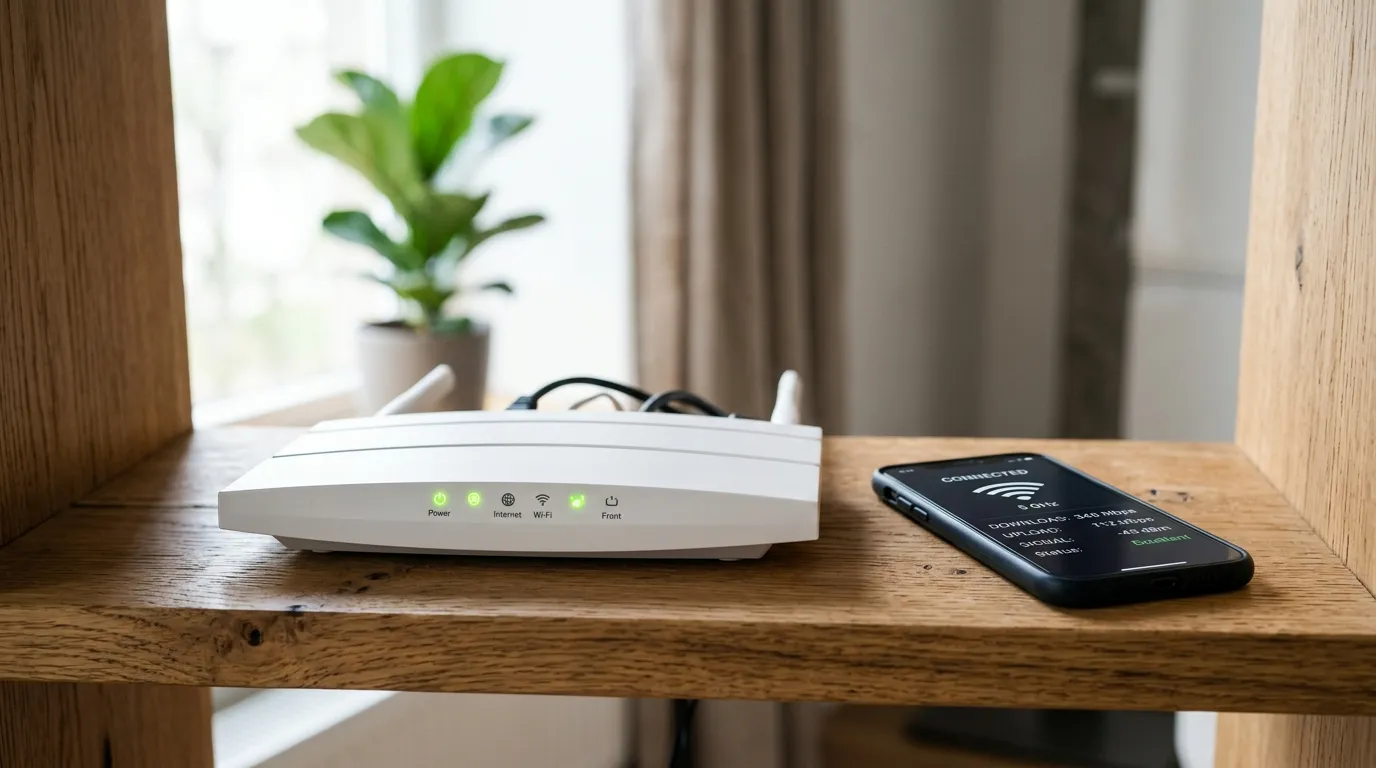
If you do reset, run the checklist above first, allow 5 to 10 minutes for the hub to settle (especially Virgin), then either re-enter your old Wi-Fi name and password so every device reconnects on its own, or work round the house reconnecting devices to the sticker network.
Frequently asked questions
Will resetting my router change my Wi-Fi password? A factory reset will, yes. The network name and password revert to whatever is printed on the card or base of the hub. A simple restart changes nothing. If you reset, you can rename the new network to your old name and password so your devices reconnect automatically.
Is unplugging the router the same as resetting it? No. Unplugging and replugging is a restart (a power cycle) and keeps all your settings. A factory reset needs the recessed pinhole or reset button held for the right length of time, and it wipes everything.
How long should I leave the router unplugged? 10 to 30 seconds is enough. The point is to let the hardware fully power down so it starts fresh; leaving it off for an hour achieves nothing extra.
Will I lose internet if I factory reset my hub? Briefly. BT, Virgin, Sky and EE hubs reconfigure their line settings automatically, so you are usually back online within a few minutes (Virgin advises leaving its hubs 5 to 10 minutes to start back up). A third-party router may need your ISP login details typed back in.
I have forgotten my router admin password. Can I avoid a reset? Check the sticker first: if you never changed the admin password, the printed one still works. On Virgin hubs the settings password is on the base of the hub and is separate from the Wi-Fi password. If you changed it and cannot remember it, a factory reset is the only way back in, so run the pre-reset checklist from a device that is already connected if you can.
How often should I restart my router? There is no fixed rule, but a restart every few weeks keeps most hubs ticking over, and it is the first thing to try whenever speeds sag or devices drop off. If you find yourself restarting every day, something else is wrong: interference, a failing hub, or a line fault worth reporting to your provider.