WiFi Bridge Mode Explained: How to Link Two Routers Wirelessly
A WiFi bridge is a way to connect two routers or access points wirelessly, so a device in one part of your home can reach the internet through a router somewhere else without running a cable between them. People reach for a Wi-Fi bridge when a wired link is impractical: a garden office, a garage, a far bedroom, or a second building. Confusingly, “bridge mode” means two different things depending on the device, and mixing them up is the usual reason setups fail. This guide explains both meanings, how a wireless bridge differs from access point and repeater modes, and how to set one up so it actually works.
The two things “bridge mode” can mean
Before you change any settings, be clear which one you want.
1. Modem or ISP router bridge mode. Here, bridge mode turns off the routing on your broadband provider’s box so it just passes the internet through to another router you have chosen. This is what people mean when they say “put the BT or Virgin hub in bridge mode” so their own router runs the network. It does not link two routers wirelessly; it hands control of the connection to a single second router.
2. Wireless bridge (client bridge or WDS). This is the one this guide is about: two routers or access points talking to each other over Wi-Fi to extend the network to a place a cable cannot easily reach.
If your aim is to link two routers wirelessly, it is the second meaning you want.
Bridge vs access point vs repeater
These three modes get muddled constantly. Here is the plain-English difference.
| Mode | What it does | Best for |
|---|---|---|
| Wireless bridge | Links two points over Wi-Fi and passes traffic between them, like a wireless cable | Reaching a garage, office or outbuilding |
| Access point (AP) | Adds a new Wi-Fi zone, usually fed by a cable from the main router | Extending coverage where you can run Ethernet |
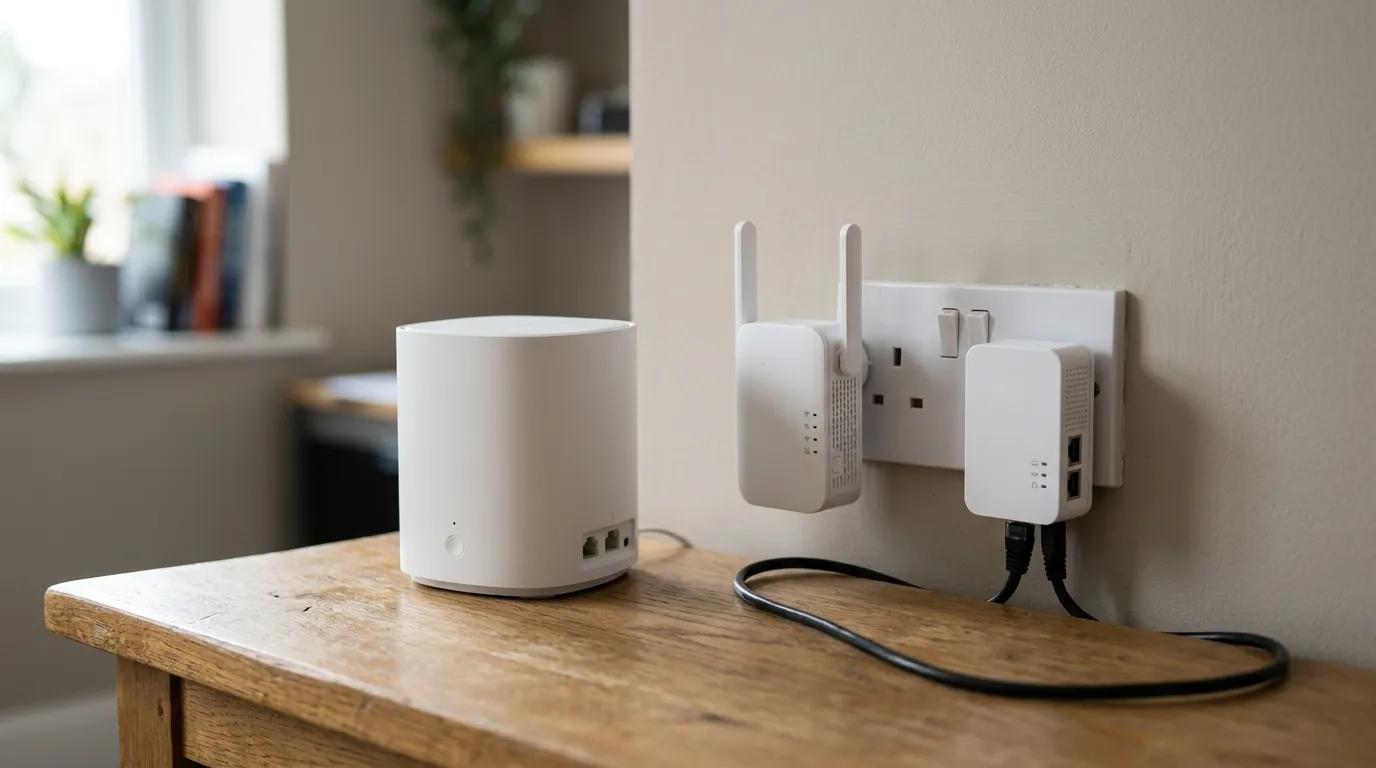
| Repeater / extender | Rebroadcasts the existing Wi-Fi to stretch its range | A quick range boost in the next room |
The key trade-offs:
- A repeater is the easiest but slowest option, because it talks to your devices and your main router on the same radio, roughly halving throughput. Our Wi-Fi repeater setup guide walks through it.
- An access point gives the best, most stable speed, but needs a cable back to the main router. If you can run Ethernet, this is almost always the better choice.
- A wireless bridge sits in between: no cable needed, and it can carry a wired device at the far end, but it depends on a solid wireless link between the two units.
When a Wi-Fi bridge is the right choice
A wireless bridge earns its place when:
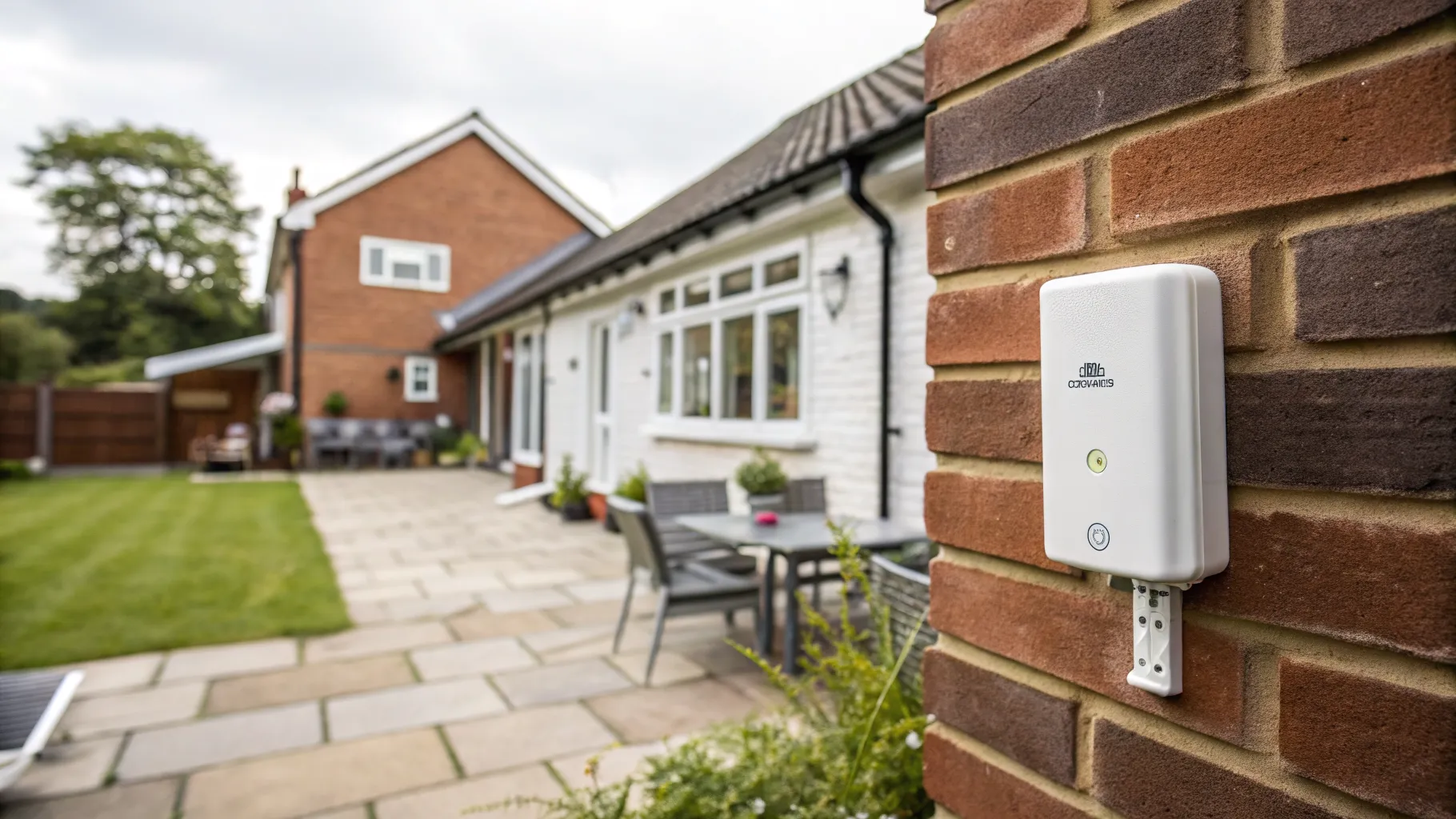
- You need to get internet to a detached space like a garden room, garage or workshop where running a cable is hard.
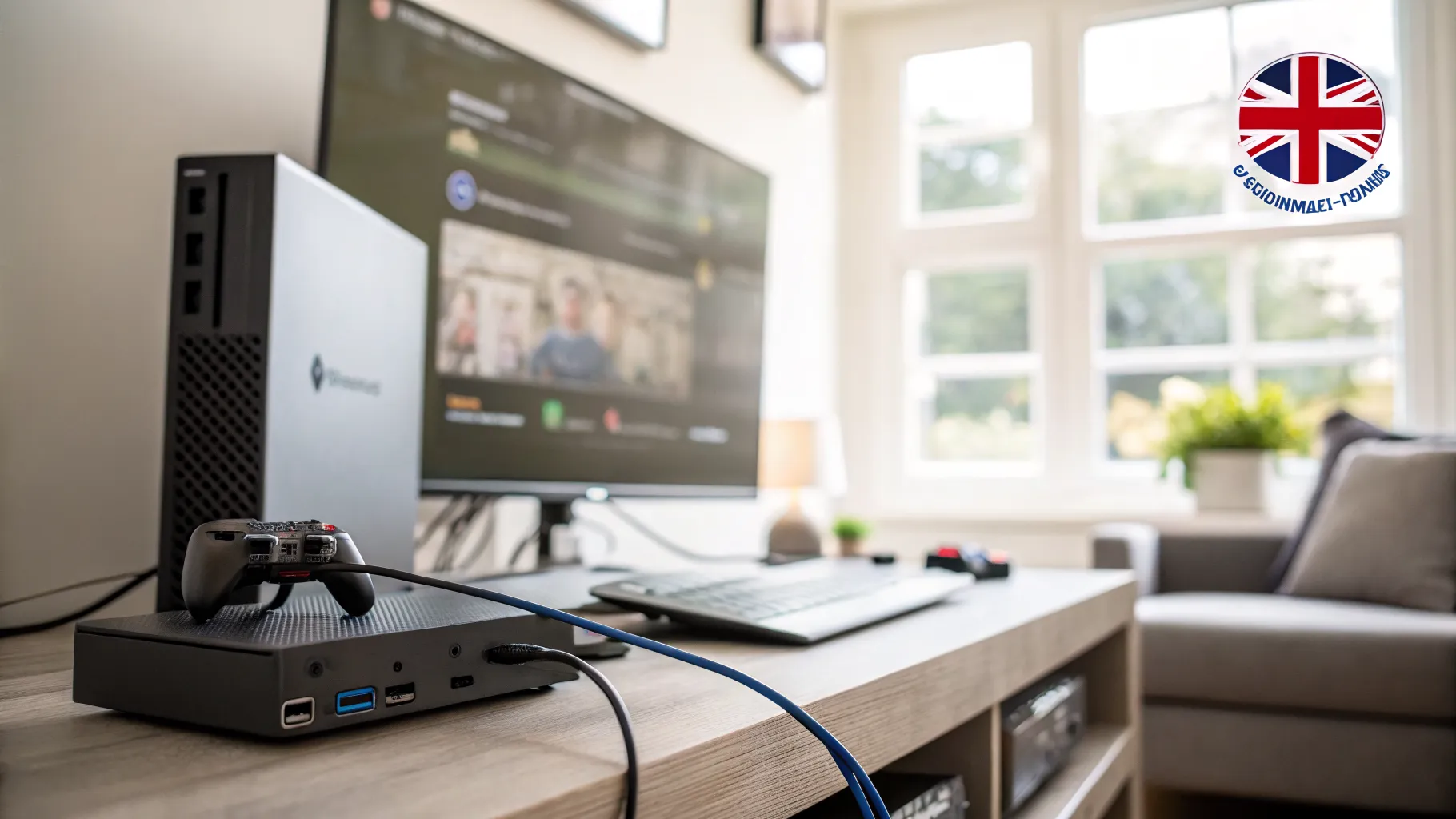
- You have a wired-only device at the far end, such as a smart TV, games console or desktop PC, that you want to connect through a distant router.
- Powerline adapters are not an option because the outbuilding is on a separate electrical circuit.
If the far end is inside the same building and you mainly want more Wi-Fi coverage, a mesh system or a cabled access point usually beats a bridge. Our roundup of the best mesh Wi-Fi systems covers that route, and for gardens and outbuildings specifically, the outdoor Wi-Fi extender guide is the natural next read.
How to set up a wireless bridge
The exact menu names vary by brand, but the process is the same. You will need a second router or access point that supports bridge or WDS mode (not all consumer routers do).
- Check compatibility. Confirm the second unit offers a “bridge”, “client bridge” or “WDS” mode. Manufacturer support pages, such as D-Link’s explanation of AP modes, list what each device supports.
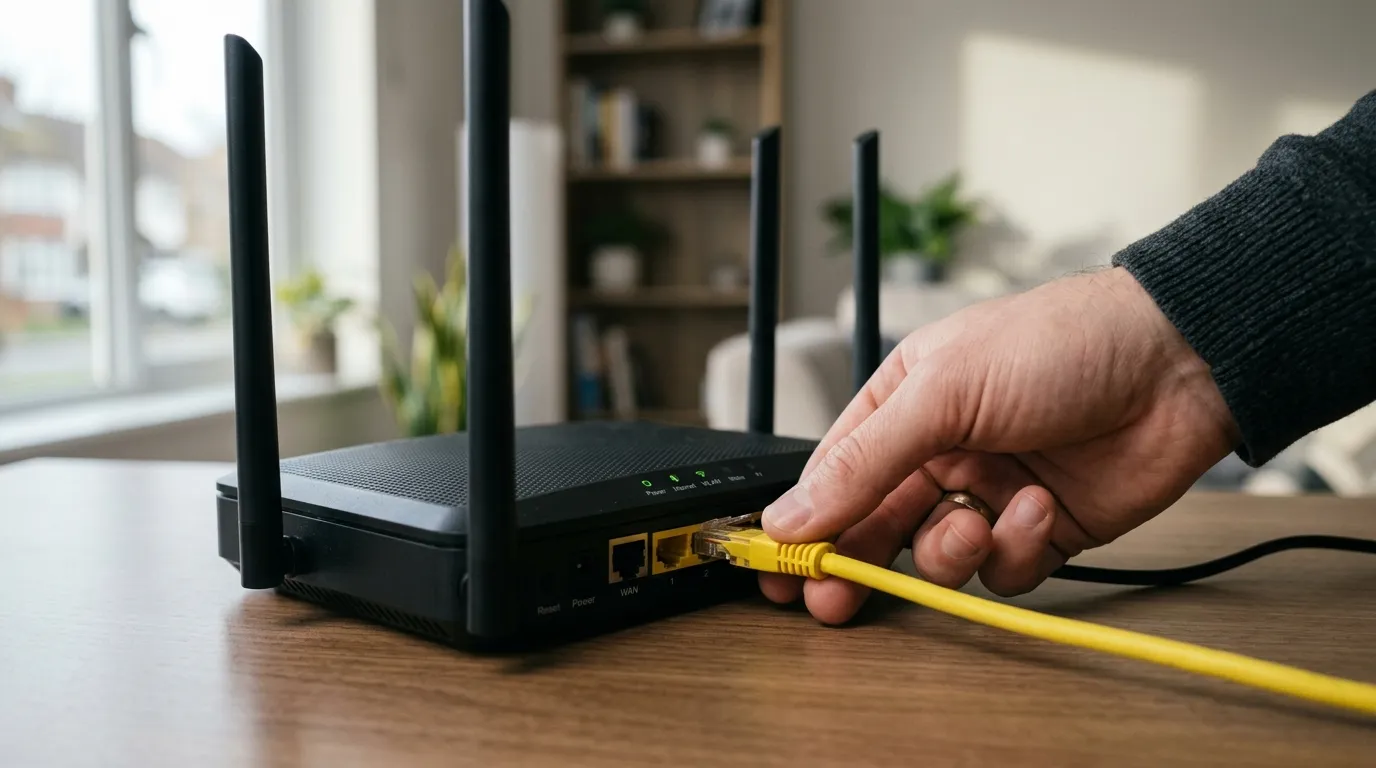
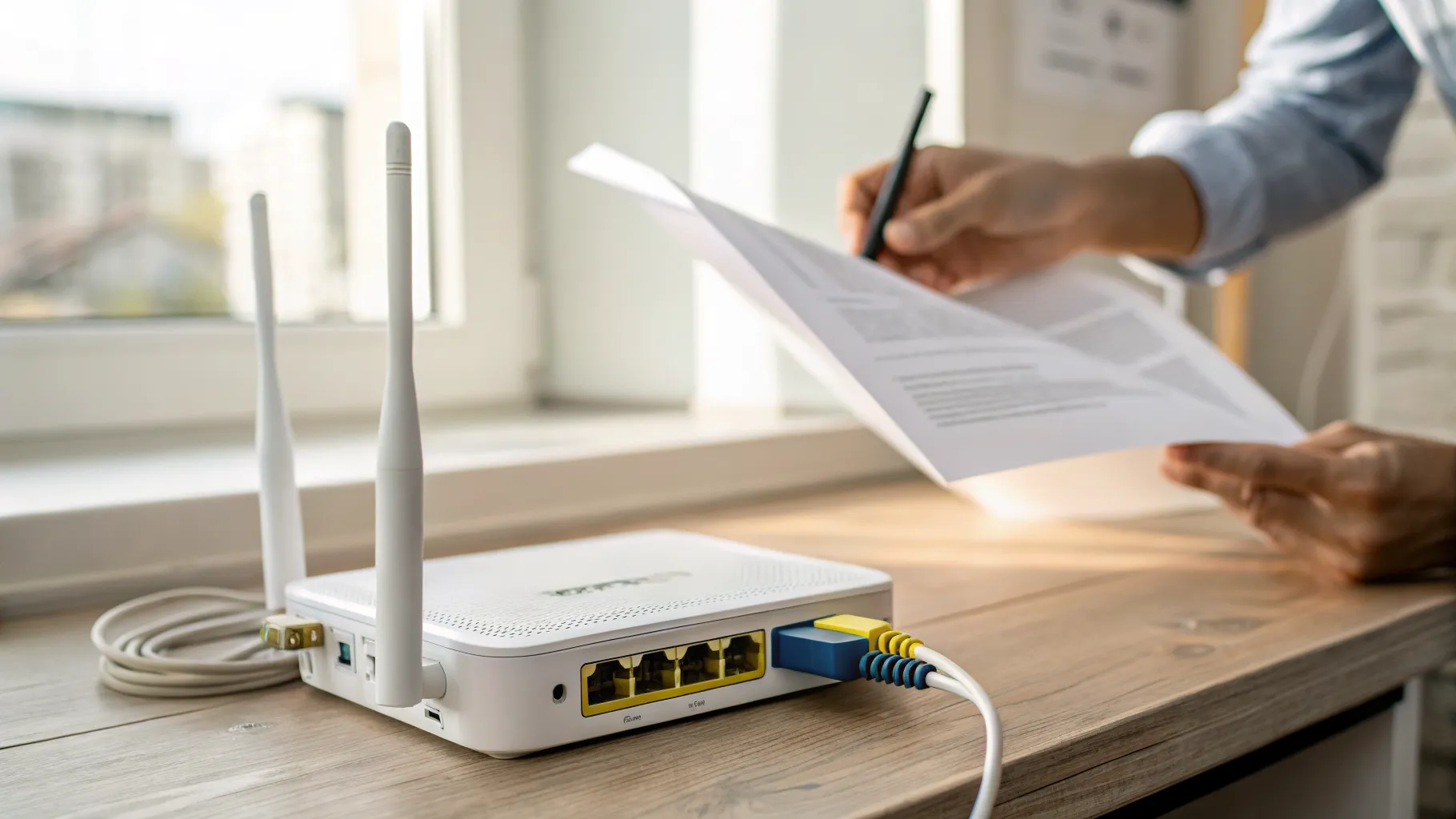
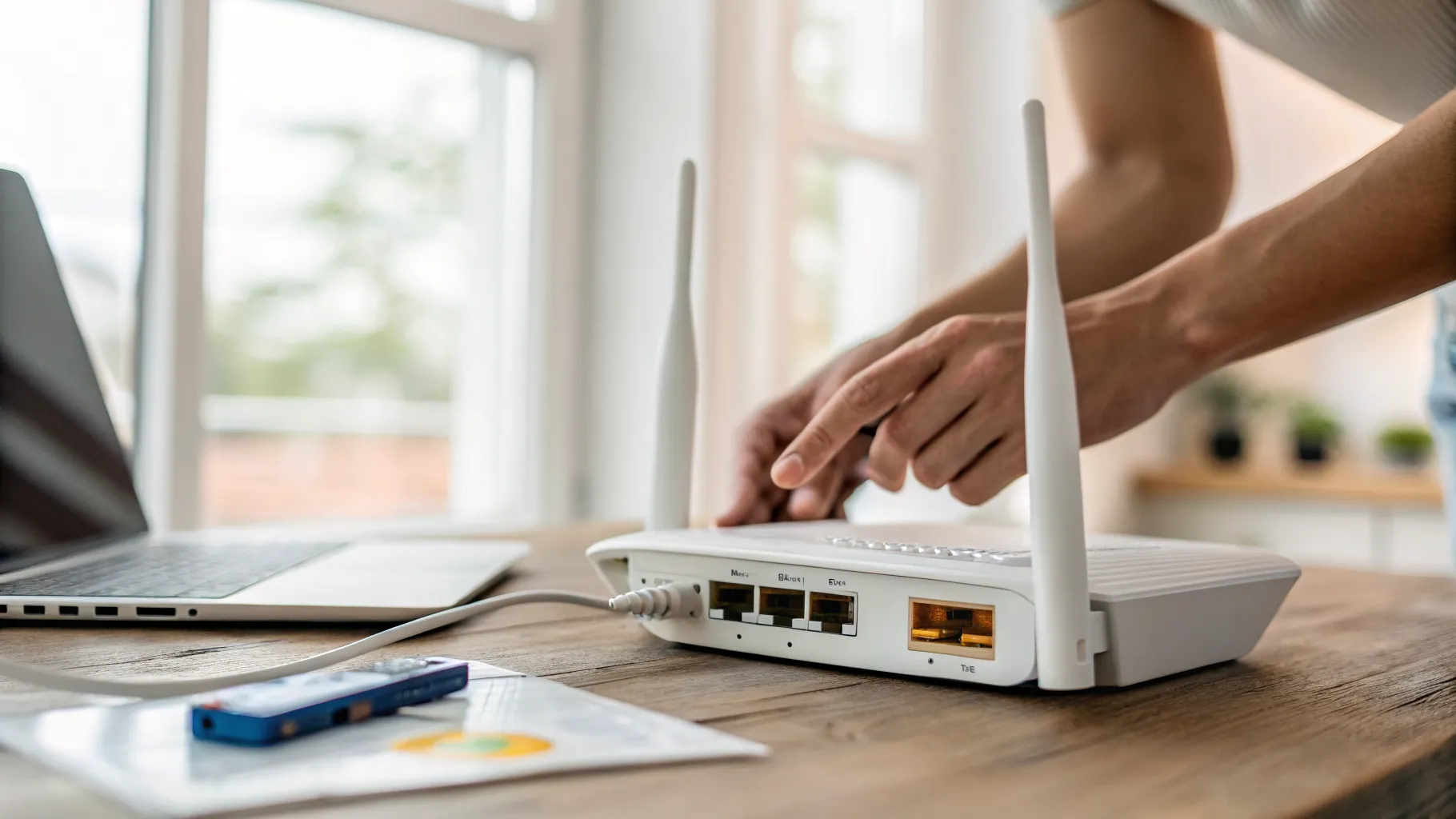
- Log in to the second router by connecting to it directly and opening its admin page in a browser.
- Switch it to bridge or WDS mode in the wireless settings.
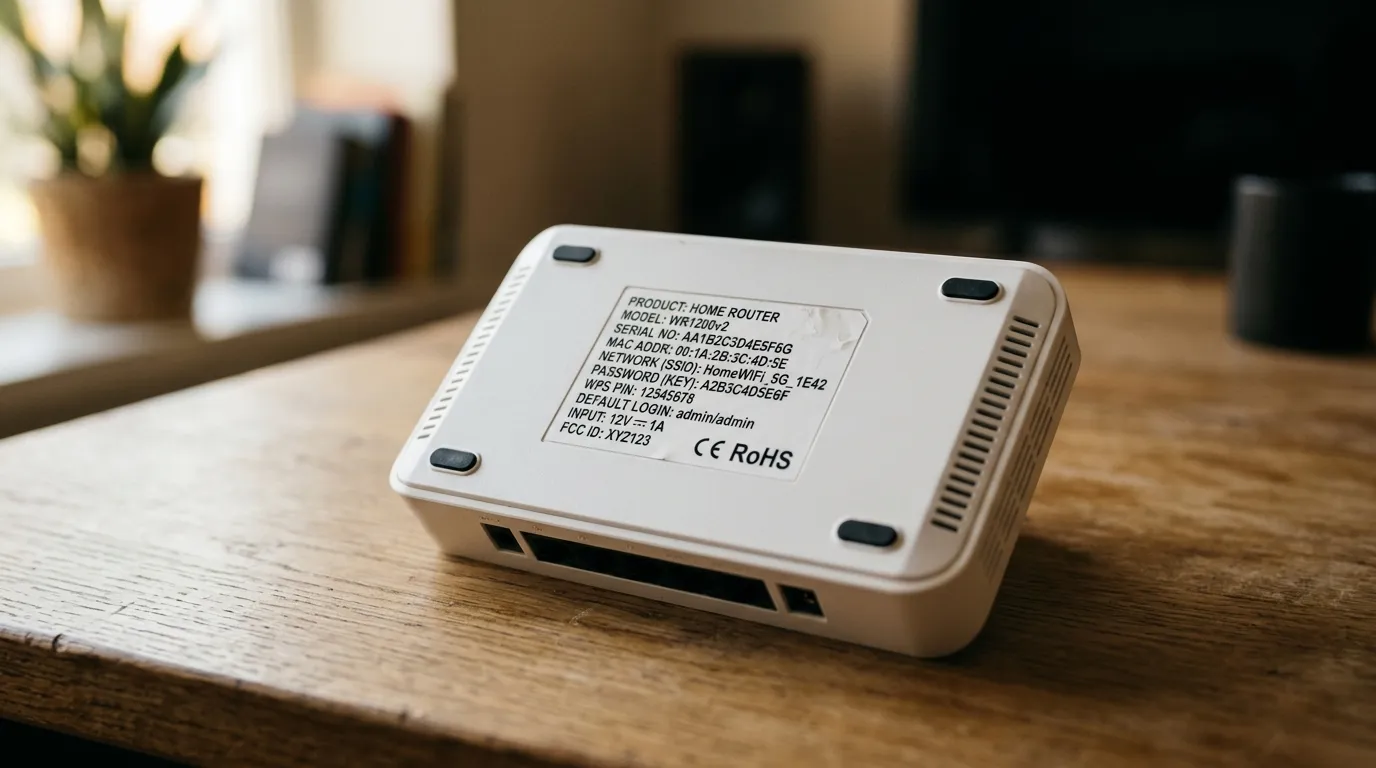
- Point it at your main network by entering your main router’s Wi-Fi name (SSID), security type and password so the two can pair. For WDS you may also need to enter each unit’s MAC address.
- Set a fixed IP or matching subnet if the instructions ask, so the bridge sits on the same network as the main router.
- Place it within good signal range of the main router, then plug your wired device into the bridge’s Ethernet port.
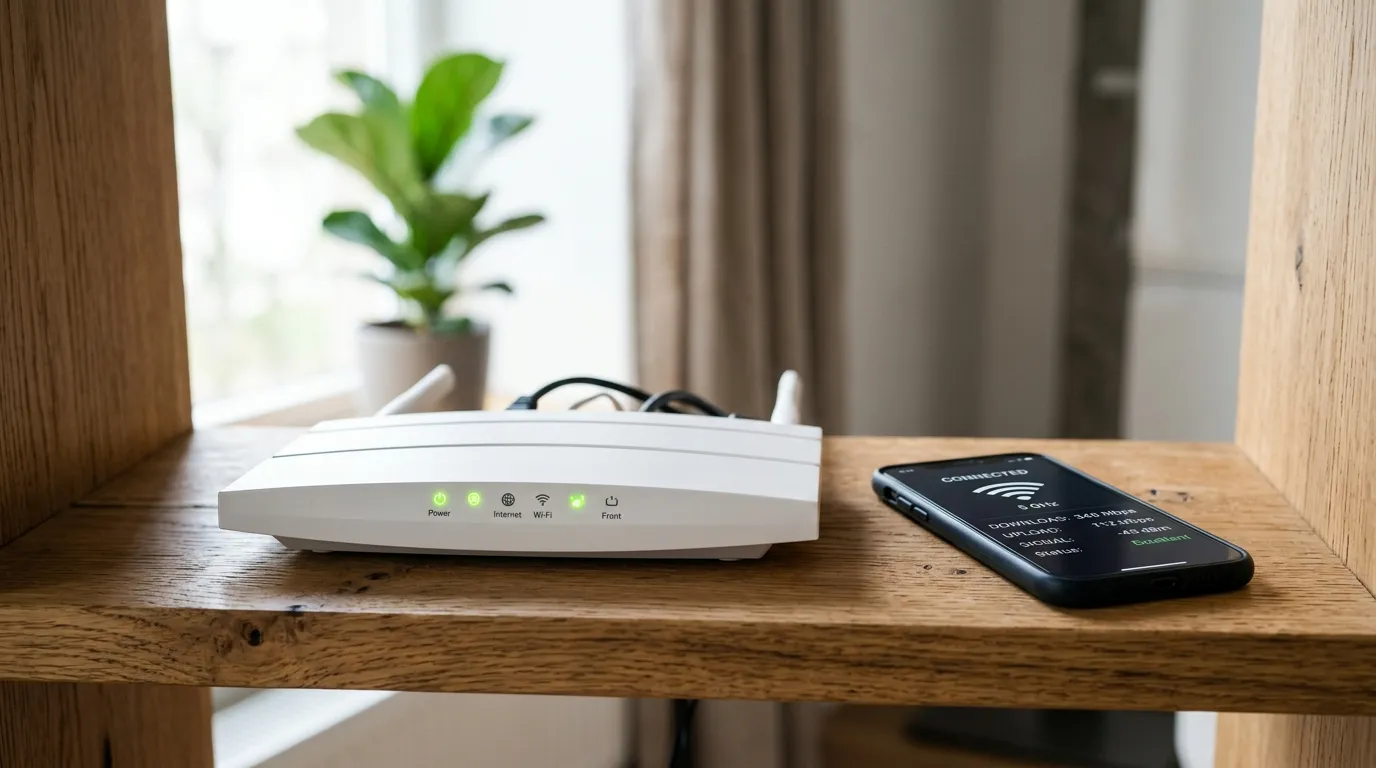
Position matters more than anything. A bridge is only as good as the wireless link between the two units, so keep the line between them as clear as possible and avoid thick walls and metal in the path.
Common problems and fixes
- No connection after setup: double-check the SSID, password and security type match the main router exactly. A single wrong character stops the pairing.
- Very slow speeds: the two units are too far apart or blocked by walls. Move them closer or clear the path. A bridge over a weak link will crawl.
- Devices get no IP address: the bridge and main router are on mismatched networks. Set the bridge to the same subnet as the main router.
- Bridge keeps dropping: interference on a busy channel. Try a less congested channel on the main router.
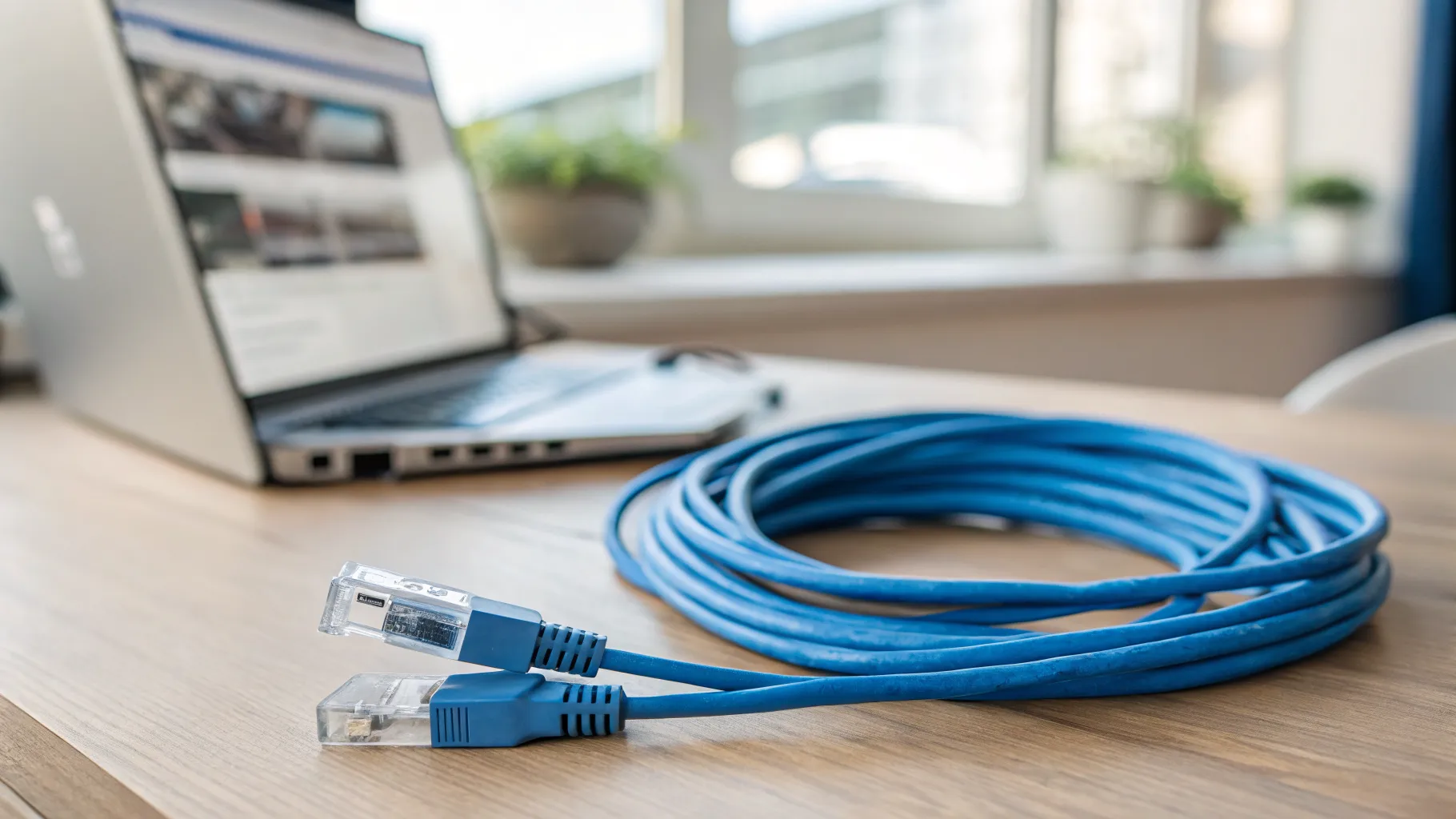
If the wireless path is simply too weak or obstructed, a cable really is the better answer where you can manage it. A single long outdoor-rated Ethernet run to a proper access point will always beat a marginal wireless bridge for reliability, and our guide to running a long Ethernet cable covers doing that tidily.
Frequently asked questions
What is a Wi-Fi bridge? A Wi-Fi bridge links two routers or access points wirelessly so traffic can pass between them without a cable. It lets you extend your network to a place a cable cannot easily reach, such as a garage or garden office, and it can carry a wired device at the far end by plugging it into the bridge’s Ethernet port.
What is the difference between bridge mode and repeater mode? A bridge links two points and passes traffic between them like a wireless cable, often to serve a wired device at the far end. A repeater rebroadcasts your existing Wi-Fi to stretch its range for wireless devices, but it usually halves throughput because it uses one radio to talk to both your devices and the main router.
Does bridge mode connect two routers? It can, but be careful which bridge mode you mean. A wireless bridge (client bridge or WDS) links two routers over Wi-Fi. ISP router “bridge mode” is different: it disables routing on your broadband box so a single second router runs the network, rather than joining two routers wirelessly.
Is a wired access point better than a wireless bridge? Yes, where you can run a cable. A cabled access point gives faster, more stable speeds because it is not relying on a wireless hop between the two units. Use a wireless bridge when running a cable is genuinely impractical, such as reaching a detached outbuilding on a separate electrical circuit.
Do all routers support bridge mode? No. Many consumer routers do not include a client bridge or WDS mode, so check the manufacturer’s support pages before you buy or plan a setup. A dedicated access point or a router running third-party firmware is more likely to offer it, and mesh systems handle multi-point coverage differently again.