How to Change Your Wi-Fi Password on Any UK Router
How to Change Your Wi-Fi Password on Any UK Router
Knowing how to change your Wi-Fi password is one of those small skills that saves real hassle, whether a neighbour has your old key, you have handed it out one too many times, or you just want something you can actually remember. The good news: the process is nearly identical on every router. You log into the router’s settings, find the wireless section, type a new password, and save. This guide gives you the exact steps for the big UK providers, BT, Sky, Virgin Media and EE, plus the universal method that works on any router, and how to pick a wireless network password that is genuinely secure.
One thing to know before you start: changing the Wi-Fi password disconnects every device on your network. You will need to reconnect each phone, laptop, TV and smart plug with the new password, so pick a moment when that is convenient.
The universal method (works on any router)
Every home router has a settings page you reach through a web browser. If your provider is not listed below, this method works:
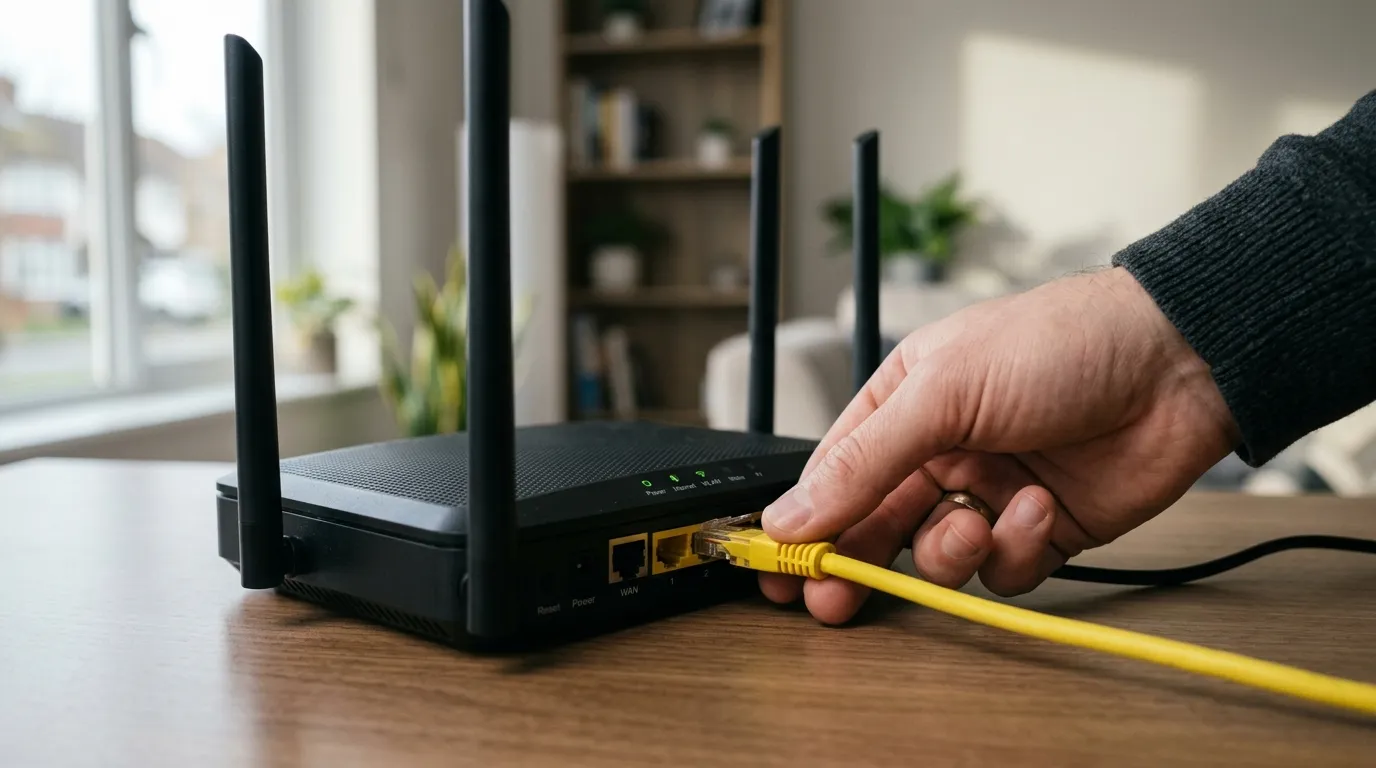
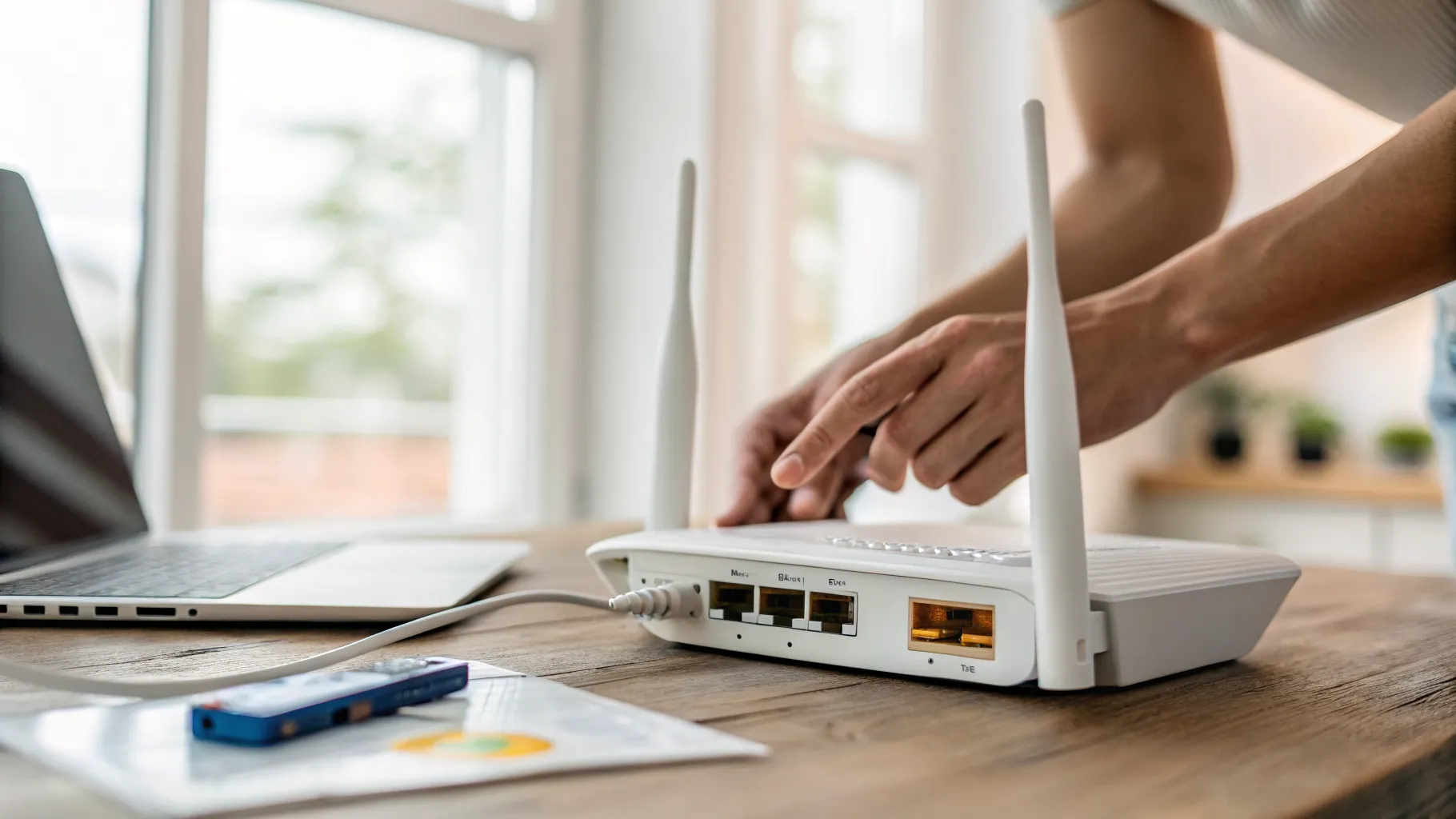
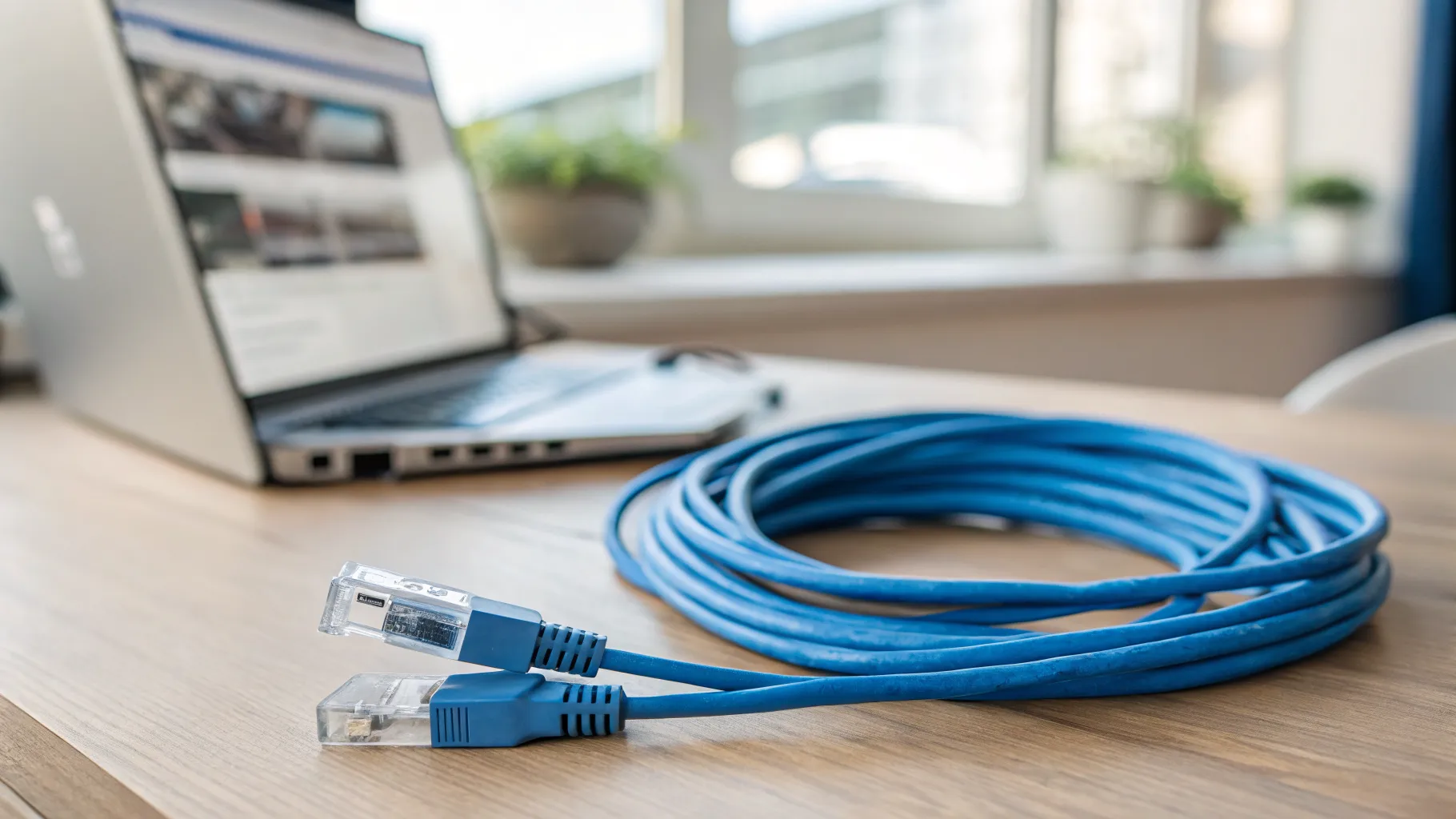
- Connect to the router, ideally by Wi-Fi (using the current password) or an Ethernet cable.
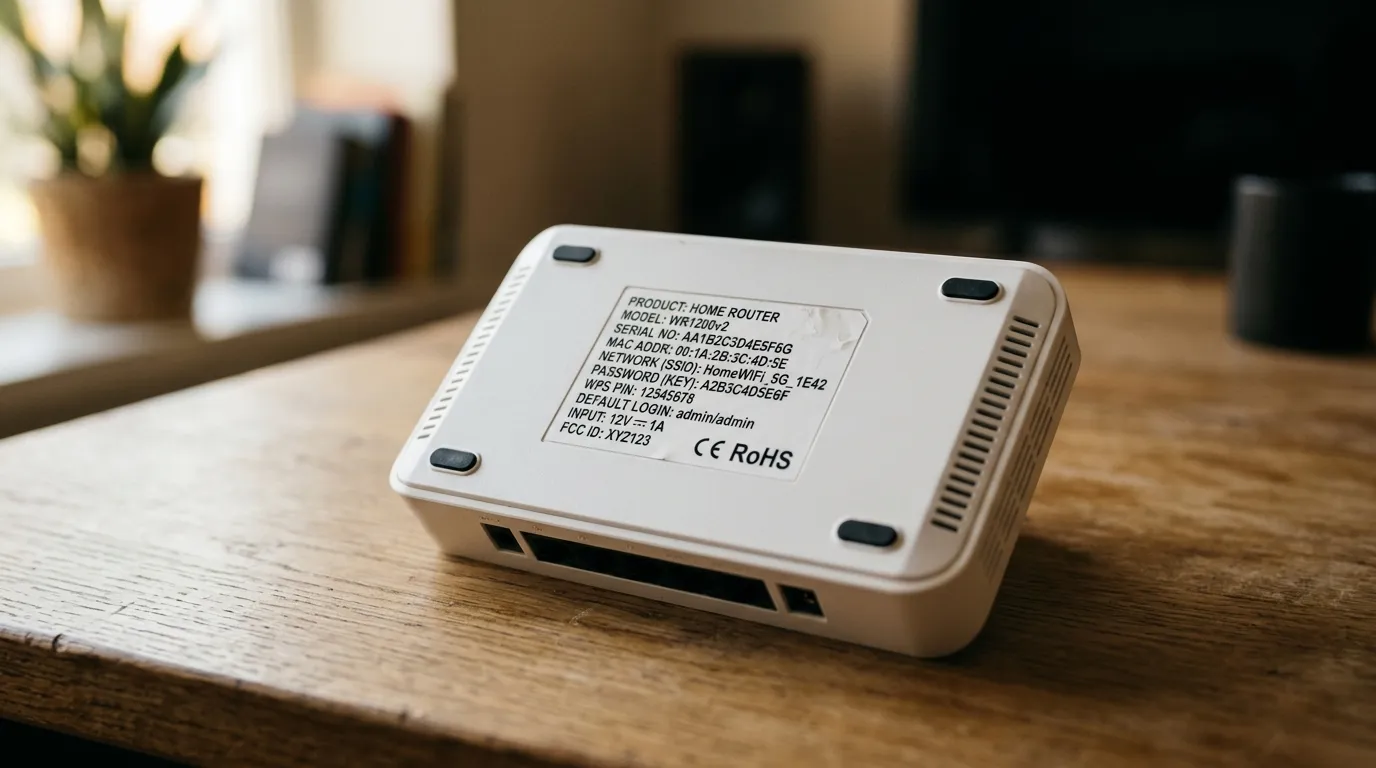
- Open a browser and type the router’s address into the address bar. It is usually printed on a sticker on the router, and is commonly
192.168.1.1,192.168.1.254or192.168.0.1. - Log in. The admin username and password are on the same sticker. This is the router’s admin login, which is separate from the Wi-Fi password.
- Find the Wireless, WiFi or Wireless Security section, often under Advanced Settings.
- Look for the password field, labelled Password, Passphrase, Wireless Key or Network Key. Delete the old entry and type your new one.
- Save or Apply. The router restarts the wireless network, and you reconnect your devices with the new password.
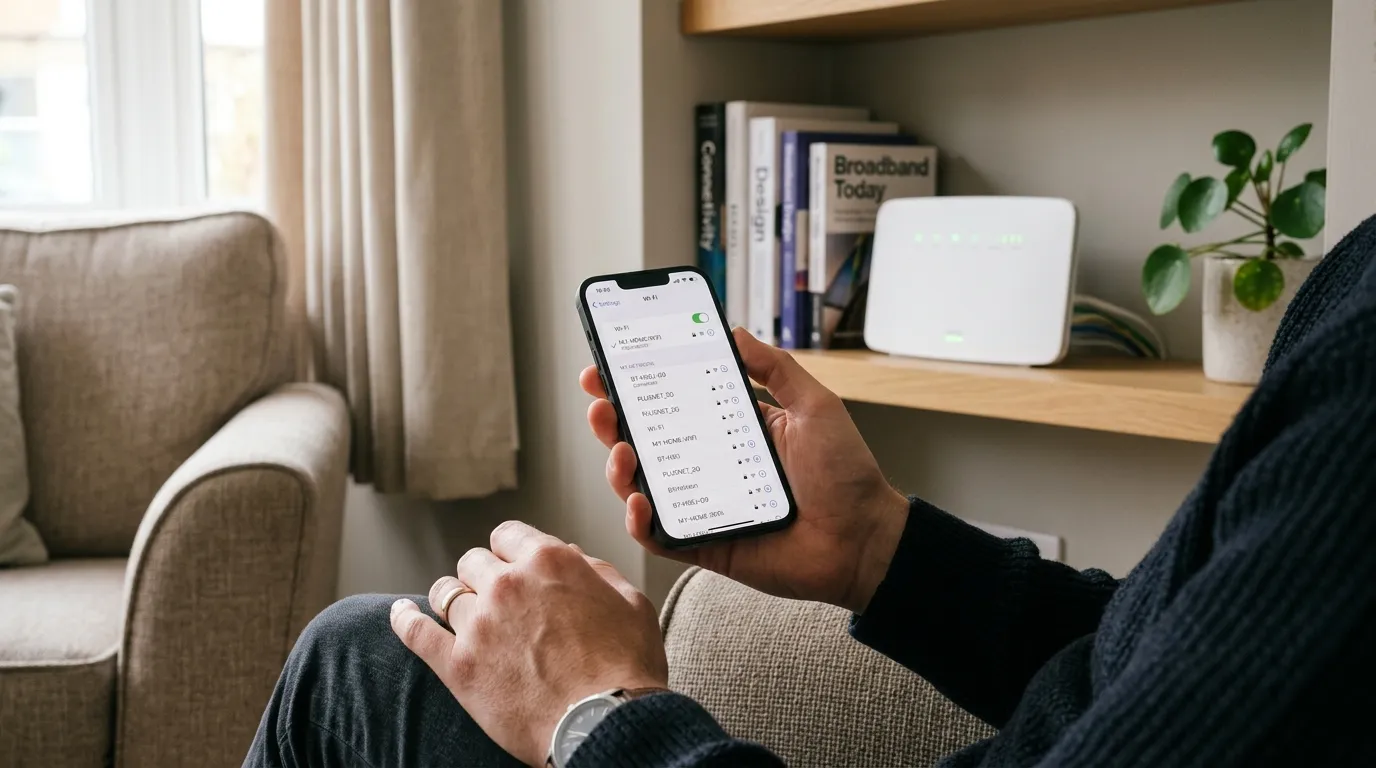
Many providers now also let you do this from their smartphone app, which is often the quickest route. Details for the main UK providers follow.
BT (Smart Hub)
Open a browser and go to 192.168.1.254 to reach the BT Hub Manager. Select Advanced Settings, then Wireless, and enter your new wireless password (network key). You can also change it in the My BT app. The default admin password is on the card or sticker that came with your Hub.
Sky Broadband
Go to router.sky.com in a browser and log in with the admin details printed on the back of your Sky Hub, then open Wireless and update the security key. Since February 2026, Sky also offers a one-tap Wi-Fi password change in the My Sky app, which is the easiest option if you have it installed.
Virgin Media (Hub 5 and 5x)
Type 192.168.0.1 into your browser and enter the settings password from the sticker on the base of the hub. Click Advanced Settings, then Wireless, then Security, find the box labelled Passphrase, delete the default text, type your new password and click Apply. The Virgin Media Connect app can do the same job from your phone.
EE (EE Hub)
The simplest route is the EE Home app: open it, go to Smart WiFi, manage your WiFi settings and choose Change your WiFi name and password. If you prefer a browser, type 192.168.1.254, and when the Hub Manager appears, select Advanced Settings then Wireless.
What makes a strong Wi-Fi password
While you are in there, choose a password worth having. The advice from the National Cyber Security Centre is refreshingly simple: length beats complexity. A memorable string of three random words, with a number or symbol added, is both strong and easy to type on a smart TV remote. Aim for:
- At least 12 characters, longer is better.
- Something not linked to you, avoid your name, address, or the router’s default.
- A passphrase, not a single word, three unrelated words are far harder to crack than one clever word with substitutions.
Do not reuse a password from another account. And while you are securing things, it is worth reading our guide on how to secure your home Wi-Fi in 15 minutes, which covers the other settings that matter.
The NCSC has clear, trustworthy guidance on creating strong passwords using three random words.
After you change it
Once saved, reconnect your devices one by one. If a device will not connect, forget the network on it first, then reconnect with the new password. Smart home gadgets sometimes need a moment or a restart to pick up the change. If your connection drops out entirely afterwards, our guide on Wi-Fi connected but no internet will help you diagnose it. And if the reason you are changing the password is that your network feels crowded, consider setting up a separate guest Wi-Fi network so visitors never need your main key again.
Frequently asked questions
Will changing my Wi-Fi password disconnect my devices? Yes. Every device connected to your network uses the old password, so when you change it they all drop off and need reconnecting with the new one. This includes phones, laptops, smart TVs, speakers and smart home gadgets. Change it at a convenient time and keep a list of devices so none get forgotten.
What is the difference between the Wi-Fi password and the router admin password? The Wi-Fi password (or network key) is what devices use to join your wireless network. The admin password logs you into the router’s settings page to change things like the Wi-Fi password itself. They are separate, and both are usually printed on a sticker on the router. It is good practice to change the admin password from its default too.
I have forgotten my router login, what can I do? The admin login is printed on a sticker on the router or on the card that came with it. If it has been changed and forgotten, you can reset the router to factory settings using the recessed reset button, but this wipes all custom settings and restores the default Wi-Fi name and password from the sticker, so use it as a last resort.
How often should I change my Wi-Fi password? There is no need to change it on a schedule if it is already long and strong. Change it when someone you no longer trust has it, if you suspect unauthorised use, after tradespeople or guests have had it, or if you are still using the default password printed on the router, which is the most important time to change it.
Can I change my Wi-Fi password from my phone? Often yes. BT, Sky, Virgin Media and EE all offer apps (My BT, My Sky, Virgin Media Connect and EE Home) that let you change the Wi-Fi password without logging into the browser settings. If your provider has an app, it is usually the quickest and easiest way to do it.