HomeWire home network lab
Set Up & Get Online

Wi-Fi Repeater Setup: Extend a Wireless Network Room by Room

By the HomeWire team Updated 2026 Tested in real UK homes

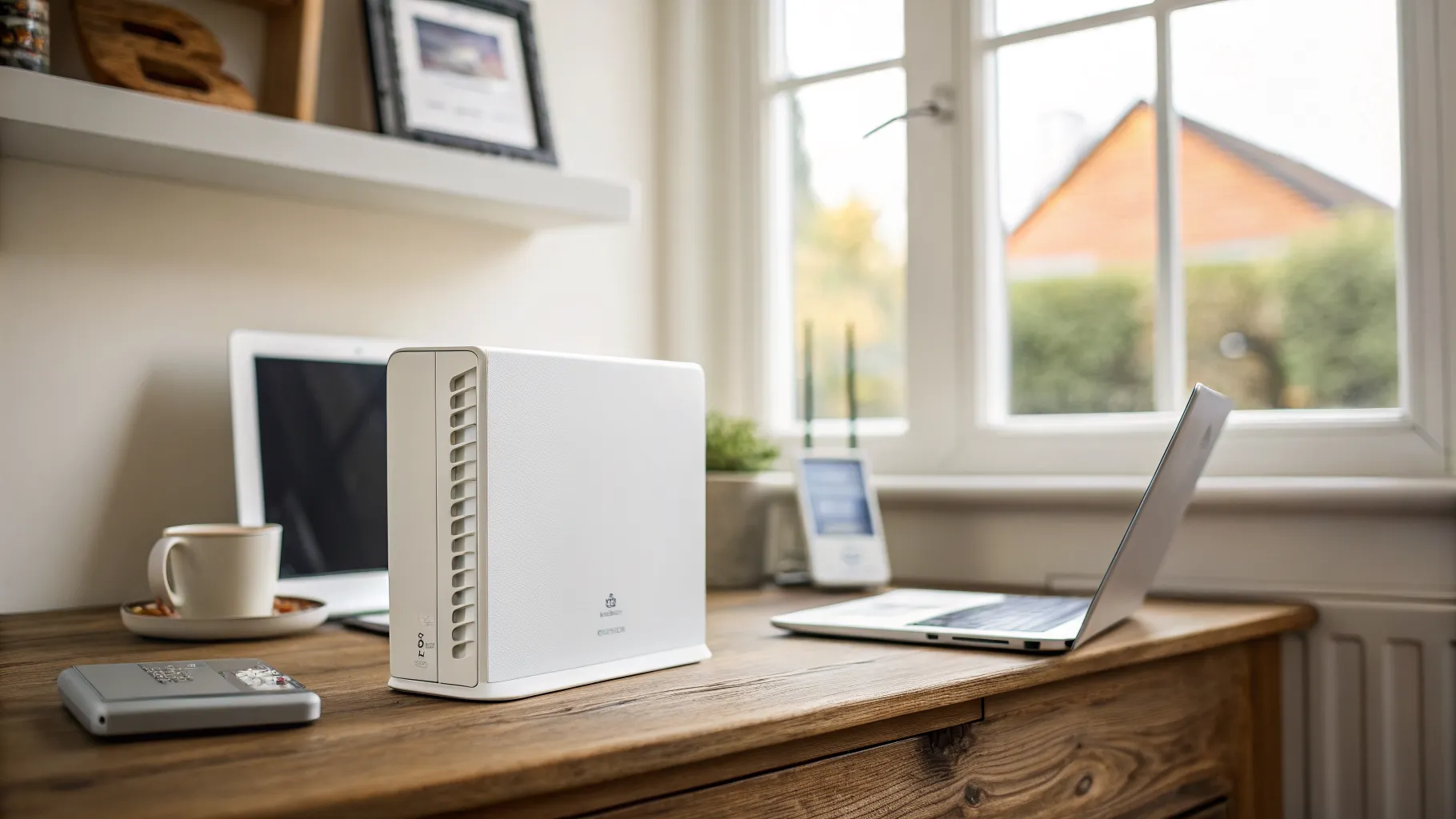
A wireless Wi-Fi repeater is the cheapest way to push your signal into a room the router cannot reach, and setting one up takes about ten minutes once you know the two things that actually matter: where to plug it in, and whether to give it the same network name as your router. Get those wrong and the repeater either halves your speed or leaves your phone clinging to a weak signal in the wrong room. This guide walks through the setup step by step and then fixes the problems people hit afterwards.

If you are still deciding whether a repeater is even the right tool, our comparison of mesh vs extender vs powerline is worth reading first, because for a whole-house problem a mesh system usually beats a single repeater.

Repeater, extender, booster: same thing

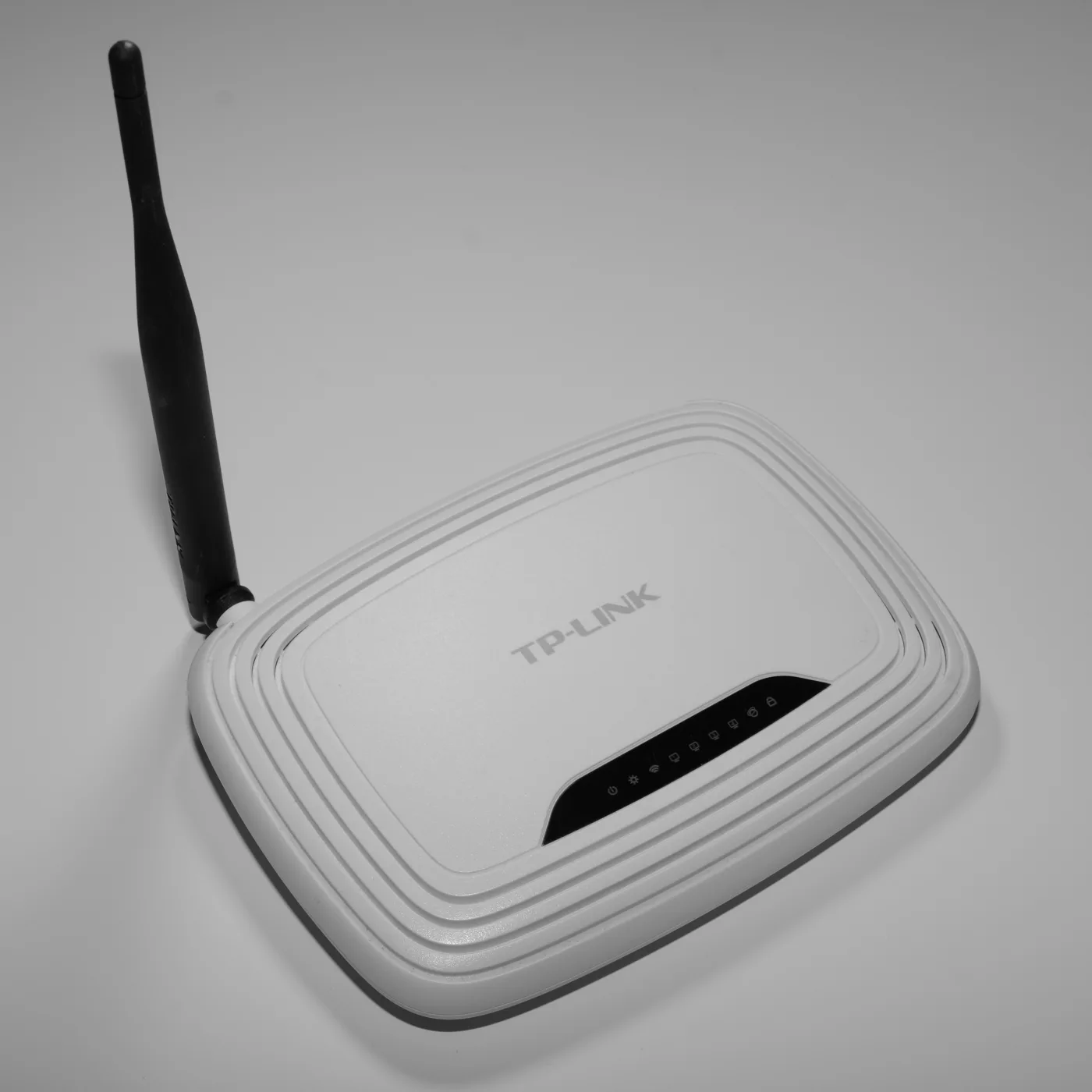
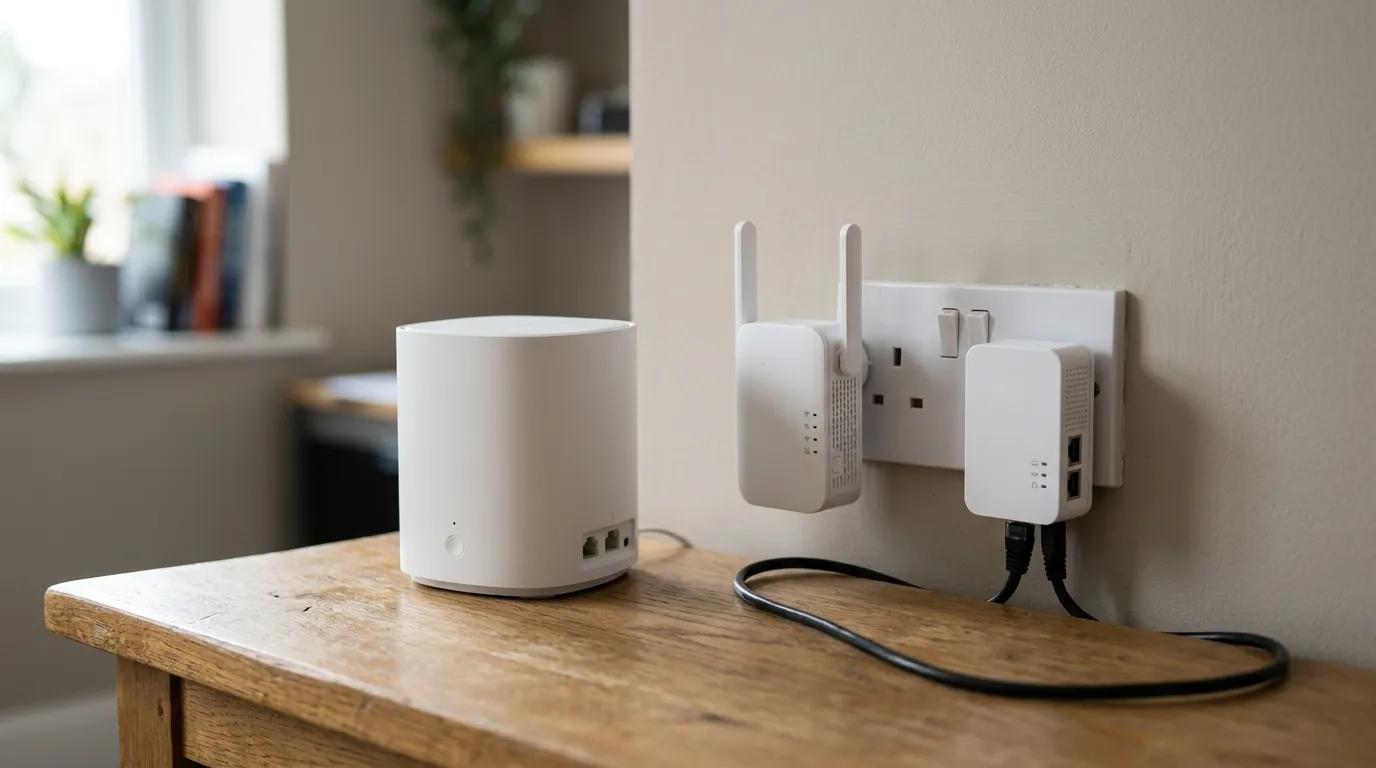
The names are used interchangeably. A Wi-Fi repeater, a range extender and a Wi-Fi booster all do essentially the same job: they receive your existing wireless signal and rebroadcast it to cover more of your home. There is no meaningful technical difference between a device sold as a “repeater” and one sold as an “extender”, so do not overthink the label. BT, TP-Link and NETGEAR all sell them, and the setup is broadly the same across brands.

The one thing worth knowing before you buy: a basic single-band repeater talks to your router and your devices on the same radio, which roughly halves throughput. A dual-band model uses one band to talk to the router and the other to your devices, which avoids most of that penalty. If speed matters, buy dual-band.

The fast way: WPS setup

Most repeaters support WPS, a one-button pairing method that skips the passwords entirely.

  1. Plug the repeater into a socket about halfway between your router and the dead spot, close enough to the router to still get a strong signal.
  2. Wait for it to power up fully, usually a minute.
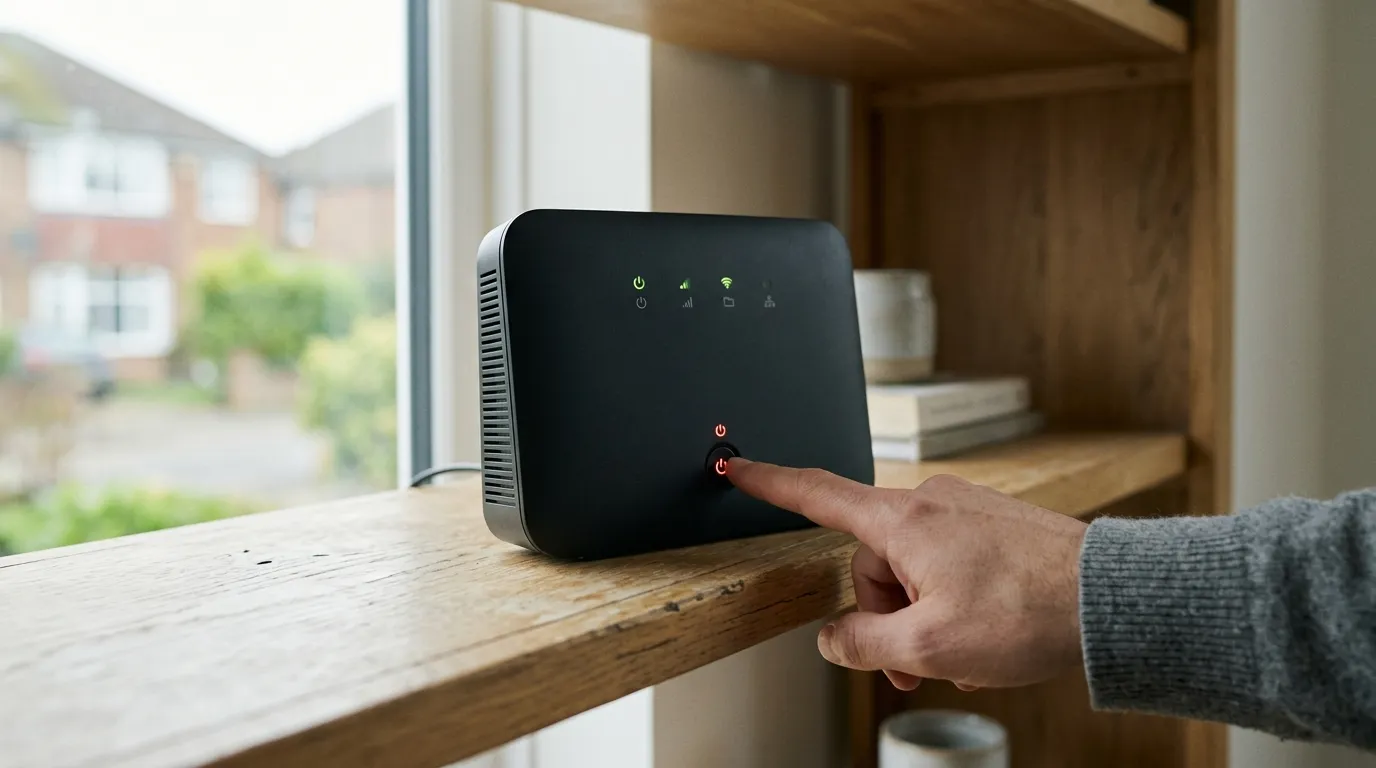
  3. Press the WPS button on your router, then within two minutes press the WPS button on the repeater.
  4. Watch the signal light settle to solid. That indicates it has connected to your router.

If the light shows a weak link, move the repeater one socket closer to the router and repeat. Manufacturer instructions such as TP-Link’s WPS extender guide cover the exact light patterns for their models.

The reliable way: manual setup in a browser

WPS is convenient but not every router has it enabled, and some ISPs turn it off. Manual setup is only slightly longer and gives you more control.

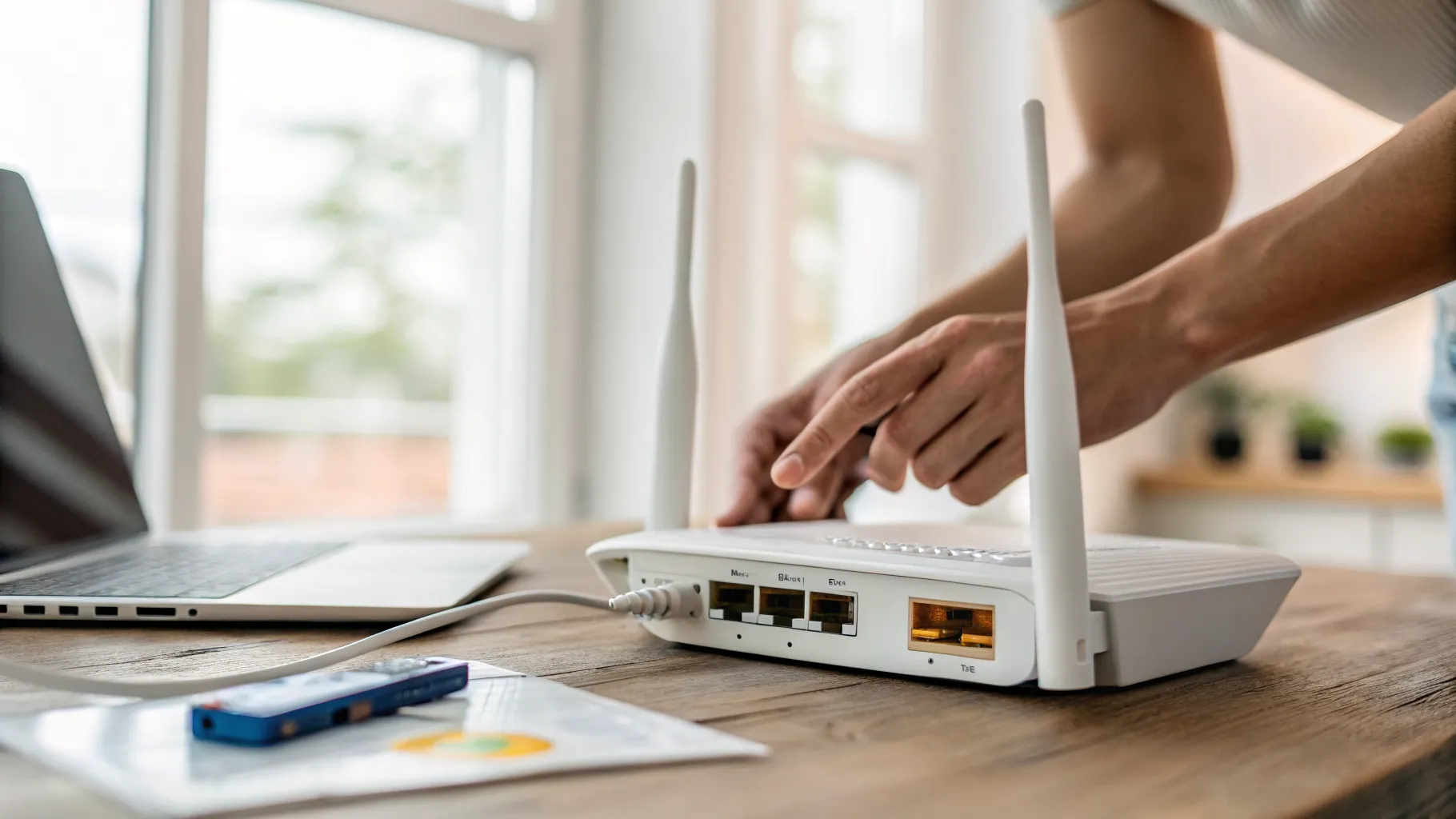
  1. Plug in the repeater near the router.
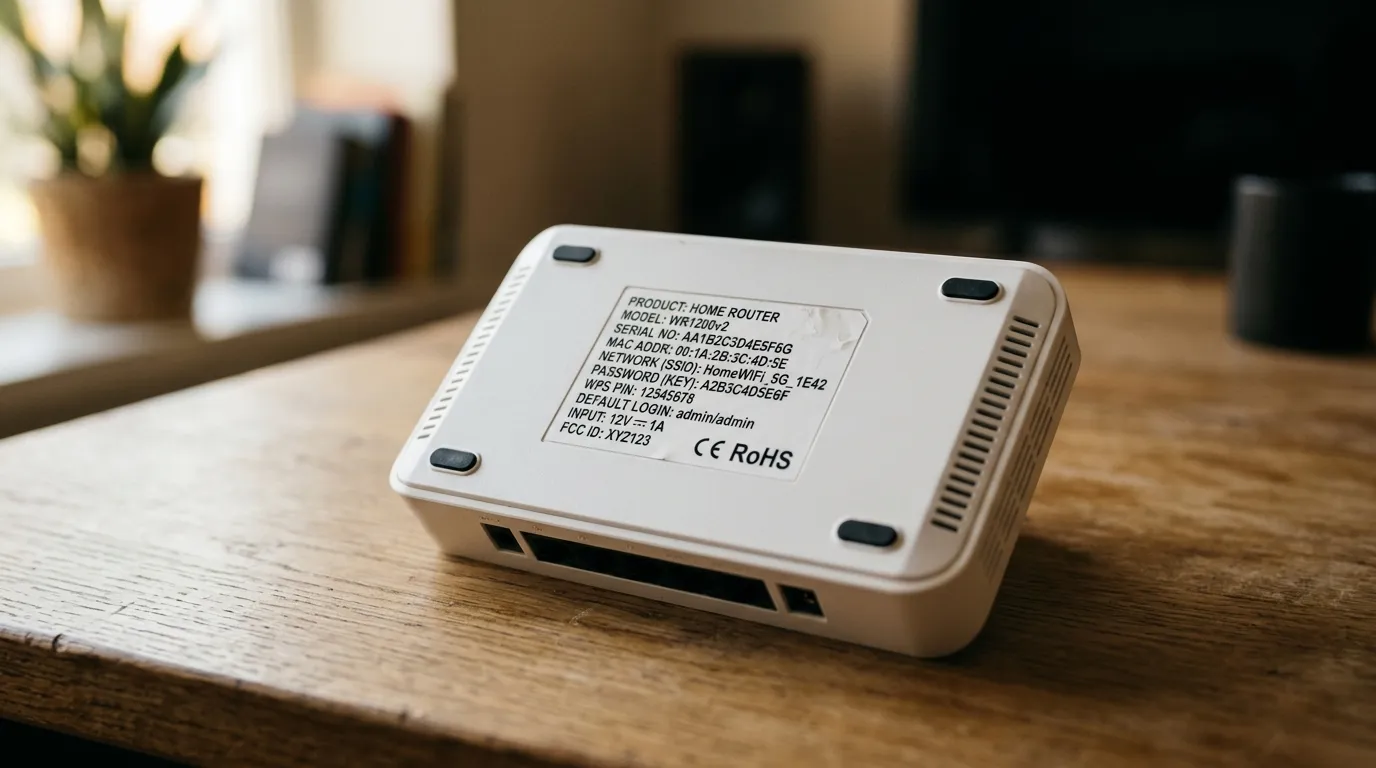
  2. On a phone or laptop, connect to the repeater’s own temporary network. Its default name and password are printed on the label or in the manual.
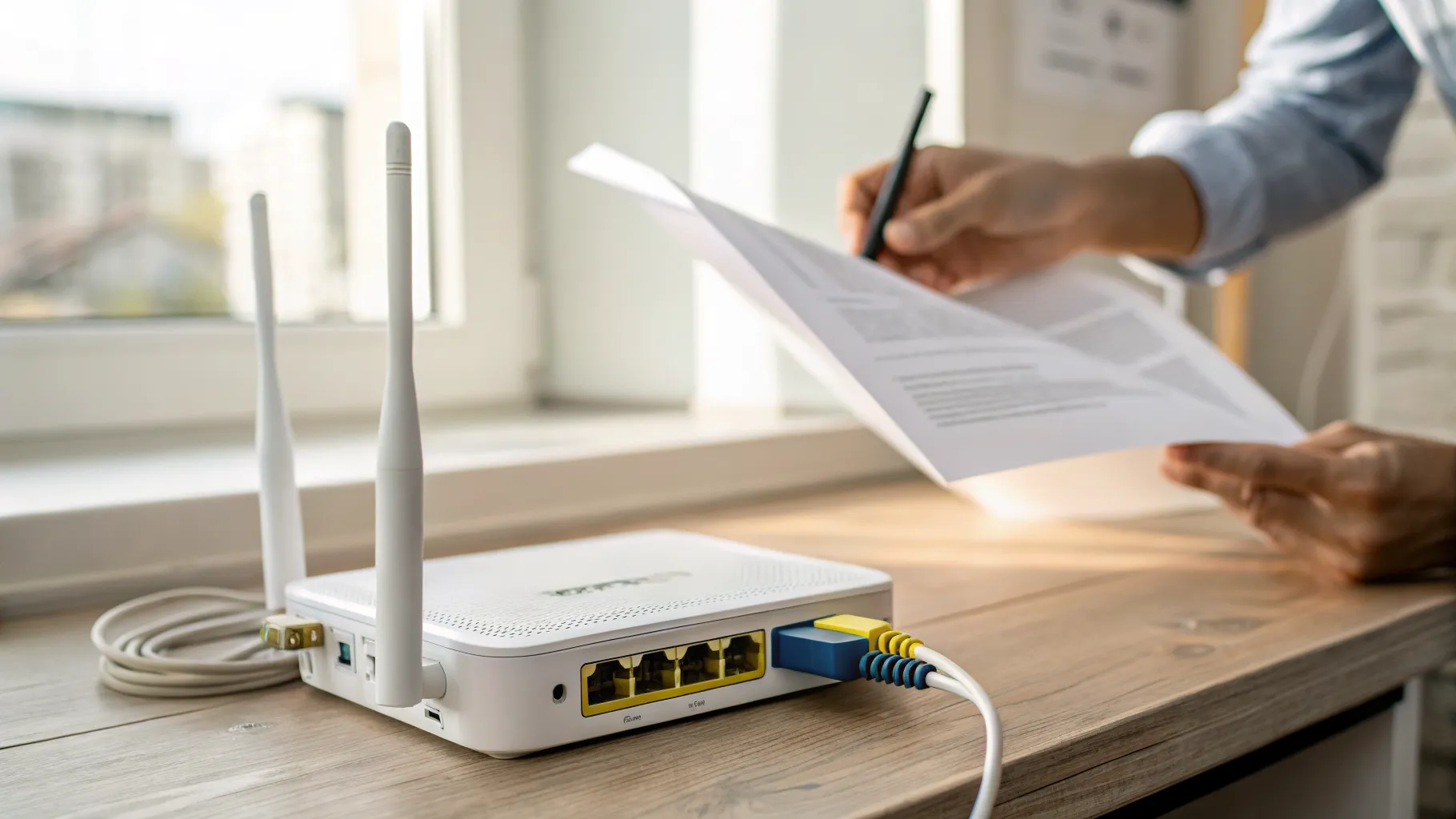
  3. Open a browser and go to the setup address on the label, often something like a printed web address or an IP such as 192.168.0.254.
  4. Choose your home network from the list, enter your Wi-Fi password, and let the repeater connect.
  5. Set the repeater’s network name (see the SSID section below), save, and unplug it ready to move to its final position.

Where to place the repeater

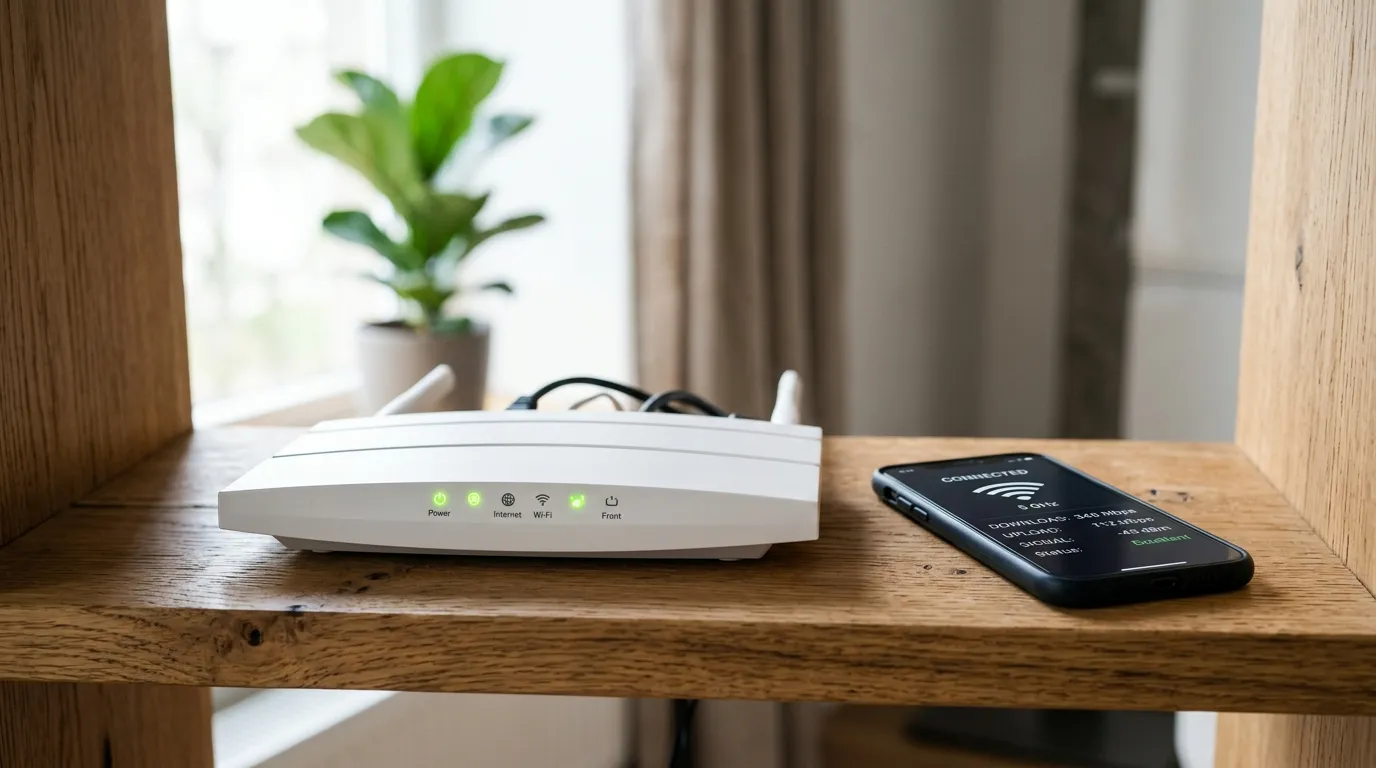
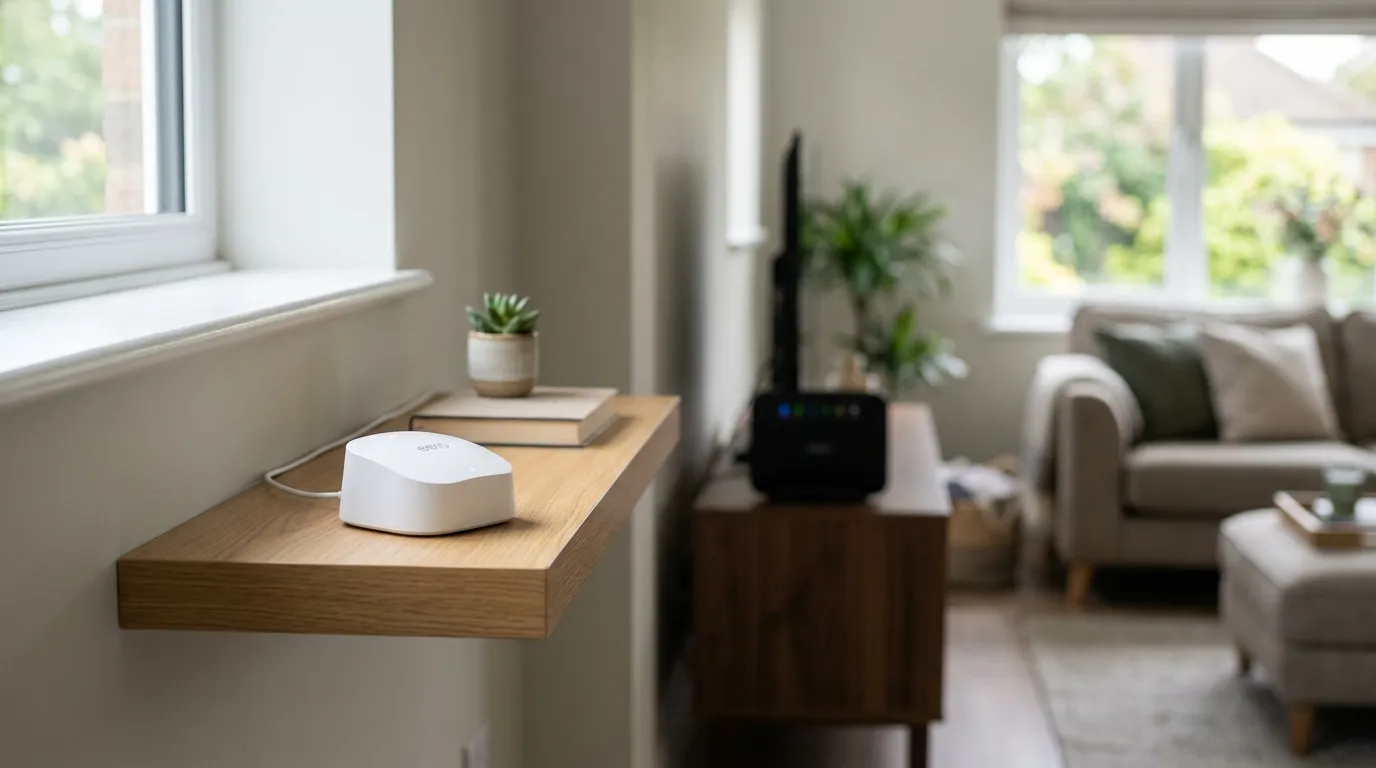
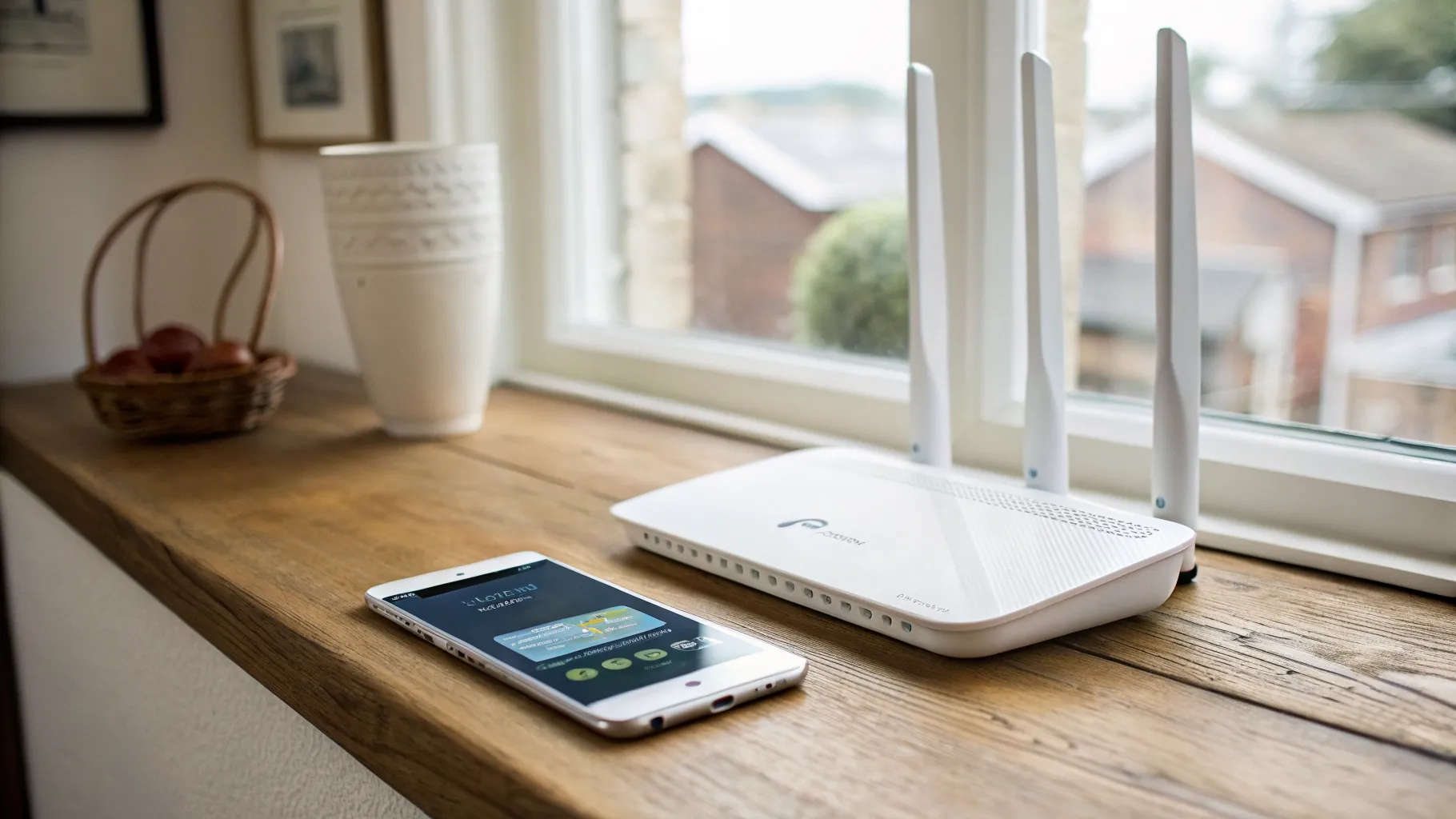
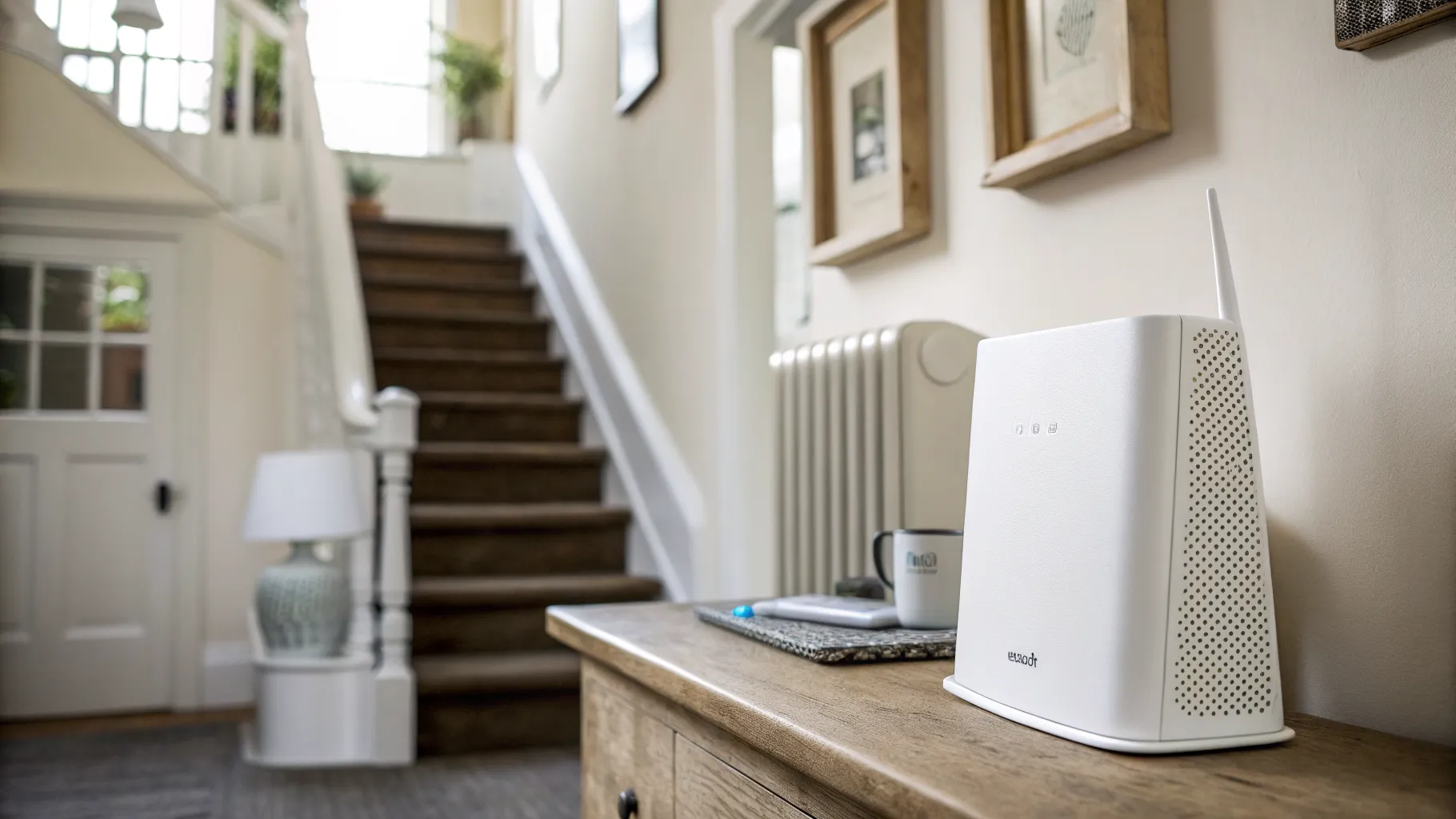
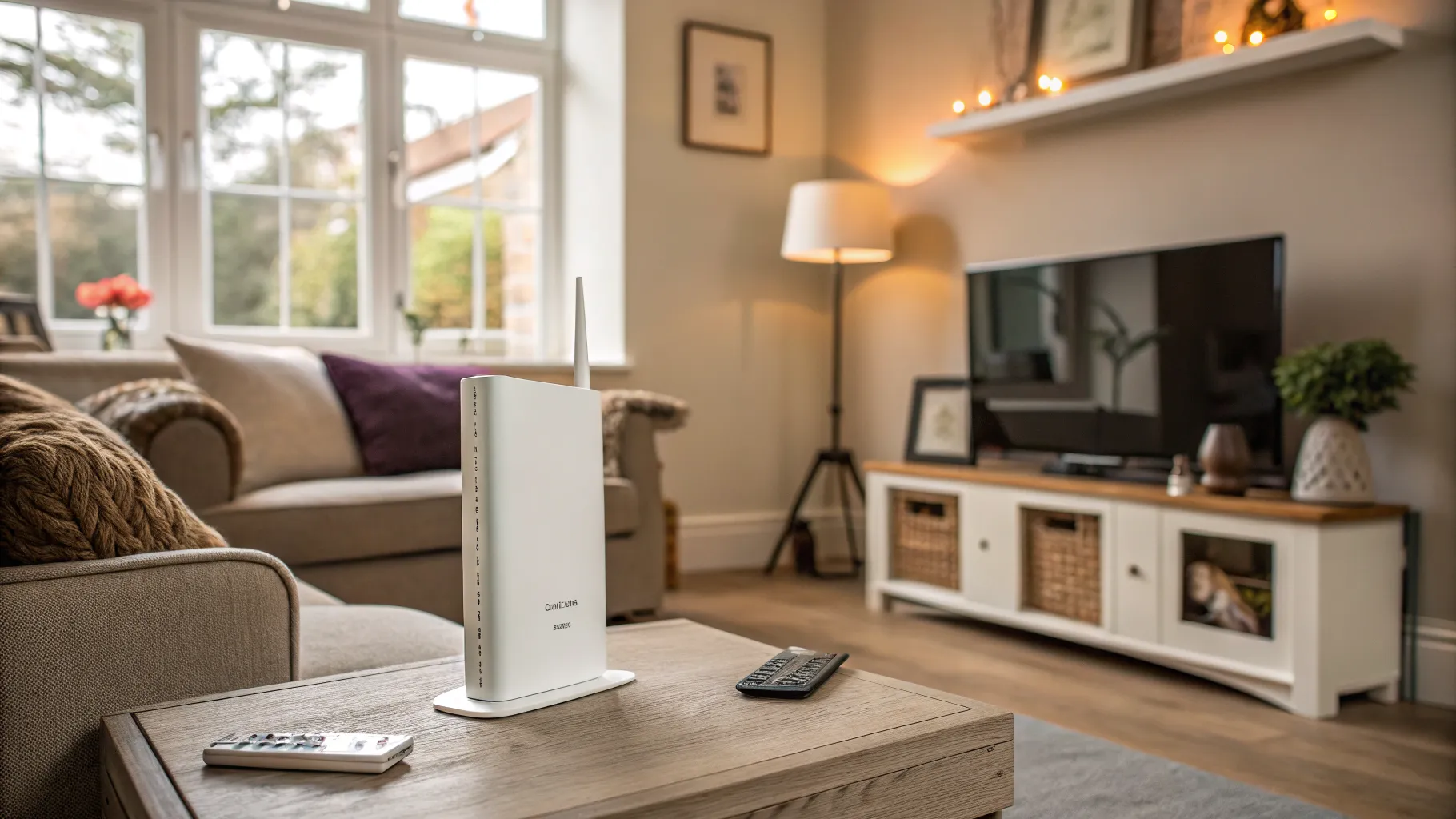
Placement is the single biggest factor in whether a repeater helps or disappoints. The rule is simple: put it roughly halfway between the router and the area with poor signal, in a spot where it still receives a strong signal from the router. A repeater can only rebroadcast what it receives, so if you plug it into the dead spot itself it just amplifies a weak signal and achieves nothing.

Plug it into a wall socket rather than hiding it behind furniture, keep it away from thick walls, mirrors, microwaves and cordless phone bases, and use the signal-strength light to confirm a good link before you commit. Our guide to fixing Wi-Fi dead spots has more on reading your home’s blackspots.

Same network name or a separate one?

This is the decision that trips people up. You can give the repeater the same SSID (network name) as your router or a different one.

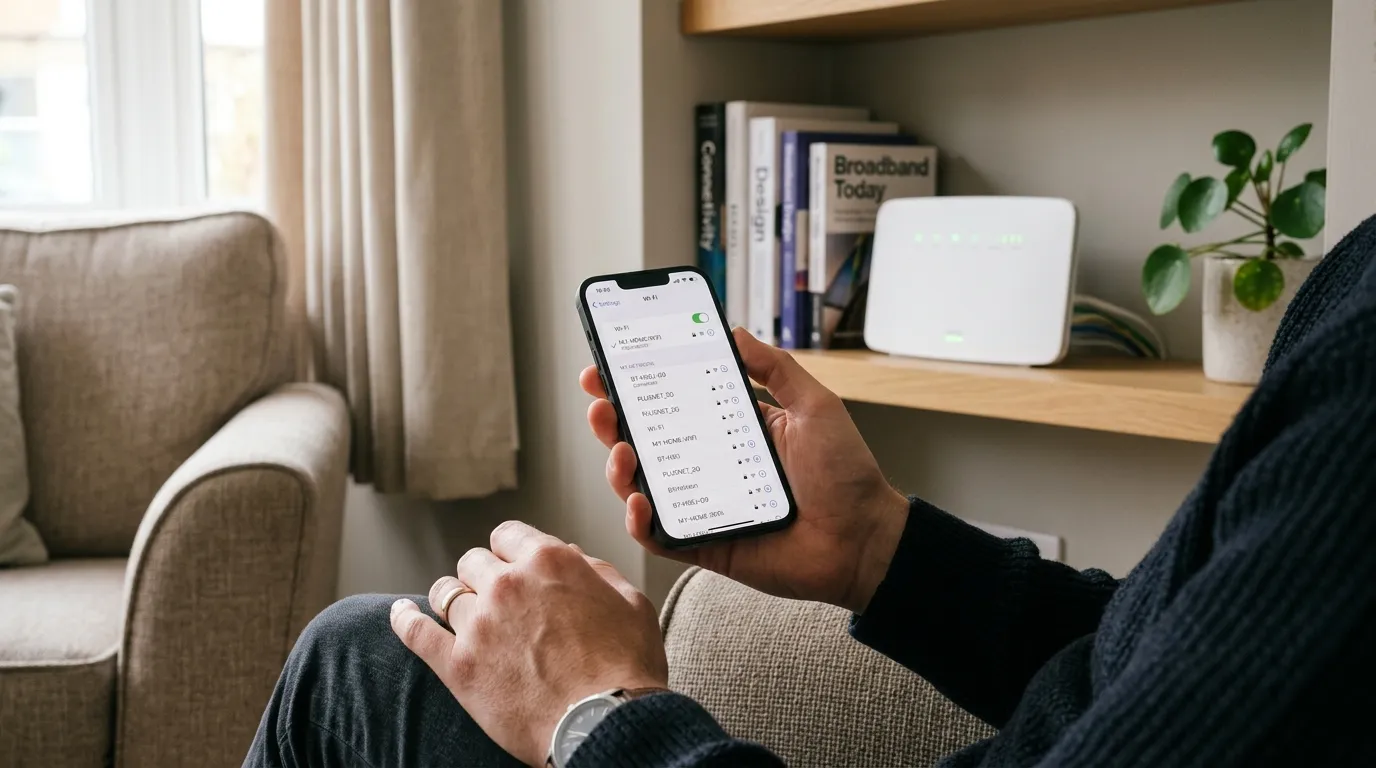
Same name lets devices switch automatically to whichever signal is strongest, which is tidier. But it only works well if your kit supports fast roaming. Without it, phones and laptops often lock onto the first node they joined and stubbornly refuse to hand over, so you end up stuck on the weaker signal even when you have walked into the next room.

A separate name (for example adding “_EXT” to the end) is less elegant but far more predictable, because you can manually pick the stronger network when you move around. If you find devices clinging to the wrong signal after setup, switch to a separate name. For a home where seamless roaming actually matters, a proper mesh Wi-Fi system handles this automatically and is the better long-term answer.

Fixing common repeater problems

The repeater halves my speed. That is the single-band penalty. Either accept it in a room used for browsing rather than streaming, or replace it with a dual-band unit.

My phone stays on the weak signal. Roaming is failing. Give the repeater a separate SSID and switch manually, or move to mesh.

It keeps dropping. The link back to the router is too weak. Move the repeater closer to the router until the signal light is solid.

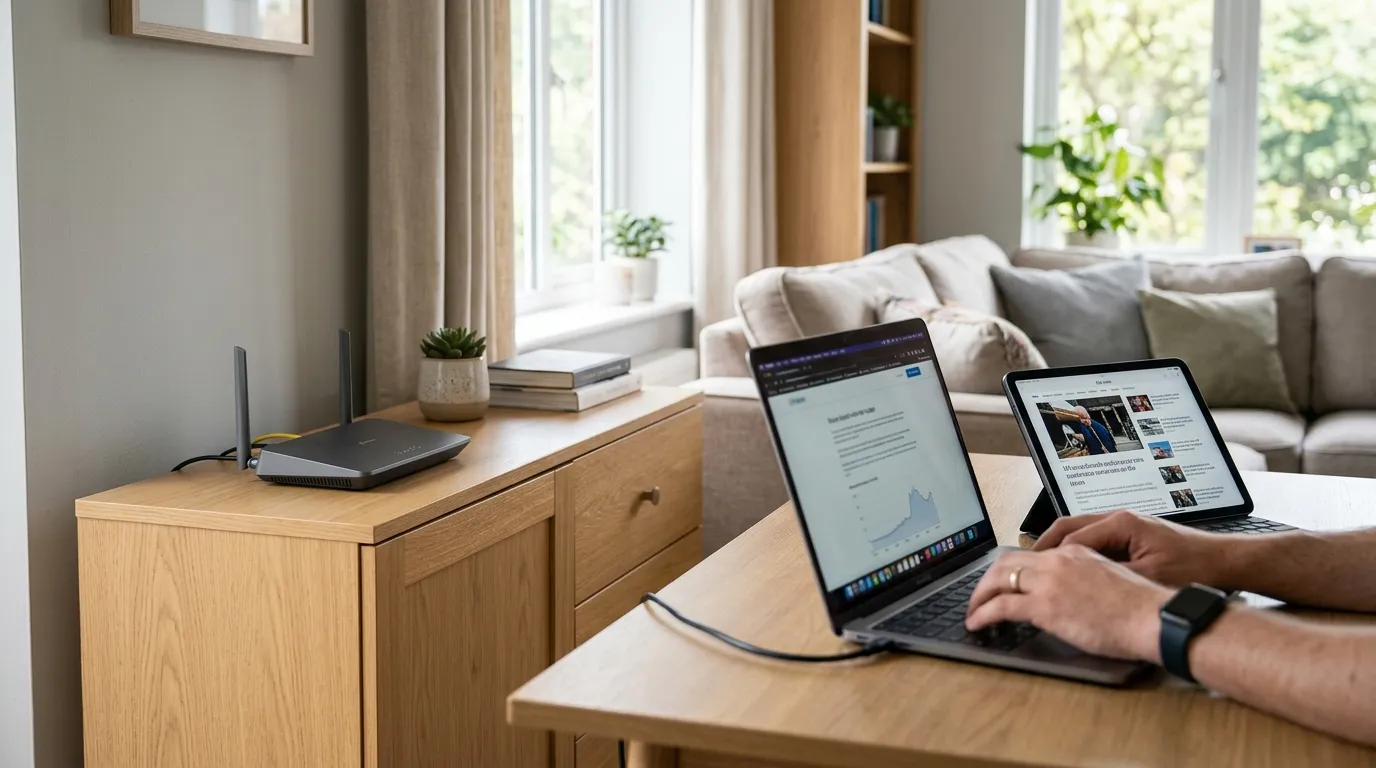
Everything is slow across the whole house. A repeater will not fix that, because it cannot add speed you are not getting from your line. Start with our guide to why your Wi-Fi is so slow and check the connection before blaming coverage.

A repeater is a good, cheap fix for one stubborn room. For a house that is patchy everywhere, spend the money on mesh instead and save yourself the roaming headaches.

Frequently asked questions

How do I set up a wireless Wi-Fi repeater? Plug it in about halfway between your router and the weak area, then pair it either with WPS (press the router’s WPS button, then the repeater’s within two minutes) or manually by connecting to the repeater’s temporary network and choosing your home Wi-Fi in its browser setup page. Confirm a strong signal light, then move it to its final spot.

Where should I place a Wi-Fi repeater? Roughly halfway between the router and the dead spot, in a location that still receives a strong signal from the router. A repeater rebroadcasts what it receives, so placing it inside the weak area just amplifies a poor signal. Use a wall socket, keep it clear of thick walls, mirrors and microwaves, and check the signal light.

Should my repeater use the same Wi-Fi name as my router? Use the same name if your equipment supports fast roaming, as devices then switch to the strongest signal automatically. If devices get stuck on the weaker signal, use a separate name (such as adding “_EXT”) so you can pick the stronger network manually. For truly seamless roaming, a mesh system is better than a repeater.

Why does my Wi-Fi repeater slow down my internet? Basic single-band repeaters talk to the router and your devices on the same radio, which roughly halves throughput. A dual-band repeater avoids most of this by using separate bands for each link. If speed matters in the extended room, choose a dual-band model or consider mesh instead.

Is a Wi-Fi repeater the same as an extender or booster? Yes, in practice. Repeater, range extender and Wi-Fi booster all describe devices that rebroadcast your existing signal to widen coverage, and there is no consistent technical difference between them. The more important distinction is single-band versus dual-band, and repeater versus a full mesh system.
// more from HomeWire
Why Is My Wi-Fi So Slow? 12 Fixes That Actually Work (UK)
Fix It: Wi-Fi & Network Troubleshooting

Why Is My Wi-Fi So Slow? 12 Fixes That Actually Work (UK)

Why is my Wi-Fi so slow? 12 tested UK fixes, from router placement and 5GHz to channel changes and your Ofcom minimum-speed rights.

Wi-Fi Keeps Dropping or Disconnecting? Step-by-Step Fix
Fix It: Wi-Fi & Network Troubleshooting

Wi-Fi Keeps Dropping or Disconnecting? Step-by-Step Fix

If your wifi keeps dropping, work through these UK fixes in order: restart the router, change the channel, split the bands and check for a line fault.

Ethernet Connected But No Internet? How to Fix It
Fix It: Wi-Fi & Network Troubleshooting

Ethernet Connected But No Internet? How to Fix It

Ethernet connected but no internet? Work through these ordered UK fixes, from a quick router reboot to DHCP, DNS and driver repairs that get you back online.

How to Log Into Your Router at 192.168.1.1 (UK Routers)
Set Up & Get Online

How to Log Into Your Router at 192.168.1.1 (UK Routers)

A step-by-step 192.168.1.1 router login guide for UK routers, plus the correct IP for BT, Sky, Virgin, TalkTalk, EE and Plusnet hubs.

How to Change Your Wi-Fi Channel to Stop Interference
Set Up & Get Online

How to Change Your Wi-Fi Channel to Stop Interference

How to change your Wi-Fi channel to stop interference: best 2.4GHz and 5GHz channels, plus steps for BT, Sky, Virgin and TalkTalk routers.

Mesh Wi-Fi vs Extender vs Powerline: Which Beats Dead Spots?
Gear: Mesh, Extenders & Adapters

Mesh Wi-Fi vs Extender vs Powerline: Which Beats Dead Spots?

Mesh vs extender vs powerline compared for UK homes: which one actually fixes Wi-Fi dead spots, with real speeds, costs and setup tips.

Wi-Fi Channel Finder
Tools

Wi-Fi Channel Finder

Best Wi-Fi channel finder for UK homes: read your phone's Wi-Fi scan and get the least-crowded 2.4GHz, 5GHz and 6GHz channel to switch to.

Broadband Speed Calculator: How Much Do You Actually Need?
Tools

Broadband Speed Calculator: How Much Do You Actually Need?

Free broadband speed calculator: tell us your household and we work out how much broadband speed you need, in Mbps, for the UK.

Mesh Node Planner
Tools

Mesh Node Planner

Free UK mesh node planner: answer how many mesh nodes do I need for your home's size, floors and walls, with a printable placement plan.

How to Fix Wi-Fi Dead Spots at Home: 9 Proven Fixes
Fix It: Wi-Fi & Network Troubleshooting

How to Fix Wi-Fi Dead Spots at Home: 9 Proven Fixes

Fix Wi-Fi dead spots at home with 9 proven steps, free fixes first: router placement, band, channel, mesh, wired backhaul and UK ISP kit explained.

Best Mesh Wi-Fi Systems UK 2026: Tested and Compared
Gear

Best Mesh Wi-Fi Systems UK 2026: Tested and Compared

The best mesh Wi-Fi systems for UK homes in 2026, ranked by coverage, value and backhaul. Wi-Fi 6, 6E and 7 picks for brick and stone walls.

How to Reset Your Router Without Losing Your Settings
Set Up & Get Online

How to Reset Your Router Without Losing Your Settings

Restart fixes most problems and keeps every setting. Factory reset wipes the lot. UK hub-by-hub steps for BT, Virgin, Sky and EE, plus what to save first.

What Is a Good Ping for Gaming and How to Lower It
Speed & Coverage

What Is a Good Ping for Gaming and How to Lower It

A good gaming ping is under 30ms for competitive play, under 50ms casual. Here is how to lower it: go wired, pick a near server, and fix Wi-Fi and QoS.

BT, Sky, Virgin and EE Router Default Passwords Explained
Set Up & Get Online

BT, Sky, Virgin and EE Router Default Passwords Explained

There is no master password for BT, Sky, Virgin or EE hubs. Where each default actually lives, Wi-Fi vs admin passwords, and what a reset restores.

Why Your Broadband Slows Down in the Evening (and What to Do)
Fix It: Wi-Fi & Network Troubleshooting

Why Your Broadband Slows Down in the Evening (and What to Do)

Broadband slow in the evening? Here's why UK speeds dip around 9pm, how to test if it's your line or Wi-Fi, and what actually fixes it.

2.4GHz vs 5GHz vs 6GHz: Which Band Should You Use and When
Speed & Coverage

2.4GHz vs 5GHz vs 6GHz: Which Band Should You Use and When

Which Wi-Fi band to join, when, for UK homes. A use-case table, the physics, Ofcom rules, plus 6GHz, WiFi 6E/7 and merge-vs-split SSID advice.

How to Run an Ethernet Cable Through Your House Tidily
Set Up & Get Online

How to Run an Ethernet Cable Through Your House Tidily

A practical UK guide to running Ethernet cable through your house tidily: planning routes, choosing cable, wall and floor runs, terminating and safety.

Long Ethernet Cable: Which Length and Category to Buy
Gear: Mesh, Extenders & Adapters

Long Ethernet Cable: Which Length and Category to Buy

Buying a long Ethernet cable for a UK home? Which length and category to pick, why length barely affects speed, and outdoor and in-wall rules.

What Is Broadband? A Plain-English Guide for UK Households
Set Up & Get Online

What Is Broadband? A Plain-English Guide for UK Households

What is broadband, in plain English: the UK types explained, real speeds vs the headline numbers, and what the 2027 copper switch-off means for you.

Smart Wi-Fi: What It Means and Why Your Next Router Needs It
Speed & Coverage

Smart Wi-Fi: What It Means and Why Your Next Router Needs It

What smart Wi-Fi actually means: band steering, mesh roaming, app control and device priority explained in plain English, and whether you really need it.

BT WiFi Hotspot: How to Use It When You're Away From Home
Speed & Coverage

BT WiFi Hotspot: How to Use It When You're Away From Home

How a BT Wi-Fi hotspot works, how to connect with your BT ID or the app, the BTWifi-with-Fon network, and how it now ties into EE Wi-Fi.

Cat 6 Ethernet Cable: What to Know Before You Buy
Gear: Mesh, Extenders & Adapters

Cat 6 Ethernet Cable: What to Know Before You Buy

A plain-English Cat 6 Ethernet cable guide for UK homes: how it compares to Cat5e and Cat6a, real speed limits, shielding, and which cable to actually buy.

Outdoor Wi-Fi Extender Guide: Garden, Garage and Outbuildings
Speed & Coverage

Outdoor Wi-Fi Extender Guide: Garden, Garage and Outbuildings

An outdoor wifi extender can push your network to the garden, garage or outbuilding. How they work, IP ratings, PoE, and how to choose the right one.

Gear: Mesh, Extenders & Adapters

HDMI Extender Guide: Send an HDMI Signal Over Long Distances

An HDMI extender sends video and audio far beyond a normal cable's limit. How the main types work, their real distances, and how to choose the right one.

Gear: Mesh, Extenders & Adapters

PoE Switch Explained: Power Over Ethernet for Home and Small Office

A PoE switch explained in plain English: how Power over Ethernet works, the PoE, PoE+ and PoE++ standards, what it powers, and whether you need one at home.

Gear: Mesh, Extenders & Adapters

Gigabit and 2.5Gb Network Switches: Is the Upgrade Worth It?

A plain guide to gigabit and 2.5Gb network switches for the home: what a switch does, when 2.5GbE is worth it, managed vs unmanaged, and which type to buy.

Gear: Mesh, Extenders & Adapters

VoIP Adapter Explained: Keep Your Landline When You Switch to Fibre

A VoIP adapter lets you keep your old landline phone on full fibre. Here is how an ATA works, when you need one, and the power-cut catch to plan for.

Home Wi-Fi News: June 2026
News

Home Wi-Fi News: June 2026

Wi-Fi 8 chipsets break cover, Lightning Fibre rolls out Wi-Fi 7 routers, and Community Fibre cuts 1Gbps with a Wi-Fi 7 router to £20 a month.

Home Wi-Fi News: June 2026
News

Home Wi-Fi News: June 2026

UK leads Europe on Wi-Fi 6 and 7 take-up, Openreach trials a fuller FTTP install, O2 Broadband may return, and the fastest UK ISPs for H1 2026 are named.

Home Wi-Fi News: June 2026
News

Home Wi-Fi News: June 2026

A speed-test study finds 18% of UK homes below 10Mbps, two altnets widen full fibre choice, and Brillband makes a Wi-Fi 7 router standard from 1 July.

News

UK Broadband News: July 2026

An Openreach fault froze ISP ordering systems, altnets launch Broadband Independents' Day, and an MP tables a bill to ban mid-contract price rises.

// stay on the network

Fix one dead zone a week.

Plain-English fixes for British homes: router settings worth changing, mesh kit that actually works, and the speed-test results that matter. One email, no jargon, unsubscribe anytime.

● No spam. Roughly fortnightly. UK-focused.