Wi-Fi Privacy Warning: What Your iPhone Means, and the Fix
That orange “Privacy Warning” under your home Wi-Fi network is not a hacking alert, and your router has not been compromised. In almost every British household it means one specific, dull thing: something on the network is blocking encrypted DNS, and nine times out of ten that something is your broadband provider’s own parental filter doing exactly what you asked it to.
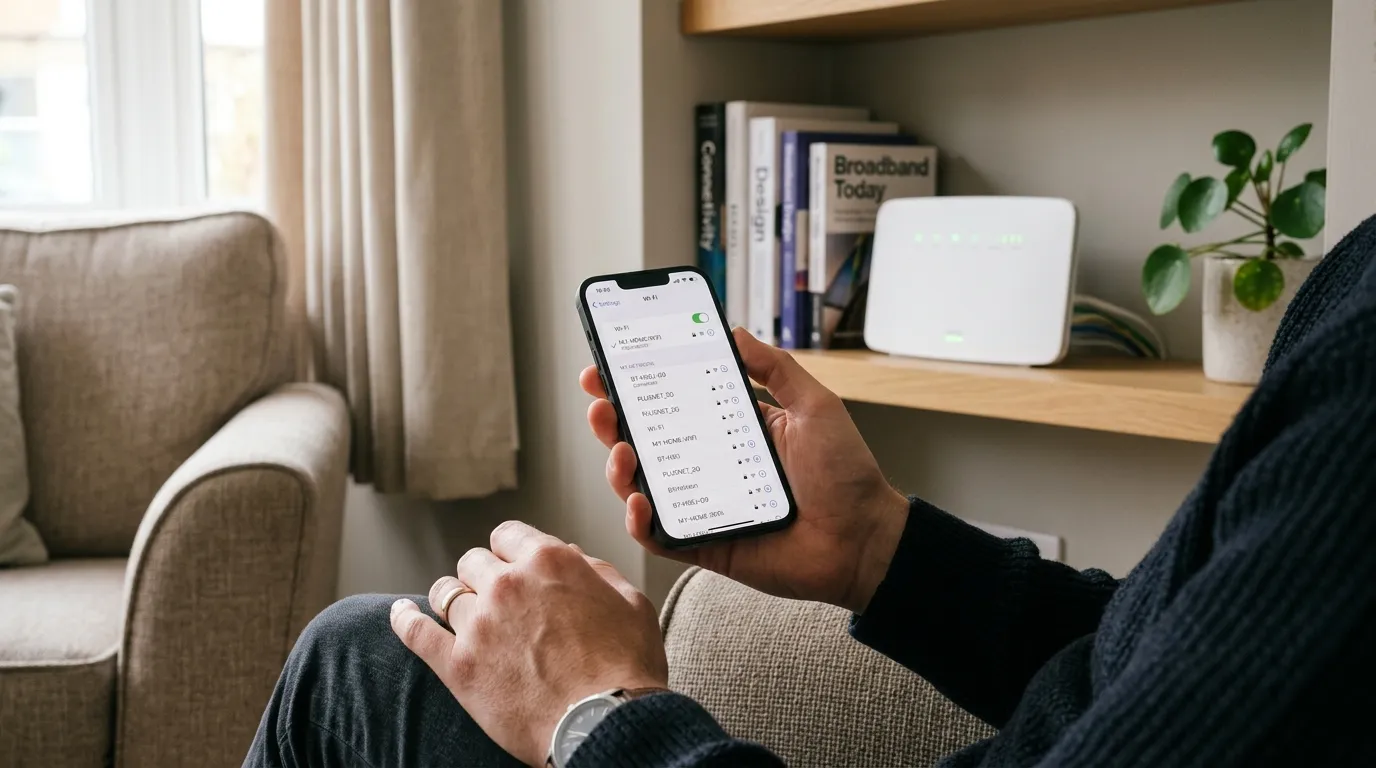
Tap the warning on an iPhone and it says “This network is blocking encrypted DNS traffic”. The rest of the message, that the names of sites your device visits may be monitored and recorded by other devices on this network, is what alarms people. It is technically accurate and practically misleading, and this page explains the difference.
What the warning actually says
Your phone wants to send its DNS lookups encrypted, so that the record of which websites you ask for is hidden from anything sitting between you and the internet. That is DNS over HTTPS or DNS over TLS, depending on the mechanism.
DNS is the lookup step. Before your phone can load a site, it has to ask “what is the address for this hostname?” Historically that question and its answer travelled in plain text, so anyone on the path could read a list of every site you visited, even when the sites themselves were encrypted.
When your phone tries to encrypt that step and the network refuses to pass it, iOS raises the Privacy Warning. It is a notice that one specific privacy improvement is unavailable here. It is not a report that anything has been breached.
Why it is almost always your ISP filter
Here is the part that most guides on this topic miss, and it is the whole explanation in a British home.
Filtering only works if the filter can see and answer your DNS queries. Sky Broadband Shield, TalkTalk HomeSafe, BT’s parental controls and Virgin Media’s Web Safe all work by handling DNS at the network level and refusing to resolve blocked categories. TalkTalk states this plainly in its own HomeSafe documentation: the filters use TalkTalk’s own DNS servers and will not work if you are using a third-party DNS server.
So encrypted DNS and ISP-level content filtering are mutually exclusive by design. If your phone succeeded in encrypting its lookups, the filter would be blind, and the filter’s entire job is not to be blind. Sky’s own community forum carries the same explanation for the identical warning.
That is the trade-off in one line: you cannot have both the family filter and encrypted DNS on the same network. Your phone is telling you which one is currently winning.
Other, less common causes:
- A captive portal. Hotel, café, airport, train and hospital Wi-Fi commonly intercepts DNS to run its sign-in page. The warning on a hotel network is expected.
- A network-level ad blocker. Pi-hole, AdGuard Home and similar work exactly like the ISP filters do, so a Pi-hole in the cupboard produces this warning too. That is your own device doing what you installed it for.
- Business or school networks with content filtering or DNS monitoring.
- Some VPN and security software that redirects DNS to its own resolver.
- Genuinely old or misconfigured routers that block the ports or protocols encrypted DNS uses.
How to decide whether to do anything
Work through this honestly, because the right answer for most home networks is to leave it alone.
Is it your own home network with your own filter switched on? Then the warning is describing a system you chose. Clearing it means turning the filter off. If you have children in the house, the filter is probably the more valuable of the two things. Leave it.
Is it a public network? The warning is a useful reminder that this is not a network to do anything sensitive on. Do not attempt to fix it. If you want privacy on public Wi-Fi, that is a VPN’s job, not a DNS setting’s.
Is it your home network with no filter and no Pi-hole? Now it is worth investigating, because something is intercepting DNS that you did not put there.
Is the network at work or school? The filtering is deliberate and not yours to change. It will also be logged.
Three ways to clear it, in order of sanity
1. Turn off the ISP filter, if you no longer want it
If the children have grown up, or you never wanted Web Safe or Broadband Shield in the first place, disable it in your provider’s account portal. It is a website setting, not a router setting, on all four of the big UK ISPs. Once the filter stops intercepting DNS, your devices can encrypt their lookups and the warning disappears.
Do this deliberately. It removes the content filtering from every device in the house, including the ones you were not thinking about.
2. Set encrypted DNS on the device itself
If you want encrypted DNS on your own phone or laptop but do not want to change the household network, configure a DNS provider that supports encryption at the device level. Cloudflare, Google and Quad9 all publish encrypted resolvers, and both iOS and Android support configuring one. The device then bypasses the ISP resolver, and the filter stops applying to that device.
Two honest caveats. It only fixes the device you configure. And on a filtered household network, it is deliberately stepping around the filter, which is a decision to make consciously rather than accidentally.
3. Check for something you did not install
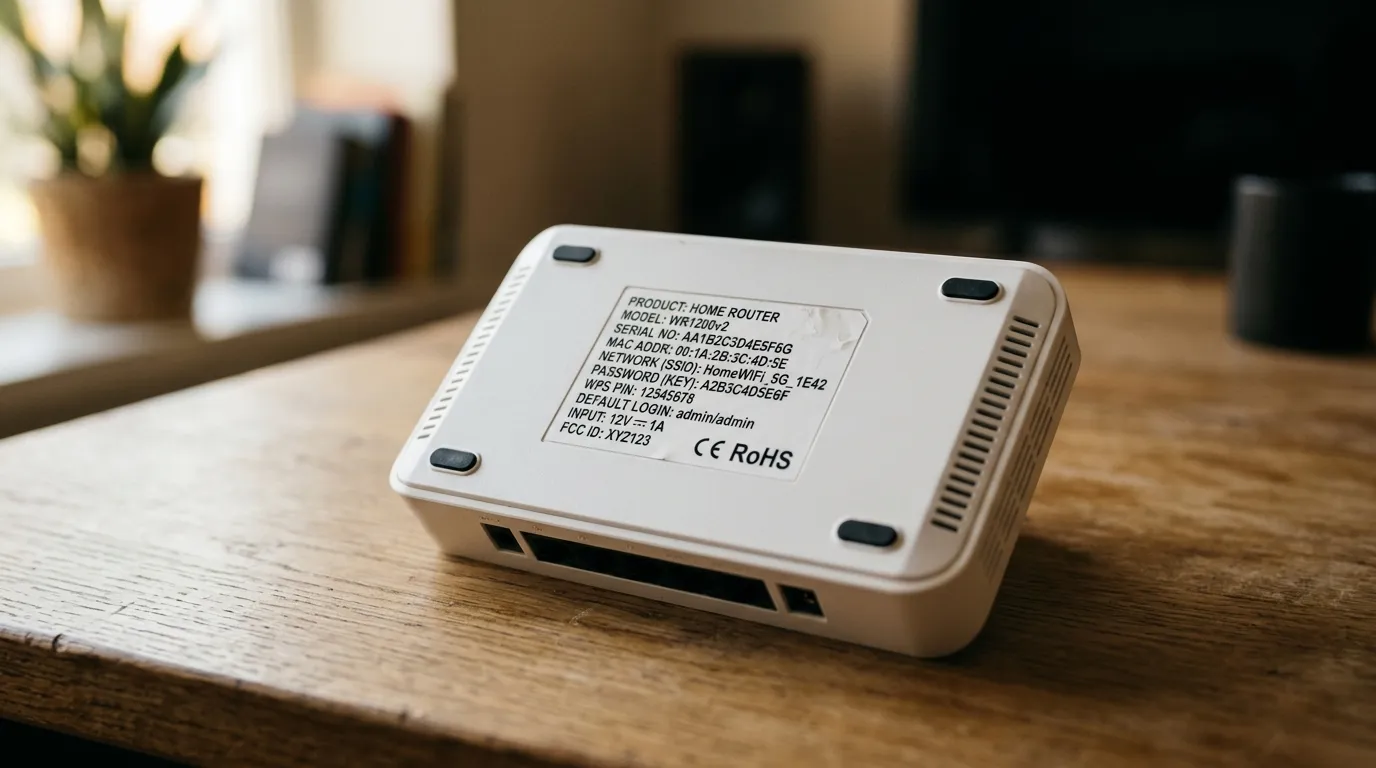
If there is no filter and no Pi-hole and the warning persists on your own network, work through the ordinary suspects: reboot the router, confirm nothing is set as a custom DNS server in the router’s settings, check for a security app on the device that redirects DNS, and make sure the router firmware is current. Our guide to resetting a router without losing your settings covers doing that safely, and if you have never changed the admin password, UK ISP router default passwords is worth reading first.
Three other warnings people confuse with this one
These appear in the same part of the Wi-Fi settings and mean completely different things.
“Weak Security”
A different warning entirely, and this one you should act on. It appears when the network is running older encryption, typically WPA or WPA2 with TKIP, rather than modern WPA2 with AES or WPA3. Unlike the privacy warning, this describes a real weakness in how your Wi-Fi is protected.
The fix is in the router settings: switch the security mode to WPA2 (AES) or, better, WPA2/WPA3 mixed mode. Very old devices may need WPA2 rather than WPA3-only. If your router does not offer WPA3 at all, that is a fair signal it is due for replacement; see Wi-Fi 6 routers.
“Private Wi-Fi Address”
This is a setting, not a warning. Your device presents a randomised hardware address to each network instead of its real one, so networks cannot track you across locations by hardware address.
Apple documents the options, and from iOS 18 and macOS Sequoia there are three rather than a simple toggle: Off uses the device’s real hardware address, Fixed uses a private address that does not change for that network, and Rotating changes it periodically.
Leave it on Rotating for public networks. Set it to Fixed or Off only for a specific network that needs to recognise your device consistently, such as a home network using MAC address reservations or filtering, or an office network with device registration. Android and Windows 11 do the same thing under “randomized MAC address” and “random hardware addresses” respectively.
“No Internet Connection” while connected
Also unrelated, and much more annoying. That is a working Wi-Fi link with no route out, and it has its own set of causes. See Wi-Fi connected but no internet.
The short version
The Privacy Warning is informational. On a filtered home network it is the expected consequence of the filter, on public Wi-Fi it is a sensible reminder, and on an unfiltered home network with nothing installed to explain it, it is worth ten minutes of investigation. It is not an intrusion alert, and no attacker put it there.
Frequently asked questions
What does the privacy warning on Wi-Fi mean? That the network is blocking your device’s attempt to send DNS lookups encrypted, so the list of sites you request could be visible to whatever is handling DNS on that network. It is a notice about one privacy feature being unavailable, not a report that your connection has been compromised.
Is a Wi-Fi privacy warning dangerous? No, by itself. On a home network with ISP parental controls or a Pi-hole, it is the expected result of a system you chose. On public Wi-Fi it is a reminder to avoid anything sensitive. It becomes worth investigating only on your own network when nothing you installed explains it.
Why does my home network show a privacy warning? Almost always because your broadband provider’s content filter, such as Sky Broadband Shield, TalkTalk HomeSafe, BT parental controls or Virgin Media Web Safe, intercepts DNS to do its filtering. Those filters cannot work on encrypted DNS, so one of the two has to give way.
How do I get rid of the privacy warning? Either turn off the ISP filter in your provider’s account portal, or configure an encrypted DNS provider on the individual device. The first removes filtering for the whole household; the second only fixes one device and steps around the household filter, so choose knowingly.
Is the privacy warning the same as “Weak Security”? No. Weak Security means the Wi-Fi itself is using outdated encryption such as WPA or TKIP, and that is a genuine weakness worth fixing in the router by moving to WPA2 (AES) or WPA3. The privacy warning is only about DNS encryption and says nothing about how your Wi-Fi is secured.
Should I turn off Private Wi-Fi Address to fix it? No, they are unrelated. Private Wi-Fi Address randomises the hardware address your device shows the network and has nothing to do with DNS. Turning it off will not remove the privacy warning, and it reduces your privacy on public networks. Change it only when a specific network needs to recognise your device.