How to Change Your Wi-Fi Channel to Stop Interference
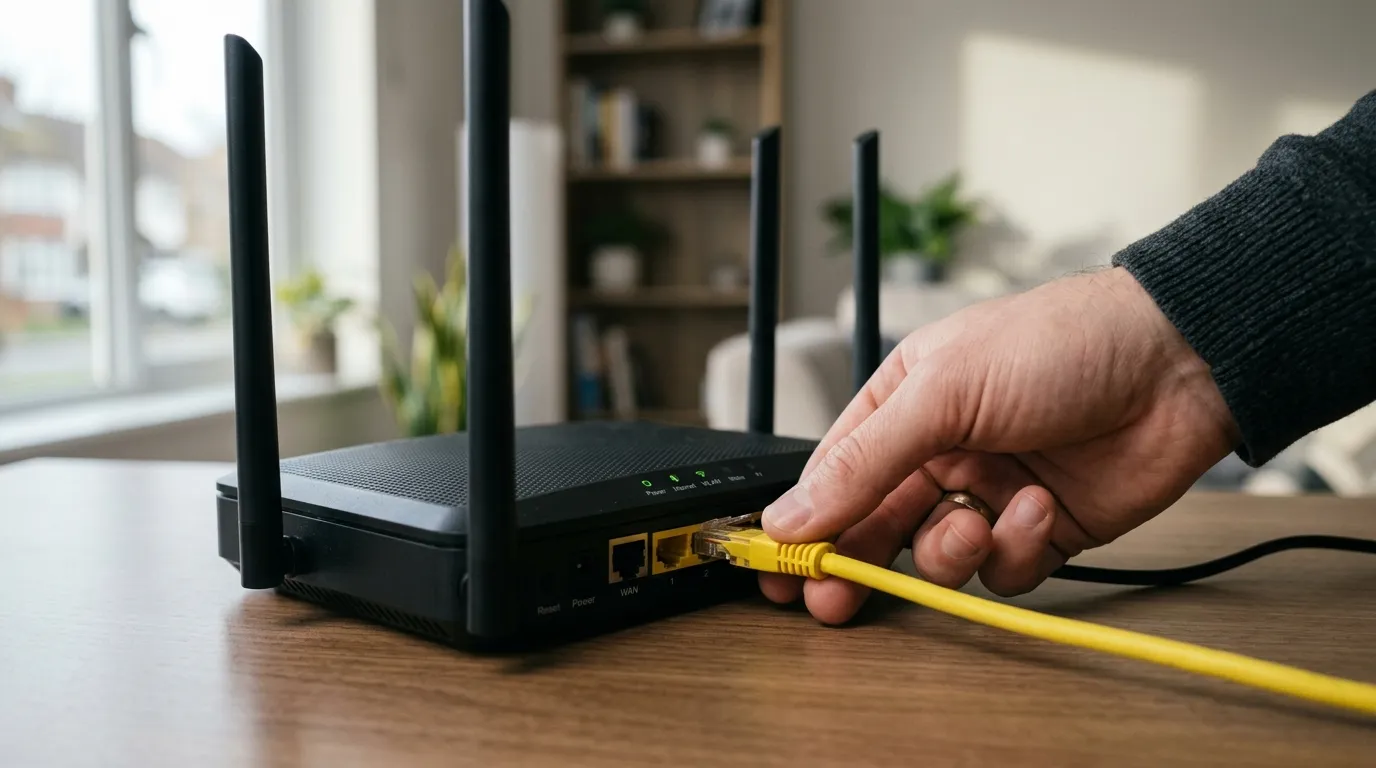
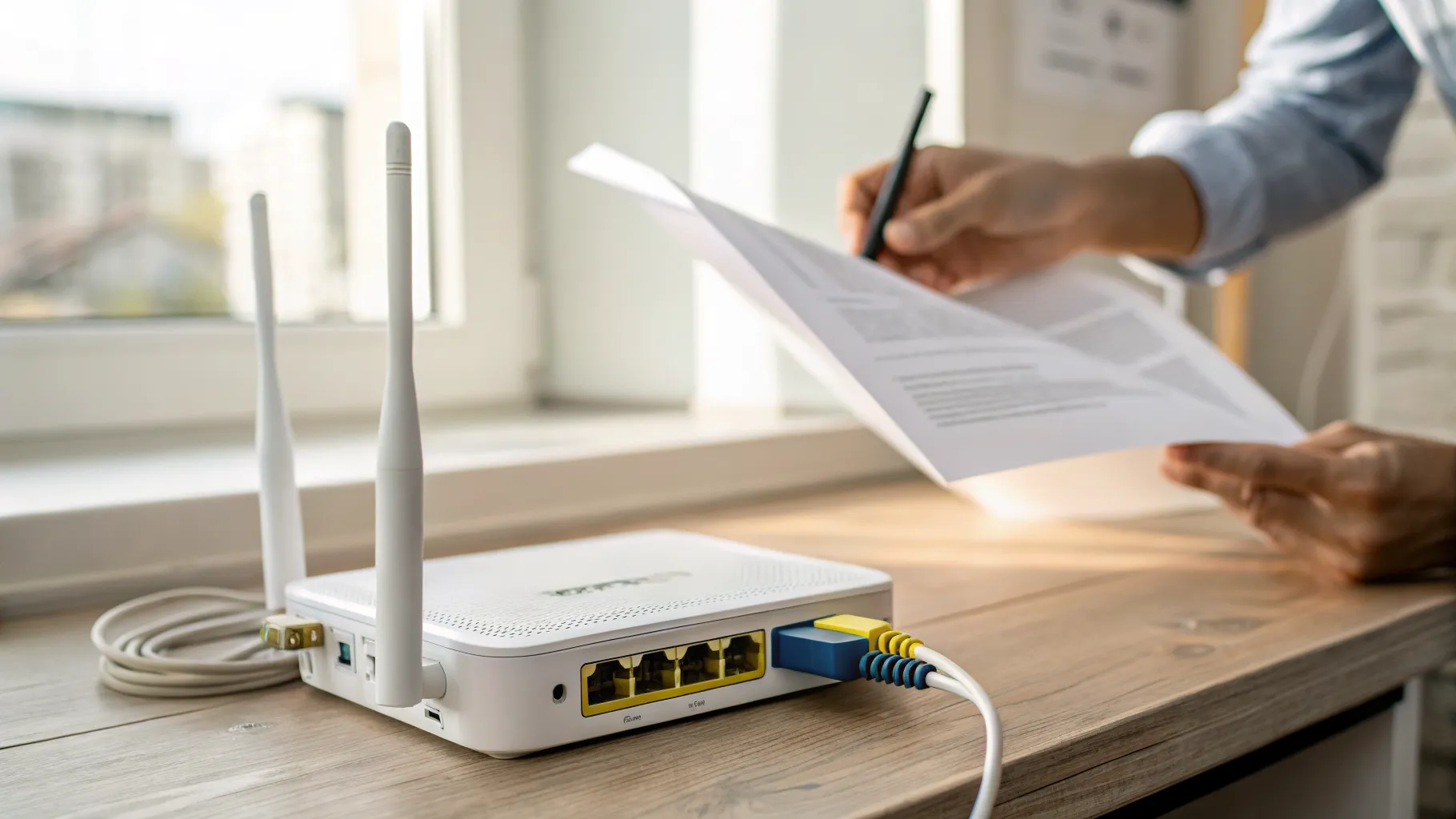
To change your Wi-Fi channel, log in to your router’s admin page in a web browser (usually 192.168.1.1 or 192.168.0.1), open the wireless settings, and pick a fixed channel instead of “Auto”. On the 2.4GHz band, switch to channel 1, 6, or 11, whichever is least used by your neighbours. On the 5GHz band, pick a higher, quieter channel such as 36, 40, 100 or 104. That single change is often what stops the buffering, drop-outs and slow speeds caused by interference.
The rest of this page shows you how to find the busiest channels near you, exactly what to type into the main UK ISP routers, and which channel to choose for your situation.
Why your Wi-Fi channel matters
Your router broadcasts on two frequency bands: 2.4GHz and 5GHz. Each band is split into numbered channels, like lanes on a road. If you and three neighbours all sit in the same lane, your devices fight for space and everything slows down. Moving to a quieter lane clears the congestion.
The 2.4GHz band is the crowded one. In the UK and Europe it has 13 channels, but they overlap each other, so only three of them (1, 6 and 11) sit far enough apart to avoid stepping on one another. The band is also shared with microwaves, baby monitors, Bluetooth devices and older cordless phones, which is why it suffers the most interference.
The 5GHz band is far roomier. It has many more channels and almost all of them are non-overlapping, so congestion is much less likely. The trade-off is range: 5GHz does not travel as far or pass through walls as well as 2.4GHz.
First, find the least busy channel
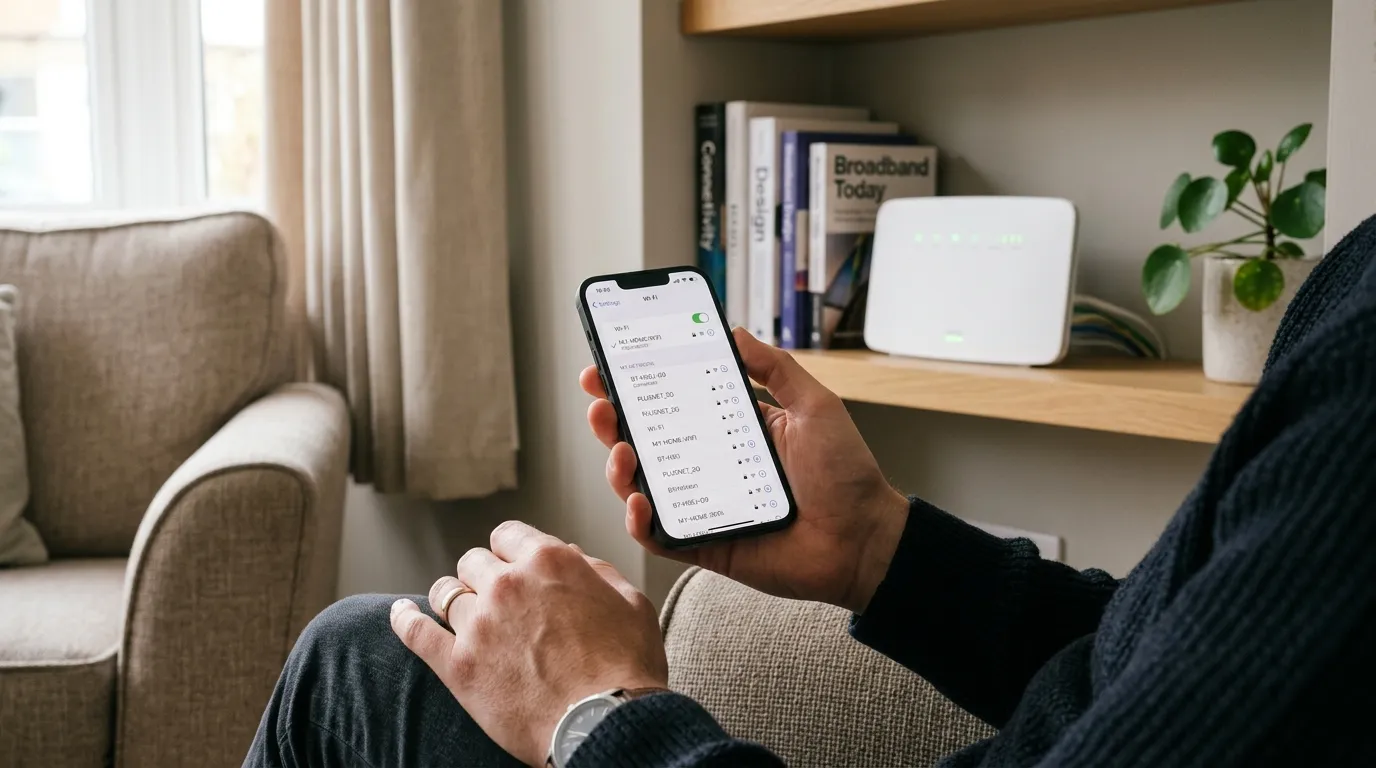
Before you change anything, check what your neighbours are using. Pick the band that matters and choose the channel with the fewest competing networks.
| Device | How to check current channels |
|---|---|
| Android phone | Install a free scanner such as WiFiman or a Wi-Fi analyser app, run a scan, and read off the channel each nearby network is using |
| iPhone or iPad | Apple blocks third-party scanners, so use Apple’s AirPort Utility app (turn on Wi-Fi scanning in iOS Settings first) or check from a computer instead |
| Windows PC | Open Command Prompt and run netsh wlan show networks mode=bssid to list networks, their channels and signal strength. NirSoft’s free WifiInfoView gives a clearer view |
| Mac | Hold the Option key and click the Wi-Fi icon in the menu bar to see your current channel, or use Wireless Diagnostics (in the Window menu, choose Scan) for a full list |
Make a note of which of channels 1, 6 and 11 is least crowded on 2.4GHz, and which 5GHz channels are quiet. That is the channel you will set in the next step.
How to change the channel on UK ISP routers
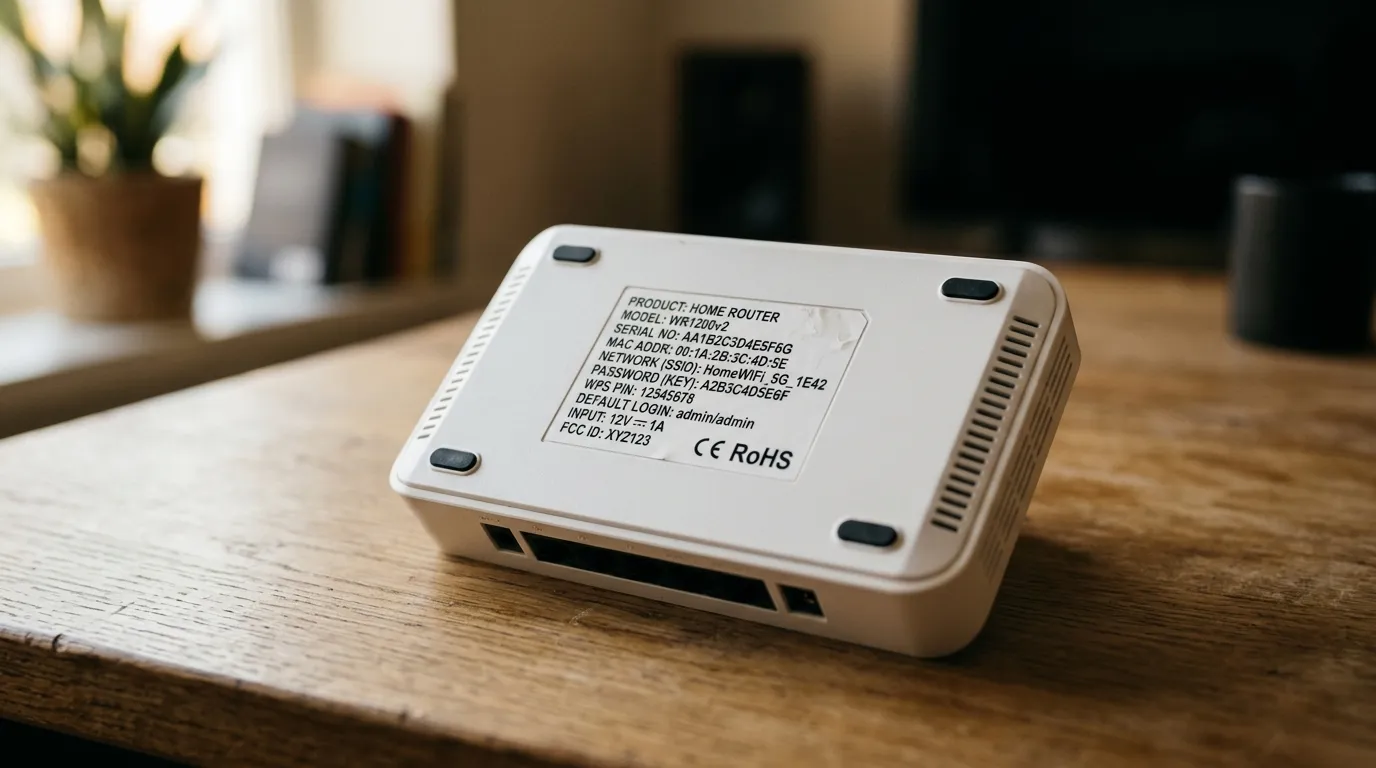
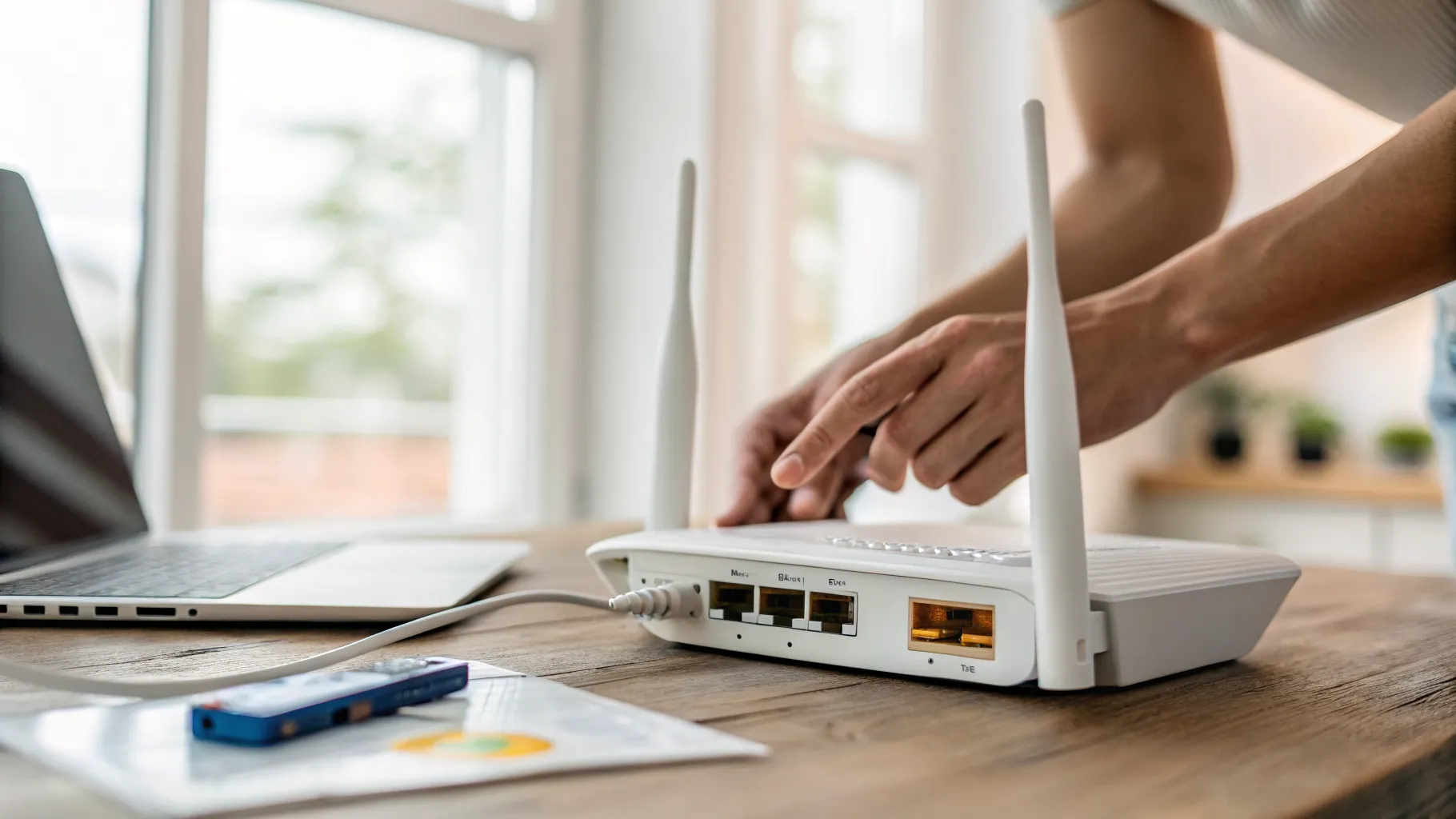
The exact menus differ by router, but the pattern is the same every time: log in, find the wireless settings, change “Auto” to a fixed channel, and save. Here is where to start for the four biggest UK providers. Your admin password is usually printed on a sticker on the router itself.
BT (Smart Hub 2 / Hub 3): go to 192.168.1.254, sign in with the admin password from the sticker, then open Advanced Settings and Wireless. Switch the channel from Auto to your chosen number for each band.
Sky: go to 192.168.0.1, sign in (older hubs use username admin, password sky; newer Sky hubs print a password on the base). Open the wireless or advanced settings to set the channel.
Virgin Media (Hub 3, 4, 5): go to 192.168.0.1, sign in with the settings password on the base of the hub, then open Advanced Settings and Wireless. Note that Virgin hubs use Channel Optimisation by default, so you may need to turn that off before you can set a fixed channel.
TalkTalk: go to 192.168.1.1, sign in with the details under the removable card on the back of the Wi-Fi Hub (default is often admin). Open the wireless settings to choose a channel.
If you are on EE, Plusnet, Vodafone or another provider, the principle is identical: 192.168.1.1 or 192.168.0.1 in the browser, sign in, find wireless settings, change the channel. Apply the change and your devices will reconnect within a minute or so.
For general router login help, the providers above all publish their own guides, and Ofcom has practical advice on improving home broadband speeds if a channel change alone does not fix things.
Which channel should you actually pick?
2.4GHz: stick to 1, 6 or 11
These are the only three channels that do not overlap. Channel 6 is the most common default, which makes it the most congested in many streets, so 1 or 11 is often the quieter choice. Use your scan to decide. Set the channel width to 20MHz on 2.4GHz; the wider 40MHz setting just causes more overlap on an already cramped band.
5GHz: go higher and use DFS channels
The 5GHz band in the UK is governed by Ofcom and split into sub-bands with different rules:
| 5GHz sub-band | Channels | Use | Notes |
|---|---|---|---|
| Lower (U-NII-1) | 36 to 48 | Indoor only | Lower power, no DFS. The easy default, but often the busiest in flats |
| Middle (U-NII-2A) | 52 to 64 | Indoor only | Requires DFS (radar detection) |
| Upper (U-NII-2C) | 100 to 140 | Indoor and outdoor | Higher power, requires DFS (radar detection) |
Channels 36, 40, 44 and 48 are the easy default, but in a busy area they fill up fast. The higher DFS channels (100, 104, 108, 112 and up) are usually much clearer because fewer routers and devices use them. DFS, or Dynamic Frequency Selection, means the router listens for nearby weather and military radar and moves channel if it detects any, which is harmless for home use. If you live near an airport you may occasionally see a DFS channel switch on its own; if that bothers you, stay on 36 to 48. You can read more about the UK 5GHz band rules from Ofcom’s spectrum information, since these power and indoor-only limits are set by the regulator, not your ISP.
Should you split your 2.4GHz and 5GHz networks?
Many UK routers ship with both bands sharing one network name (one SSID) and “band steering” deciding which your device uses. That is fine for most people. But band steering is imperfect: devices often cling to 2.4GHz long after a 5GHz signal would be faster, leaving the quieter band empty.
If you keep landing on the slow band, give the two bands separate names (for example “Home” and “Home-5G”) in your router settings. You can then connect each device to the band you want by hand. It is more fiddly, but it gives you full control, which pairs well with manually setting channels. If you would rather not manage it, leave the single network and just fix the 2.4GHz channel, where most interference lives.
When changing the channel will not help
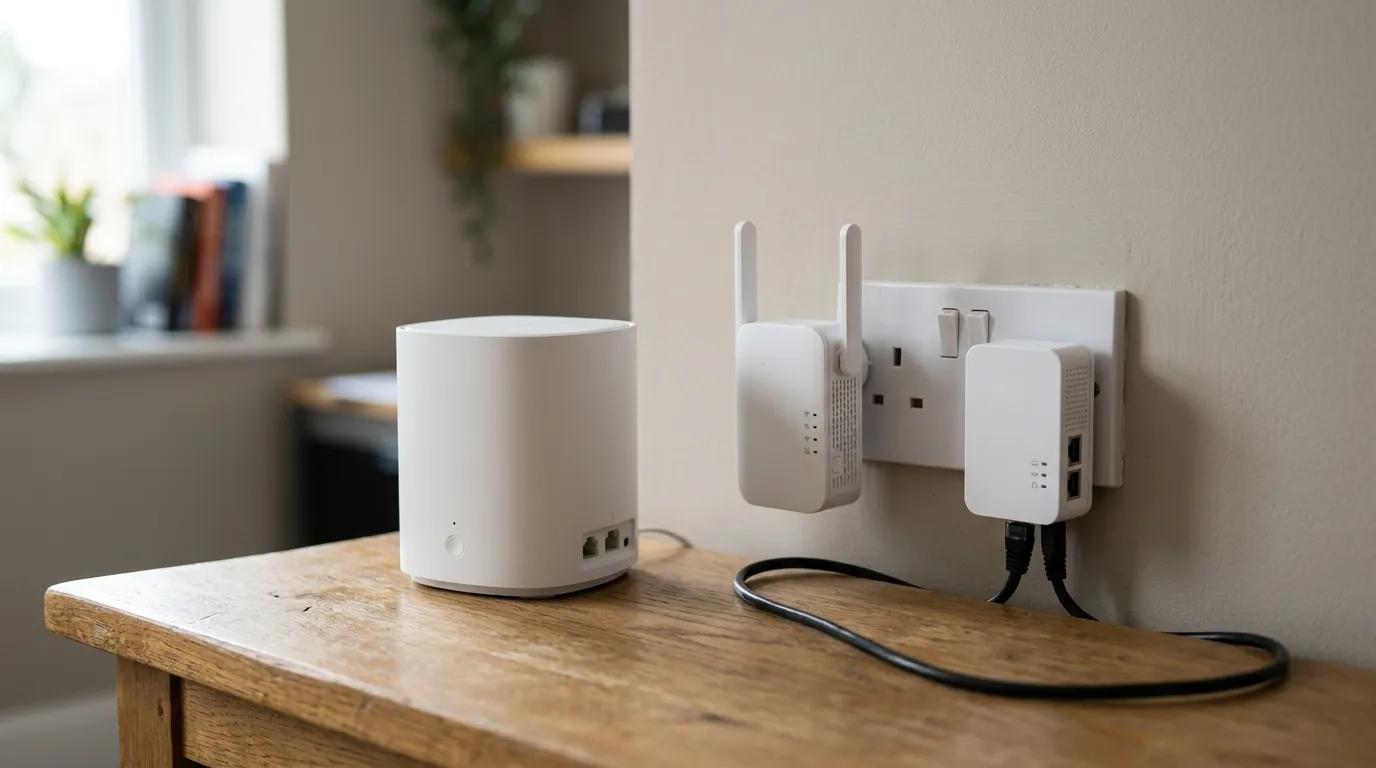
A channel change fixes interference. It does not fix everything. If your speeds are slow everywhere in the house, the problem is more likely distance, thick walls, or the line itself. In those cases, moving the router to a central, open spot, adding a mesh node or extending coverage to a dead zone does more than any channel tweak. And if every channel is busy and crowded, a Wi-Fi 6 or Wi-Fi 6E router gives you access to cleaner spectrum that older hardware cannot reach.
Frequently asked questions
What is the best Wi-Fi channel to stop interference? On 2.4GHz, use channel 1, 6 or 11, whichever your phone’s Wi-Fi scanner shows is least used nearby. On 5GHz, pick a higher channel such as 36, 40, 100 or 104. There is no single best channel for everyone; the right one is whichever is quietest where you live.
Does changing the Wi-Fi channel actually speed up the internet? It can, but only if interference was the cause. Moving to a clear channel removes the congestion from overlapping networks, which fixes buffering and drop-outs. It will not raise the maximum speed your broadband line delivers.
Should I set my router to Auto or pick a channel manually? Auto works for many homes and re-checks on its own. But it can be slow to react and sometimes parks you on a busy channel. If you have ongoing interference, set a fixed channel by hand using a scan as your guide.
Why does my router keep changing channel by itself? On 5GHz, DFS channels (52 to 64 and 100 and above) switch automatically if the router detects radar, which is normal and required by Ofcom rules. On other channels, an Auto setting may be re-selecting. Set a fixed, non-DFS channel such as 36 to 48 if you want it to stay put.
How do I check which Wi-Fi channel I am on?
On a Mac, hold Option and click the Wi-Fi icon. On Windows, run netsh wlan show networks mode=bssid in Command Prompt. On Android, a free Wi-Fi analyser app shows it. Your router’s admin page also displays the current channel.
Is 2.4GHz or 5GHz better for avoiding interference? 5GHz has far more channels and they do not overlap, so it suffers much less interference and is faster. 2.4GHz reaches further and through more walls. Use 5GHz close to the router and 2.4GHz for distance and older devices.